WordPress Navigation Menus: Classic and Block Themes
I once launched a client’s site with a perfectly designed homepage but forgot to assign the navigation menu to a theme location. Visitors couldn’t find any other pages, and the bounce rate hit 94% before I caught the mistake. That embarrassing moment taught me navigation isn’t an afterthought; it’s the backbone of user experience.
Website navigation isn’t merely a collection of links. It forms a critical architectural element that guides users through your digital presence. Effective WordPress navigation menus dictate user experience, influence conversion rates, and profoundly impact search engine discoverability. Understanding how to create and manage navigation menus in WordPress separates amateur sites from professional ones. This guide builds on our WordPress Basics and Installation foundation to help you master this fundamental skill.
The menu workflow depends on the active theme. Classic themes commonly expose Appearance → Menus or the Customizer. Block themes use the Site Editor and Navigation block, and the classic Menus screen may not appear. The theme also controls available menu locations and much of the responsive presentation.
Practical checklist
- Keep the primary navigation short, descriptive, and ordered by visitor tasks.
- Use submenus sparingly and test keyboard, touch, focus, and mobile behavior.
- If a menu disappears after a theme change, check its assigned location or the Navigation block before rebuilding it.
⚡ Quick Summary (TL;DR)
- Clear website navigation acts as the structural backbone of your user experience, directly influencing your site’s bounce rates and search visibility.
- You will learn how to easily build, arrange, and nest dropdown choices before assigning them to your theme’s primary display areas.
- Setting up professional WordPress navigation menus strategically will guide your visitors exactly where you want them to go without any confusion.
- We will also cover mobile responsiveness and advanced settings so your links look beautiful and work perfectly on every device.
Understanding the WordPress Menu System Structure
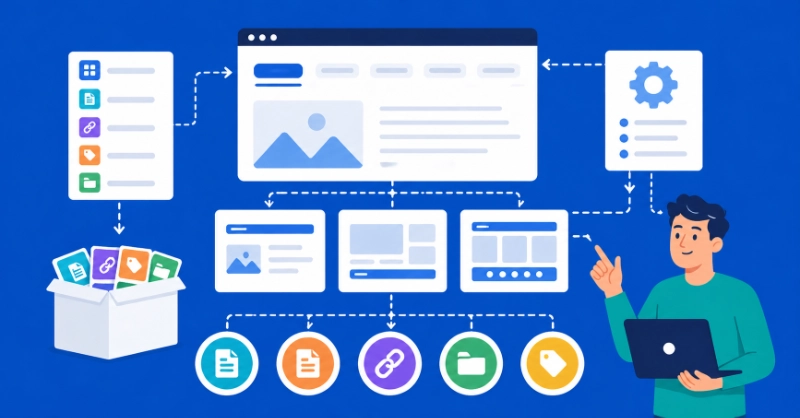
WordPress separates “Menus” from “Menu Locations” at its operational core.
A menu represents a collection of links you define. A menu location is a predetermined area within your theme (like “Primary Navigation” or “Footer Menu”) where you display a chosen menu. This distinction is vital because you create the menu content, then assign it to a specific spot.
Why This Architecture Matters
The system allows remarkable flexibility.
You can create multiple menus and assign different ones to various locations. You can even display the same menu in several places simultaneously. This architecture supports complex site structures without redundant data entry.
WordPress Menu Item Types
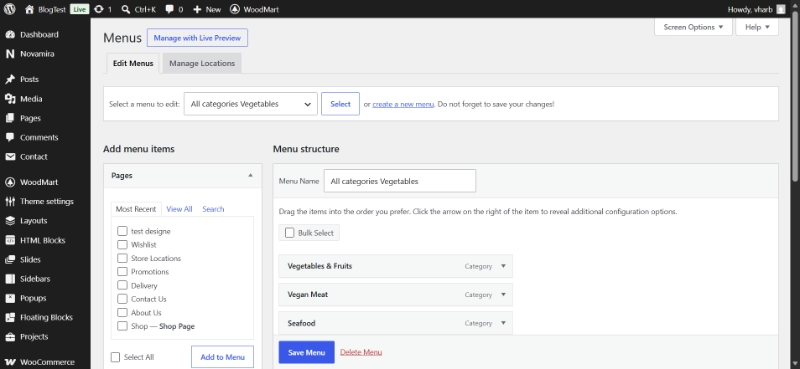
WordPress navigation menus can comprise several item types:
- Pages: Your static content pages (About Us, Services, Contact)
- Posts: Individual blog posts, less common in primary navigation but useful for niche menus
- Custom Links: Any URL, internal or external, essential for linking to external resources
- Categories: Links to archive pages displaying all posts within a particular category
- Tags: Similar to categories, linking to tag archive pages
Less frequently used but available through “Screen Options” are post formats and sometimes custom post types or taxonomies introduced by plugins.
Creating Your First WordPress Navigation Menu Step-by-Step
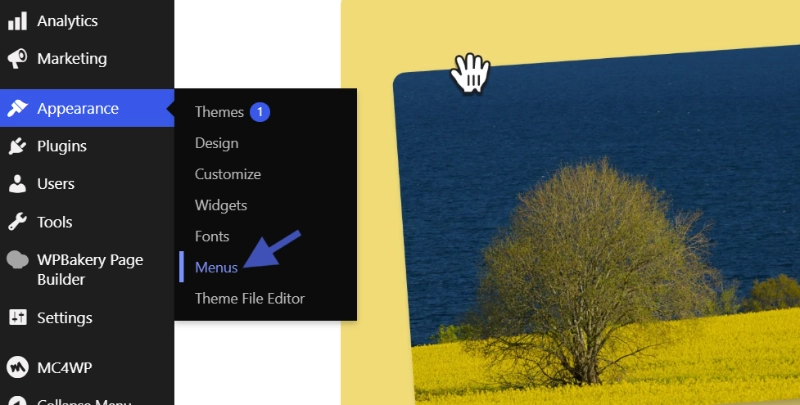
The process begins in your WordPress dashboard.
Navigate to Appearance, Menus. This interface handles all menu management operations.
Step 1: Create a New Menu
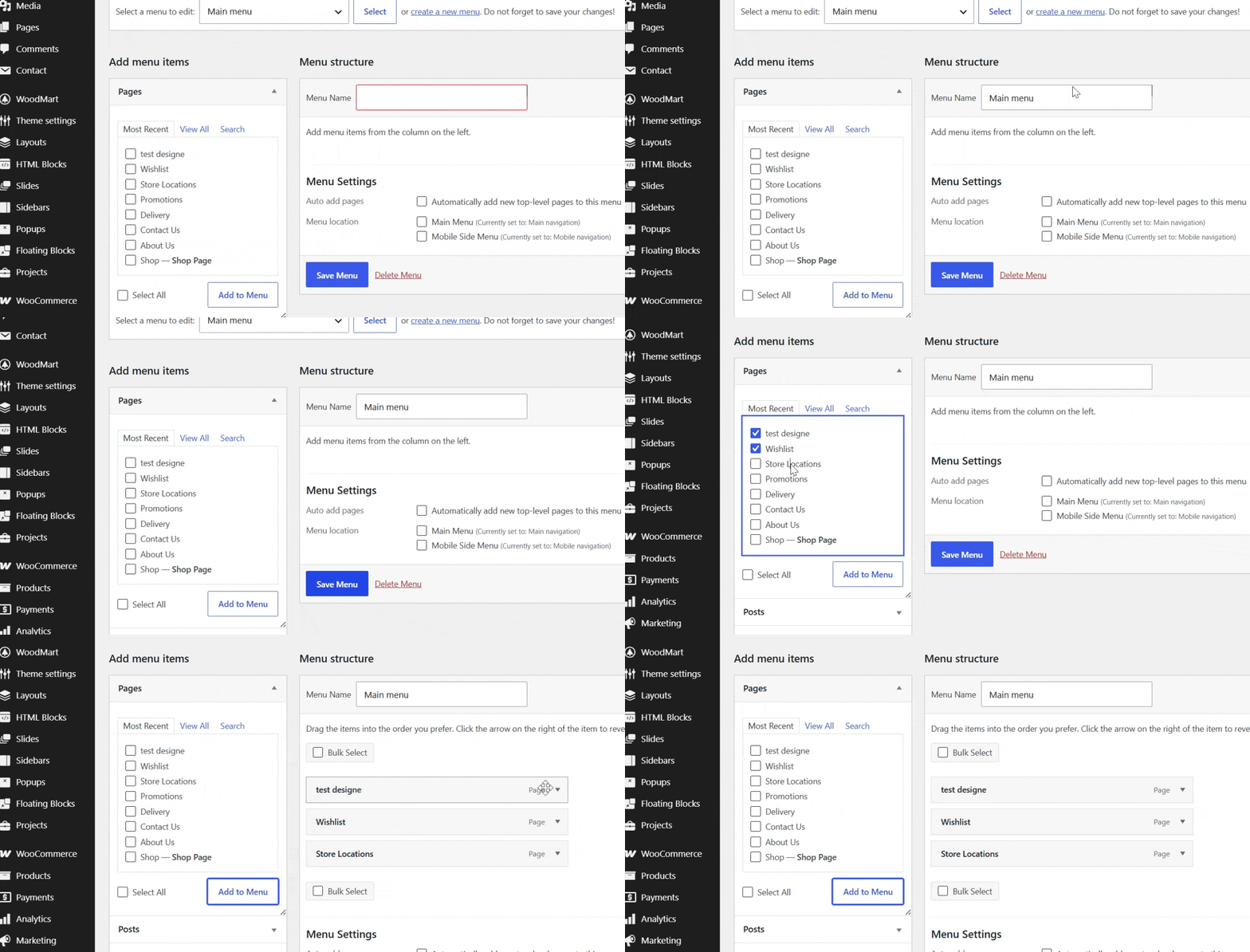
Click the “create a new menu” link.
Assign it a descriptive name like “Main Header Nav” or “Footer Links.” This name exists for internal reference only, helping you identify it later. Click “Create Menu” to proceed.
Step 2: Add Items to Your Menu
On the left side of the screen, you’ll see boxes for “Pages,” “Posts,” “Custom Links,” and “Categories.”
Select the desired items. For pages, check the boxes next to the pages you want included. Click “Add to Menu.” They appear in the main “Menu Structure” area on the right. Repeat this process for any posts, categories, or custom links.
Step 3: Configure Custom Links
Custom links require a URL and link text.
Ensure the URL is correct, especially for external sites. Include the `https://` prefix to avoid broken links. This step trips up beginners more than any other.
Step 4: Arrange Menu Structure
The “Menu Structure” area is where you organize items.
Drag and drop items to reorder them vertically. To create sub-menus (dropdowns), drag an item slightly to the right beneath its parent. WordPress handles up to three levels of nesting by default, though many themes support more.
Excessive nesting degrades usability, so exercise caution. Once satisfied with the arrangement, click “Save Menu.”
Step 5: Assign Menu to a Display Location
After saving, you must assign the menu to a display location.
Below the “Menu Structure” area, or within the “Manage Locations” tab, you’ll see “Menu Settings.” Your theme defines these locations. Common locations include “Primary Navigation,” “Secondary Navigation,” or “Footer Menu.”
Check the box for the appropriate location and click “Save Menu” again. The menu will now appear live on your site.
Advanced WordPress Menu Management Techniques
Basic menu creation is straightforward.
Professional site management demands deeper understanding of available options and adherence to specific best practices.
Using Screen Options for Enhanced Control
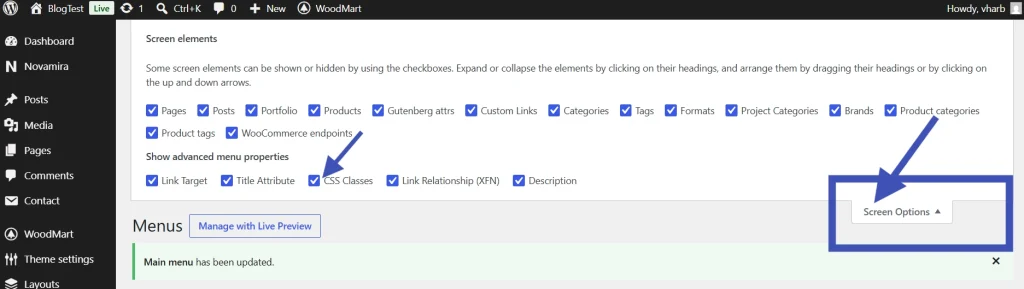
Look for “Screen Options” in the top-right corner of the menu editor screen.
Clicking the button reveals additional tools. “Link Target” allows you to open a link in a new tab (useful for external links). “Title Attribute” provides a tooltip on hover, which aids accessibility and user clarity.
“CSS Classes” is essential for developers. This option allows you to assign unique classes to individual menu items. You can then target these classes with CSS rules in your theme’s stylesheet, enabling precise control over styling and hover effects.
Optimizing WordPress Navigation for User Experience
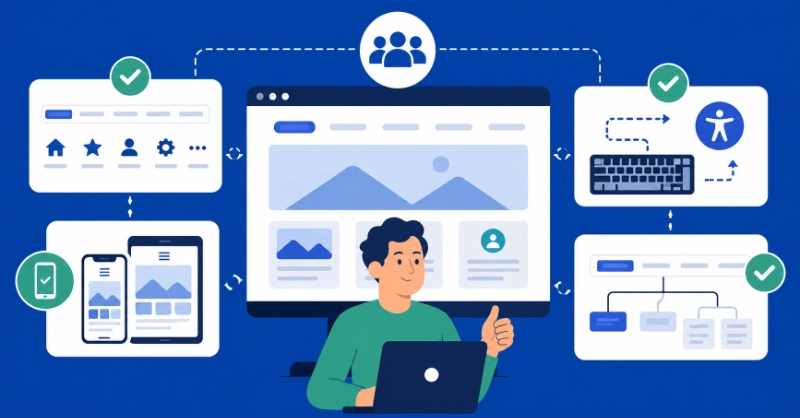
Navigation optimization directly impacts how visitors interact with your site.
Keep Navigation Simple and Clear
A menu should be easy to scan and understand.
Avoid jargon completely. Use clear, concise labels that visitors recognize immediately. Cognitive load increases with too many choices. For most sites, primary navigation should contain no more than 7-9 top-level items.
A 2023 study by the Nielsen Norman Group confirms that user attention drops significantly with overly complex menus, leading to lower task completion rates.
Ensure Mobile Responsiveness
In 2026, mobile traffic dominates web usage.
Over 60% of global web traffic originates from mobile devices, a figure consistently reported by analytics firms like Statista. Your WordPress navigation must function flawlessly on small screens. Ensure dropdowns are touch-friendly, and the hamburger menu icon is easily discoverable.
Test thoroughly across various devices before launching.
Follow Accessibility Best Practices
Menus must be navigable by keyboard and screen readers.
Use proper semantic HTML, which WordPress generally handles automatically. The “Title Attribute” helps, but robust accessibility also requires clear focus states for keyboard users and ARIA attributes for complex menu structures.
Maintain Navigation Consistency
Navigation should remain consistent across your site.
Don’t change primary menu items or structure without compelling reasons. This disorients users and damages trust. Consistency builds familiarity and improves usability metrics.
SEO Considerations for WordPress Navigation Menus
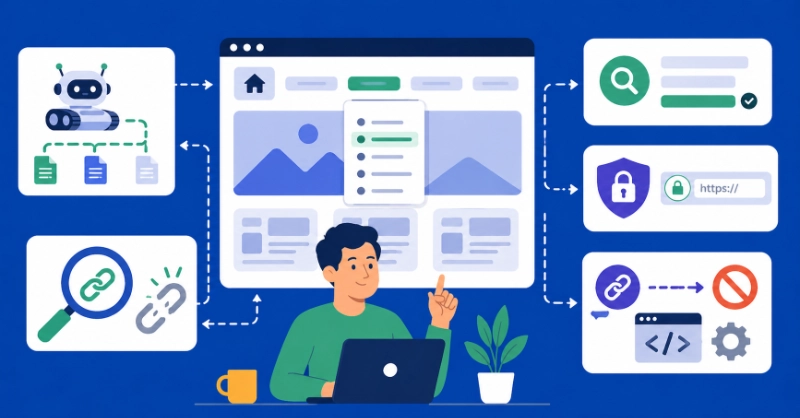
Search engine crawlers follow links.
Your navigation structure directly impacts how efficiently search engines discover and index your content.
Manage Crawl Depth Strategically
Keep your most important pages within a few clicks of the homepage.
Deeply buried conis gets crawled less frequently. This affects how quickly Google indexes new content and how much authority it receives through internal linking.
Use Descriptive Anchor Text
Use descriptive, keyword-rich anchor text for menu items.
“Services” is acceptable, but “WordPress Development Services” proves more informative for both users and search engines. However, don’t keyword stuff. Maintain natural language that reads smoothly.
Check for Broken Links Regularly
Broken links create poor user experience and waste crawl budget.
Implementing an SSL certificate for WordPress, for example, often involves ensuring all internal links, including menu items, are updated to use `https://`. Review our guide on Installing an SSL Certificate for WordPress for complete instructions.
Apply NoFollow to Irrelevant Links
For truly unimportant or disclaimer links that you don’t want search engines to crawl, use the `rel=”nofollow”` attribute.
You can add this via a custom link or through a plugin. This prevents diluting your site’s link authority on pages that don’t matter for SEO.
Troubleshooting Common WordPress Menu Problems
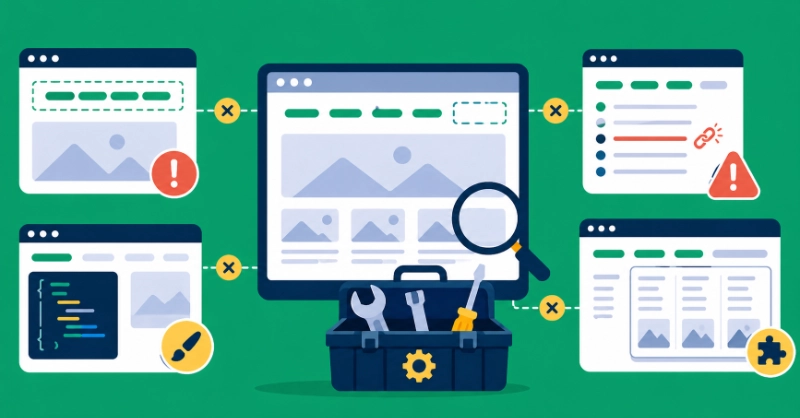
Even experienced professionals encounter menu challenges.
Menu Not Appearing on Site
The most common cause involves forgetting to assign the menu to a theme location after creation.
Revisit Appearance, Menus, and Manage Locations to verify the assignment. This simple oversight causes 80% of “missing menu” support requests.
Menu Items Disappearing
If a page or post gets deleted, it vanishes silently from your menu.
WordPress shows a “broken link” indicator if a custom link’s URL is malformed. Always review your menu after deleting content to ensure nothing breaks unexpectedly.
Navigation Styling Problems
If your menu looks incorrect, it’s almost certainly a CSS issue.
Inspect the element in your browser developer tools to identify applied styles and their source. This often involves conflicting theme or plugin styles. Custom CSS classes become invaluable for overriding defaults cleanly.
Mega Menus Not Functioning
Mega menus (large, multi-column dropdowns) typically require specific theme support or a dedicated plugin.
If mega menus aren’t working, verify your theme’s documentation or plugin settings. Not all themes support this advanced navigation structure.
WordPress Navigation in the Block Editor Era
The introduction of Full Site Editing (FSE) and block-based themes has changed navigation management.
For FSE themes, the traditional “Appearance, Menus” screen is slowly being deprecated. Instead, navigation blocks get managed directly within the Site Editor at Appearance, Editor.
Block-Based Navigation Advantages
This block-based approach offers visual, drag-and-drop editing directly on the canvas.
You gain greater real-time control over layout and styling without touching code. You interact with a “Navigation Block,” which then contains individual “Link Blocks.” This offers profound implications for design freedom but requires adapting to a new workflow.
Professionals should familiarize themselves with the Site Editor for modern WordPress theme development.
Headless WordPress Navigation
For headless WordPress implementations, navigation works entirely differently.
WordPress acts solely as a content repository. The front-end application (React, Vue.js, etc.) handles navigation rendering. WordPress’s REST API or GraphQL endpoints deliver menu data, and the front-end displays it. This setup offers ultimate flexibility but shifts menu management away from the WordPress admin interface entirely.
Additional Resources for WordPress Navigation
Continue building your WordPress expertise with these essential guides:
- Bluehost has more information about how to add a navigation menu in WordPress (Beginner’s Guide)
- Master the complete process in WordPress Basics and Installation
- Test locally before going live using How to Install WordPress Locally on Windows and Mac
- Secure your site by installing an SSL certificate for WordPress
- Explore advanced design in WordPress Theme Customization and Design
- How to Add a Navigation Menu in WordPress (Beginner’s Guide)
A well-structured WordPress navigation menu represents an investment in your site’s long-term success. It impacts user satisfaction, conversion rates, and SEO performance simultaneously. Take time to plan your menu structure thoughtfully before building it. Consider user intent, information architecture, and accessibility from the start. Whether you’re developing locally or managing a live production site, understanding your menu system is non-negotiable. Master these techniques, and you’ll create navigation that guides visitors effortlessly to the content they need. Return to WordPress Basics and Installation whenever you need to review the foundational concepts that make professional WordPress sites possible.