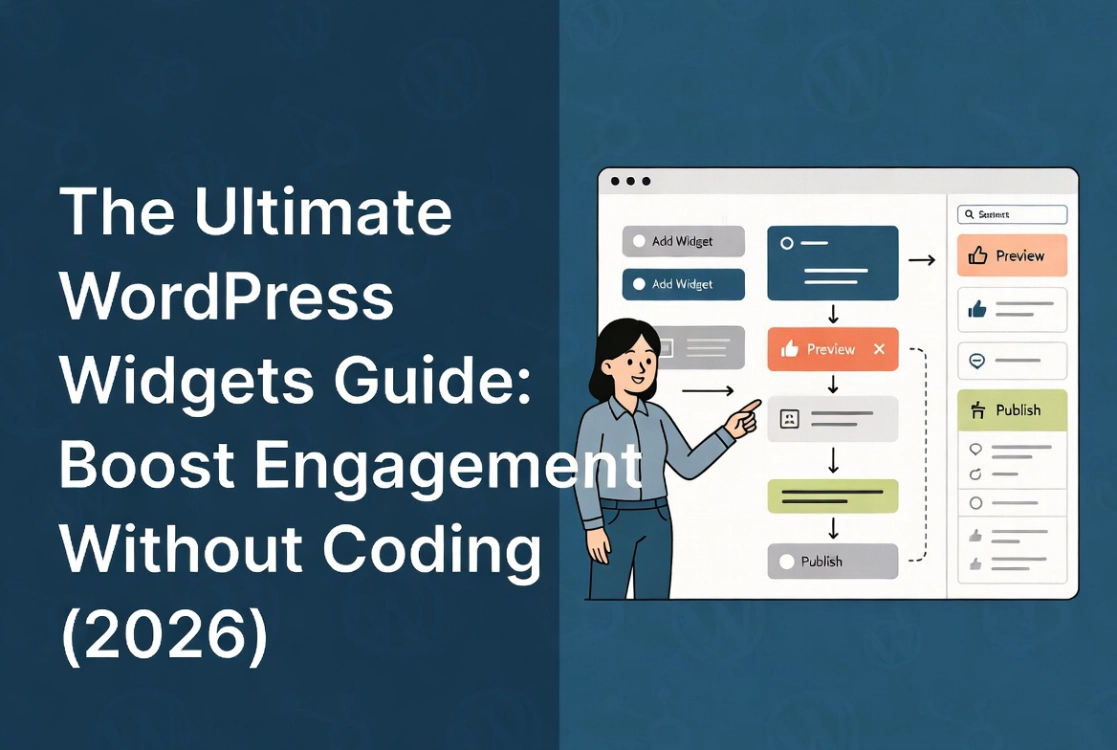
WordPress Widgets and Sidebars: Classic and Block Themes
I spent $2,000 hiring a developer to add a simple newsletter signup box to my sidebar. Three months later, I discovered WordPress widgets could have done it in 30 seconds with zero code. That expensive mistake taught me widgets are the most underestimated power tool in WordPress.
A functional WordPress website is not merely a collection of static pages but a dynamic interface that constantly adapts to user needs and presents information effectively. Central to this adaptability are WordPress widgets and sidebars, which many new site builders often overlook, viewing them as mere decorative elements. This is a fundamental error because properly configured widgets control critical auxiliary content, drive user engagement, and refine the overall user experience. For those establishing their initial digital presence, understanding the WordPress Widgets and Sidebars Guide is as crucial as mastering basic installation procedures discussed in our comprehensive WordPress Basics and Installation guide.
A widget area is a theme-defined region such as a sidebar or footer; not every theme provides the same areas. Classic themes may use Appearance → Widgets or the Customizer. Modern block themes generally manage comparable content through the Site Editor, template parts, and blocks. Switching themes can change or remove locations even when widget data remains stored.
Practical checklist
- Use only modules that support a clear reader task.
- Check headings, color contrast, keyboard order, mobile stacking, and cumulative layout shift.
- After a theme switch, review inactive widgets and template parts before deleting anything.
⚡ Quick Summary (TL;DR)
- WordPress widgets are simple, self-contained content blocks that let you add features to your sidebars and footers without touching a single line of code.
- You will learn how to easily add, remove, and arrange these helpful modules to display things like recent posts, search bars, and custom images.
- Following this ultimate WordPress widgets guide will help you create a highly engaging, professional website that your visitors will love navigating.
- We will also look at how these layout sections are shifting toward modern block-based designs so your site stays completely up to date.
What Are WordPress Widgets? Content Modules Explained
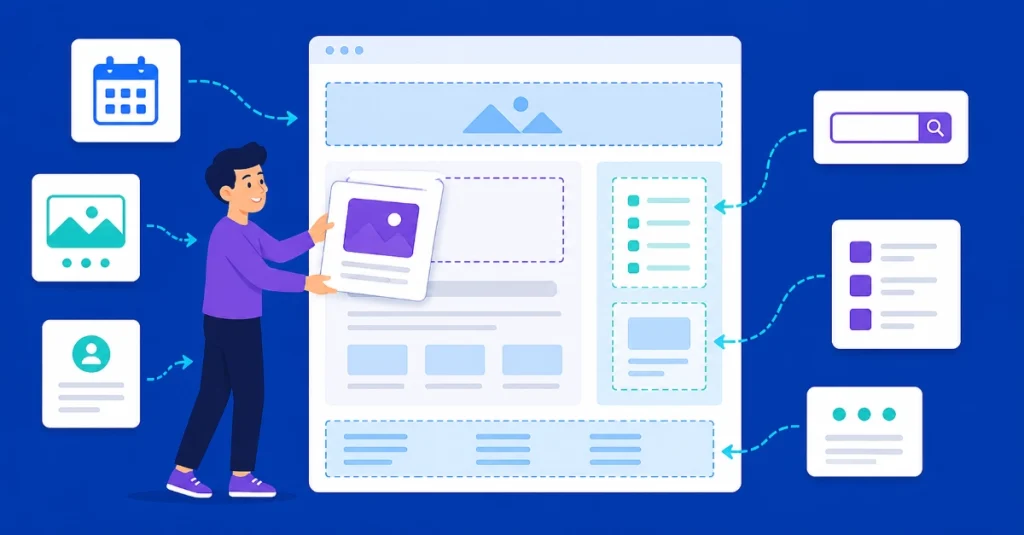
A WordPress widget is a small, self-contained block of code designed to perform a specific function or display particular content.
Think of widgets as specialized content modules that allow administrators to insert content and functionality into predefined areas without touching a single line of code. This democratizes website management, putting powerful tools into the hands of non-developers.
The Modular Architecture Advantage
The architectural decision to compartmentalize these functions into widgets was a stroke of engineering foresight.
Widgets isolate specific functionalities, making them reusable and position-independent. This modularity means you can drag and drop a calendar widget into a footer, then move it to a sidebar, and it retains its function.
This simple interaction saves countless development hours.
Understanding WordPress Widget Areas (Sidebars)
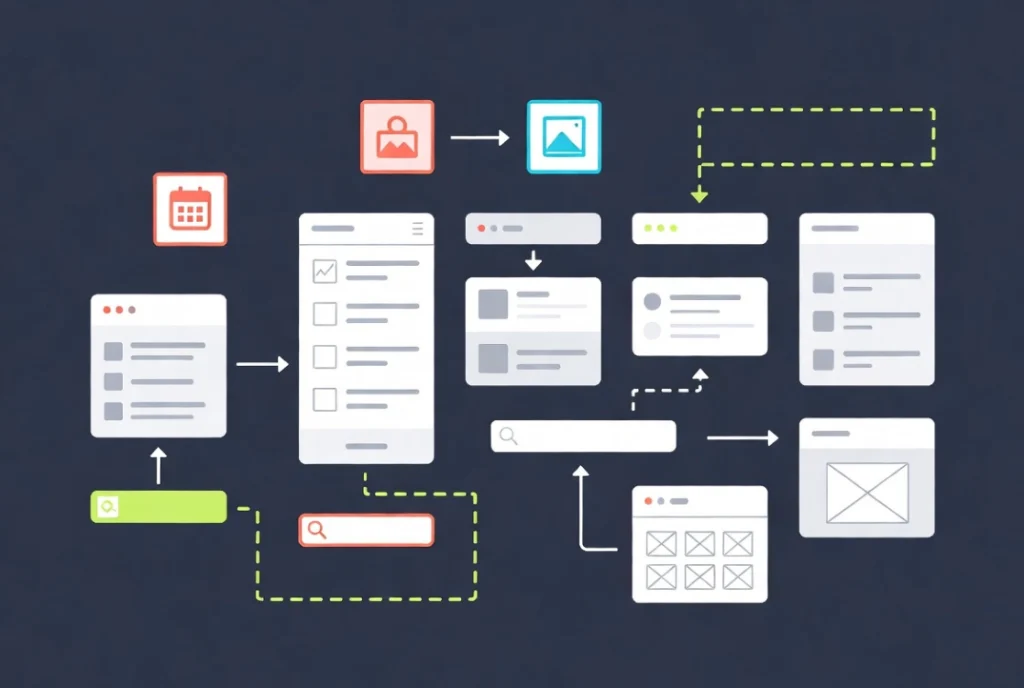
While commonly referred to as “sidebars,” widget areas are far more versatile than their name suggests.
A widget area is any region within a WordPress theme specifically designated to accept and display widgets. These areas are defined by your theme developer and are not limited to the left or right side of a page.
Common Widget Area Locations
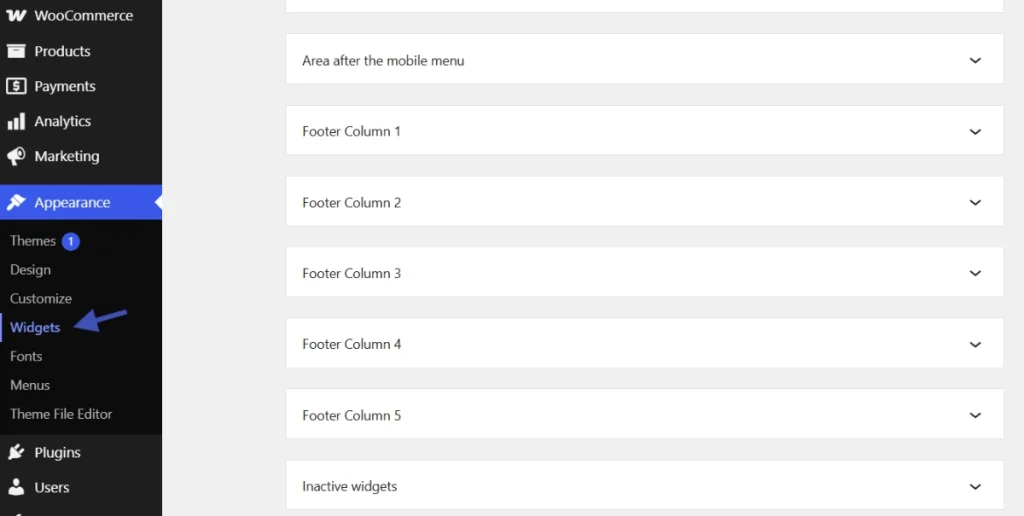
You’ll typically find widget areas in these strategic positions:
- Primary Sidebar: Often on the right or left, displaying content contextually relevant to the main page content
- Footer Widget Areas: Usually segmented into multiple columns at the very bottom of the page, ideal for navigation, contact information, or disclaimers
- Header Widget Areas: Less common, but sometimes used for search bars or small navigational elements
- Custom Widget Areas: Many themes now include widget areas within specific page templates or even within the main content area for highly specific deployments
Responsive Widget Behavior
The number and placement of these areas vary significantly between themes.
A well-designed theme provides ample, logically placed widget areas. These zones are responsive, too, meaning on smaller screens, sidebars often shift below the main content.
This adaptive behavior is essential for modern web design and maintains usability without clutter.
Managing WordPress Widgets in the Admin Interface
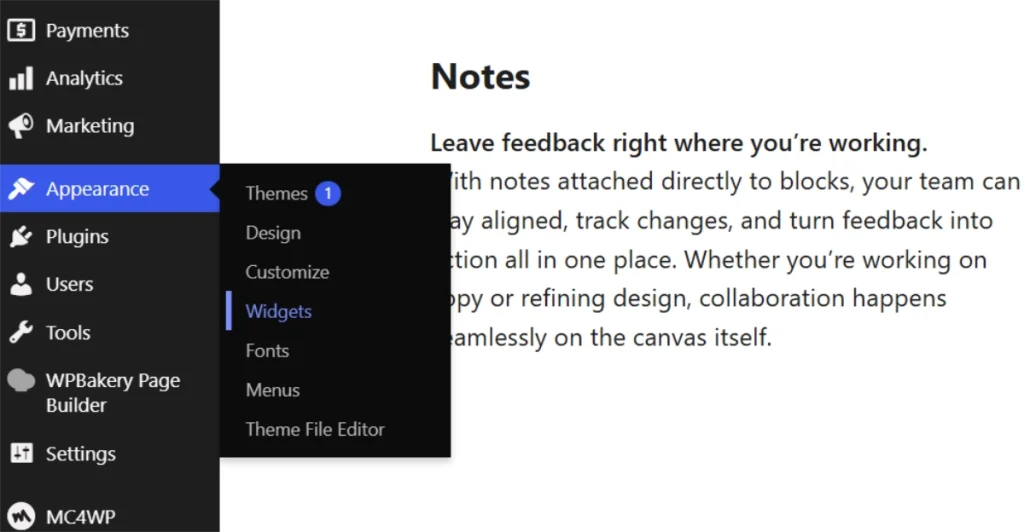
WordPress provides an intuitive interface for managing widgets effectively.
Access this section by navigating to Appearance → Widgets in your WordPress admin dashboard. The current interface, particularly since WordPress 5.8, integrates the block editor experience.
This makes widget management consistent with post and page editing.
The Widget Management Screen Layout
The widget management screen presents a clear distinction between available options and active areas.
On the left, you’ll see available widgets. On the right, your theme’s active widget areas appear ready for configuration.
Adding Widgets to Your Site
To add a widget, simply click the plus (+) icon within a widget area to browse available blocks.
Alternatively, drag an available widget from the left panel directly into your desired widget area on the right. Once placed, each widget offers customization options specific to its function.
A “Recent Posts” widget, for instance, allows you to specify the number of posts to display or whether to show post dates.
Live Preview Functionality
This drag-and-drop mechanism, paired with the block editor, simplifies content organization tremendously.
You can reorder widgets within an area, configure them individually, or remove them entirely with a few clicks. The Live Previewer, accessible through the Customizer (Appearance → Customize), allows you to see widget changes in real-time before publishing them to your live site.
This eliminates guesswork from the design process.
Standard WordPress Widgets and Their Applications
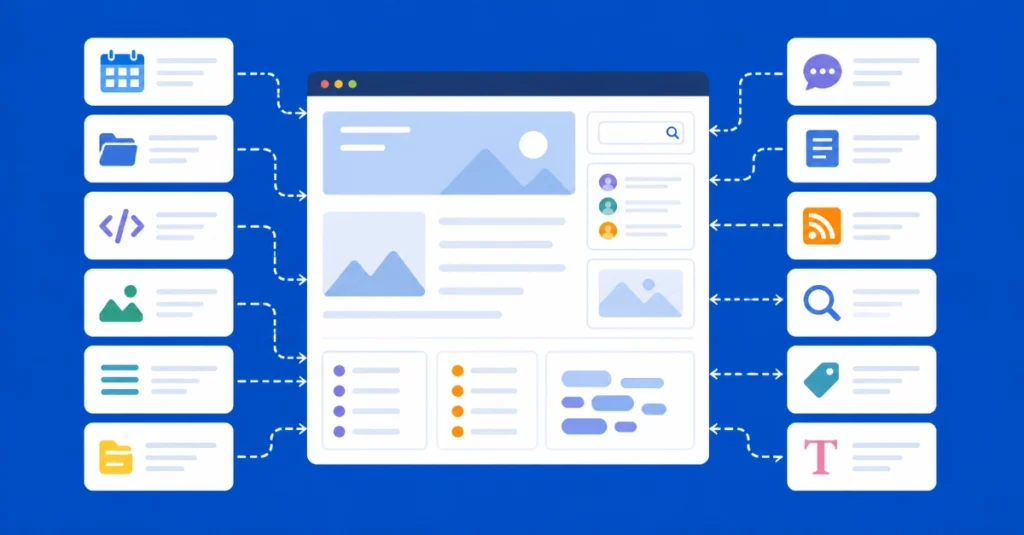
WordPress bundles several standard widgets, each serving a common website requirement.
Understanding these default options is fundamental to effective site management.
Essential WordPress Widgets
Archives: Displays a monthly archive of your posts, useful for content-rich sites, allowing visitors to browse older material easily.
Categories: Lists your site’s sections, often with a count of posts in each, improving content discoverability. For deeper insights on organizing your content, consider reviewing our guide on How to Use Categories and Tags in WordPress.
Custom HTML: Allows you to insert any HTML code directly, powerful for embedding external scripts, custom links, or structural elements not covered by other widgets.
Image: Displays an image from your Media Library or a URL, ideal for branding, advertisements, or visual calls to action.
Navigation Menu: Displays a custom menu, essential for secondary navigation within sidebars or footers. Review our guide on creating and managing navigation menus in WordPress.
Pages: Lists all published pages on your site, generally used for simple site structures.
Recent Comments: Shows the latest comments on your posts, highlighting site activity and user engagement.
Recent Posts: Displays a list of your most recent articles, crucial for keeping new content prominent.
RSS: Pulls content from an external RSS feed, great for displaying news headlines or updates from other sites.
Search: A simple search box for your site, non-negotiable for any site with more than a few pages. User data consistently shows a high propensity for site search usage, especially on larger content hubs.
Tag Cloud: Displays a cloud of your most used tags, with larger tags indicating higher frequency, another tool for content discovery.
Text (Legacy): Similar to Custom HTML but designed for plain text or simple rich text. While still available, the Custom HTML and Paragraph blocks largely supersede its functionality for modern use cases.
Advanced WordPress Widget Management Strategies
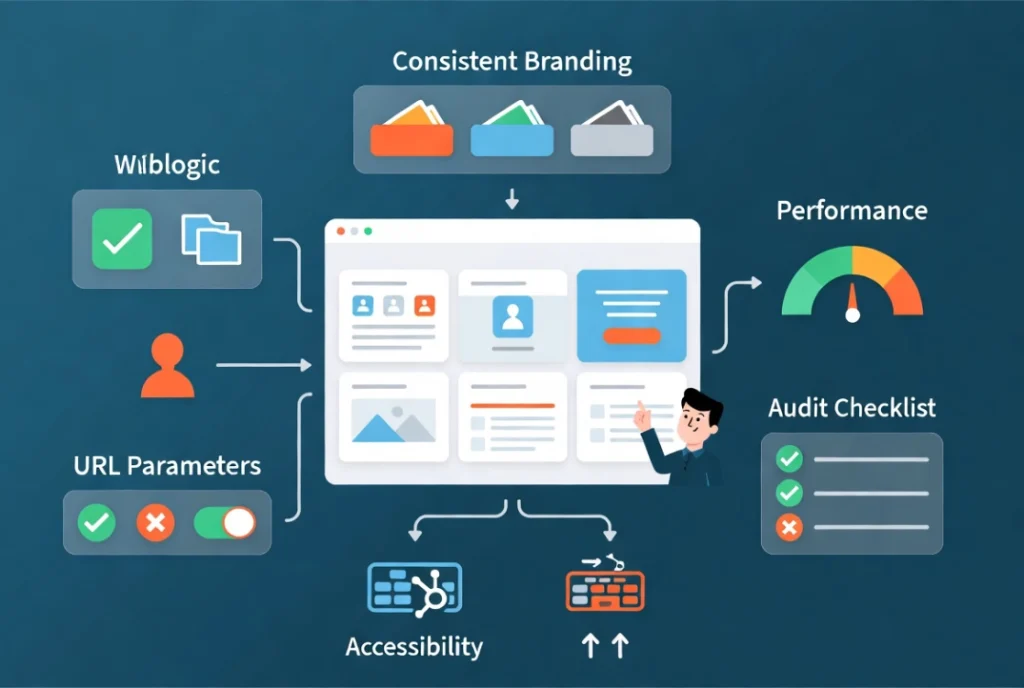
Effective widget deployment goes beyond simple placement and requires strategic thinking.
Conditional Logic for Widgets
Not every widget is relevant on every page of your site.
Displaying a list of related products on a blog post is often illogical. Conditional logic allows you to show or hide specific widgets based on criteria like the current page, post type, user role, or even URL parameters.
While WordPress doesn’t have this feature natively, plugins extend this functionality significantly. This improves user experience by presenting only pertinent information.
Analytics often show higher conversion rates when calls to action are contextually relevant to the page content.
Performance Considerations for Widgets
Each widget adds to the server load and page rendering time.
While modern WordPress installations and servers handle numerous widgets efficiently, excessive or poorly coded widgets can degrade performance. Before adding multiple widgets, consider their necessity carefully.
Regularly audit your widget areas and remove inactive or redundant widgets. A delay of even a few hundred milliseconds impacts user retention, according to observed bounce rate metrics.
Accessibility in Widget Design
Ensure your widgets are accessible to all users.
Use descriptive titles, proper contrast for text, and consider keyboard navigation. Widgets should complement your site, not hinder any user’s ability to interact with it.
Consistent Branding Across Widgets
Widgets should align with your site’s overall design and branding.
Avoid disparate styles that make your site appear disjointed. Consistency builds trust with your audience.
Custom WordPress Widgets for Developers
For developers and advanced users, the ability to create custom widget areas and custom widgets represents a significant aspect of WordPress extensibility.
Registering Custom Widget Areas
Theme developers use the register_sidebar() function to define new widget zones.
This function registers an area that will appear in the “Appearance → Widgets” screen:
function mytheme_widgets_init() {
    register_sidebar( array(
        'name'          => esc_html__( 'My Custom Footer Column 1', 'mytheme' ),
        'id'            => 'my-custom-footer-1',
        'description'   => esc_html__( 'Add widgets here for the first footer column.', 'mytheme' ),
        'before_widget' => '<div id="%1$s" class="widget %2$s">',
        'after_widget'  => '</div>',
        'before_title'  => '<h4 class="widget-title">',
        'after_title'   => '</h4>',
    ) );
}
add_action( 'widgets_init', 'mytheme_widgets_init' );
This code snippet, placed in a theme’s functions.php file (preferably within a child theme to protect against updates), registers a new widget area.
Then, the theme template file displays the widgets placed in that area. This granular control allows for highly tailored site layouts.
The Future of WordPress Widgets: Blocks and Full Site Editing
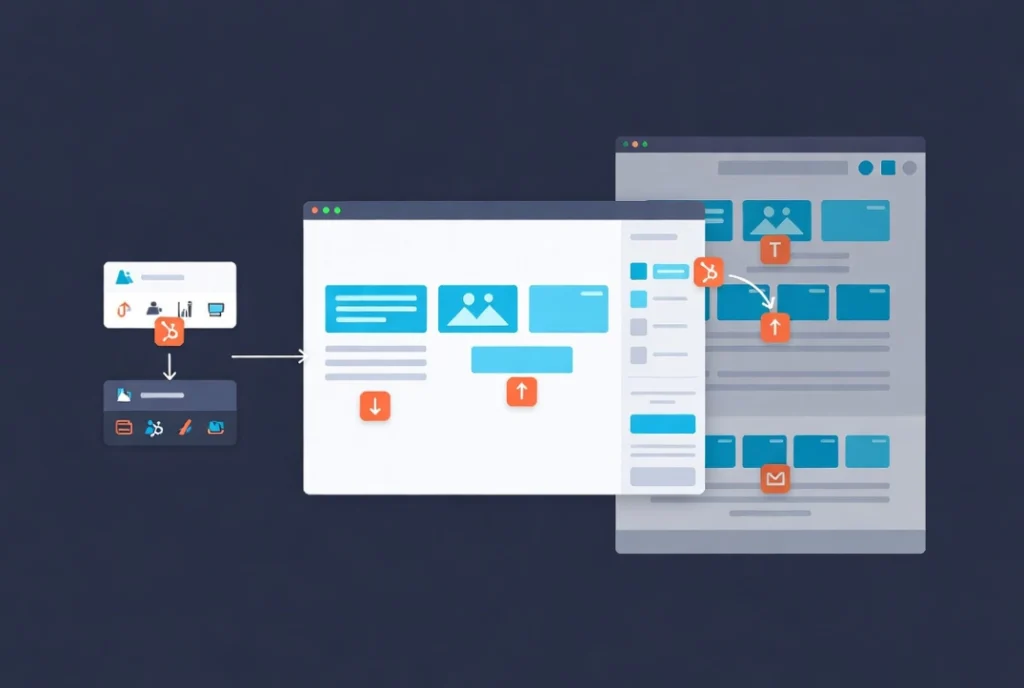
The WordPress ecosystem is continually evolving throughout 2026.
The influence of the Gutenberg block editor extends deeply into widget management. The traditional “widget” as a standalone entity is gradually being superseded by blocks.
Block-Based Widget Interface
When you visit “Appearance → Widgets” in a modern WordPress installation, you interact with a block-based interface.
You add blocks (paragraphs, images, latest posts, etc.) to widget areas, rather than legacy widgets. This unified approach streamlines the entire editing experience.
Full Site Editing Revolution
Full Site Editing (FSE), a core initiative, pushes this concept further into integrated design.
With FSE-enabled themes, the distinction between content areas and widget areas blurs significantly. Theme parts (like headers, footers, and sidebars) become editable directly within the Site Editor using blocks.
This means users have direct, visual control over every element of their site’s layout, including areas that were traditionally considered “widget areas.” The underlying concept remains: placing functional content modules in designated zones.
The method, however, becomes more unified and visual. This consolidation aims to simplify the entire site-building experience dramatically.
Additional Resources for WordPress Widget Mastery
Continue building your WordPress widget expertise with these essential guides:
- Master the foundation in WordPress Basics and Installation
- Organize content through How to Use Categories and Tags in WordPress
- Build navigation by creating and managing navigation menus in WordPress
- Design pages using How to Create a New Page in WordPress
- Edit with blocks via the Gutenberg Editor Tutorial for Beginners
WordPress widgets and sidebars are more than secondary features because they are fundamental tools for content organization, user interface design, and functional augmentation. These powerful modules allow site administrators to control auxiliary content, enhance navigation, and introduce dynamic elements without writing code. Understanding their capabilities, managing them effectively, and keeping abreast of their evolution (especially with the rise of blocks and Full Site Editing) is essential for anyone operating a WordPress website. Mastering these elements ensures your site remains organized, user-friendly, and strategically positioned to deliver maximum value. Return to WordPress Basics and Installation whenever you need to review the foundational concepts that make professional WordPress site management possible.