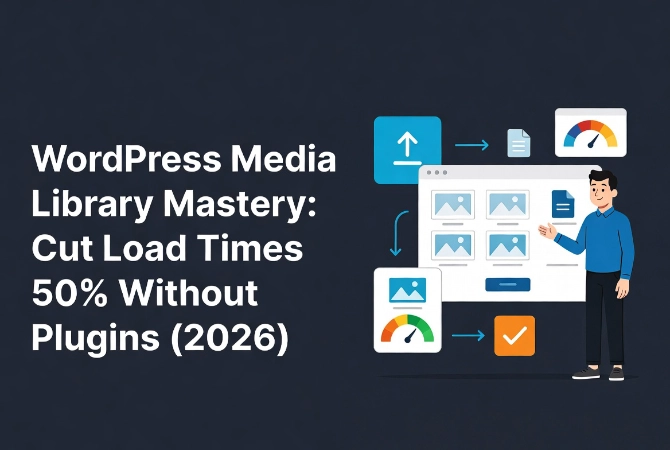
WordPress Media Library: Organization and Optimization Guide
I uploaded 400 product photos to a client’s WooCommerce store without optimizing a single image. Their hosting bill doubled, page load times hit 8 seconds, and Google dropped them from page one. Three days of emergency optimization barely salvaged the damage my laziness caused.
Most site owners treat the WordPress Media Library like a junk drawer. It’s ignored until the site slows down or storage costs spike. By then, you’re likely dealing with gigabytes of unoptimized bloat. This is technical debt that costs money in hosting fees and loses visitors through sluggish load times. If you’re just starting your journey, you should first understand the core framework in our guide on WordPress Basics and Installation. Understanding how to manage your WordPress Media Library is not about making things look pretty in the dashboard; it’s about performance, SEO, and database integrity.
The Media Library stores attachment records and helps you reuse uploaded files, but folders and filenames are not a complete editorial system. Optimize before upload, use dimensions appropriate to the layout, and fill in metadata for its actual purpose. Alternative text describes an informative image for people who cannot see it; it is not a keyword field.
Practical checklist
- Remove location or other sensitive metadata before uploading when privacy matters.
- Do not delete “unattached” files in bulk without checking page builders, custom fields, CSS, and templates.
- Keep an off-site backup before replacing files or running a media-cleanup tool.
⚡ Quick Summary (TL;DR)
- Unoptimized media slows your site, increases hosting costs, and hurts SEO and conversions.
- Every upload creates multiple files + database entries, increasing storage and inode usage fast.
- Use modern formats (AVIF/WebP) and compress images before upload to reduce page weight.
- Always set descriptive file names + alt text for accessibility and search rankings.
- Organize media with folders or structured systems, not default date-based chaos.
- Offload large libraries to cloud storage + CDN for faster global performance.
- Regularly delete unused/orphaned files and thumbnails and strip EXIF data to keep your site clean and secure.
Why WordPress Media Library Management Matters in 2026
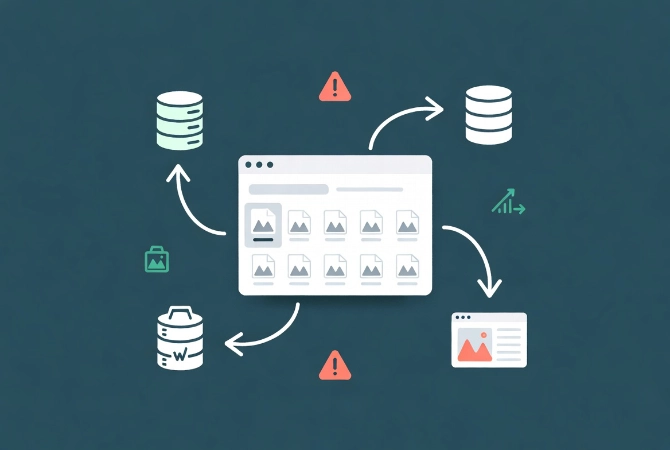
User expectations for speed are higher than ever.
A delay of 100 milliseconds can drop conversion rates by double digits. Your media library is the primary culprit behind heavy page weights. It’s time to treat it with the same precision you apply to your code or your copy.
The Technical Burden of Unmanaged WordPress Media
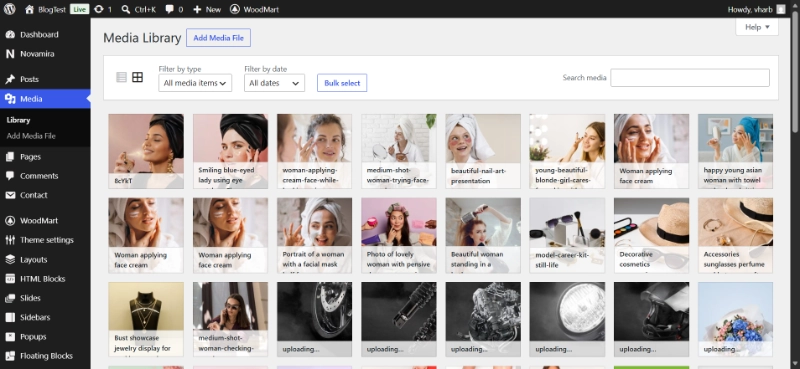
Every time you upload an image, WordPress does more than just move a file.
WordPress creates a record in the wp_posts database table and assigns a unique ID. The system generates multiple thumbnails based on your theme settings. A single upload can become six files on your server if your theme specifies five different sizes.
This multiplies your storage needs instantly.
Understanding Inode Limits on Your Server
But the problem goes deeper than disk space.
Many users ignore the impact of “inodes” on their hosting account. An inode is essentially a file or folder record on the server. Most hosting plans have an inode limit.
When you accumulate thousands of tiny thumbnail files, you hit that limit long before you run out of actual disk space. This can crash your site or prevent backups from running.
Database Performance Impact
A bloated wp_postmeta table makes queries slower.
When your site tries to fetch an image for a post, it has to sift through thousands of rows of metadata. Efficiency starts at the point of upload. Don’t let the ease of the “Add Media” button fool you into thinking it’s a free action.
Modern File Formats for WordPress Media Library
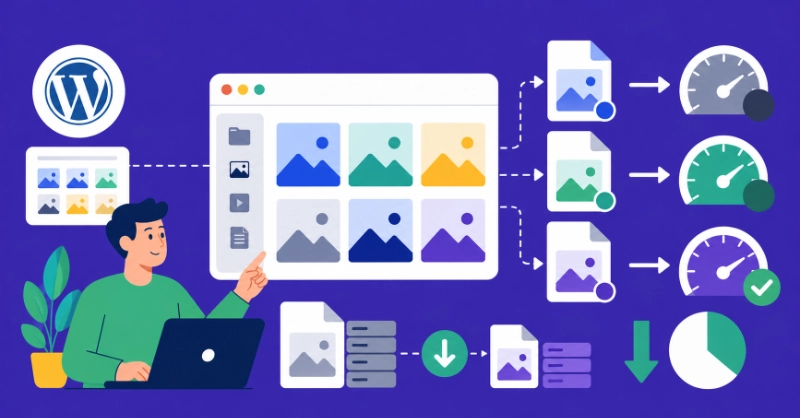
JPEG and PNG are no longer the industry standards for web performance.
In 2026, AVIF has surpassed WebP as the preferred format for high-quality, low-weight imagery. According to data from the HTTP Archive, images still account for nearly 50 percent of the total bytes transferred for a typical webpage.
Transitioning to AVIF can reduce that weight by 30 percent or more compared to legacy formats.
Server-Side vs. Client-Side Conversion
You should use tools to convert images before they ever reach your server.
If you must use a plugin for this purpose, it performs the conversion at the API level rather than using your server’s local resources. Local processing can lead to CPU spikes that trigger 503 errors during heavy upload sessions.
Keep the heavy lifting away from your primary web server.
Struggling with slow page load times from unoptimized images? Our free WordPress Image Speed Optimizer compresses and converts your photos to AVIF/WebP for better Core Web Vitals scores.
WordPress Media Metadata and SEO Best Practices
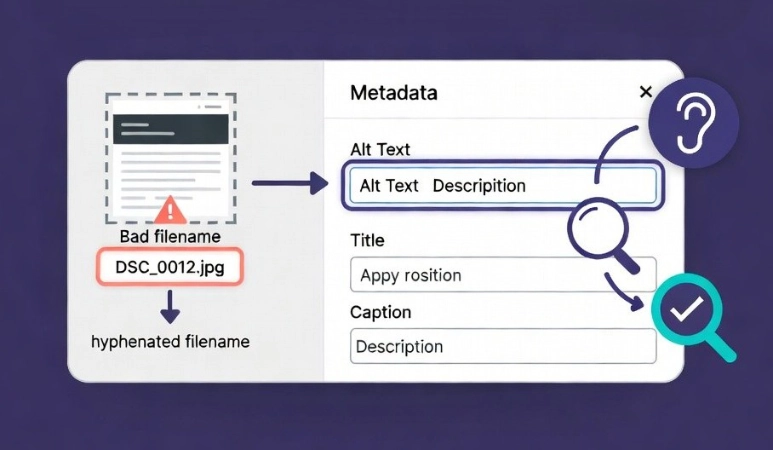
Search engines cannot see your images the way humans do.
They rely on the data you provide. This area is where most people fail because they upload “DSC_0012.jpg” and leave the Alt Text field empty.
Alt Text Requirements
This approach is a mistake for accessibility and for ranking.
The W3C Web Accessibility Guidelines make it clear that descriptive alt text is a requirement, not a suggestion.
File Naming Conventions
Your file names should be descriptive and use hyphens, not underscores.
“blue-widget-dashboard-view.jpg” is better than “blue_widget.jpg.” But don’t stop at the file name. The Media Library allows you to set titles, captions, and descriptions.
While the Description field is mostly for internal use, the Alt Text is what screen readers use. It’s also what Google uses to understand the context of your page.
Writing Effective Alt Text
Be precise with your descriptions.
Avoid keyword stuffing. Just describe what’s there accurately and concisely.
Advanced Organization Strategies for WordPress Media
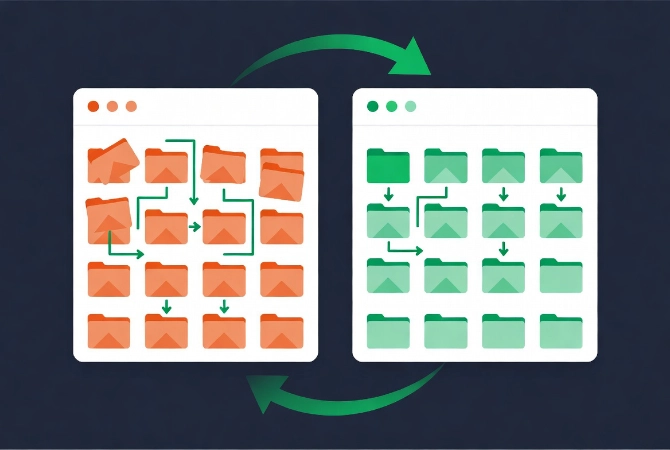
The default method for organizing content in WordPress is chronological.
It puts files into folders by year and month. This is fine for a small blog but proves a nightmare for an enterprise site or a large e-commerce store.
Folder-Based Management Systems
If you need to find an asset from three years ago, you have to remember when you uploaded it.
That’s not a scalable workflow. I recommend using a folder-based management system. While WordPress doesn’t support folders natively in the file system, you can use plugins that create a virtual folder structure.
This allows you to group assets by project, product category, or department. When you categorize your images logically instead of hiding them in a chronological maze, content creation becomes much easier.
Scaling WordPress Media with External Storage
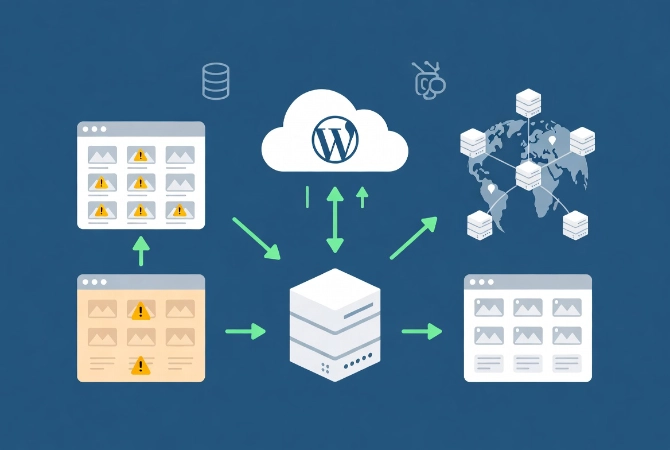
For sites with massive libraries, keeping media on the same server as your WordPress installation is a risk.
It makes your backups massive and your migrations slow. The professional solution is to offload media to object storage.
Object Storage Solutions
Systems like Amazon S3, Google Cloud Storage, or Cloudflare R2 are designed for such tasks.
They’re cheaper than high-performance SSD hosting storage and much more reliable. By offloading your library, your WordPress server only handles the PHP and database requests.
CDN Integration for Global Performance
The images are served directly from the object storage or a Content Delivery Network (CDN).
This architecture improves global load times dramatically. A user in Tokyo shouldn’t have to wait for an image to travel from a server in New York. Use a CDN to cache these assets at the edge.
It’s a fundamental step in modern web architecture.
WordPress Media Database Cleanup and Orphaned Files
Over time, your media library will contain “orphaned” files.
These are images that were uploaded but are no longer used in any post or page. They occupy space and clutter your database. Periodic audits are necessary.
Identifying Orphaned Media
You can use SQL queries to identify attachments with no parent post, but be careful.
Some images are used in theme settings or CSS and might not show a direct relationship in the database.
Review our guide on How to Clean Up Your WordPress Media Library for detailed cleanup strategies.
WordPress Media Library Optimization Checklist
| Action Item | Technical Reason | Expected Result |
|---|---|---|
| Delete unused thumbnails | Reduces inode count on the server. | Faster backups and less disk usage. |
| Convert to AVIF | Smaller file sizes with better quality. | Improved Core Web Vitals (LCP). |
| Disable Attachment Pages | Prevents thin content URLs from being indexed. | Improved SEO crawl budget. |
| Sanitize SVGs | SVGs are XML code and can contain malicious scripts. | Better site security. |
Security Considerations for WordPress Media Library
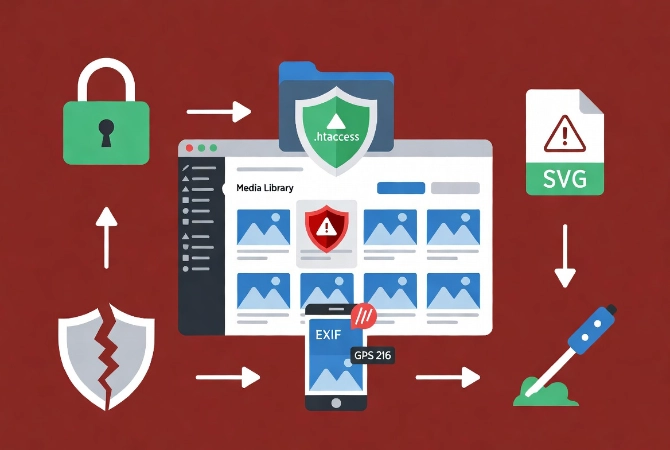
The Media Library is a common entry point for attacks.
Hackers often try to upload malicious scripts disguised as image files. You must ensure your server is configured to prevent execution in the uploads directory.
Protecting the Uploads Directory
This is usually done via an .htaccess file or a Nginx configuration block.
If you have experience with a manual WordPress installation via FTP, you should be familiar with setting these permissions manually.
SVG Security Risks
Scalable Vector Graphics (SVG) are particularly dangerous.
Because an SVG is actually code, it can carry an XSS (Cross-Site Scripting) payload. WordPress doesn’t allow SVG uploads by default for this very reason.
If you choose to enable them, you must use a sanitization library. Never trust an SVG file from an untrusted source because it can compromise your entire user base.
Image Metadata and Privacy in WordPress
Privacy is another concern that professionals often overlook.
When you take a photo with a smartphone, it often includes EXIF data. This data can contain your GPS coordinates, the exact time the photo was taken, and the device model.
Stripping EXIF Data
When you upload this image to your WordPress Media Library, that data remains.
Anyone can download the image and see where you were. Use a tool to strip EXIF data before or during upload. Most high-end optimization plugins have a checkbox for this purpose.
It protects your privacy and slightly reduces the file size.
WordPress Media Library Management Best Practices
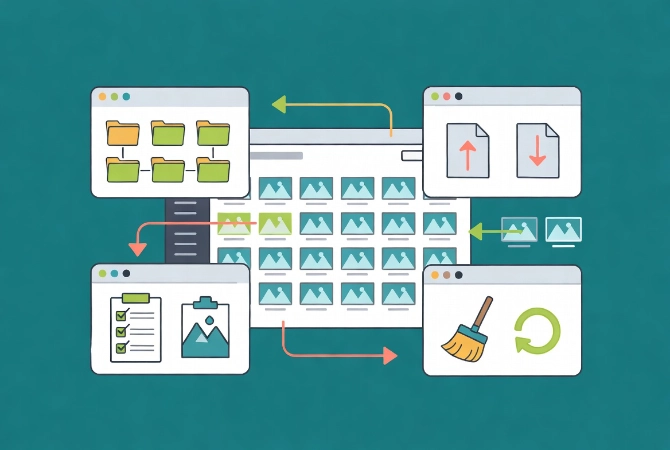
Managing your WordPress Media Library is a continuous process.
It’s not a “set it and forget it” task. You need a clear policy on file naming, a strict rule on formats, and a regular schedule for database maintenance.
Creating a Media Management Policy
The goal is a lean, fast, and organized repository of assets that supports your site rather than slowing it down.
Start by auditing your current library. Identify the largest files and see if they can be compressed or converted. Look at your folder structure. If your folder structure is a mess, please start categorizing it today.
Additional Resources for WordPress Media Management
Continue building your WordPress media expertise with these essential guides:
- Master the foundation in WordPress Basics and Installation
- Deep cleanup techniques through How to Clean Up Your WordPress Media Library
- Advanced installation via manual WordPress installation via FTP
- Optimize performance with the WordPress Speed Optimization Guide
Success in web management is found in these technical details. Don’t ignore them. Managing your WordPress Media Library is a continuous process that requires a clear policy on file naming, a strict rule on formats, and a regular schedule for database maintenance. Start by identifying the largest files, checking if you can compress or convert them, and reviewingessed or converted, and look at your folder structure. If it’s a mess, start categorizing today; your future self and your server will appreciate it. Return to WordPress Basics and Installation whenever you need to review the foundational concepts that make professional WordPress site management possible.