WordPress Permalinks: URL Structure and Safe Changes
I watched a client’s traffic drop 60% overnight after they casually changed their permalink structure without setting up redirects. Five years of SEO work vanished because they clicked a radio button and saved. Thousands of inbound links suddenly pointed to 404 errors.
URLs are the foundation of your site architecture. If you get them wrong, your SEO suffers and your users get confused. In the WordPress ecosystem, we call these permanent links, or permalinks. They define the path to your content. A messy URL like yourdomain.com/?p=123 tells the world nothing about your page. Understanding WordPress permalinks should be one of your first technical tasks as you work through your WordPress Basics and Installation.
A readable permalink helps people understand and share a URL, but no credible source supports a fixed “30% SEO boost.” For a new content site, Post name is often a clear default; publications that require dates or large sites with specific architecture may choose differently. The safest URL is one you can keep stable.
Practical checklist
- Do not change established URLs only to chase a ranking claim.
- Map every old URL to its closest new URL with a permanent redirect before a migration.
- After saving permalink settings, test posts, pages, archives, feeds, pagination, and canonical URLs.
⚡ Quick Summary (TL;DR)
- Choosing the right WordPress permalink structure is a critical setup task that directly impacts your site architecture, search engine crawling, and user experience.
- The Post Name format is the gold standard for standard websites because it creates short, clean, and highly memorable URLs that naturally include your primary keywords.
- Optimizing your individual page slugs manually means making them lowercase, keeping them to three to five words, and removing unnecessary stop words like “the” or “and.”
- Changing your URL settings on an active, live website will break existing inbound links unless you put permanent 301 redirects in place to protect your search engine traffic.
Why WordPress Permalinks Matter
Most beginners ignore permalink settings entirely.
They launch their site and leave the default settings unchanged. Two years later, they realize their mistake and try to fix it, only to find that changing URLs breaks every link they’ve ever shared.
Don’t be that person. You need a strategy from day one. This guide covers the technical mechanics of WordPress permalinks and the industry standards for 2026.
The Anatomy of a WordPress Permalink
A permalink consists of two parts.
First, the base URL, which is your domain name. Second, the slug, which is the specific identifier for a piece of content.
How WordPress Processes Permalinks
WordPress handles the assembly of these parts through a rewrite system.
This system translates a user-friendly URL into a database query that the server understands. Behind the scenes, the server looks at the request and maps it to a specific post ID in the wp_posts table. This process happens in milliseconds.
But if your server configuration is off, you’ll see the dreaded 404 error.
SEO Impact of Clean URLs
The choice of structure impacts how search engines crawl your site.
According to Wikipedia’s documentation on clean URLs, human-readable strings are essential for usability and search engine indexing. A clean URL acts as a snippet of metadata. It tells the crawler what to expect before it even parses the HTML.
This is why you must move away from the “Plain” structure immediately.
Default WordPress Permalinks vs. Pretty Permalinks
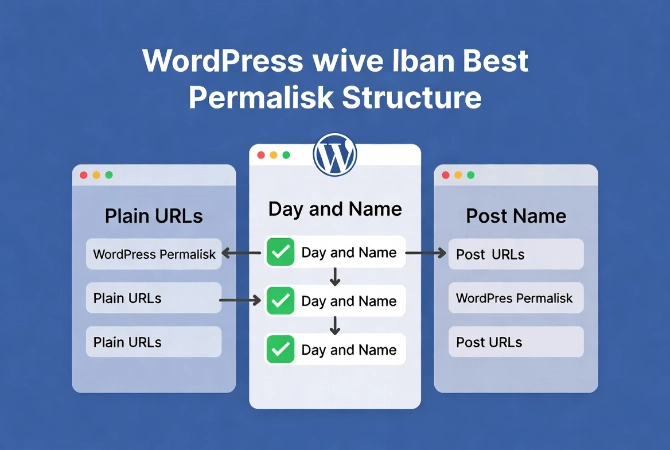
WordPress offers several built-in options.
Let’s examine the data on each structure type.
Plain URLs: The Worst Option
Plain URLs (the ?p=123 format) are the worst for SEO.
They offer zero keyword relevance. They look untrustworthy and provide no context to users or search engines.
Day and Name Structure: Limited Use Cases
Day and Name structures include the date of publication.
This proves useful for news organizations or high-frequency blogs where the date provides context. For almost everyone else, dates are a liability. They make your content look “old” to users even if the information is still evergreen.
If you write an article in 2024 and the URL shows that date in 2026, click-through rates often drop significantly.
Post Name Structure: The Gold Standard
The “Post Name” structure is the industry gold standard.
It produces a URL like yourdomain.com/sample-post/. It’s short, memorable, and contains your primary keywords. Data from major SEO audits consistently shows that shorter URLs perform better in search rankings.
They’re easier to copy, paste, and share on social platforms without getting truncated.
Choosing the Best WordPress Permalink Structure for 2026
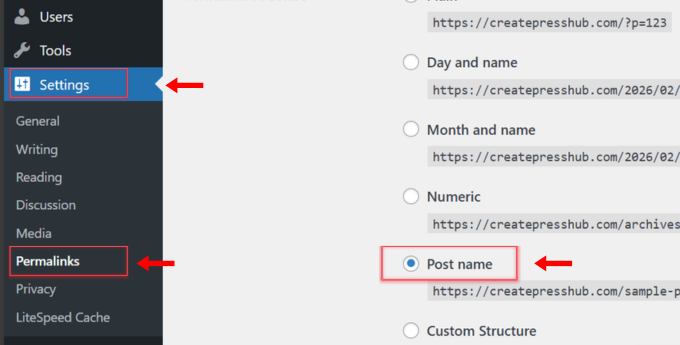
Selection depends on your site’s purpose.
But for the vast majority of business sites and blogs, the choice is simple: use the Post Name option. It provides the cleanest hierarchy.
When to Use Category Prefixes
If you run a site with thousands of articles, you might consider adding a category prefix.
This looks like yourdomain.com/category/post-name/. This helps with tracking in analytics software because it lets you see how specific silos of content perform against others.
Avoid Complex Nested Structures
Avoid using “Numeric” or “Archives” structures.
They provide no benefit over the Post Name option. If you’re building a complex directory or an e-commerce store, custom structures become necessary. But even then, keep it logical.
Don’t nest your URLs too deeply. Three levels of folders is usually the limit before you start seeing diminishing returns in crawl efficiency.
The WordPress Custom Structure Tag System
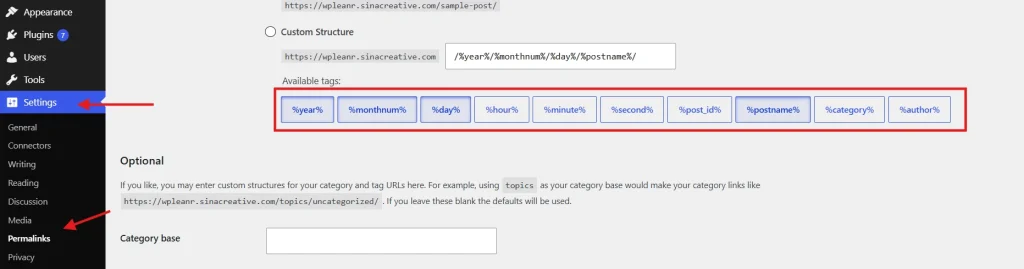
WordPress allows you to build your own structure using tags.
You can mix and match these variables:
- %year%: The year of the post, four digits
- %monthnum%: Month of the year
- %day%: Day of the month
- %postname%: The sanitized version of your title
- %post_id%: The unique ID number of the post
- %category%: The category name
- %author%: The author name
Warning About the %category% Tag
Be careful with the %category% tag.
If you assign a post to multiple categories, WordPress will pick one for the URL. This can create duplicate content issues or inconsistent linking. Pick one primary category if you intend to use it in your permalink structure.
Most professionals stick to just %postname% for maximum flexibility. This allows you to change categories later without changing the URL itself.
Technical Requirements for WordPress Permalinks
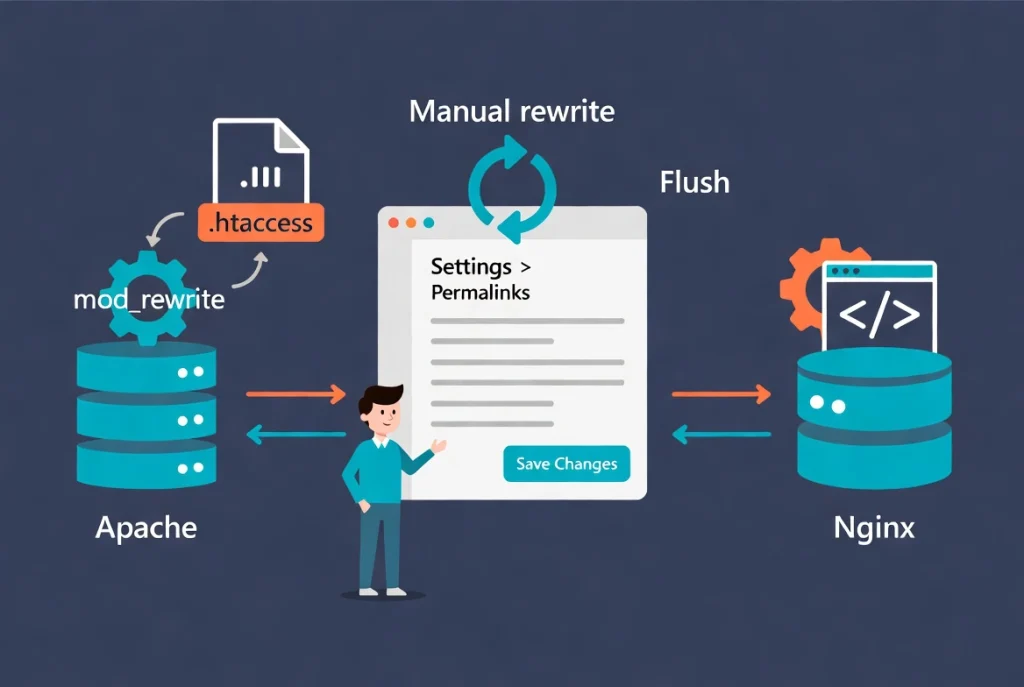
Permalinks don’t work in a vacuum.
They require specific server-side modules.
Apache Server Requirements
On an Apache server, you need the mod_rewrite module enabled.
WordPress writes rules to a hidden file called .htaccess. If this file isn’t writable, your pretty permalinks will fail. You’ll see “Page Not Found” across your entire site.
Nginx Server Configuration
If you’re on an Nginx server, .htaccess files don’t exist.
You must manually add rewrite rules to your site’s Nginx configuration file. This is why How to Choose the Best WordPress Hosting is a critical decision. High-quality hosts handle this automatically for you.
The Permalink Flush Fix
Sometimes, the permalink structure “breaks” after you move a site or update a plugin.
The fix is usually a “Permalink Flush.” You don’t need to change any settings. Simply navigate to Settings, Permalinks, and click “Save Changes.” This forces WordPress to regenerate the rewrite rules in the database and the .htaccess file.
It’s the first troubleshooting step any pro takes when facing 404 errors on a new build.
SEO Best Practices for WordPress Slugs
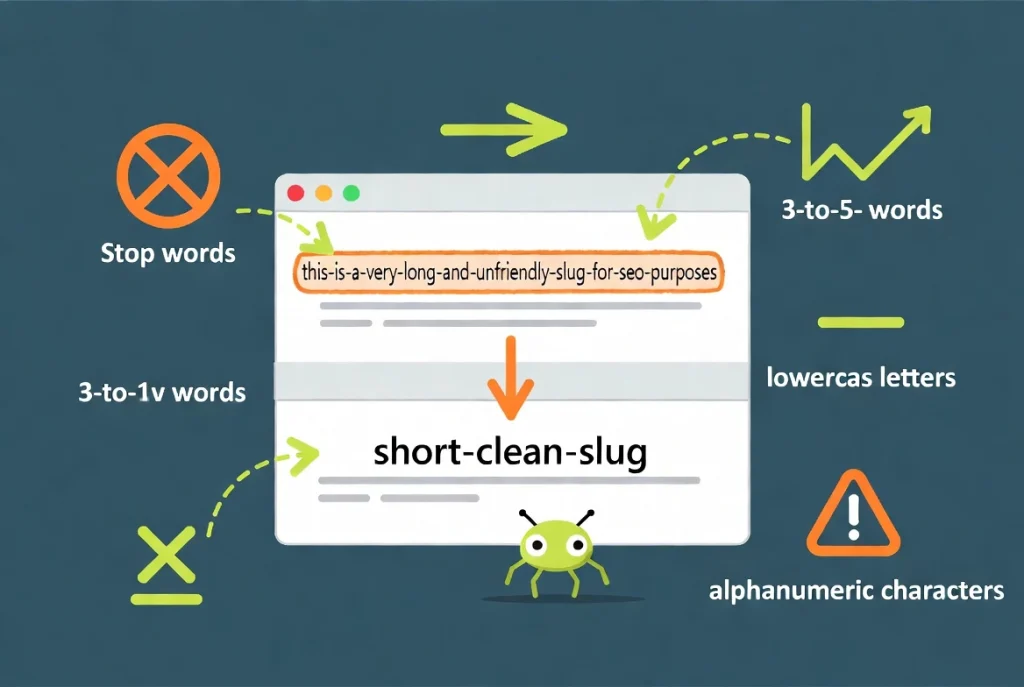
The slug is the part of the URL you can edit on a per-post basis.
WordPress generates a slug based on your title. If your title is “10 Incredible Ways to Fix Your Broken Car Fast,” the default slug will be “10-incredible-ways-to-fix-your-broken-car-fast.”
This is too long and clunky.
Rules for Optimizing Slugs
Edit your slugs manually before you hit publish. Follow these rules:
- Remove stop words: Delete “the,” “and,” “a,” and “to.”
- Stick to three to five words: Short slugs are easier for Google to parse
- Use lowercase only: Most servers are case-sensitive (mixing cases leads to errors)
- Use hyphens, not underscores: Google treats hyphens as word separators and underscores as part of the word itself
According to Google Search Central URL structure guidelines, using a simple, descriptive URL structure is the most effective way to help the crawler understand your content.
Avoid using non-ASCII characters or strange symbols in your slugs. Stick to standard alphanumeric characters and hyphens.
Changing WordPress Permalinks on a Live Site
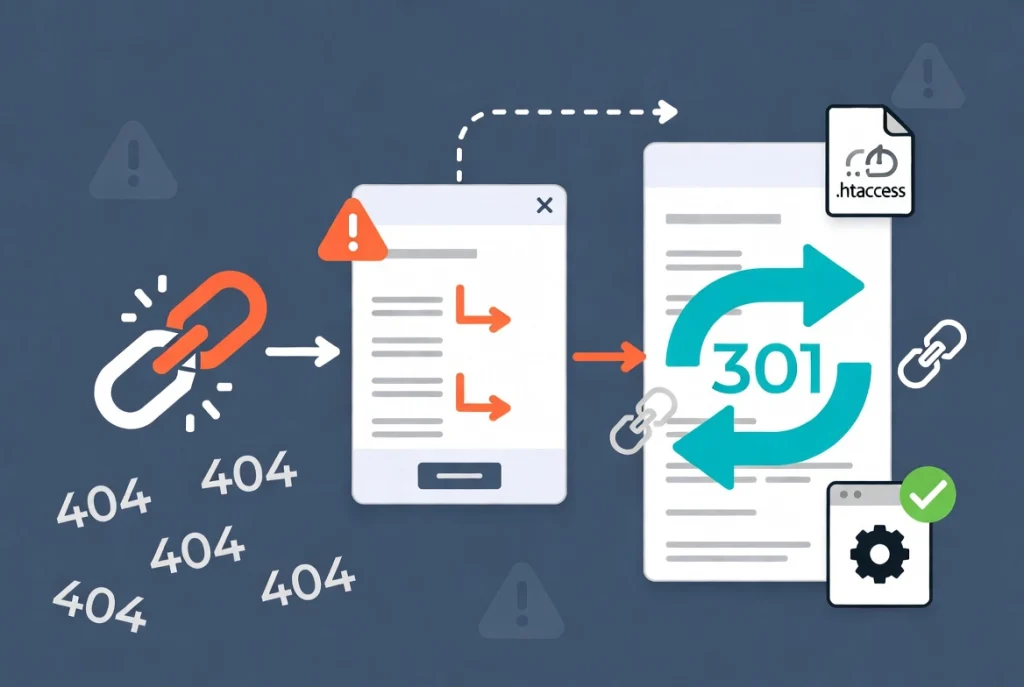
This is high-stakes territory.
If your site has been live for more than a few weeks, changing your permalink structure will break your existing SEO rankings. Every link on the internet pointing to your site will suddenly lead to a 404 error.
The 301 Redirect Solution
The solution is a 301 redirect.
This is a permanent redirect that tells search engines and browsers that the content has moved to a new location. It passes roughly 95% to 99% of the ranking power to the new URL.
You can use a plugin like “Redirection” to handle this. This is where How to Install and Manage WordPress Plugins becomes relevant.
Alternatively, if you’re changing the entire site structure (like moving from Date to Post Name), you can use a regex redirect in your . htaccess file. This is faster and more efficient than mapping hundreds of URLs manually.
Never change your permalink structure without a redirect plan in place. It’s the fastest way to kill a successful website.
Handling Custom Post Types and Taxonomies
As you build more complex sites, you might use Custom Post Types (CPTs).
For example, a site for a law firm might have a “Case Studies” post type. By default, WordPress will give these a prefix like yourdomain.com/case-studies/the-case-slug/.
URL Collision Risks
Be careful when removing CPT prefixes.
You run the risk of URL collisions. If you have a page named “Contact” and a case study named “Contact,” WordPress will get confused. It will usually append a “-2” to the end of the slug.
This looks unprofessional. Keep the prefixes unless you have a compelling reason to remove them. They provide a clear organizational structure that helps both users and search engines categorize your site’s data.
The Role of /category/ and /tag/ in WordPress
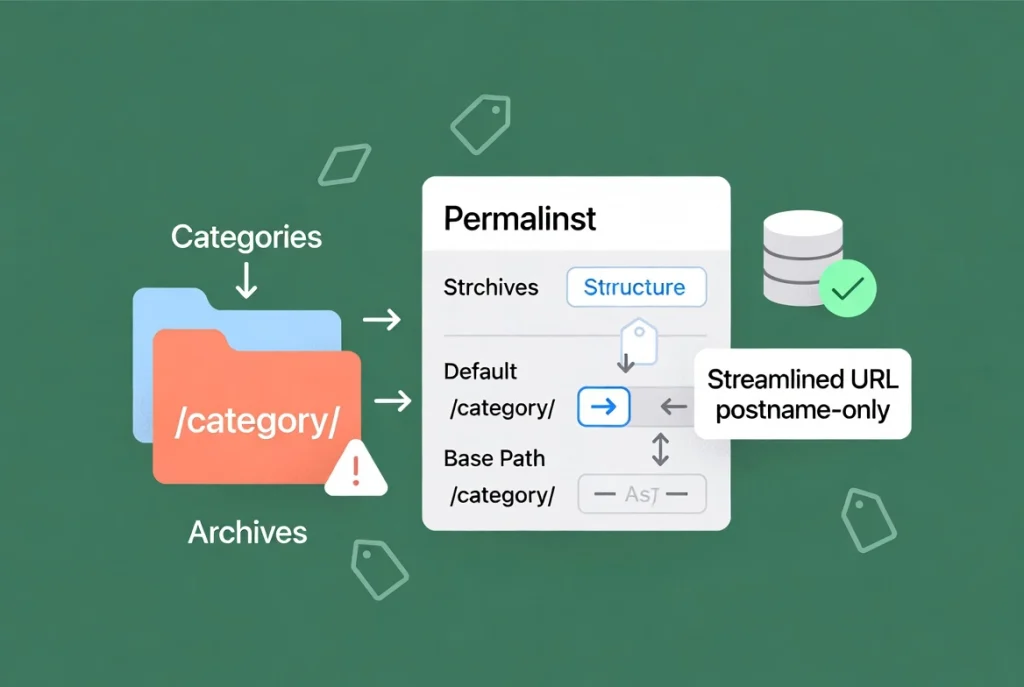
WordPress adds a “base” to your category and tag archives.
For example, yourdomain.com/category/marketing/. Some people hate how this looks and want to remove the “/category/” part. There are plugins that do this.
Risks of Removing Category Base
However, removing the category base is risky.
Similar to CPTs, removing the category base can lead to conflicts with your pages or posts. If you do decide to remove it, ensure you have a robust redirect system.
Most pros leave the base as it is because it creates a logical separation between static pages, blog posts, and archive lists.
Database Performance and WordPress Permalinks
There’s a persistent myth that using %postname% slows down your site.
Years ago, this was true. Older versions of WordPress struggled to distinguish between a “page” and a “post” if the URL structure started with a string rather than a date or ID. This caused an increase in database queries.
This is no longer the case. Modern WordPress versions use an efficient lookup table. The performance difference between /%year%/%postname%/ and /%postname%/ is negligible.
Don’t let outdated “performance tips” scare you away from the best SEO structure. Focus on your hosting quality and caching instead.
WordPress Permalink Structure Comparison
| Structure Type | Example URL | SEO Value | Recommended Use |
|---|---|---|---|
| Plain | /index.php?p=123 | Lowest | Never |
| Day and Name | /2026/05/20/sample-post/ | Medium | News Sites |
| Post Name | /sample-post/ | Highest | Standard Sites |
| Custom (Category) | /blog/marketing/post/ | High | Deep Content Silos |
Additional Resources for WordPress URL Optimization
Continue building your WordPress expertise with these essential guides:
- Master the complete process in WordPress Basics and Installation
- Choose quality infrastructure with How to Choose the Best WordPress Hosting
- Manage extensions effectively through How to Install and Manage WordPress Plugins
- Optimize your site with the WordPress Speed Optimization Guide
Success with WordPress permalinks comes down to consistency. Choose the Post Name structure during your initial setup. Keep your slugs short and keyword-rich. Avoid changing your structure once you’ve started building traffic. If you do make a change, use 301 redirects to protect your SEO. Always ensure your server is correctly configured to handle these rewrites. These steps are technical, but they form the bedrock of a professional web presence. Your URLs are the first thing people see in search results and social feeds. Make them count. Return to WordPress Basics and Installation whenever you need to review the foundational concepts that make professional WordPress site management possible.