WordPress Security Basics for Beginners
I’ll never forget the sinking feeling I had when I first saw a hacked website.
A friend called me in a panic because their business site was redirecting visitors to a spam pharmacy. Years of content, customer trust, and SEO rankings were suddenly at risk. The worst part? Some basic WordPress security measures could have prevented it.
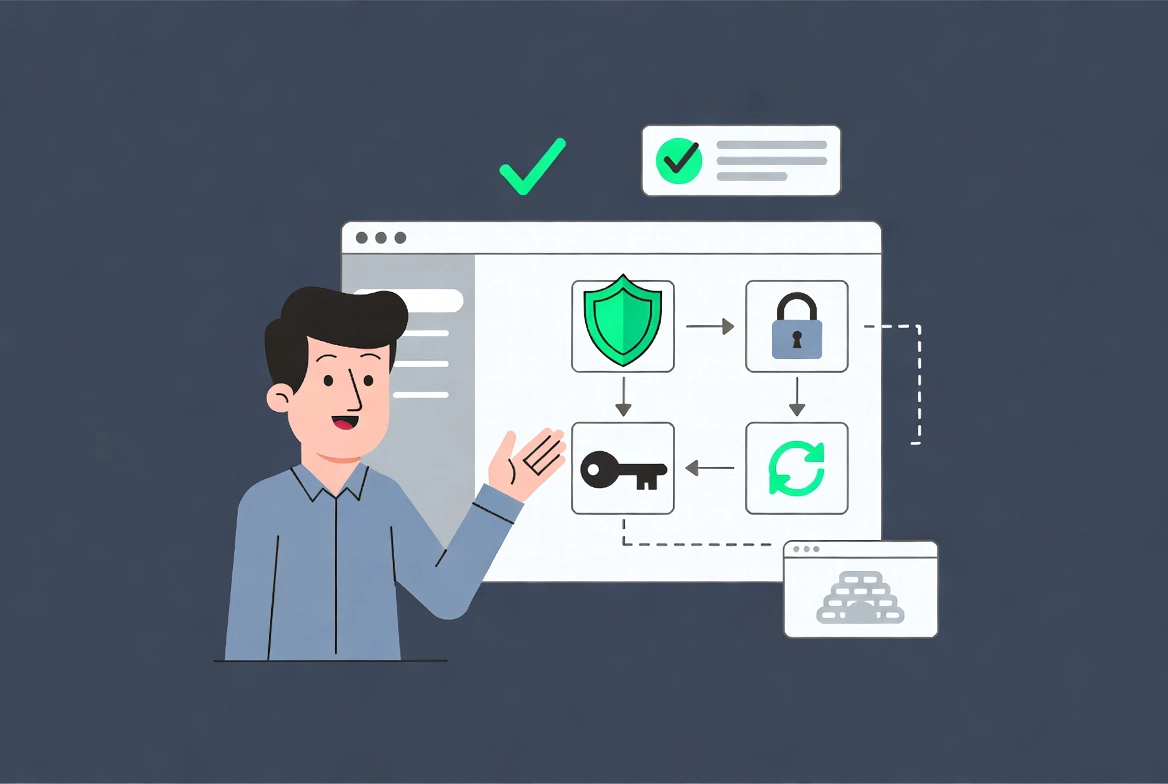
Security is a process, not a plugin or a checklist that guarantees protection. Keep WordPress, themes, plugins, PHP, and server software supported; reduce unused code; protect administrator accounts; and maintain tested backups outside the hosting account. Changing a login URL or editing .htaccess can be a supplemental control, not the foundation.
Practical checklist
- Use unique passwords and multifactor authentication for hosting and WordPress administrators.
- Remove unused plugins and themes after confirming they are not dependencies.
- Document how to restore, rotate credentials, preserve logs, and contact the host during an incident.
If you’re managing a WordPress site, understanding WordPress security basics isn’t just recommended—it’s essential. Whether you’re just getting started with WordPress Basics and Installation or you’ve been running your site for years, security should never be an afterthought.
In this guide, I’ll walk you through the fundamental security practices that protect your site from the most common threats in 2026.
WordPress Security Basics for Beginners
⚡ Quick Summary (TL;DR)
- Mastering WordPress security basics is essential because automated bots constantly scan millions of sites for weak access points.
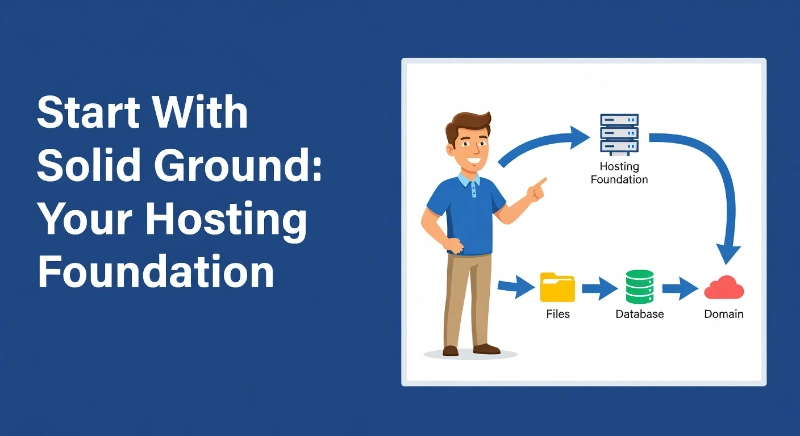
- Choosing a high-performance host with built-in protection provides a secure foundation for your database, files, and domain.
- Using 16-character passwords alongside two-factor authentication effectively blocks unauthorized entry and brute-force login attempts.
- Running timely software updates, auditing active plugins, and creating automated off-site backups ensure your website remains resilient against unexpected threats.
Why Your WordPress Site Attracts Unwanted Attention
Here’s something that surprised me when I first started learning about website security: hackers aren’t necessarily targeting you specifically.
WordPress powers over 40% of all websites on the internet. Think about that for a second. That’s millions upon millions of sites all running on the same platform. For cybercriminals, this is like finding a master key that potentially opens millions of doors.
Most attacks aren’t sophisticated heists planned by genius hackers in dark rooms. They’re automated scripts—basically robots scanning the internet 24/7 looking for easy targets. These bots check for outdated plugins, weak passwords, and common security holes.
Industry reports consistently show that over 50% of successful WordPress breaches happen because of outdated plugins and themes. Not zero-day exploits. Not advanced persistent threats. Just simple neglect.
Your site can become part of a botnet, sending spam emails without your knowledge. Or it might host malware that infects your visitors’ computers. The damage to your reputation can take years to repair.
Start With Solid Ground: Your Hosting Foundation
I learned this lesson the hard way early in my WordPress journey.
I once chose a hosting provider solely because they offered the cheapest plan I could find. Within three months, my site was compromised twice. The host’s security was practically non-existent, their servers ran outdated software, and their support team took days to respond.
Your hosting provider is the foundation your entire site sits on. If that foundation is weak, nothing else you do will matter much.
What to Look for in a Secure Host
A reputable hosting provider should offer server-level security features, automatic backups, and active firewalls. Managed WordPress hosting takes this even further by handling server-side security optimizations, automatic updates, and WordPress-specific configurations.
These hosts typically cost more than bargain-basement shared hosting. But think of it as insurance. The small monthly difference pales in comparison to the cost of recovering from a hack or losing customer data.
For more guidance on making this crucial decision, check out How to Choose the Best WordPress Hosting.
Keep Your System Requirements Current
Running outdated PHP versions is like leaving your front door unlocked.
Make sure your hosting environment meets and exceeds the minimum WordPress system requirements explained. Always opt for the latest stable PHP version that WordPress supports. Outdated PHP versions have known security vulnerabilities that attackers actively exploit.
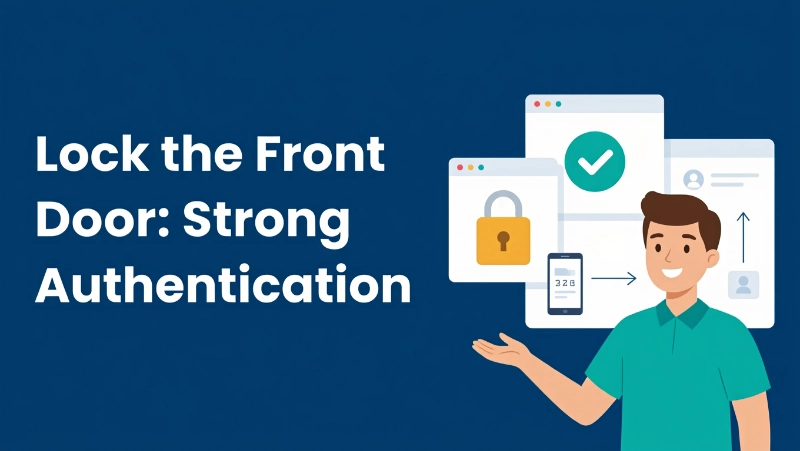
Lock the Front Door: Strong Authentication
Let me share something embarrassing: my first WordPress password was “myname123.”
I thought it was clever because it was easy to remember. Looking back, I cringe at how vulnerable I made my site. Any automated attack would have cracked that password in seconds.
Create Passwords That Actually Work
Here’s what I do now: I use a password manager to generate and store complex passwords. Each password is at least 16 characters long, mixing uppercase and lowercase letters, numbers, and symbols.
Every user on your site needs a unique, strong password. Don’t reuse passwords across different services. If one site gets breached, attackers will try those same credentials everywhere.
Add Two-Factor Authentication
Two-factor authentication (2FA) is like adding a deadbolt to your door after installing a lock.
Even if someone steals your password, they still need access to your phone or authentication app to get into your site. I enable 2FA on all my sites, and I’ve seen it block countless unauthorized login attempts.
Change That Default Username
WordPress often suggests “admin” as your username during installation. Change it immediately.
Automated attacks always try “admin” first. Using a unique, non-obvious username adds a simple but effective layer of protection against brute-force attacks.
The Update Imperative: Keep Everything Current
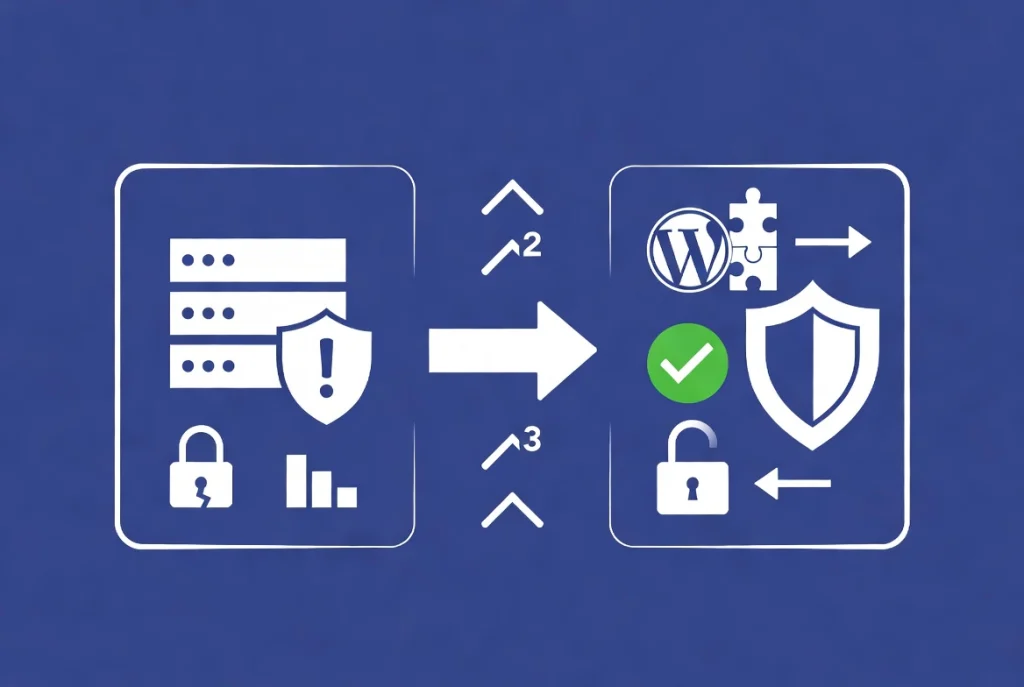
I get it—updates can be nerve-wracking.
What if an update breaks something? What if my theme doesn’t work anymore? These are legitimate concerns, and I’ve experienced update conflicts myself.
But here’s the truth: an unpatched vulnerability is an open invitation to attackers.
WordPress Core Updates Matter
When WordPress releases an update, it usually includes security patches for newly discovered vulnerabilities. Major version updates (like going from 6.4 to 6.5) introduce new features. Minor updates (6.4.1 to 6.4.2) are typically urgent security or bug fixes.
Don’t delay these minor updates. They exist specifically to close security holes that attackers are already trying to exploit.
Plugins and Themes Need Attention Too
I once ignored a plugin update notification for weeks because “everything was working fine.”
That plugin had a critical security vulnerability. By the time I finally updated it, my site had already been compromised. I learned my lesson.
Plugin and theme vulnerabilities are actually more common than WordPress core issues. Developers release updates to fix bugs, improve compatibility, and patch security holes. Outdated plugins are a primary target for attackers.
Pro tip: Always back up your site before running updates. This protects you if an update introduces conflicts.
Choose Your Extensions Wisely
Not all code is created equal, and your choice of plugins and themes directly impacts your security.
Stick to Reputable Sources
I exclusively download plugins and themes from the official WordPress.org directory or directly from trusted developers. These go through review processes that catch many common security issues.
Never, and I mean never, install “nulled” or pirated premium plugins. These are often deliberately infected with malware. The money you save isn’t worth the risk.
Do Your Research First
Before installing any plugin, I check several things:
- Reviews and ratings from real users
- Number of active installations (higher is usually better)
- When it was last updated (recent updates indicate active maintenance)
- Support forum activity (responsive developers fix issues faster)
If a plugin hasn’t been updated in over a year, I look for alternatives. Abandoned plugins become security liabilities.
Less Is More
Every plugin you install adds a potential attack surface.
I regularly audit my installed plugins and remove anything I’m not actively using. Inactive plugins can still be exploited. Keep only what you truly need.
Your Safety Net: Comprehensive Backups
Backups saved me when nothing else could.
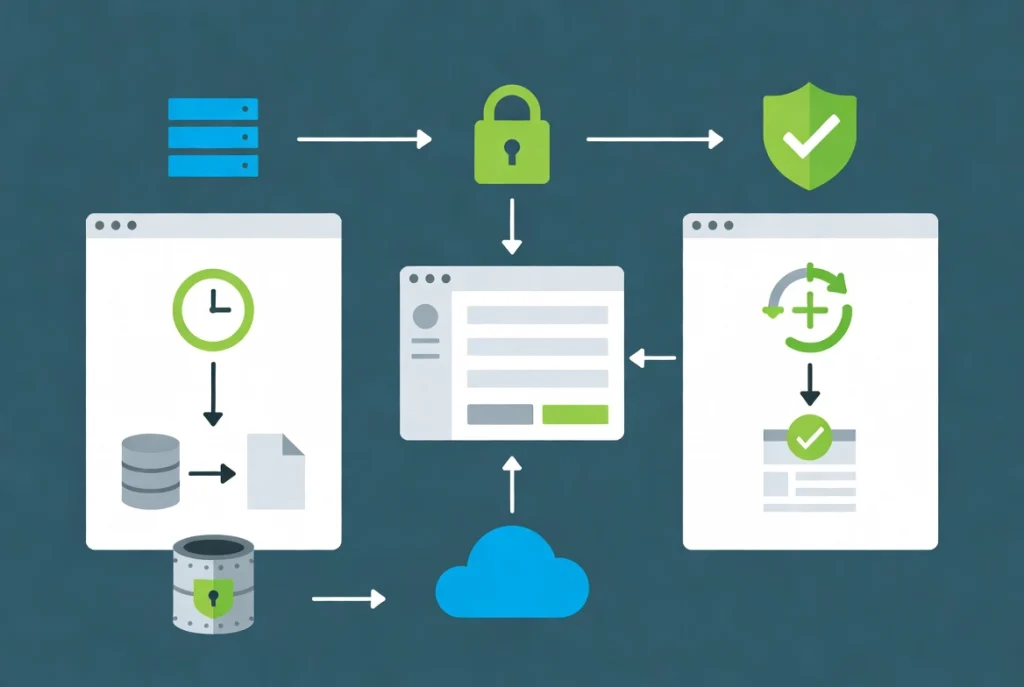
A few years ago, despite all my security measures, one of my sites got hacked through a zero-day exploit in a popular plugin. Because I had recent backups stored off-site, I restored everything within an hour. Without backups, I would have lost months of work.
Automate Your Backups
Set up automated, full-site backups that include both your database and files. Schedule them to run daily or weekly, depending on how often you update your content.
Store these backups off-site—away from your web server. Cloud storage services like Dropbox or Google Drive work great. If your server is compromised, you don’t want your backups on that same server.
Test Your Backups
Here’s something most people overlook: a backup is worthless if it doesn’t actually work.
I test my backup restoration process at least once a year on a staging site. This confirms I can actually recover my site if disaster strikes. Don’t wait until you need it to discover your backups are corrupted.
Security Plugins: Your Automated Defense Layer
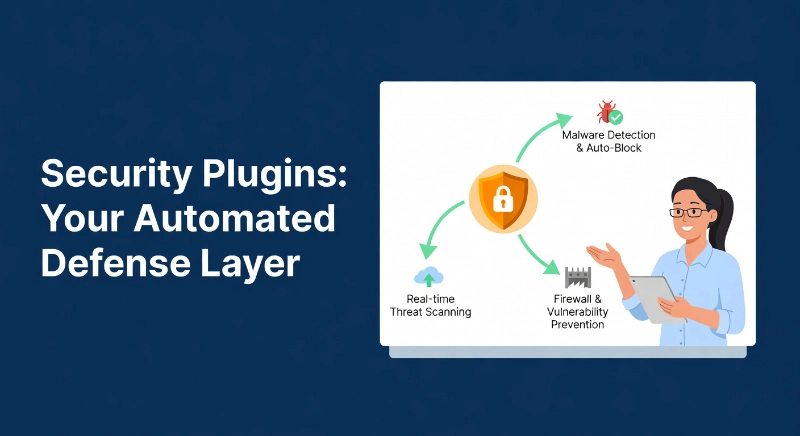
While manual vigilance is crucial, a quality security plugin provides automated protection that’s always watching.
Security plugins aren’t magic bullets, but they significantly strengthen your defenses. Look for plugins that offer:
- Web Application Firewall (WAF): Filters malicious traffic before it reaches WordPress
- Malware Scanning: Regularly checks your files and database for malicious code
- Brute-Force Protection: Blocks repeated failed login attempts
- Login Hardening: Enforces strong passwords and monitors user activity
- File Integrity Monitoring: Alerts you to unauthorized changes in core files
Research your options carefully. Choose plugins with strong reputations, regular updates, and good support.
Manage User Access Intelligently
I once gave a freelance writer full administrator access because I thought it would make things easier.
That was a mistake. Administrator access means complete control over your site—including the ability to install plugins, change settings, and even delete everything.
Follow the Principle of Least Privilege
Users should only have the permissions they need to do their jobs, nothing more.
WordPress has predefined user roles: Administrator, Editor, Author, Contributor, and Subscriber. A content writer needs author or editor access, not administrator. An SEO specialist might need editor access.
Limit the administrator role to a very small, trusted group. Review existing user roles regularly and downgrade any unnecessary administrative privileges.
SSL Certificates: No Longer Optional
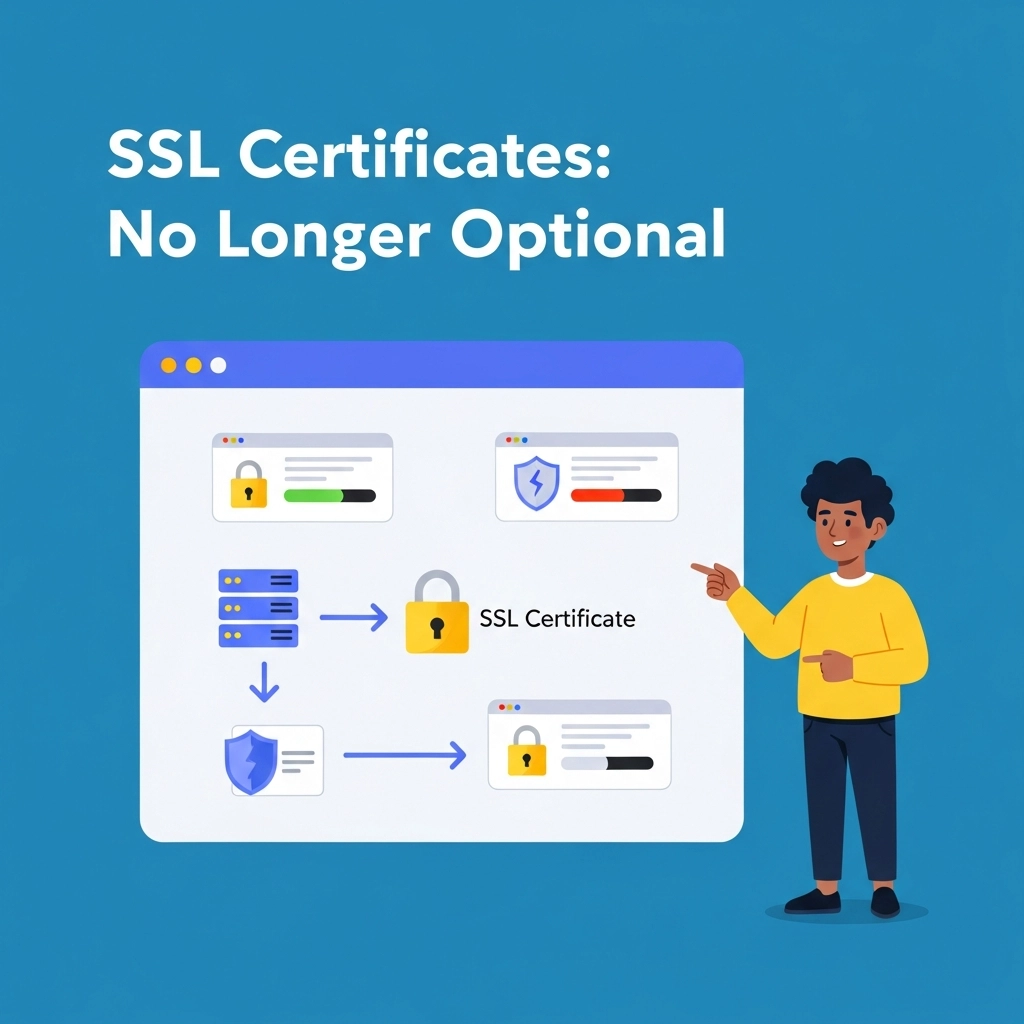
HTTPS is the standard in 2026, not a nice-to-have feature.
An SSL certificate encrypts data moving between your website and visitors’ browsers. This prevents eavesdropping on sensitive information like passwords, payment details, and personal data.
Why SSL Matters
Beyond security, SSL certificates affect trust and SEO. Browsers display “Not Secure” warnings for sites without HTTPS, which scares away visitors. Search engines also favor HTTPS sites in their rankings.
Most reputable hosting providers offer free SSL certificates through Let’s Encrypt. Make sure yours is properly installed and configured.
Advanced Protection: The .htaccess File
If you’re comfortable with server configurations, your . The htaccess file (on Apache servers) offers powerful security options.
You can disable directory browsing, restrict access to sensitive files like wp-config.php, and block suspicious IP addresses.
Warning: Be extremely cautious when editing. htaccess. A single syntax error can make your entire site inaccessible. Always back up the file before making changes.
Stay Vigilant: Ongoing Monitoring
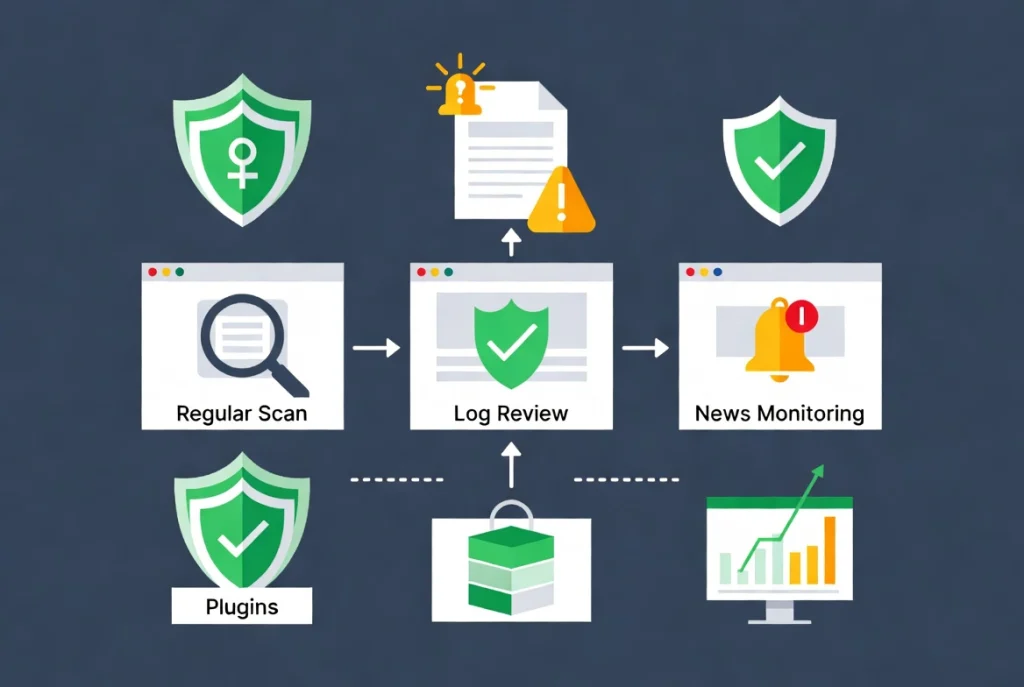
Security isn’t something you set up once and forget about.
Schedule Regular Scans
Use your security plugin or a dedicated scanning service to check for malware regularly. I run scans weekly on all my sites.
Review Your Logs
Periodically check your WordPress activity logs and server error logs. Unusual patterns—like dozens of failed login attempts from strange locations—deserve investigation.
Stay Informed
I follow several reputable WordPress security blogs and news sources. Being aware of newly discovered vulnerabilities, especially in plugins I use, helps me respond quickly to threats.
Putting It All Together
Securing your WordPress website isn’t about finding one perfect solution.
It requires a layered approach: strong passwords and 2FA, diligent updates, careful plugin selection, robust backups, intelligent user management, and proactive monitoring. Skip any one of these, and you increase your vulnerability.
The threats are real in 2026, but so are the defenses. By implementing these foundational WordPress security basics, you protect not just your website but also your users, your reputation, and your peace of mind.
Start with the basics I’ve outlined here. Make security part of your regular site maintenance routine, not an afterthought. Your future self will thank you.
Additional Resources for WordPress Security
Ready to take your security knowledge even further? Here are some resources that can help:
- For ongoing security education, explore our comprehensive guides on WordPress protection strategies
- Learn more about WordPress basics and installation to ensure you’re starting with a secure foundation
- Discover How to Choose the Best WordPress Hosting with Security as a Priority
- Understand the technical requirements in WordPress System Requirements Explained
- WP2Shell WordPress Vulnerability: Millions of Sites at Risk, and How to Protect Your Website
If you found this guide helpful, I’d love to hear about it. Security can seem overwhelming at first, but taking it step by step makes it manageable. You’ve got this.