WordPress Speed Optimization: Practical 2026 Guide
I lost a major client because my website took seven seconds to load.
Later, they told me they assumed that if my site was that slow, I probably couldn’t help them with their performance issues. That painful lesson taught me that WordPress speed optimization isn’t optional; it’s the difference between success and failure online.
Research shows over half of mobile users abandon sites that take more than three seconds to load. Every extra second costs you visitors, conversions, and revenue. Understanding WordPress speed optimization transforms your site from a liability into a high-performance asset that keeps visitors engaged and converts them into customers. This guide builds on our comprehensive WordPress Basics and Installation foundation to help you create a blazing-quick website.
⚡ Quick Summary (TL;DR)
- Optimizing your site’s speed directly enhances user engagement and is mandatory for Google ranking metrics like Core Web Vitals (LCP, INP, and CLS).
- A high-performance web host and a clean, lightweight theme form the mandatory foundation that dictates your maximum loading speed potential.
- Deploying aggressive caching (page, browser, and object) along with a global CDN prevents your server from manually rebuilding pages for every visitor request.
- Shrinking heavy image assets via next-gen formatting (WebP/AVIF), compressing files, and using lazy loading yields the fastest performance gains for media-heavy sites.
Why WordPress Speed Optimization Matters in 2026
Google doesn’t just recommend fast-speedy sites anymore; it demands them through Core Web Vitals.
These metrics measure three critical aspects: Largest Contentful Paint (LCP) for loading performance, Interaction to Next Paint (INP) for responsiveness, and Cumulative Layout Shift (CLS) for visual stability. Sites that fail these metrics drop in search rankings, regardless of how good their content is.
The business impact is severe. Slow sites lose conversions, damage brand credibility, and waste advertising budget by driving away paid traffic before it ever engages with your content.
Speed Optimization Tip 1: Choose WordPress Hosting That Actually Performs
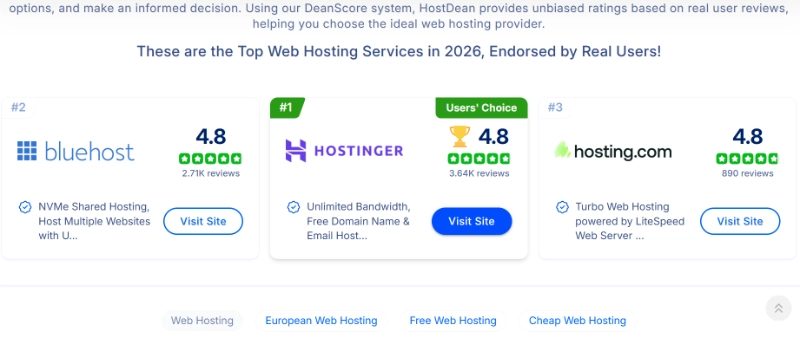
Your hosting provider is the foundation everything else builds on.
Even with ideal techniques for optimizing WordPress speed, poor hosting throttles your site’s potential. I once moved a client from budget shared hosting to quality managed WordPress hosting and saw load times drop from 4.2 seconds to 1.1 seconds without changing anything else.
What to Look for in Fast WordPress Hosting
Prioritize hosts optimized specifically for WordPress with SSD or NVMe storage, modern infrastructure like Nginx or LiteSpeed, and HTTP/3 support. Top-tier options include Hostinger, Cloudways, WPX, and Rocket. Net, Kinsta, WP Engine, and SiteGround.
Managed WordPress hosting alleviates technical burdens by providing built-in optimizations and expert support. For comprehensive guidance on this critical decision, review our detailed guide on How to Choose the Best WordPress Hosting.
Speed Optimization Tip 2: Start With a Lightweight WordPress Theme

Your theme choice impacts speed more than most people realize.
Feature-rich, bloated themes come with excessive code that weighs down every single page load. I’ve seen sites cut load times in half simply by switching from a heavy multipurpose theme to a lightweight alternative.
Opt for performance-optimized themes like GeneratePress or Astra. These themes use clean, efficient code that minimizes resource use. After you’ve chosen your theme, learn how to customize it properly in our guide on how to install and activate a WordPress theme.
Speed Optimization Tip 3: Implement Aggressive Caching
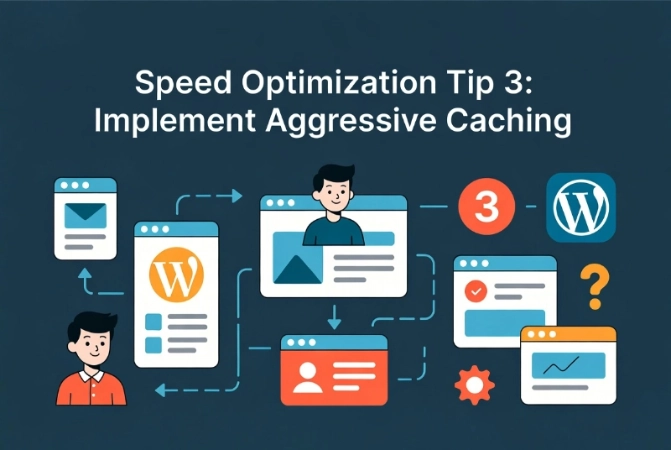
Caching is the single most effective WordPress speed optimization technique available.
By storing static versions of your pages, caching reduces server load and accelerates content delivery dramatically. There are three critical caching types you need to understand.
Page Caching for Instant Loading
Page caching stores the entire HTML of a page and serves it instantly to future visitors without rebuilding the page from scratch every time.
Browser Caching for Repeat Visitors
Browser caching saves parts of your site in visitors’ browsers, allowing much faster loading on subsequent visits. This is particularly important for building loyal audiences who return regularly.
Object Caching for Database Speed
Object caching stores database queries and PHP objects, significantly reducing query times. This is especially important for sites with complex databases or high traffic.
Best Caching Plugins for WordPress
Popular options include WP Rocket for user-friendly instant improvements, LiteSpeed Cache for sites on LiteSpeed servers, W3 Total Cache for advanced customization, WP Super Cache for free page caching, and WP-Optimize for all-in-one optimization.
Critical warning: use only one caching plugin to avoid conflicts that actually hurt performance.
Speed Optimization Tip 4: Deploy a Content Delivery

A CDN stores copies of your static content on servers around the globe.
When visitors access your site, the CDN delivers content from the server geographically closest to them, significantly reducing latency. I’ve seen international traffic load times improve by 60% after implementing a proper CDN.
Cloudflare is a widely used CDN that integrates seamlessly with WordPress. Many high-performance hosting providers also offer integrated CDN services, so check what’s included before paying separately.
Speed Optimization Tip 5: Optimize Images Aggressively
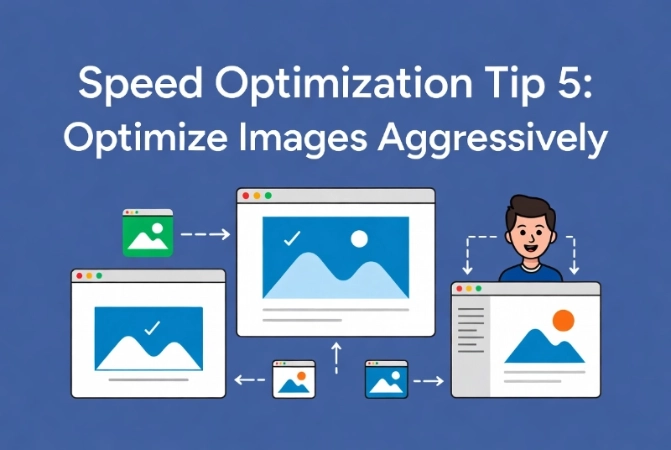
Images are typically the heaviest elements on webpages and the easiest wins for WordPress speed optimization.
Choose Modern Image Formats
Use WebP and AVIF formats instead of traditional JPEG or PNG. These modern formats offer superior compression with better quality, leading to significantly smaller file sizes without visible quality loss.
Resize Before Uploading
Never upload images larger than their display size. Uploading a 3000 px wide image to display at 800 px wastes bandwidth and slows loading for every visitor.
Compress Everything
Reduce file sizes through compression using plugins like Smush, ShortPixel, Imagify, or EWWW Image Optimizer. These tools offer automatic and bulk optimization that saves hours of manual work.
Skip the manual plugin setup; run your images through our free WordPress Image Speed Optimizer to compress and convert them to WebP/AVIF in one step before uploading to your Media Library.
Implement Lazy Loading
Lazy loading defers loading off-screen images until users scroll to them, dramatically improving initial page load speed. WordPress has built-in lazy loading since version 5.5, but plugins can enhance this further.
For comprehensive media management strategies, review our guide on Managing Your WordPress Media Library.
Speed Optimization Tip 6: Minify CSS and JavaScript Files
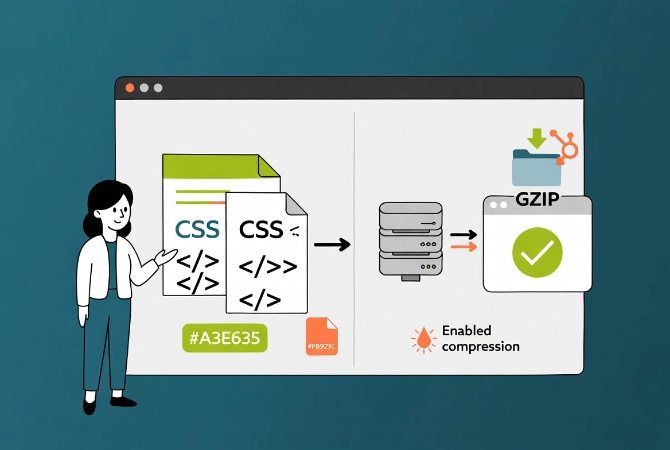
Minification removes unnecessary characters from code files without affecting functionality.
Spaces, comments, and line breaks make code readable for humans, but they also add unnecessary file size. Removing them speeds up file downloads and processing.
Caching plugins like WP Rocket, LiteSpeed Cache, and W3 Total Cache include minification features. Alternatively, use dedicated plugins like Autoptimize or Asset CleanUp for more granular control.
Speed Optimization Tip 7: Enable GZIP Compression
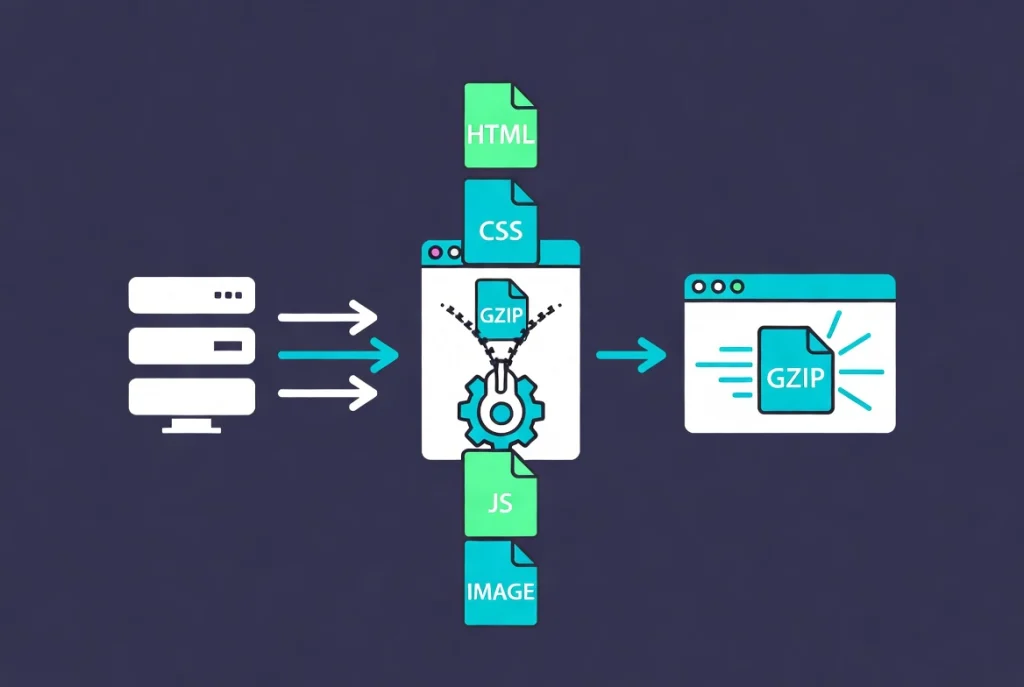
GZIP compression reduces file sizes before sending them from server to browser.
Most modern browsers support GZIP, and enabling it can cut file sizes by 70% or more. Many caching plugins automatically enable GZIP compression, and your hosting provider may also offer server-level compression.
Speed Optimization Tip 8: Clean Your WordPress Database Regularly
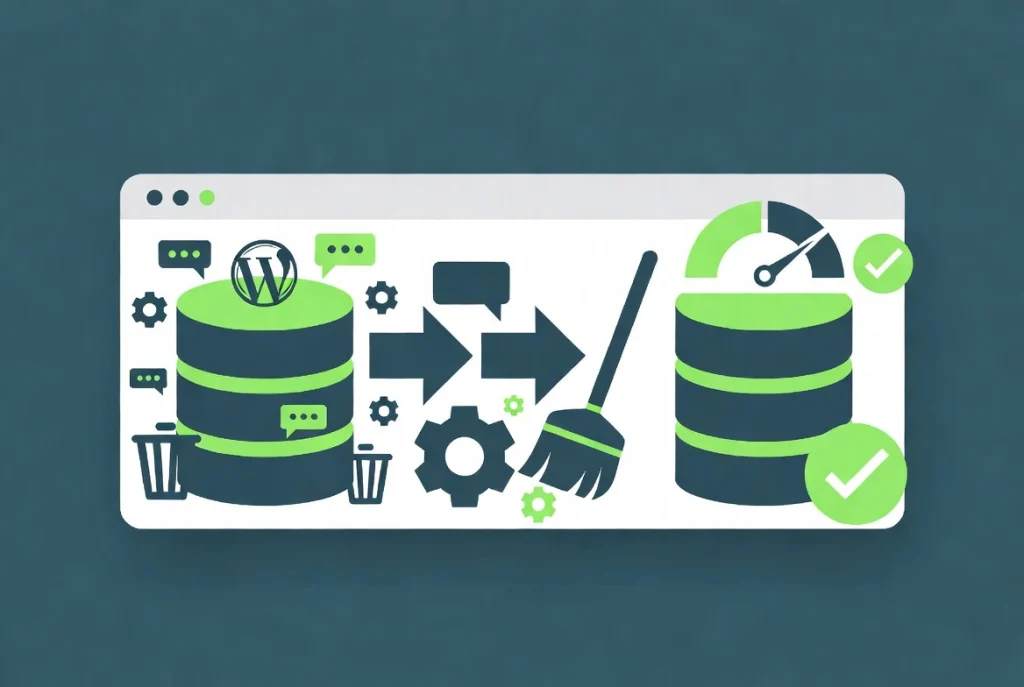
Database bloat is a silent performance killer.
Over time, your WordPress database accumulates old post revisions, spam comments, trashed items, and transient options. A bloated database slows down backend operations and content retrieval.
Regular cleanup keeps your database lean and responsive. Plugins like WP-Optimize or WP-Sweep automate this process, removing junk data and optimizing database tables.
After you’ve optimized your database, ensure you’re protecting it properly with strategies from WordPress Security Basics for Beginners and How to Backup Your WordPress Website.
Speed Optimization Tip 9: Keep WordPress Core, Themes, and Plugins Updated
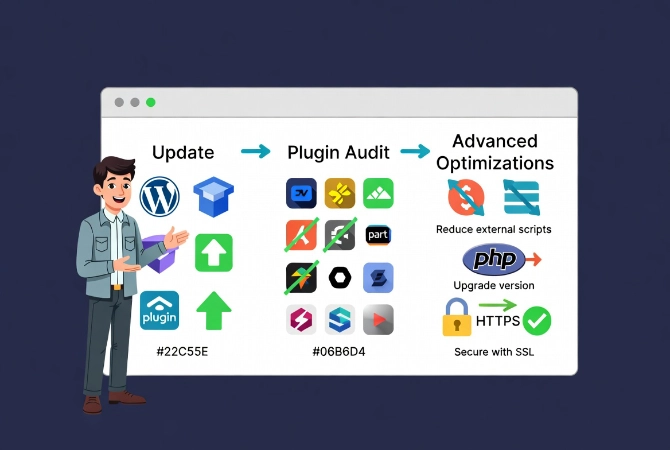
Outdated software causes performance issues and security vulnerabilities.
Updates often include performance enhancements and bug fixes that directly improve speed. Set up automatic updates for WordPress core and trusted plugins, but always check compatibility before applying major updates.
Learn the proper update process in our guides on How to Safely Update WordPress Core and How to Install and Manage WordPress Plugins.
Speed Optimization Tip 10: Audit and Minimize Plugins

Every plugin adds code that must run on every page load.
An excessive number of plugins, or poorly coded ones, significantly slows down WordPress sites. I regularly see sites running 40+ plugins when they actually need fewer than 15.
Conduct Regular Plugin Audits
Review installed plugins quarterly. Deactivate and delete any that aren’t essential. If your hosting or another plugin provides a function, don’t install a separate plugin for the same purpose.
Prioritize lightweight, well-coded plugins with frequent updates. Check reviews and active installation numbers before installing anything new.
Advanced WordPress Speed Optimization Techniques
Once you’ve implemented the core optimizations, these advanced techniques provide additional improvements.
Reduce External Scripts and HTTP Requests
Every external script (social sharing buttons, analytics trackers, and ad scripts) adds to page load time. Limit third-party scripts to essentials only.
Combine CSS and JavaScript files where possible to reduce HTTP requests. Tools like Autoptimize help with this process.
Upgrade Your PHP Version
WordPress runs on PHP, and newer versions bring significant performance improvements. Ensure you’re using PHP 8.2 or better. Upgrading from PHP 7.4 to 8.2 can provide a 30-40% speed boost.
Check your current PHP version and requirements in our guide on WordPress System Requirements Explained.
Install an SSL Certificate Properly
SSL certificates enable HTTPS, which is faster than HTTP and required by modern browsers. HTTP/2 and HTTP/3 protocols only work with HTTPS connections.
Follow our detailed guide on installing an SSL certificate for WordPress to implement the process correctly.
Tools to Measure Your WordPress Speed Optimization Results
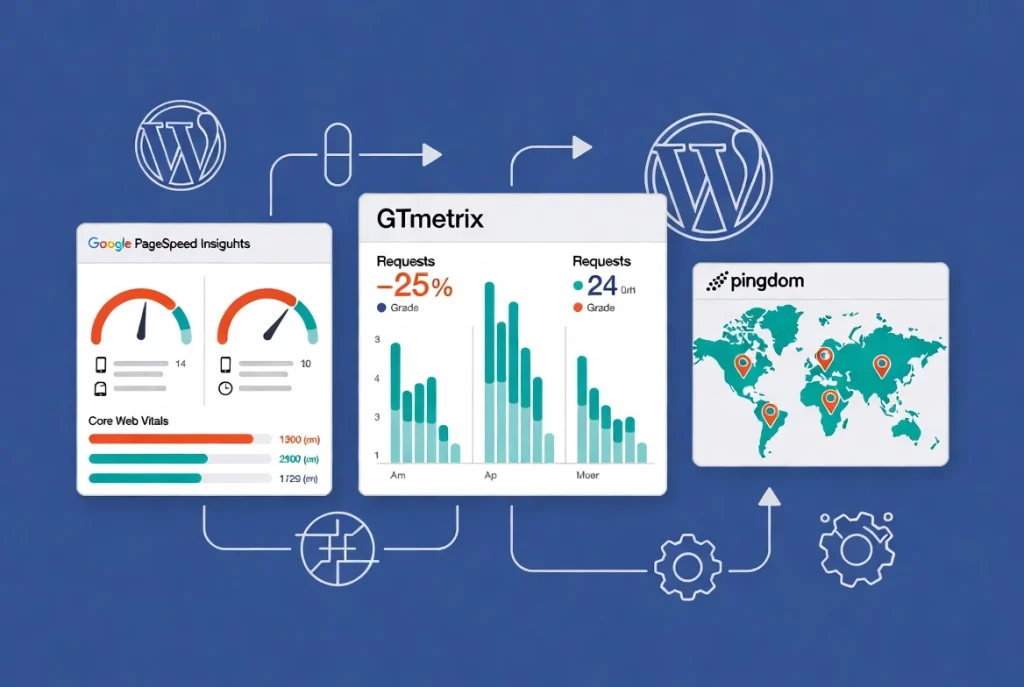
You can’t improve what you don’t measure.
Test before and after implementing optimizations to track progress and identify remaining bottlenecks.
Google PageSpeed Insights
This free tool analyzes your site and generates specific suggestions. It provides scores for mobile and desktop and reports on Core Web Vitals performance.
GTmetrix for Detailed Analysis
GTmetrix offers detailed insights into page load time, page size, and request counts. It uses Lighthouse to provide scores and actionable recommendations with waterfall charts showing exactly what’s slowing you down.
Pingdom Tools for Global Testing
Pingdom provides performance checks from various global locations, showing how your site performs for international audiences. It offers performance grades and specific suggestions for improvement.
Monitor continuously, as WordPress sites evolve with new content and plugins that require ongoing optimization.
Troubleshooting Common WordPress Speed Issues
Even with optimization, issues arise. Here’s how to diagnose and fix them.
If your site suddenly slows down, check recent plugin installations or updates. Deactivate plugins one by one to identify the culprit. Review our How to Fix Common WordPress Installation Errors guide for systematic troubleshooting.
Use the WordPress Site Health Tool to identify performance and security issues. WordPress detects automatically.
Additional Resources for WordPress Performance
Continue improving your WordPress site with these comprehensive guides:
- Start with fundamentals in WordPress Basics and Installation
- Choose the right foundation with How to Choose the Best WordPress Hosting
- Verify requirements in WordPress System Requirements Explained
- Secure your optimized site with WordPress Security Basics for Beginners
- Protect your work with How to Backup Your WordPress Website
- Enable HTTPS correctly using Installing an SSL Certificate for WordPress
- Manage content effectively with Managing Your WordPress Media Library
- Update safely following How to Safely Update WordPress Core
WordPress speed optimization is an ongoing journey that delivers significant rewards. A faster website enhances user experience, boosts SEO rankings through improved Core Web Vitals, and leads to higher conversion rates. By systematically implementing these strategies, from choosing superior hosting and lightweight themes to optimizing images, leveraging caching, minifying code, and maintaining a clean database, you unlock your WordPress site’s full potential.
Don’t let a sluggish website hold you back. Start with the easiest wins like caching and image optimization, then work through the more advanced techniques. Monitor your progress with speed testing tools and celebrate each improvement. Your visitors will notice the difference immediately.