
How to Increase the WordPress Memory Limit Safely (2026)
I was live-demoing a new WooCommerce store for a client when the checkout page crashed with the message “WordPress memory errors,” especially the dreaded “Allowed memory size of X bytes exhausted” message, which are among the most common and disruptive issues administrators face. The error message read, “Allowed memory size of 128 megabytes exhausted.” The client watched silently as I frantically edited wp-config.php via my phone’s FTP app. Three minutes of pure embarrassment could have been avoided with proper memory allocation.
WordPress memory errors, especially the dreaded “Allowed memory size of X bytes exhausted” message, are among the most common and disruptive issues administrators face. This isn’t merely an inconvenience; it halts script execution and renders your site inaccessible or functionally impaired. When WordPress, a plugin, or a theme attempts to consume more PHP memory than the server currently permits, this critical error appears. Understanding how to increase the WordPress memory limit and applying the correct solution is fundamental for reliable site operation. This guide builds on our WordPress Basics and Installation foundation to help you resolve memory exhaustion errors.
⚡ Quick Summary (TL;DR)
- You’ll learn how to increase the WordPress memory limit to fix the “Allowed memory size exhausted” error and keep your site running smoothly.
- The guide explains what causes memory issues and how much PHP memory your WordPress site actually needs in 2026.
- You can raise the memory limit using wp-config.php, php.ini, .htaccess, or by asking your hosting provider for help.
- It walks you through safe steps, such as backing up your site and gradually increasing memory to avoid breaking anything.
- You’ll also see how to troubleshoot if the error continues, including checking plugins, themes, and server limits.
Understanding the WordPress Memory Exhaustion Error
Every application running on a server requires a certain amount of system resources.
PHP, the scripting language WordPress is built on, operates within predefined limits. One such limit is memory_limit. This directive dictates the maximum amount of RAM a PHP script can consume.
Why WordPress Requires Memory
WordPress, by its very nature, is dynamic.
It processes requests, interacts with databases, loads themes, and executes numerous plugins. Each of these operations demands memory. Complex themes often require more resources. E-commerce platforms, like WooCommerce, significantly increase memory usage due to product data, user sessions, and payment gateways.
Image manipulation, large data imports, or running extensive security scans can push the system beyond its configured threshold. When the allocated memory is insufficient, the script crashes. You see that error message, and your site goes down.
How Much Memory Does WordPress Need in 2026?
There isn’t a universal answer for all WordPress sites.
A basic WordPress installation might run comfortably on 64MB or 128MB. However, this figure rapidly changes with added functionality. Most hosting providers, and WordPress itself, recommend higher baselines.
Recommended WordPress Memory Limits
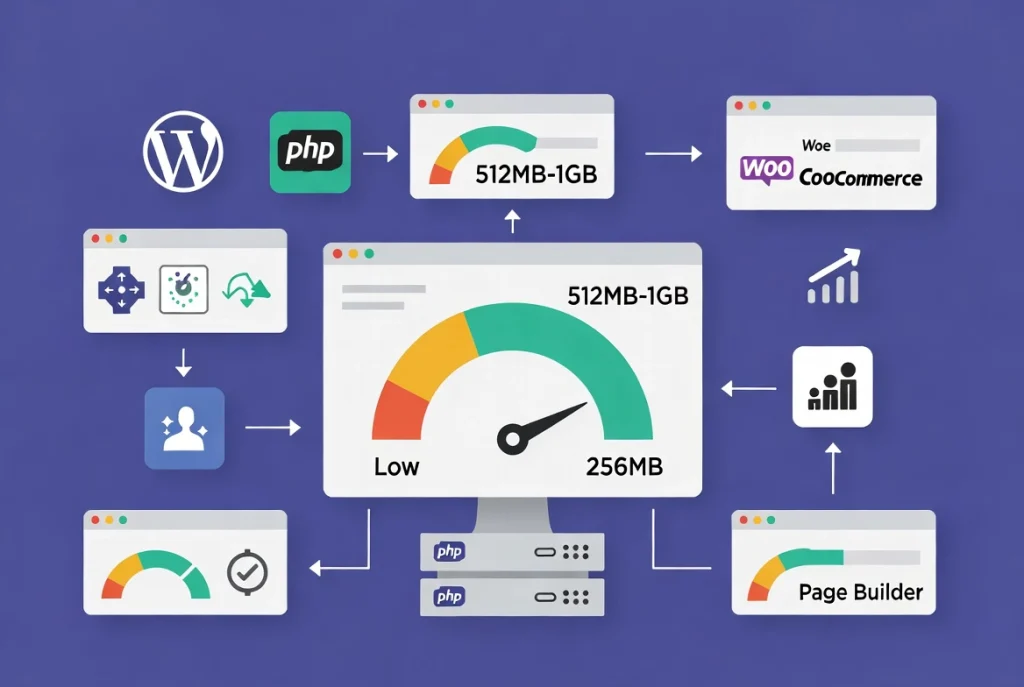
As of 2026, a production WordPress site running a modern theme and a moderate set of plugins should ideally have a minimum of 256MB PHP memory.
Sites with WooCommerce, page builders, or many concurrent users often demand 512MB or even 1GB. Exceeding the limit isn’t just about functionality; it impacts user experience directly.
Slower page loads, failed operations, and outright inaccessible pages frustrate visitors. Data confirms a direct correlation between site speed and user retention, plus SEO rankings.
Checking Your Current WordPress Memory Limit
Before making any changes, confirm your current memory limit.
This is straightforward using two primary methods:
Method 1: WordPress Site Health Tool
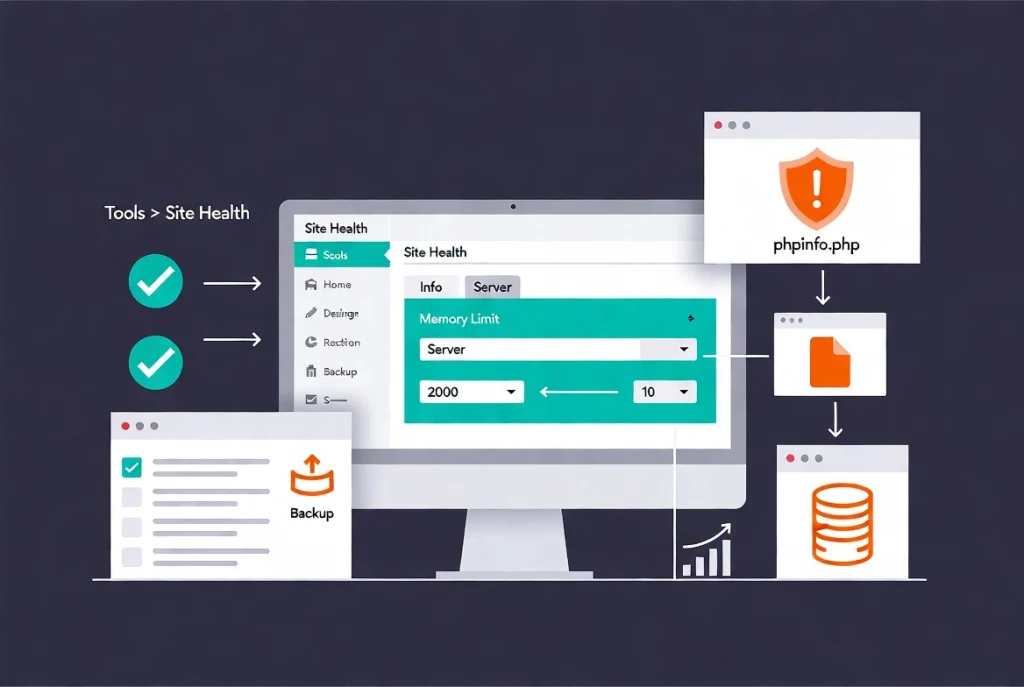
Navigate to “Tools” and “Site Health” in your WordPress admin dashboard.
Click on the “Info” tab, then expand the “Server” section. You’ll find the “PHP memory limit” listed there. This is your most convenient option.
Method 2: phpinfo() File
For a comprehensive server overview, create a file named phpinfo.php in your site’s root directory with the content <?php phpinfo(); ?>.
Access this file via your browser (e.g., yourdomain.com/phpinfo.php). Search for memory_limit.
Crucially, it is important to delete this file immediately after checking, as it exposes sensitive server configurations and poses a significant security risk. This file exposes sensitive server configurations, which poses a significant security risk.
Essential Pre-Modification Protocols
Changing server settings carries inherent risks.
Always, without exception, execute a full backup of your WordPress installation (files and database) before proceeding. This is non-negotiable because a misstep can render your site non-functional.
Follow our comprehensive guide on how to back up your WordPress website before making changes.
Important Considerations
Consider these points before proceeding:
- Server Environment: On shared hosting, your ability to alter
php.inior override directives might be restricted - Incremental Changes: Don’t jump from 64MB to 1GB immediately (increase the limit gradually; start with 256MB, then 512MB)
Method 1: Editing wp-config.php to Increase This approach is
This is the most common and often successful method for WordPress installations.
The wp-config.php file is a core configuration file for WordPress.
Step-by-Step Instructions
Follow these steps carefully:
- Connect to your server using an FTP client (like FileZilla) or your hosting provider’s file manager
- Locate the
wp-config.phpfile in your WordPress root directory (the same directory containingwp-adminfolders) - Download the file to your local machine as a backup
- Open the
wp-config.phpfile with a plain text editor (Notepad++, VS Code) - Look for the line that says:
/* That's all, stop editing! Happy publishing. */ - Above this line, add the following code:
define( 'WP_MEMORY_LIMIT', '256M' );If you have a very large site or a demanding setup (WooCommerce with many products), you might need '512M' to start lower.
Save the file and upload the modified wp-config.php file back to your server, overwriting the original.
Understanding WP_MAX_MEMORY_LIMIT
WordPress also defines WP_MAX_MEMORY_LIMIT.
This value is typically used for the administration backend and is usually set higher than the defaultWP_MEMORY_LIMIT for tasks like image editing. Setting WP_MEMORY_LIMIT often dictates both unless explicitly overridden.
Method 2: Editing php.ini to Increase Memory Limit
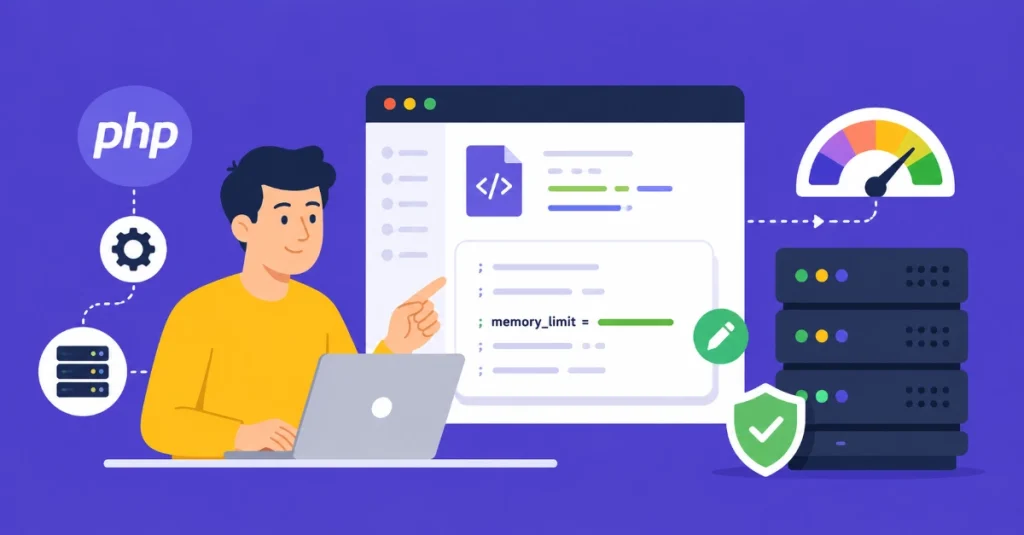
This method modifies the PHP configuration directly.
It impacts all PHP scripts on your server or within that specific PHP environment. This is often only possible on VPS or dedicated servers, or if your shared host provides a custom php.ini option.
Step-by-Step Instructions
- Locate your
php.inifile (location varies significantly by hosting environment) - Common paths include
/etc/php/X.X/fpm/php.inior/opt/alt/phpX/etc/php.ini(where X.X is your PHP version) - You might also find it in your user’s home directory on some shared hosts
- If unsure, contact your host
- Open the
php.inifile with a text editor - Search for the directive:
memory_limit = - Change the value to your desired limit:
memory_limit = 256MUse it Mfor megabytes or gigabytes.
Save the file and restart your web server (Apache/Nginx) and PHP-FPM service. This step is critical for changes to take effect. If you don’t have access, your host must do the same.
Important Note About Configuration Hierarchy
A setting wp-config.phpcan override a lowermemory_limit one.
The highest setting generally takes precedence, but it depends on server configuration.
Method 3: Editing .htaccess to Increase Memory Limit
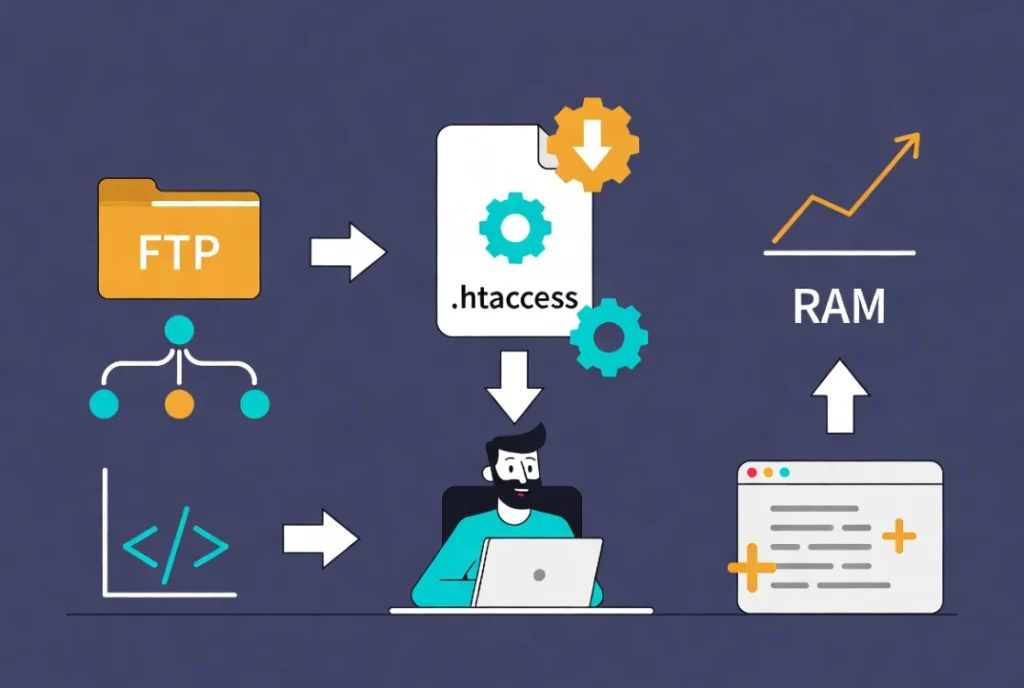
The .htaccess file is a server configuration file, primarily for Apache web servers.
It allows you to override certain server settings on a per-directory basis. This method is less reliable than wp-config.php the previous one and may not work in all hosting environments, especially those that use nginx.
Step-by-Step Instructions
- Connect to your server via FTP or file manager
- Locate the
.htaccessfile in your WordPress root directory (it might be hidden, so ensure your FTP client or file manager shows hidden files) - Download the file as a backup
- Open the
.htaccessfile with a text editor - Add the following line to the end of the file:
php_value memory_limit 256MSave the file and upload it back to your server.
Important Warning
If this method causes a “500 Internal Server Error,” immediately revert the change by restoring your backup .htaccess file.
Your server setup does not permit this directive. Review our guide on how to resolve the 500 Internal Server Error if needed.
Method 4: Contacting Your WordPress Hosting Provider

When in doubt, or if previous methods fail, contact your hosting provider’s support.
This is often the safest and most effective solution, especially on shared hosting where direct server modifications are restricted.
What to Communicate
Provide this information clearly:
- State the exact error message (“Allowed memory size…”)
- Mention that you’ve attempted basic troubleshooting (checking Site Health)
- Politely request an increase to your PHP
memory_limit(e.g., to 256MB or 512MB)
Your host can verify server-wide limits and make the necessary adjustments on your behalf.
Review our guide on how to choose the best WordPress hosting for providers that offer better resource allocation.
Recommended Memory Limits for Different WordPress Sites
Based on current industry standards and the demands of contemporary WordPress ecosystems (2026), these are generally accepted memory thresholds:
| Memory Limit | Typical Use Case | Notes |
|---|---|---|
| 128MB | Minimal Blog/Brochure Site | Bare minimum for basic WordPress. Likely to encounter issues with complex themes or multiple plugins. |
| 256MB | Standard Blog/Business Site | Good starting point. Handles most themes and a reasonable number of plugins. |
| 512MB | E-commerce (WooCommerce), Page Builders, Large Content Sites | Highly recommended for resource-intensive sites. Necessary for smooth operation and simultaneous processes. |
| 1GB+ | Enterprise-level, Highly Trafficked, Complex Integrations | For very large sites, extensive custom code, many active users, or multiple large plugins. Requires robust server resources. |
These figures reflect actual PHP process consumption observed on typical hosting environments. Reputable hosts often offer plans with 512MB or more as standard.
Post-Modification Troubleshooting
After increasing the memory limit, recheck your WordPress Site Health tool.
Please confirm that the PHP memory limit reflects the new value. Clear any site caching (plugins, CDN, server-side) to ensure you’re seeing the latest configuration.
If the Error Persists
If the error persists despite increasing memory, the problem might not be purely a memory limit issue.
Consider these factors:
- Plugin Conflicts: A specific plugin might be extremely inefficient or have a bug (temporarily deactivate plugins to isolate the culprit)
- Theme Issues: Your theme might be poorly coded or excessively heavy
- Server Resources: If you’re on shared hosting, the server itself might be constrained (CPU, I/O)
- Database Load: Inefficient database queries can consume excessive memory and CPU (requires WordPress database optimization)
- Security Concerns: A compromised site running malicious scripts can consume abnormal resources
Sometimes, errors related to installing plugins can reveal underlying memory issues if the system struggles during the upload process.
A thorough WordPress malware removal can help diagnose and resolve security-related resource consumption.
Additional Resources for WordPress Performance
Continue building your WordPress optimization expertise with these essential guides:
- Master the complete process in WordPress Basics and Installation
- Protect your work via How to Backup Your WordPress Website
- Choose quality infrastructure with How to Choose the Best WordPress Hosting
- Fix server errors using How to Fix the 500 Internal Server Error
- Secure your site with WordPress Malware Removal and Security Hardening
- Optimize performance through WordPress Speed Optimization
Resolving the “Allowed memory size exhausted” error is a common administrative task for WordPress professionals. The methods outlined here (primarily wp-config.php and php.ini) directly address the PHP memory limit, allowing your site scripts the resources they need. Always prioritize backups, always increase limits incrementally, and when in doubt, consult your hosting provider. Ensuring your WordPress installation has sufficient memory isn’t just about error prevention; it’s about maintaining a stable, performant, and secure platform. Return to WordPress Basics and Installation whenever you need to review the foundational concepts that make professional WordPress site management possible.