Highly rated, How to Back Up WordPress and Test Restores
I lost three years of client work when a server migration went wrong and I discovered my automated backups hadn’t actually been running for eight months. The backup plugin showed green checkmarks, but the files were corrupted. I had nothing to restore.
Your WordPress website is a critical asset that represents your brand, your content, and your operations. Lose it, and you face significant consequences. We’re in 2026, and the digital landscape demands resilience because ignoring proper backup procedures is not just risky; it’s professional negligence. A well-defined backup strategy safeguards against data corruption, server failures, malicious attacks, or even simple human error. Understanding how to back up your WordPress website effectively is a fundamental component of WordPress Basics and Installation.
A complete WordPress backup normally needs both the database and relevant files, including uploads, themes, plugins, and configuration. “Five minutes” is not a reliable promise: duration depends on site size, server resources, storage, and method. A backup is useful only if you can locate it, decrypt it when necessary, and restore it successfully.
Practical checklist
- Keep at least one copy outside the hosting account and restrict access to it.
- Choose frequency and retention from how much data the site can afford to lose.
- Test restores in an isolated environment and record the result, owner, and recovery steps.
⚡ Quick Summary (TL;DR)
- A reliable backup strategy protects you from sudden server crashes, malicious hacks, and human error.
- A complete and functional restoration requires you to capture both the WordPress database and your actual file system.
- You can secure your content manually through FTP and phpMyAdmin or easily automate the process with high-quality plugins.
- Protecting your business from total data loss means following the 3-2-1 rule by keeping three separate copies across multiple storage types.
- You must regularly test your restoration process in a staging environment to ensure your backup files are never corrupted.
Why WordPress Backups Are Non-Negotiable
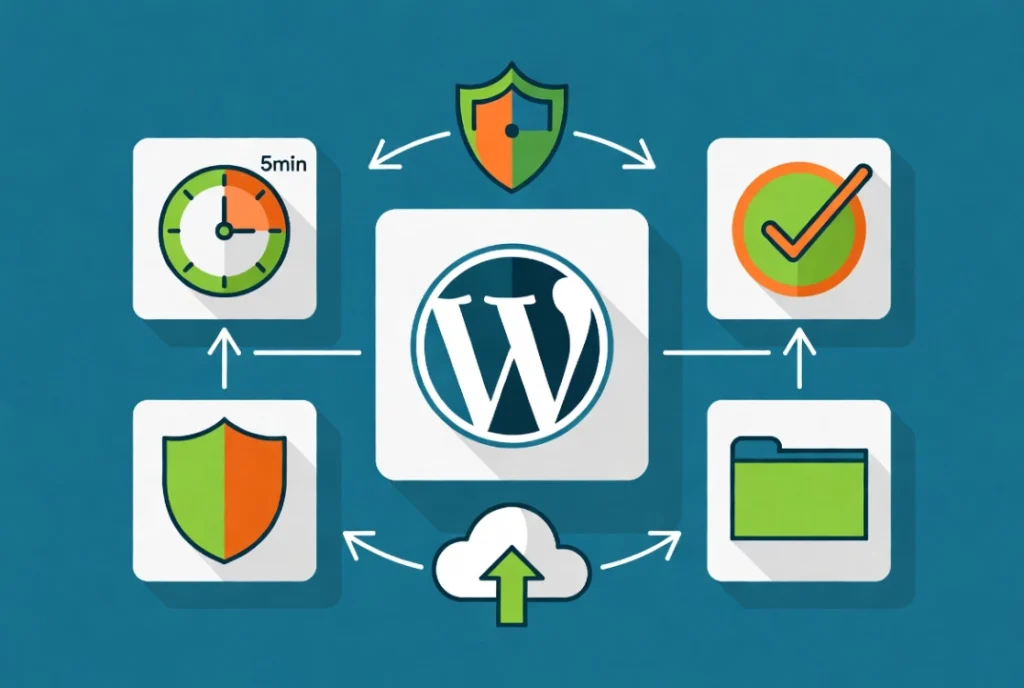
Think of the potential scenarios that could destroy your site.
A server crashes without warning. Your hosting provider experiences a catastrophic failure. A malicious actor exploits a vulnerability, wiping your database completely.
Perhaps a plugin update goes awry, breaking your site. You might make a critical error during theme customization.
Each scenario leads to downtime, and downtime costs money. Industry reports consistently show data loss can cripple small- to medium-sized businesses.
A study cited by the Boston Computing Network indicates approximately 60% of small businesses that suffer major data loss shut down within six months. This is not a theoretical problem because it happens daily.
Backups as Your Ultimate Insurance Policy
A robust backup strategy is your ultimate insurance policy.
Backups mean you can revert to a known reliable state and regain operational capacity quickly. This minimizes financial impact and reputational damage.
What Constitutes a Complete WordPress Backup?
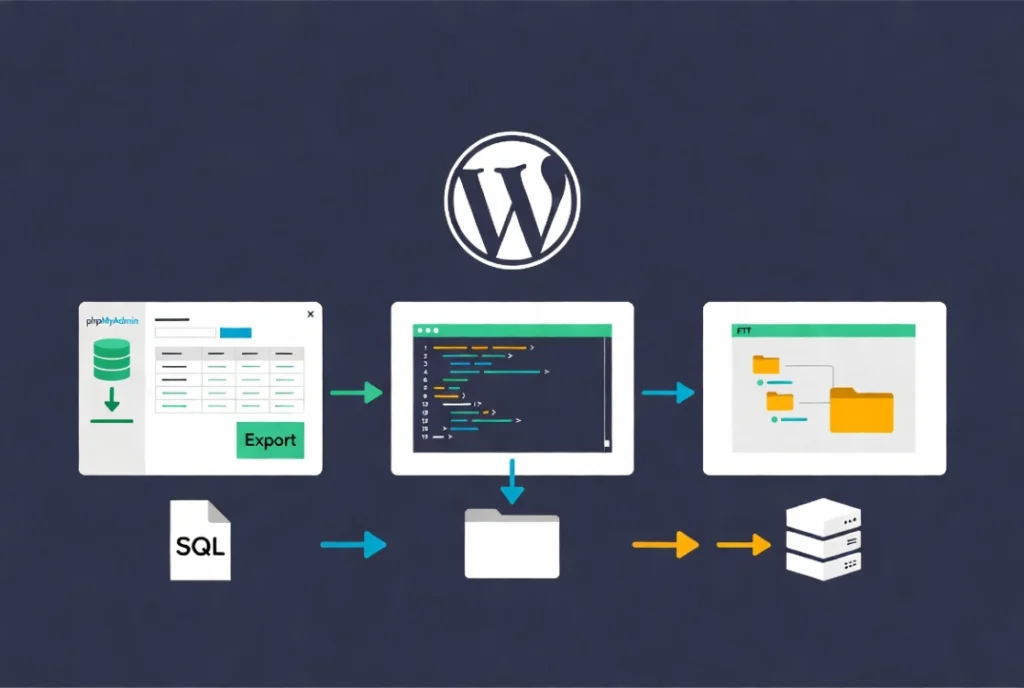
Many misunderstand what a “backup” actually entails for a WordPress site.
A complete backup is not just one thing. It requires two distinct, equally vital components.
The WordPress Database
This stores all your posts, pages, comments, user information, plugin settings, and theme options.
If you write it or someone interacts with it, the content likely lives in the database. WordPress typically uses MySQL or MariaDB. Corrupt the database, and your content vanishes.
The WordPress Files
This directory includes everything else on your site.
The WordPress core files, your installed themes, and all your plugins comprise the file system. Crucially, your ‘wp-content’ directory holds your uploaded media (images, videos, and documents).
Without these files, your database is useless because you cannot display anything. Both elements must be present for a functional restoration.
Manual WordPress Backup Methods
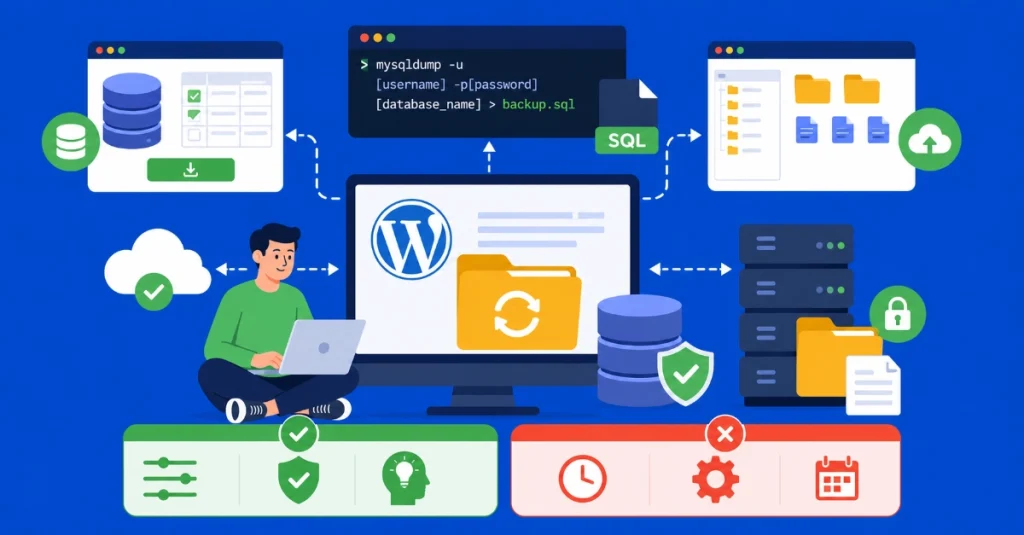
Manual backups offer granular control but require more effort.
They guarantee you understand every step of the process.
Database Backup via phpMyAdmin
Access phpMyAdmin through your hosting control panel.
Select your WordPress database and click “Export.” Choose “Custom” for the export method and ensure the SQL format is selected.
This allows you to exclude certain tables if necessary, though backing up everything is usually the safest approach. The resulting .sql file contains all your content.
Database Backup via Command Line
For those comfortable with command-line interfaces (CLI), mysqldump offers unparalleled power:
mysqldump -u [username] -p[password] [database_name] > backup.sql
This command directly exports your database with speed and reliability. Server administrators commonly use this method.
Files Backup via FTP/SFTP
Connect to your server using an FTP client (FileZilla, Cyberduck).
Navigate to your WordPress root directory (often public_html). Download every file and folder recursively to your local machine.
This process can take time depending on your site’s size and connection speed. Using SFTP (SSH File Transfer Protocol) is preferable for security because it encrypts the data during transfer.
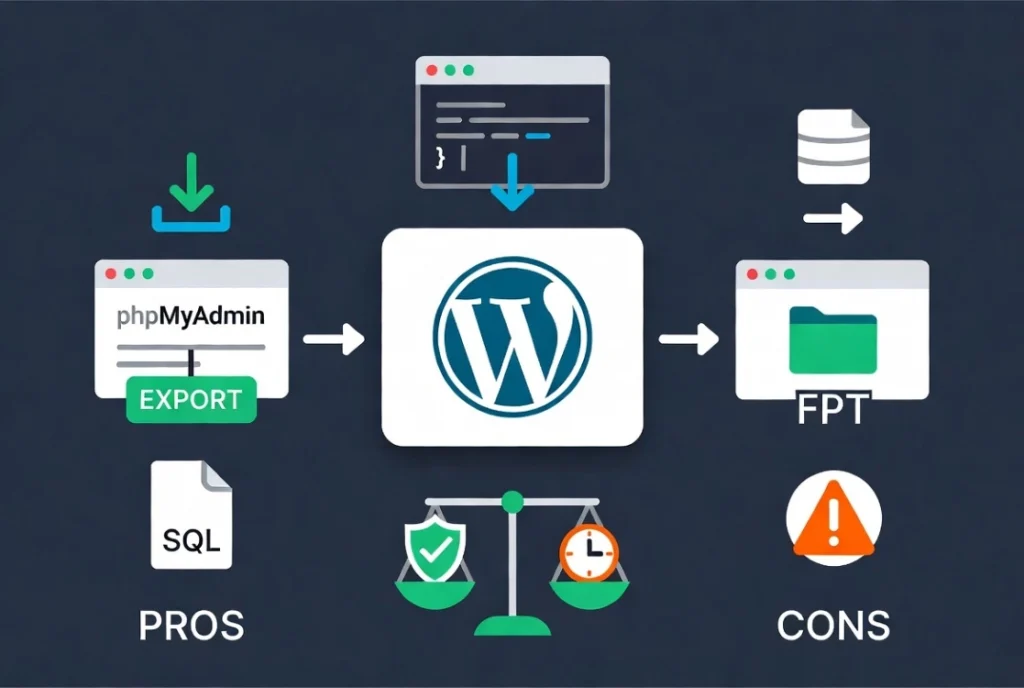
Pros and Cons of Manual Backups
Manual WordPress Backups: Pros and Cons
Pros
- Complete control over what you backup
- No reliance on third-party plugins
- Deep understanding of the backup process
Cons
- Time-consuming, especially for large sites
- Requires technical expertise
- Easy to forget, leading to outdated backups
Plugin-Based WordPress Backups
WordPress plugins automate the backup process effectively.
They’re incredibly popular because they simplify complex tasks. However, choose reputable options carefully.
Popular WordPress Backup Plugins
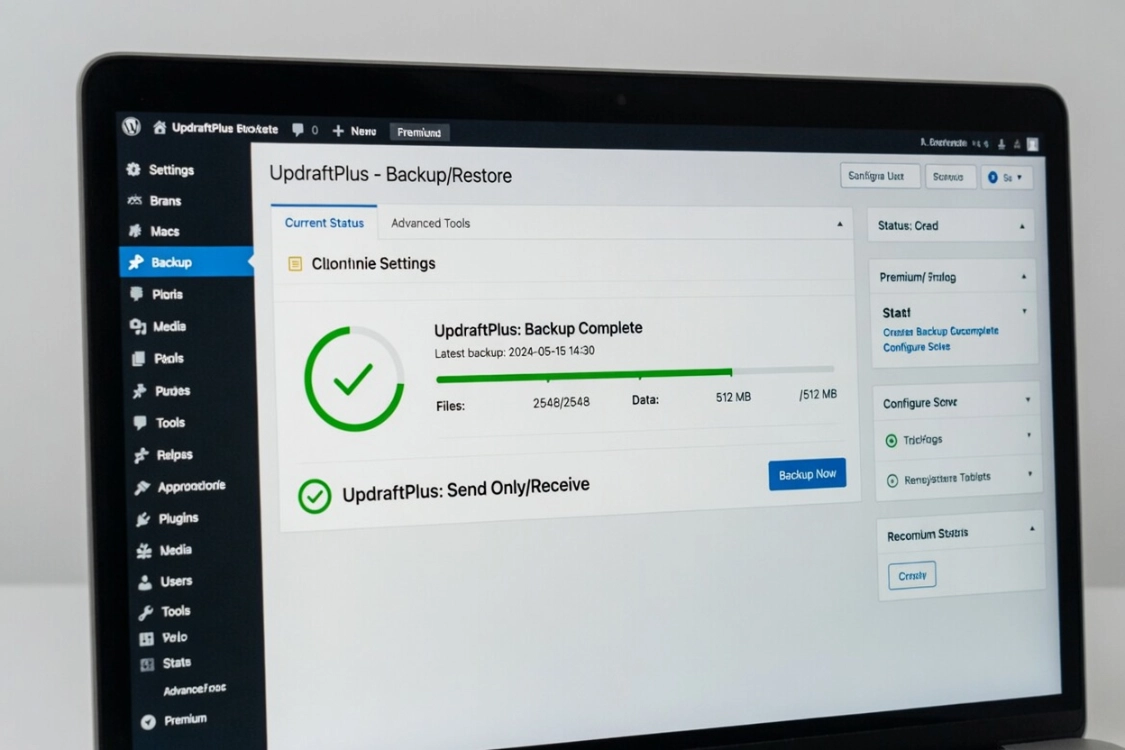
Plugins like UpdraftPlus, BackWPup, or Duplicator offer robust features.
These plugins can back up both your database and files. The automation features allow scheduled backups. Many even send copies to remote storage locations.
Think Dropbox, Google Drive, or Amazon S3. This automates the “off-site” component of a good backup strategy.
Plugin Backup Workflow
- Install and activate the chosen backup plugin
- Access its settings panel
- Configure which components to back up (database, plugins, themes, uploads, core files)
- Set a schedule (daily, weekly, monthly)
- Designate a remote storage destination (critical step)
- Initiate the first manual backup to confirm settings
Advantages of Plugin-Based Backups
A significant advantage: many plugins offer one-click restoration.
This drastically reduces recovery time during emergencies. But remember, plugins introduce another layer to your site. Ensure they receive regular updates and check for compatibility issues.
Only use weekly, highly rated, actively maintained plugins. Learn more about safe plugin management in our guide on how to install and manage WordPress plugins.
Pros and Cons of Using a WordPress Backup Plugin
Pros
- Automation and scheduling
- Easy setup for remote storage
- Simplified restoration process
- User-friendly interface
Cons
- Adds overhead to your WordPress installation
- Potential conflicts with other plugins or themes
- Reliance on third-party developers for security and updates
- Free versions often limit important features
Web Host Backups: A Safety Net, Not a Primary Strategy
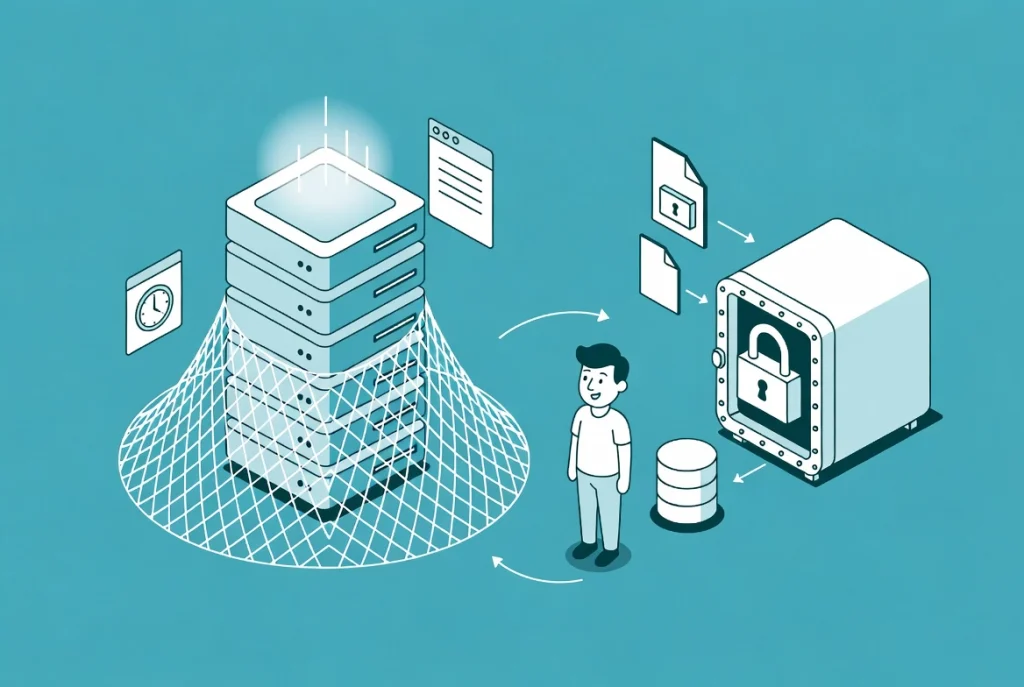
Most quality web hosting providers offer their own backup services.
These are typically server-level snapshots that capture your entire hosting account. While convenient, they come with significant caveats.
Limitations of Host Backups
Host backups usually have limited retention periods, perhaps 7 to 30 days.
Restoring from them can sometimes take hours, or even days, depending on your host. They’re also usually full account restorations, which means you cannot selectively restore a single file or database table.
Often, you must request a restore from support, which adds friction and delay during a crisis.
Proper Role of Host Backups
Consider host backups a supplemental safety net.
They’re excellent for catastrophic server-wide failures. But they should not be your sole backup solution because your own personal, independent backups are paramount.
The 3-2-1 Backup Rule: An Industry Standard
The 3-2-1 rule is a fundamental data protection strategy.
This proven framework states:
- 3 copies of your data: The original, plus two backups
- 2 different media types: For example, a local hard drive and cloud storage
- 1 copy off-site: Stored in a different physical location
Why the 3-2-1 Rule Works
Adhering to this rule significantly reduces your risk of data loss.
Storing all backups in one place (even if off-site) still leaves you vulnerable to a single point of failure. Consider natural disasters and what happens if a fire impacts both your office and your nearby external hard drive.
Off-site storage, preferably geographically dispersed, mitigates this risk. Statistics confirm this strategy’s efficacy because organizations that implement comprehensive off-site backup and disaster recovery plans recover significantly faster from data loss events.
Testing Your WordPress Backups: The Critical Step
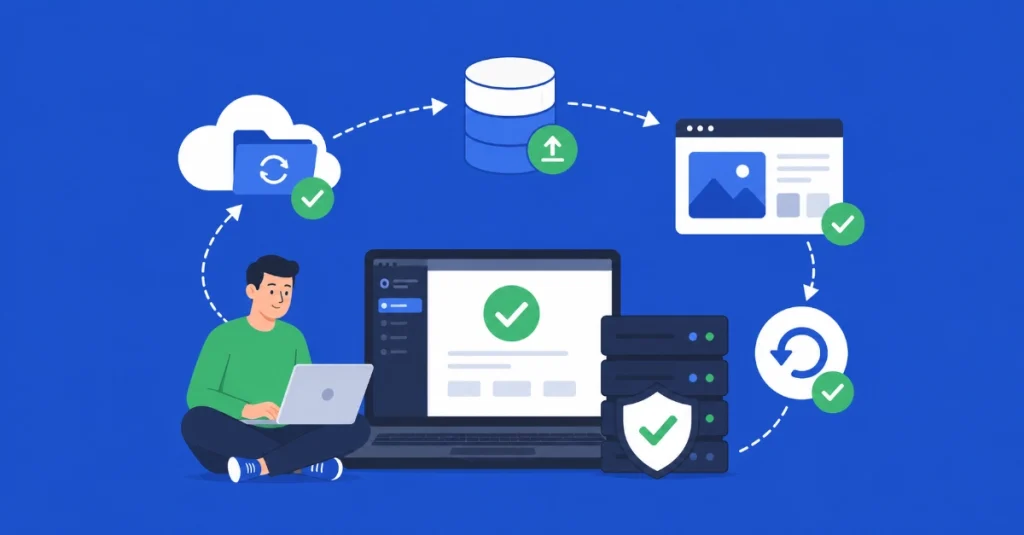
An untested backup is not a backup at all.
It’s merely a collection of files that might be corrupt or incomplete. You don’t know if it works until you try to restore it.
Many businesses discover their backups are corrupt or incomplete only when disaster strikes. This is unacceptable.
How to Test Backups Properly
Regularly test your restoration process using these methods:
- Create a local development environment (using XAMPP, MAMP, or Docker) and restore your backup there
- Use a staging site provided by your host and restore your backup there
This validates the integrity of your backup files and familiarizes you with the restoration procedure. Familiarity reduces panic during a real emergency.
Perform these tests quarterly at minimum. For high-traffic sites, monthly testing is more appropriate.
WordPress Backup Frequency and Retention
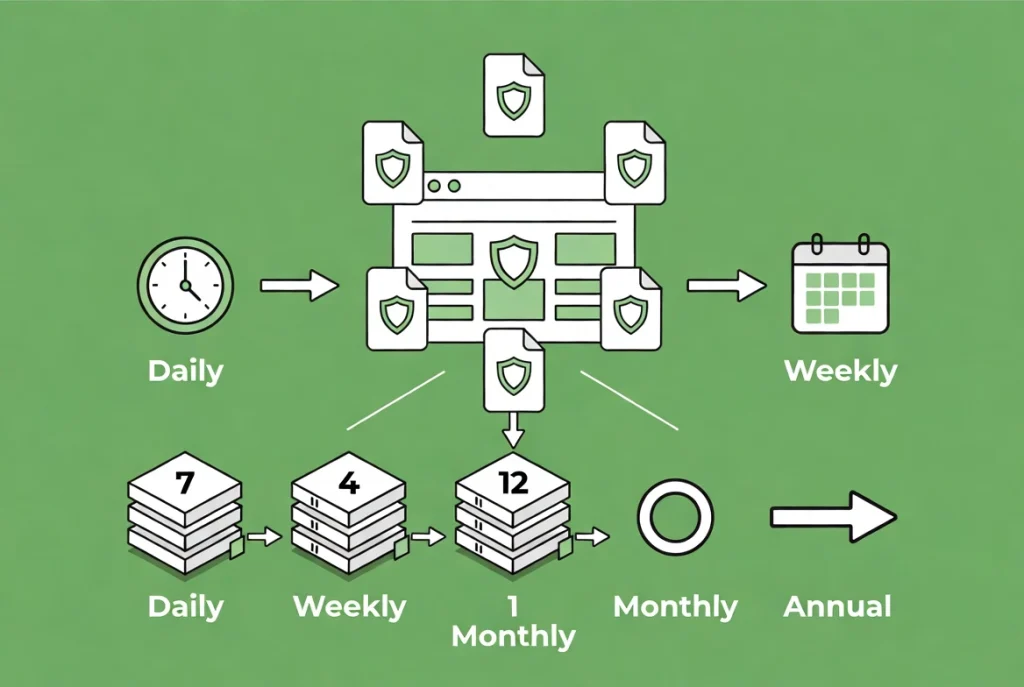
The frequency of your backups directly correlates with how often your site changes.
Backup Frequency Guidelines
Daily-updated blogs: Daily backups are essential because you cannot afford to lose a week’s worth of content.
E-commerce stores with constant transactions: Hourly or real-time backups might be necessary to capture every order.
Static portfolio sites: Weekly or even monthly backups might suffice after initial setup.
Backup Retention Strategy
A common retention strategy includes keeping:
- Seven daily backups
- Four weekly backups
- Twelve monthly backups
- One annual backup, archived indefinitely
This allows you to roll back to various points in time. It helps recover from issues that might go unnoticed for days or weeks.
For example, if a plugin introduced a subtle bug a month ago, a monthly backup might be your only recourse.
Choosing Your WordPress Backup Strategy
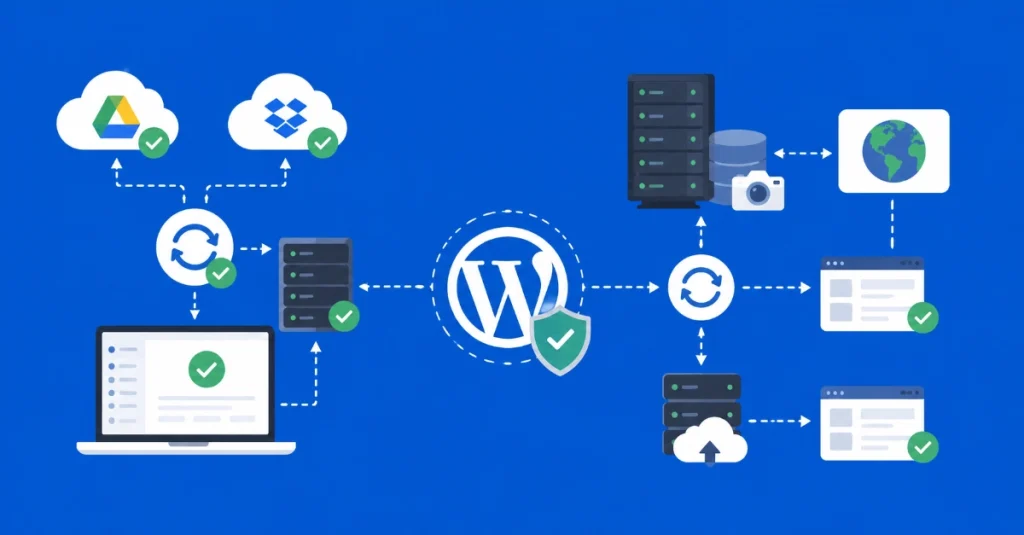
For most WordPress users, a combination of plugin-based backups with off-site storage, supplemented by host backups, is ideal.
Small to Medium Sites
Recommended approach:
- A reliable backup plugin (UpdraftPlus) set to daily backups
- Plugin sends copies to two separate cloud storage providers (Google Drive and Dropbox)
- Your web host’s included backups serve as a third, independent layer
This setup fulfills the 3-2-1 rule’s media and off-site requirements.
Large or Critical Sites
Enterprise-level approach:
- Implement server-level backups (snapshots, rsync scripts) for comprehensive server state recovery
- Utilize a premium WordPress backup plugin for application-level granular restores
- Ensure off-site replication to geographically distinct data centers
- Regularly test restoration to a staging environment
Additional Resources for WordPress Backup Strategies
Continue building your WordPress backup expertise with these essential guides:
- Master the foundation in WordPress Basics and Installation
- Manage extensions safely through How to Install and Manage WordPress Plugins
- Update safely using How to Safely Update WordPress Core
- Secure your site with WordPress Security Basics for Beginners
- Install secure connections via installing an SSL certificate for WordPress
Your WordPress site is a dynamic entity that evolves over time. Your backup strategy should evolve with it. Don’t wait for a crisis to implement one because establishing a clear, documented plan now is essential. Test it frequently and adjust it as your site grows and changes. This proactive approach represents the hallmark of a seasoned professional and the only way to ensure continuous operation and peace of mind. Return to WordPress Basics and Installation whenever you need to review the foundational concepts that make professional WordPress site management possible.