How to Use WordPress Site Health
I ignored the Site Health warnings for six months because everything “looked fine” on the frontend. When the site finally crashed, I discovered we’d been running PHP 7.2 with three critical security vulnerabilities. Hackers had installed backdoors in twelve different plugin folders.
Operating a WordPress website in 2026 demands more than just content creation because it requires meticulous maintenance, especially when considering performance, security, and stability. Many administrators, unfortunately, overlook one of WordPress’s most powerful built-in diagnostic utilities: the Site Health tool. This critical feature, introduced in WordPress 5.2, acts as an early warning system for your installation. Think of it as your site’s comprehensive medical check-up that scans your installation, identifies potential issues, and offers actionable recommendations. Understanding how to use the WordPress Site Health Tool isn’t a passive task but a direct conduit to understanding your site’s operational integrity. Every strong WordPress setup, from initial WordPress Basics and installation to complex e-commerce platforms, relies on a solid foundation that the Site Health tool helps ensure remains sound.
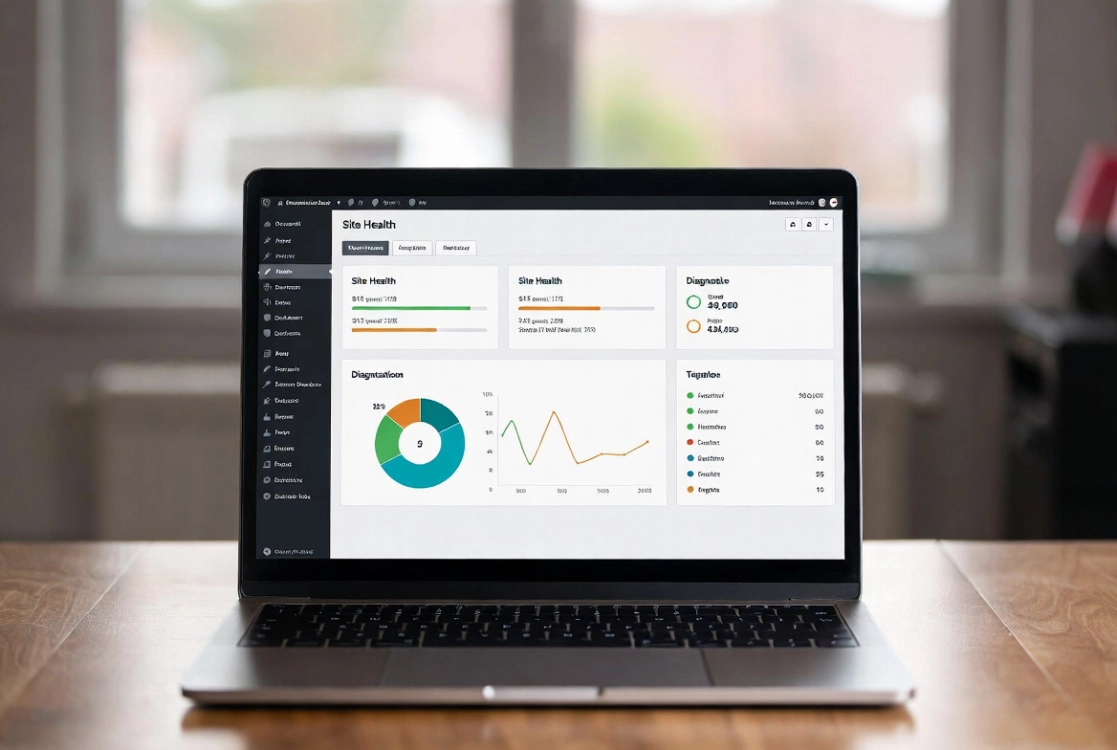
Site Health is a diagnostic starting point, not a grade that guarantees speed or security. Status groups core and plugin tests into critical issues, recommended improvements, and passed tests. Info describes the environment but does not change settings. Plugin and host integrations can add tests, so two sites may show different results.
Practical checklist
- Back up before changing PHP, database, HTTPS, filesystem, or update configuration.
- Redact paths, usernames, server details, and secrets before sharing copied Site Health information publicly.
- Fix one issue at a time, record the baseline, and rerun the affected test.
⚡ Quick Summary (TL;DR)
- The WordPress Site Health Tool helps you spot security, performance, and setup issues before they become serious problems.
- You’ll learn how to access the tool, understand the Status and Info tabs, and read critical warnings clearly.
- The guide explains common issues like outdated PHP, missing modules, and inactive plugins that can weaken your site.
- You’ll see how to fix these problems step by step to keep your WordPress site secure and running smoothly.
- Regularly checking site health helps you maintain better performance, avoid crashes, and improve your SEO results.
What Is the WordPress Site Health Tool?
The Site Health tool is a diagnostic interface within your WordPress admin dashboard.
This built-in feature examines core files, server configuration, database status, plugin and theme integrity, and background process functionality. The system assigns a ‘status’ rating, classifying findings into ‘Good,’ ‘Recommended improvements,’ or ‘Critical issues.’
Proactive Problem Identification
The immediate benefit is clear: proactive problem identification before issues become visible.
Many site owners only react to problems after they become apparent, often after a performance drop or, worse, a security breach. Site health shifts this paradigm by spotlighting potential weaknesses before they escalate.
You can address an outdated PHP version before it becomes a compatibility nightmare. Missing PHP modules get identified before your media library breaks.
Security and Performance Benefits
Outdated software represents a primary vector for cyberattacks.
A 2024 report by Sucuri Security found that a significant percentage of compromised WordPress sites had at least one outdated component. The Site Health tool directly combats this by flagging such components.
A healthy site loads faster, serves users better, and ranks higher in search results. These are tangible, measurable gains directly tied to a well-maintained operational environment.
Accessing the WordPress Site Health Tool
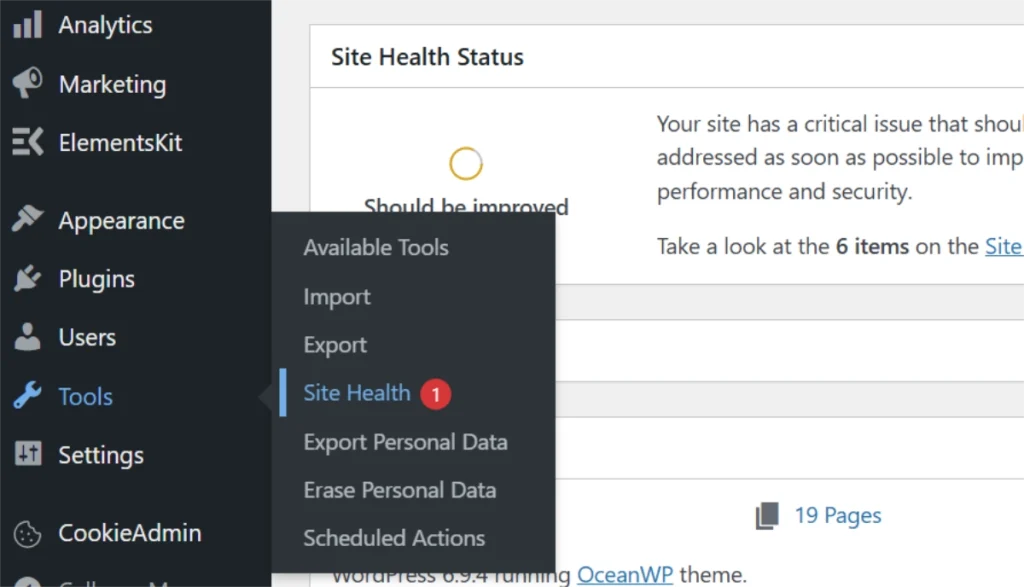
Locating this powerful utility is straightforward.
Log into your WordPress admin dashboard and hover over “Tools” in the left-hand navigation menu. A sub-menu will appear with the Site Health option.
Click “Site Health” to open the diagnostic interface.
Understanding the Two Main Tabs
You’ll see two main tabs: “Status” and “Info.”
The “Status” tab serves as your primary dashboard, displaying an overview of your site’s condition. This tab aggregates findings and categorizes them by severity.
The “Info” tab provides an exhaustive, detailed breakdown of your server configuration, WordPress installation, plugins, themes, and more. Both prove essential for a complete understanding.
Understanding the WordPress Site Health Status Screen
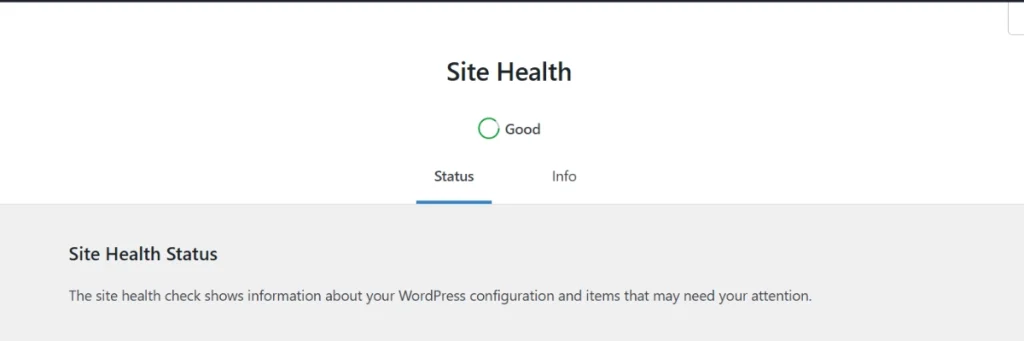
Upon opening the “Status” tab, you’ll immediately see a summary rating.
Ratings include “Good,” “Recommended improvements,” or “Critical issues.” The goal is always “Good,” and anything less requires your attention.
Critical Issues: Immediate Action Required
These demand immediate attention and can compromise your site entirely.
Examples include outdated PHP versions, failed HTTP requests, or security modules not functioning. A site running PHP 7.4 or earlier, for example, is inherently vulnerable.
PHP 8.0, 8.1, and 8.2 offer significant performance gains and security patches. Upgrading should be a top priority.
Recommended Improvements: Optimization Opportunities
These are less urgent but still important for optimal performance and security.
Recommendations often relate to inactive plugins or themes, unused user accounts, or minor server configuration adjustments. Address these to refine your site’s efficiency.
Contextual Help and Guidance
Each finding comes with a brief explanation and often a “Learn more” link.
Clicking on an item expands it, revealing more details. This contextual help guides you even without deep technical expertise.
Common WordPress Site Health Issues Explained
Several common issues appear frequently in Site Health reports.
PHP Version Requirements
Your server’s PHP version is foundational to site performance and security.
Older versions are significantly slower and contain known security holes that cybercriminals actively target. WordPress officially recommends PHP 7.4 or higher, but in 2026, we strongly advise PHP 8.1 or 8.2.
These newer versions offer substantial performance improvements and ensure forward compatibility with the latest WordPress core, plugin, and theme updates. Running anything older represents a critical security exposure point and a drag on site speed.
MySQL/MariaDB Version
The database also needs to be current for optimal performance.
Version 5.7+ for MySQL or 10.2+ for MariaDB represents the standard. An outdated database can impact query performance and data integrity.
Required PHP Modules
WordPress relies on specific PHP modules for core functionality.
Examples include, and curl. Missing modules can break functionality like image uploads or external API integrations. Site Health identifies these gaps clearly.
Inactive Themes and Plugins
These represent often-overlooked security risks on your server.
Inactive themes or plugins can be exploited even when not active. Delete them unless you have a specific, justifiable reason to keep them, like a child theme parent or a temporarily deactivated critical tool.
Learn more about safe plugin management in our guide on How to Install and Manage WordPress Plugins.
HTTPS Status
Your site should use HTTPS at all times.
Site health checks for this configuration. If the system doesn’t detect HTTPS, you need to configure an SSL certificate. Google penalizes non-HTTPS sites in search rankings, plus user trust plummets without encryption.
Review our guide on Installing an SSL Certificate for WordPress for detailed instructions.
Scheduled Events (Cron Jobs)
WordPress uses ‘cron’ jobs for scheduled tasks like publishing posts and checking for updates.
If cron isn’t working correctly, these tasks fail, leading to site update issues or delayed content publication.
REST API and Loopback Requests
These are critical for communication within WordPress and with external services.
If they fail, many core functionalities will break, including the block editor and some plugins. Site Health provides diagnostic information if these connections are blocked or failing.
This usually points to server configuration or security plugin interference.
The WordPress Site Health Info Tab
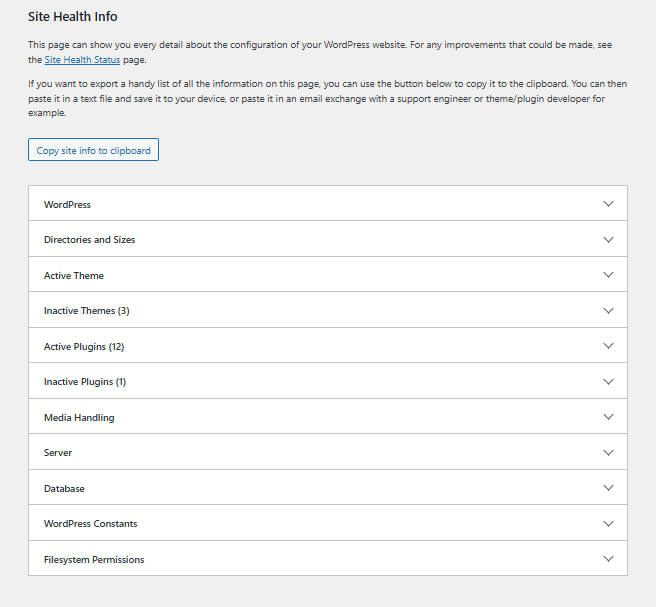
While the “Status” tab tells you what’s wrong, the “Info” tab reveals everything about your environment.
This section serves as a goldmine for diagnostics, server administrators, and developers. Each collapsible section reveals specific, granular data that you can copy to your clipboard for easy sharing with hosting support or development teams.
WordPress Section
This displays your WordPress version, site URL, home URL, multisite status, debug mode status, and memory limit.
A low memory limit (e.g., 40MB) can cause fatal errors, especially with resource-intensive plugins. Increasing WP_MEMORY_LIMIT often resolves the issue.
Review our guide on How to Increase WordPress Memory Limit for detailed steps.
Directories and Sizes
The report shows paths to key directories (WordPress, themes, plugins, and uploads) and their sizes.
A rapidly growing wp-content directory could signal excessive media files or inefficient assets. Consider our guide on managing your WordPress media library.
Theme Information
Details about your active theme appear here: name, version, author, child theme status, and parent theme.
This helps confirm you’re running the correct version or a safe child theme implementation.
Plugins List
A complete list of all active and inactive plugins appears with their versions and authors.
Verify that all installed plugins are up-to-date. Review inactive plugins here for deletion, as mentioned earlier.
Media Handling
This section details the PHP image editor used (Imagick or GD), image file names, and image editor capabilities.
Problems here often manifest as failed image uploads or broken thumbnails. Issues directly correlate with required PHP modules.
Server Configuration
This highly technical but critical section details your web server software (Apache, Nginx, or LiteSpeed).
Your PHP version, PHP memory limit, PHP max input time, upload max filesize, post max size, and time zone settings all appear here. Pay close attention to values like max_execution_time and upload_max_filesize.
If it is too low, complex operations, such as importing large datasets, might time out. A restrictionupload_max_filesize will prevent you from uploading high-resolution images or large media files.
Database Information
Your database type, version, host, name, and prefix all appear in this section.
Verify the database server is local (localhost) and running a current version. This prevents latency and ensures compatibility.
WordPress Constants
These are the predefined variables in your wp-config.php file.
Settings like these appear here. Knowing these settings helps confirm your site is configured as intended.
WP_DEBUG should always be false on a live production site for security reasons.
Filesystem Permissions
This lists permissions for key WordPress directories and files.
Incorrect permissions (e.g., 777 on directories or 666 on files) represent severe security risks. Directories should generally be 755 files.
Addressing WordPress Site Health Recommendations
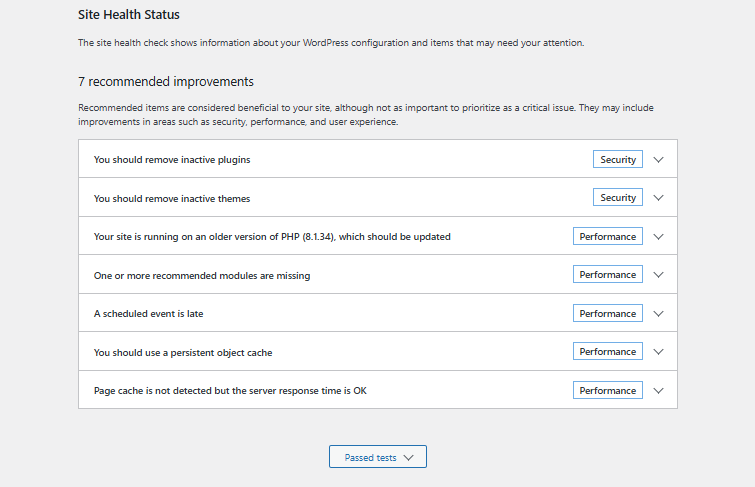
Finding issues is one step, but resolving them is the next critical phase.
Approach site health recommendations systematically by prioritizing critical issues first. These directly impact security and functionality.
Upgrading PHP Version
An outdated PHP version represents a critical issue that your hosting provider usually manages.
Contact their support for assistance with PHP upgrades. Before any major PHP upgrade, ensure all plugins and themes are updated to their latest versions designed for newer PHP.
This proactive step prevents compatibility conflicts during the transition.
Removing Inactive Themes and Plugins
Dealing with inactive themes and plugins is simpler than most technical tasks.
Navigate to “Plugins” or “Appearance → Themes” in your dashboard. Delete anything not actively used to remove potential attack vectors and tidy up your file system.
Ensuring HTTPS Is Active
HTTPS implementation involves installing an SSL certificate (often free via Let’s Encrypt).
Configure WordPress to use the certificate by adjusting your general settings to reflect https:// in your URLs. This represents a baseline requirement for any professional site in 2026.
Regular WordPress Site Health Maintenance
Regular checks are non-negotiable for maintaining a healthy WordPress installation.
Make Site Health a part of your weekly or biweekly maintenance routine. Just like backing up your site (see How to Backup Your WordPress Website), checking site health after updates or new plugin installations helps catch conflicts early.
Measurable Impact of Site Health Monitoring
The measurable impact of diligent site health monitoring is significant and well-documented.
Sites maintaining a “Good” Site Health status typically experience fewer security breaches. Performance also improves due to well-tuned environments.
A study by Kinsta PHP Benchmarks in 2023 showed that sites running PHP 8.1+ consistently outperformed those on older PHP versions by up to 30% in specific benchmarks. That translates directly to better user experience and improved SEO.
Additional Resources for WordPress Site Health
Continue building your WordPress maintenance expertise with these essential guides:
- Master the foundation in WordPress Basics and Installation
- Manage extensions safely through How to Install and Manage WordPress Plugins
- Secure connections via installing an SSL certificate for WordPress
- Optimize performance with How to Increase WordPress Memory Limit
- Protect assets through managing your WordPress media library
- Safeguard data using How to Backup Your WordPress Website
The WordPress Site Health tool is not just a diagnostic report but a vital, continuous monitoring system for your digital presence. The system provides the clarity and actionable intelligence needed to maintain a high-performing, secure, and stable WordPress website. Utilize it consistently, act on its recommendations, and your WordPress site will stand as a reliable, efficient asset for years to come. Return to WordPress Basics and Installation whenever you need to review the foundational concepts that make professional WordPress site management possible.