My stomach dropped the first time I saw the White Screen of Death.
A client had just gone live after weeks of careful preparation. Then, without warning, their site turned into a blank white page. No error message. No clue. Just silence.
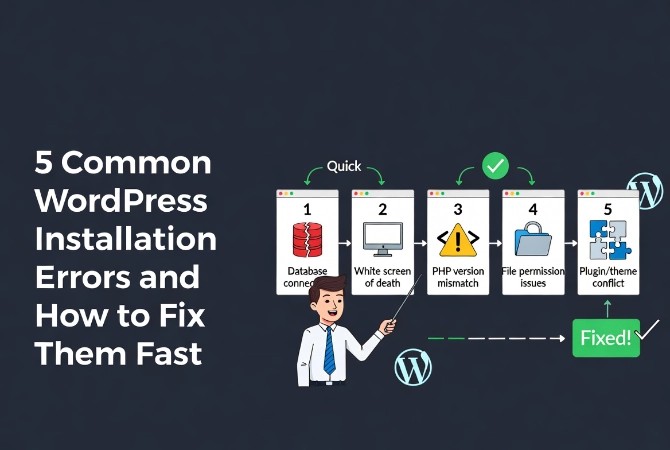
Fixing common WordPress installation errors is a skill every site owner eventually needs, and the good news is that almost every error has a clear, proven solution. Whether you’ve just completed WordPress Basics and Installation or you’re troubleshooting an existing site, this guide gives you the exact steps to diagnose and fix the most frustrating WordPress problems quickly.
Let’s get straight into it.
⚡ Quick Summary (TL;DR)
- Database Connection Failures: This error means WordPress cannot talk to MySQL, which is solved by correcting typos in your
wp-config.phpfile variables (DB_NAME,DB_USER,DB_PASSWORD,DB_HOST) or fixing database user privileges via phpMyAdmin. - The White Screen of Death (WSOD): Usually triggered by PHP fatal errors or exhausted server memory, this blank page is resolved by toggling
WP_DEBUGtotrueto view exact error logs, increasing the PHP memory limit to256M, or isolating faulty plugins/themes via FTP. - 500 Internal Server Error: A vague server-side glitch typically caused by a corrupted configuration script, which you can fix by renaming your root
.htaccessfile via FTP and regenerating a clean version by saving your WordPress Permalink settings. - Directory Creation & Redirect Loops: Permissions blocking uploads are resolved by applying a strict
755directory and644file authorization structure, while infinite redirect loops (“Too Many Redirects”) are cured by hardcoding matchingWP_HOMEandWP_SITEURLrules inside your configuration file.
Before You Fix Any WordPress Error: Do This First
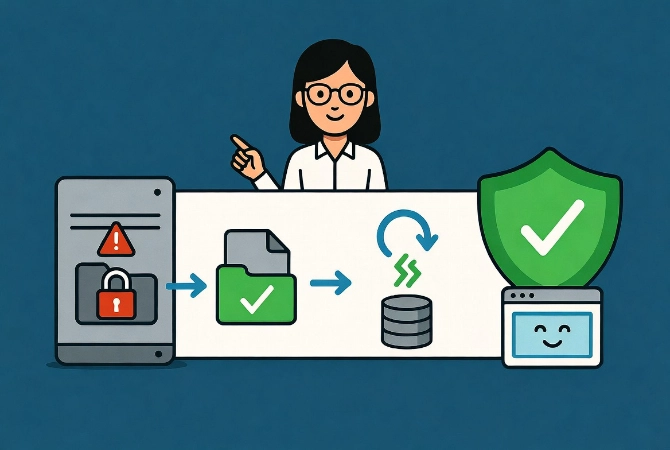
Every experienced developer follows one rule before touching anything: back up first.
Take a full backup of your WordPress files and database before attempting any fix. Also, change one variable at a time. Deactivating all plugins and switching themes simultaneously makes it impossible to know what actually solved the problem. Systematic isolation is the difference between a twenty-minute fix and a full day of guessing.
Error 1: How to Fix “Error Establishing a Database Connection”
This is the most common WordPress installation error you’ll encounter.
It means WordPress can’t communicate with its MySQL database, so it has no content to display. The site is simply dead. Fortunately, the cause is almost always a misconfiguration in one file.
Fix Your wp-config.php Credentials
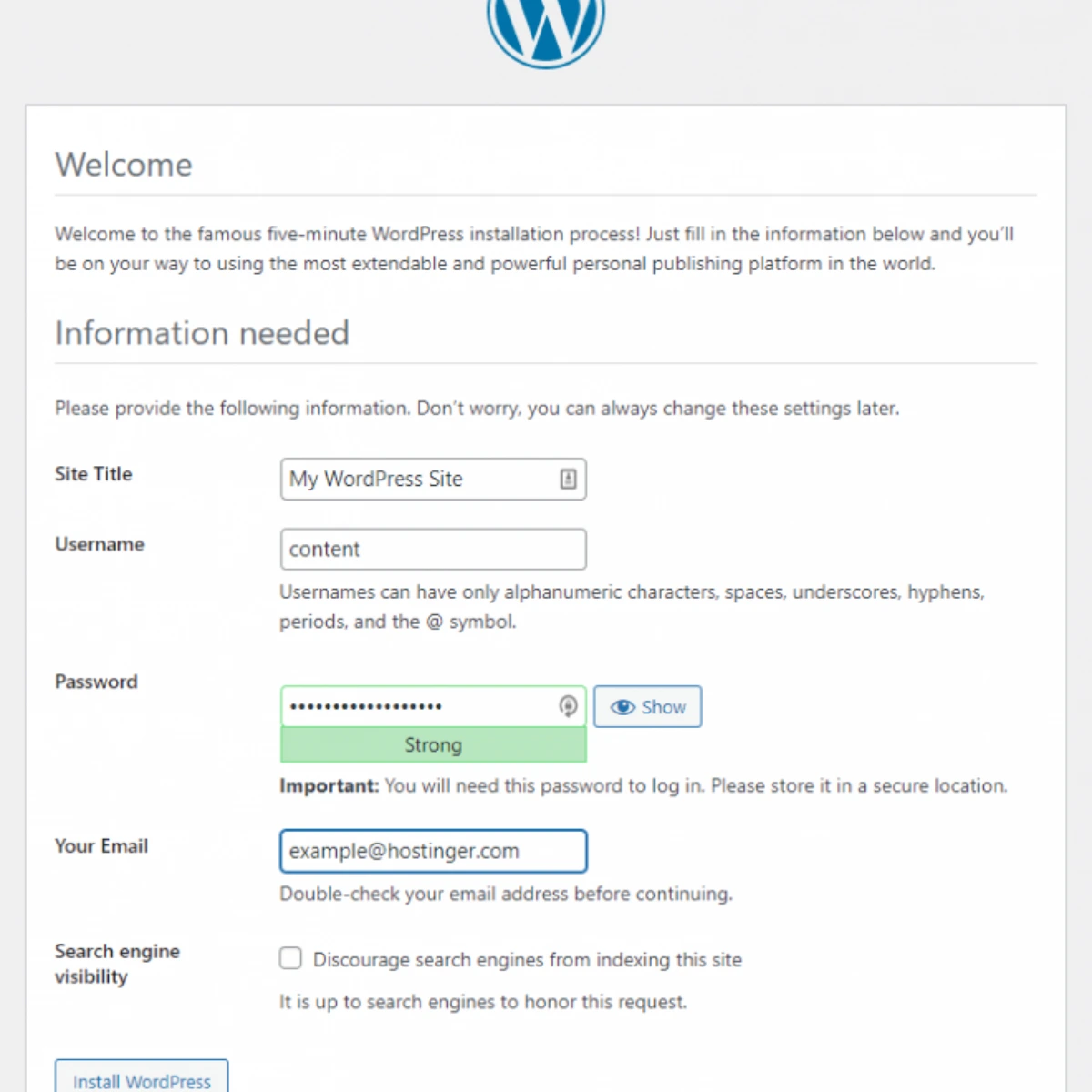
Open your wp-config.php file via FTP or your host’s file manager. Look for these four lines:
define('DB_NAME', 'your_database_name');
define('DB_USER', 'your_database_username');
define('DB_PASSWORD', 'your_database_password');
define('DB_HOST', 'localhost');
Every single value must exactly match what your host provided. One wrong character, a missing letter, or an extra space breaks the connection completely.
DB_HOST is usual, but some hosts use a specific IP address instead. When in doubt, check your host’s documentation directly.
Check Database User Permissions
Sometimes the credentials are correct, but the database user doesn’t have sufficient permissions.
Log into phpMyAdmin through your hosting control panel. Verify your database user has full privileges on the correct database. Grant all privileges if anything is missing.
Error 2: How to Fix the WordPress White Screen of Death
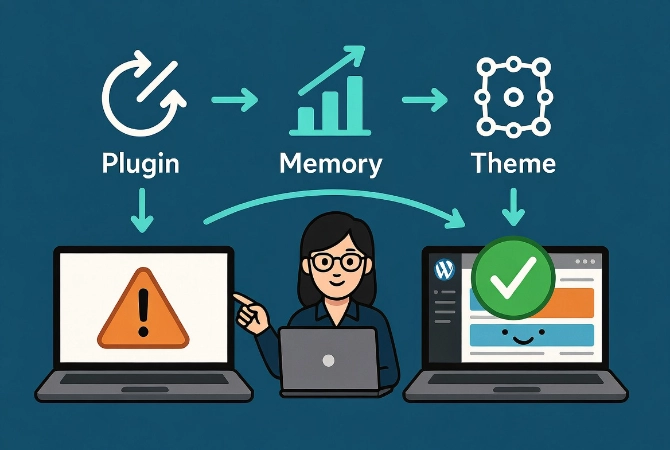
A blank white screen with no error message is genuinely one of the most stressful WordPress problems.
It gives you nothing to work with. The cause is usually a PHP fatal error, two plugins clashing, a broken theme, or WordPress running out of memory.
Enable WP_DEBUG to Find the Real Problem
Open wp-config.php and find the line define('WP_DEBUG', false);. Replace it with:
define('WP_DEBUG', true);
define('WP_DEBUG_LOG', true);
define('WP_DEBUG_DISPLAY', false);
This writes errors wp-content/debug.log without showing them publicly to visitors. Refresh your site, then check that log file. It will tell you exactly which file and which line caused the crash.
Isolate Plugins and Themes via FTP
Connect via FTP and rename your plugins folder to plugins_old. If your site comes back, a plugin caused it. Rename the folder back, then reactivate plugins one by one, testing after each until the white screen returns. That’s your culprit.
If plugins aren’t the problem, rename your active theme folder. WordPress automatically falls back to a default theme. A site recovery confirms the theme was responsible.
Increase PHP Memory
Memory exhaustion is a frequent white screen trigger. Add this line wp-config.php above “That’s all, stop editing!” comment:
define('WP_MEMORY_LIMIT', '256M');The official PHP documentation explains memory limit directives in detail. Most sites need 128–256 MB. If the problem persists, your host may have a lower global limit; contact their support team.
Error 3: How to Fix the 500 Internal Server Error
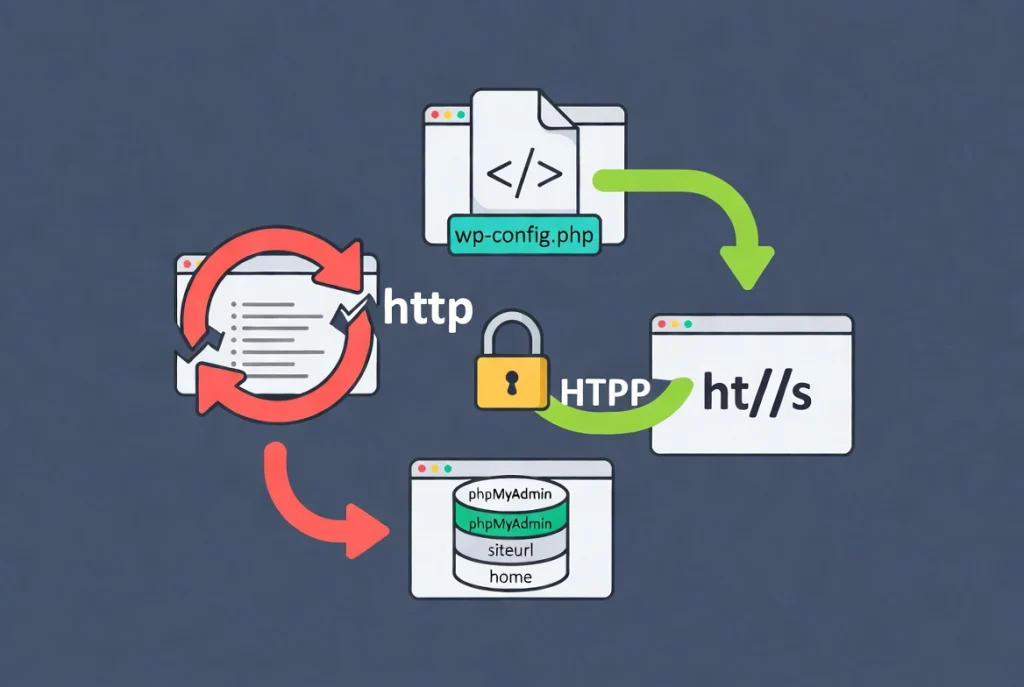
The 500 error is frustratingly vague by design; it only tells you something went wrong on the server, not what.
In WordPress, it almost always traces back to a corrupted . htaccess file, a PHP memory issue, or wrong file permissions.
Reset Your .htaccess File
This is the first fix to try. Connect via FTP, find it .htaccess in your WordPress root, download a backup, and then rename the original to .htaccess_old.
If your site loads, the .htaccess file was the problem. To regenerate a clean one, log into your dashboard, go to Settings → Permalinks, and click Save Changes without changing anything. WordPress automatically creates a fresh, correct . htaccess file.
Correct File and Directory Permissions
Wrong permissions cause 500 errors more often than people realize. The standard is simple: directories set to 755, files set to 644.
Never use 777 permissions; it’s a severe security vulnerability. Use your FTP client to apply these permissions recursively. The official WordPress documentation on file permissions provides a detailed breakdown of what each setting means.
Error 4: How to Fix “Installation Failed: Could Not Create Directory”
This error appears when WordPress can’t write new files to your server, typically blocking media uploads, plugin installations, or theme installations.
The fix is usually straightforward.
Set Correct wp-content Permissions
Using FTP, navigate to your wp-content directory. Set permissions recursively to 755 for directories and 644 for files across the uploads, subdirectories.
This grants the web server the write access it needs without exposing your files to the public.
Check File Ownership
If permissions are correct but the error persists, file ownership might be the issue. The web server process typically, or always, needs to own these directories. Contact your hosting provider if you suspect an ownership conflict.
Error 5: How to Fix WordPress Redirect Loop Errors
A redirect loop sends your browser into an endless cycle of redirects until it gives up and displays “Too Many Redirects.”
This usually means WordPress is redirecting to a URL that immediately redirects back in an infinite loop caused by mismatched database values or SSL conflicts.
Override URLs in wp-config.php
Add these two lines too, replacing the example with your actual domain:
define('WP_HOME', 'https://yourdomain.com');
define('WP_SITEURL', 'https://yourdomain.com');
This forces WordPress to use the correct URLs regardless of what’s stored in the database. Use https:// if your SSL certificate is active. Remove these lines once the issue is resolved and your database values are corrected.
Fix URL Values in Your Database
Open phpMyAdmin, select your WordPress database, and browse the wp_options table. Find the siteurl and home rows, usually the first two entries. Both values must be identical and correct. A mismatch between http:// and https://, or between www and non-www versions, creates a loop instantly.
Additional Resources for WordPress Troubleshooting
- Build your foundation with WordPress Basics and Installation
- Master block editing with the Gutenberg Editor Tutorial for Beginners
- Understand content types with WordPress Posts vs Pages: Key Differences
WordPress errors are intimidating the first time you face them. But every single one follows a pattern, and every pattern has a solution. Work systematically, back up before every fix, and change one variable at a time.
You’ll solve it faster than you think.