WordPress Posts vs Pages: Key Differences
I made a costly mistake when I first started with WordPress.
I created everything as pages, blog articles, news updates, and even time-sensitive announcements. Within months, my site was a mess. I couldn’t find anything, visitors got lost in endless menus, and my search rankings tanked.
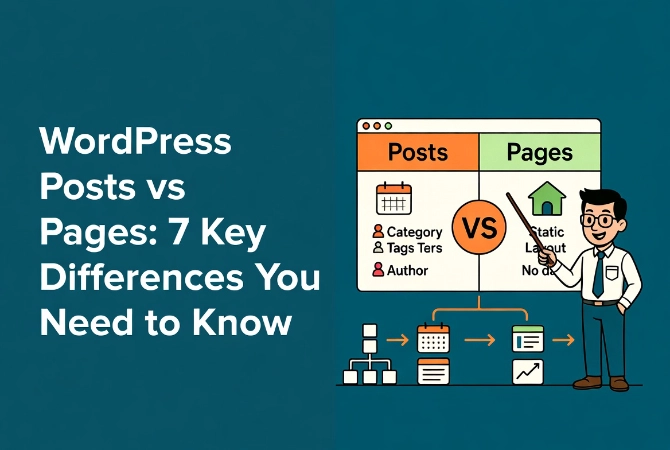
Posts and pages use the same block editor, but they serve different publishing structures. Posts normally belong to the chronological content stream and can use categories and tags. Pages are normally non-chronological, may be hierarchical, and are suited to durable destinations such as About, Contact, and policy pages. Themes and plugins can alter these defaults.
Practical checklist
- Use a post when the item belongs in a dated editorial stream or topic archive.
- Use a page for durable information that should have a stable place in navigation.
- Do not convert content solely because one type is assumed to rank better; match the format to user intent.
Understanding the difference between posts and pages isn’t just about organization. It fundamentally affects how search engines index your content, how users navigate your site, and how efficiently your database performs. If you’re just getting started, reviewing our guide on WordPress Basics and Installation will help you build the right foundation from day one.
In this guide, I’ll break down exactly when to use posts versus pages so you can avoid the mistakes that cost me months of cleanup work.
⚡ Quick Summary (TL;DR)
- Understanding the technical differences between WordPress posts vs. pages prevents your website from becoming an unmanageable organizational nightmare.
- Posts are time-sensitive, dynamic entries that display in reverse chronological order and automatically organize themselves using categories and tags.
- Pages represent the timeless, permanent framework of your digital identity and support custom templates along with parent-child hierarchies.
- Combining both content types strategically signals freshness to search engines while allowing your foundational pillars to accumulate long-term authority.
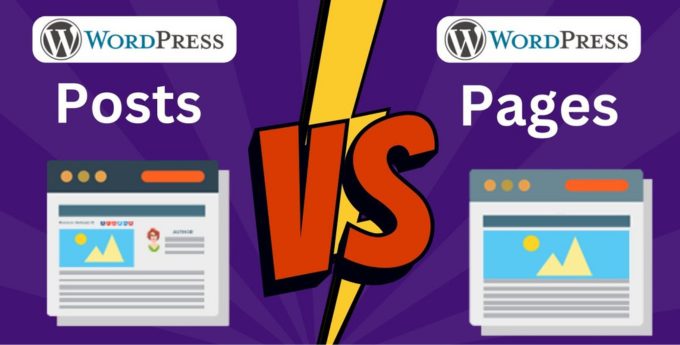
WordPress Posts vs Pages Comparison
Why WordPress Posts and Pages Aren’t Interchangeable
Here’s something that surprised me when I first explored WordPress.
Both posts and pages live in the same database table called wp_posts. At first glance, this makes them set the structural. But there’s a crucial difference: WordPress uses a column called “post_type” to distinguish between them.
Posts carry the value “post,” and pages carry the value “page.” This tiny distinction triggers entirely different behaviors throughout your entire site.
Think of Posts as Your Pulse
Posts represent movement and freshness.
They’re designed to be queried as a collection, arranged by date, and displayed as a stream of content. When someone visits your blog page, WordPress fetches recent posts from the database and displays them in reverse chronological order.
Think of Pages as Your Skeleton
Pages provide structure and stability.
They’re retrieved individually by their specific URL, don’t appear in chronological lists, and form the permanent framework of your site. Your About page doesn’t change position when you publish new content—it stays exactly where you put it.
This architectural difference means a site with 10,000 posts performs just as well as one with 100 posts (assuming proper database optimization and security measures from our WordPress Security Basics for Beginners guide).
The Dynamic Power of WordPress Posts
Posts are inherently social and communicative.
Every post has a timestamp—a specific date and time of publication. In 2026, where real-time information dominates, the temporal nature of posts is their greatest strength.
Posts Create a Living Stream
When you publish a post, it appears at the top of your blog page automatically.
Older content gets pushed down, creating a natural flow of information. This stream broadcasts through RSS feeds, which still power most modern content distribution systems—from podcast aggregators to news tickers.
Pages don’t appear in RSS feeds by default. If you want subscribers to receive automatic updates, posts are your only option. To get started, check out our guide on How to Create Your First WordPress Post.
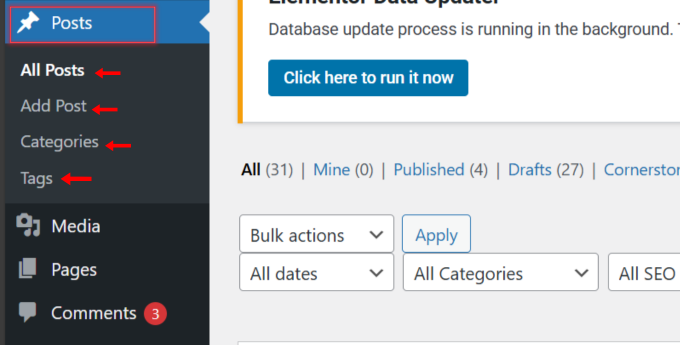
Posts Use Categories and Tags
This is where posts are really especially useful for organization.
You can group related posts using categories and tags—WordPress calls these “taxonomies.” A category like “Marketing Tips” might contain fifty posts. Click that category, and WordPress generates a page showing all fifty entries automatically.
This creates powerful internal linking and makes your site easier for search engines to crawl. Pages don’t support categories or tags at all. You can’t tag a page as “urgent” and expect it to appear in tag clouds or filtered lists.
Posts Encourage Conversation
Posts have comments enabled by default.
They’re designed to start discussions, gather feedback, and build community. Every time you publish a post, you’re inviting your audience to respond and engage.
The Timeless Stability of WordPress Pages
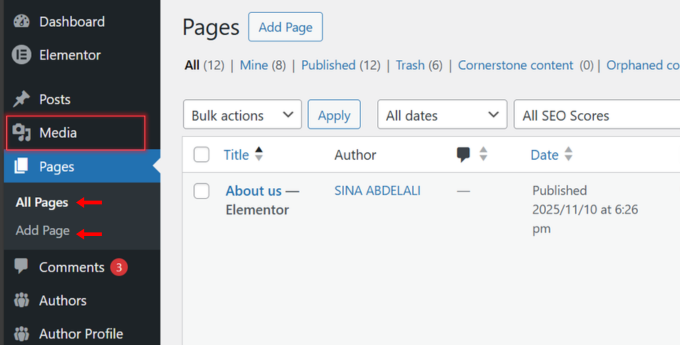
Pages represent the permanent fixtures of your digital identity.
Think about your Contact page, About Us section, or Privacy Policy. These aren’t updates or news; they’re foundational information that doesn’t change frequently.
Pages Build Hierarchical Structure
This is the feature that makes pages fundamentally different.
Unlike posts, which exist in a flat, date-based structure, pages can have parents and children. You might create a parent page called “Services” with child pages underneath like “Consulting,” “Implementation,” and “Support.”
This creates clean URL paths like example.com/services/consulting/. Research from Stanford University on information architecture shows that clear hierarchical structures significantly reduce bounce rates by providing logical navigation paths.
Pages Support Custom Templates
Most quality themes allow you to select unique layouts for specific pages.
Your homepage might feature a full-width hero section, while your contact page uses a sidebar layout. Posts typically use one standard template across your entire blog.
While advanced developers can customize post templates, WordPress deliberately favors pages for layout flexibility.
Pages Don’t Display Publication Dates
This might seem minor, but it’s strategically important.
Your About page shouldn’t show “Published: January 15, 2026” at the top. That information is permanent and timeless. The lack of a timestamp signals to visitors and search engines that this content represents your core identity, not time-sensitive information.
Posts vs. Pages: Side-by-Side Comparison
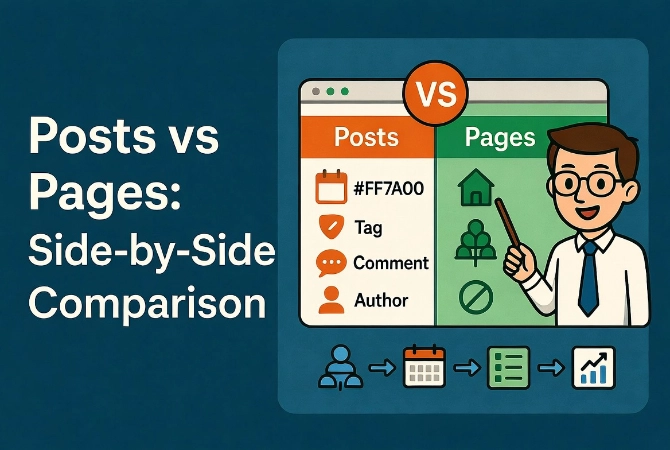
Let me break down the mechanical differences so you can make the right choice every time.
| Feature | WordPress Posts | WordPress Pages |
|---|---|---|
| Organization | Chronological (reverse date order) | Hierarchical (parent/child structure) |
| Taxonomies | Uses categories and tags | No categories or tags |
| RSS Feeds | Automatically included | Excluded by default |
| Comments | Enabled by default | Disabled by default |
| Best Use Case | News, articles, blog updates | Contact, About, Services |
| Templates | Standard blog layout | Multiple custom templates available |
How Posts and Pages Affect Your SEO Differently
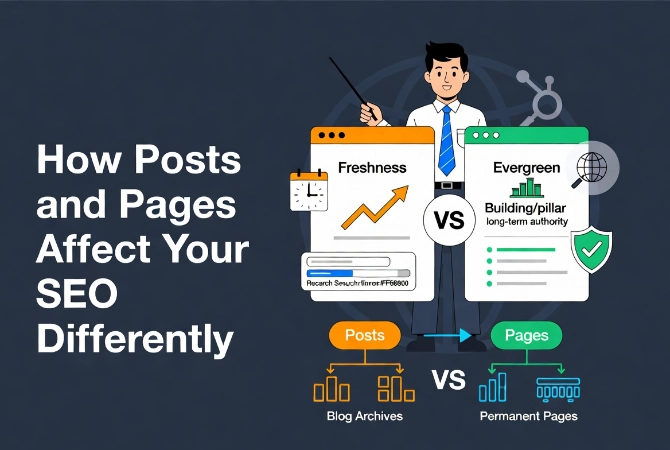
Search engines treat these content types very differently based on their metadata.
Posts Signal Freshness to Search Engines
When you publish a post, you’re telling Google, “This is new information.”
Google’s freshness algorithm prioritizes recently published or updated posts for certain queries. Writing about a 2026 software update? Make it a post. The timestamp tells search engines this content is currently relevant.
I’ve seen posts about breaking news rank within hours, while pages on the same topic took weeks.
Pages Accumulate Long-Term Authority
Pages gain authority over time because they’re static and usually linked from your main navigation menu.
This makes pages ideal for “pillar content”—comprehensive, evergreen guides that define your expertise. A pillar page about “Modern Content Management Systems” will likely outrank a single blog post on the same topic over time.
Why? Pages are permanent destinations. Posts eventually move to page two, three, or ten of your blog archives.
Sitemaps Treat Posts and Pages Separately
Most SEO plugins create separate sitemap files for posts and pages.
This helps search engines understand your content priorities. A site with many posts looks like a publication or blog. A site heavy on pages looks like a corporate information resource. Modern content management systems rely on these signals to categorize your site correctly.
Sidebars and Widgets: Posts vs. Pages Strategy
How you display content matters as much as how you organize it.
Posts Thrive with Dynamic Sidebars
Blog posts typically benefit from sidebars showing “Related Posts,” “Recent Comments,” or “Popular Articles.”
These dynamic elements keep readers engaged with your content stream. They encourage exploration and increase time on site—both positive ranking signals.
Pages Work Better Without Distractions
A landing page promoting your product shouldn’t have a sidebar full of recent blog posts pulling visitors away from your call-to-action.
Professional sites use conditional logic to hide sidebars on pages while displaying them on posts. This keeps the user experience focused on each content type’s specific purpose.
Learn more about customizing these areas in our Introduction to WordPress Widgets and Sidebars guide.
3 Critical Mistakes to Avoid With Posts and Pages.
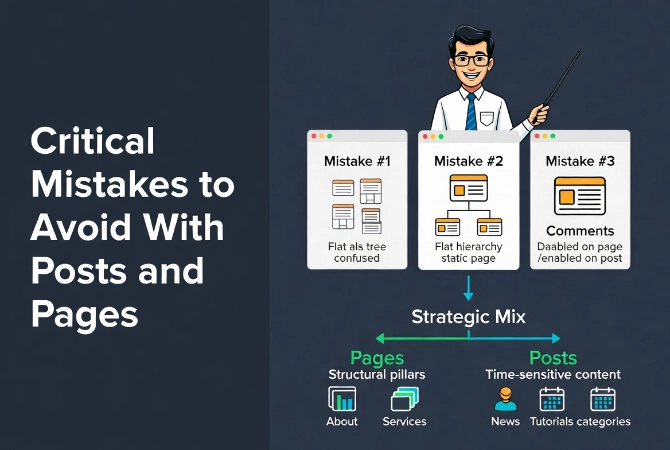
I’ve seen these errors destroy site organization countless times.
Mistake #1: Creating Everything as Pages
Some people consider categories confusing, so they create a separate page for every piece of content.
This becomes unmanageable fast. You lose bulk-editing capabilities. You lose automatic archive generation. You’re fighting WordPress instead of using its strengths.
If your content has a publication date and you want it to appear in chronological order, use a post.
Mistake #2: Ignoring Page Hierarchy
Many beginners leave the “Parent” setting as “(no parent)” when creating pages.
This creates a flat structure where every page sits at the top level of your site. It signals to search engines that every page is equally important, which is rarely true.
Use hierarchy. Create parent pages for main topics and child pages for subtopics. This builds breadcrumb trails that help both users and search engines navigate your site’s logic.
Mistake #3: Misusing Comments
Posts are meant to start conversations; they have comments enabled by default.
Pages typically don’t need comments. If you want community feedback on specific content, make it a post. If you are presenting factual information and do not wish to invite discussion, please use a page.
You can toggle comments on or off for both types, but the defaults reflect WordPress’s intended use.
Strategic Implementation: Mixing Posts and Pages
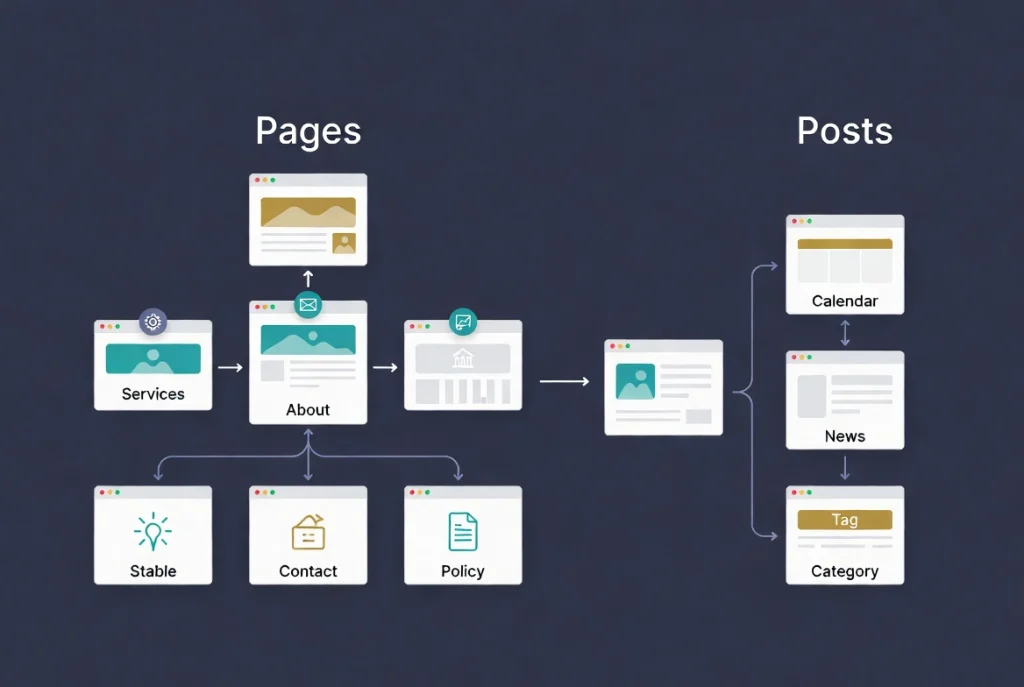
A professional WordPress site uses both strategically.
Use Pages to Define “What” and “Who.”
Pages should answer foundational questions:
- What does your company do? (Services page)
- Who are you? (About page)
- Where are you located? (Contact page)
- What are your policies? (Privacy Policy, Terms of Service)
These are your structural pillars—they rarely change and don’t need timestamps.
Use Posts to Define “When” and “How.”
Posts handle time-sensitive and educational content:
- When did this happen? (News updates, announcements)
- How do I solve this problem? (Tutorials, guides)
- What’s new in our industry? (Trend analysis, commentary)
These pieces benefit from dates, categories, and chronological organization.
Real-World Example: Law Firm Website
A law firm might structure their site like this:
Pages:
- About Our Firm
- Practice Areas (parent)
- Divorce Law (child)
- Corporate Law (child)
- Estate Planning (child)
- Contact Us
Posts:
- “New 2026 Tax Law Changes Affecting Estate Planning”
- “5 Common Mistakes in Divorce Settlements”
- “Recent Court Ruling on Corporate Liability”
This creates a site that’s both a reliable resource (pages) and a vibrant source of current information (posts).
Making the Right Choice Every Time
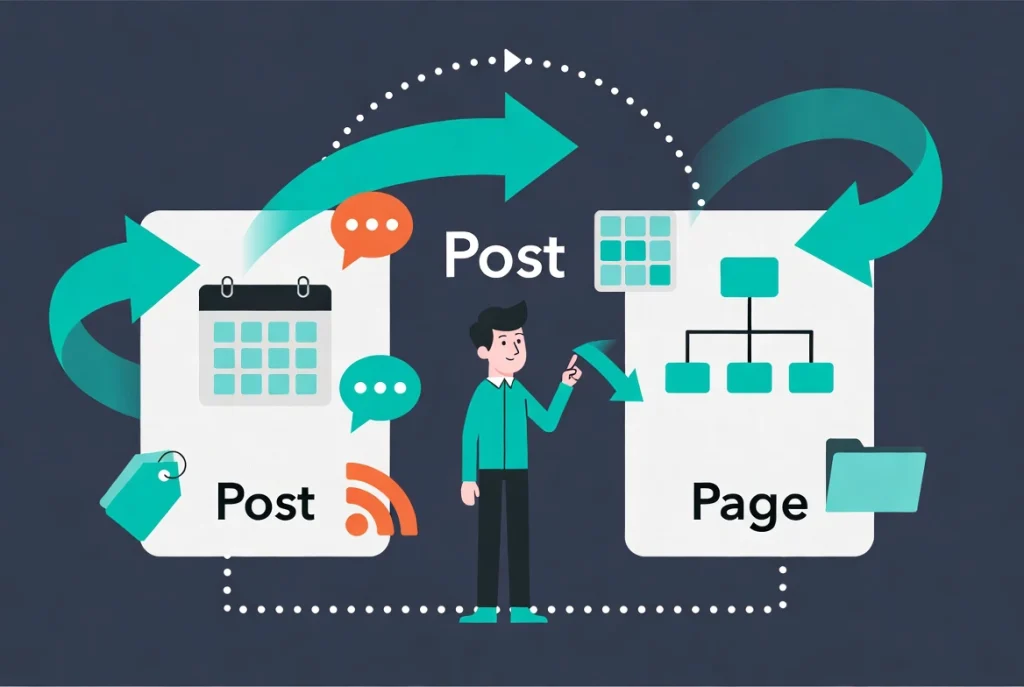
Before creating new content, ask yourself these questions:
Choose a POST if:
- The information is time-sensitive or date-specific
- You want it to appear in your blog feed
- It needs categories or tags for organization
- You want to encourage comments and discussion
- It should appear in RSS feeds
Choose a PAGE if:
- The information is permanent and timeless
- It needs a custom layout or template
- It’s part of your main site structure (About, Contact, Services)
- It should have parent/child relationships
- You don’t want it to appear in chronological feeds
Additional Resources for WordPress Content Strategy
Ready to build a well-structured WordPress site? These resources will help:
- Start with the fundamentals in our WordPress Basics and Installation guide
- Create your first piece of content with How to Create Your First WordPress Post
- Customize your layout using our Introduction to WordPress Widgets and Sidebars
- Protect your content with strategies from WordPress Security Basics for Beginners
Your choice between posts and pages isn’t just about organization—it shapes how search engines understand your site, how users navigate your content, and how efficiently WordPress manages your data. Choose wisely, and your site will thank you as it grows.