

Elementor Global Colors and Fonts: Complete Setup Guide (2026)
Elementor Global Colors and Global Fonts let you define reusable design values and apply them across pages from one central system. When a brand color or type style changes, elements linked to that global value can update without editing every widget individually.
This guide explains the current Elementor setup, how global values differ from theme style, how to avoid conflicts with a WordPress theme, and how Elementor 4 variables can work with classic Elementor 3 widgets. Instructions were checked against official Elementor documentation on September 10, 2026.
Elementor Global Styles at a Glance
- Global Colors store reusable color values such as brand, text, surface, border, and status colors.
- Global Fonts store reusable typography configurations such as family, size, weight, style, line height, and letter spacing.
- Theme Style supplies fallback styling for general HTML elements such as headings, buttons, images, and form fields.
- Widget-level styling can override global or fallback values and should be used deliberately.
- Elementor 4 atomic elements use classes and variables; supported variables can be synchronized with classic Global Colors or Global Fonts.
First, choose the source of truth.

Elementor and your active theme can both define fonts and colors. If both systems try to control the same element, the result depends on CSS specificity, inheritance, and local overrides. Decide which layer owns the design before building many pages.
If Elementor will control the site’s visual system, configure Global Colors, Global Fonts, and Theme Style in Elementor. If the theme is to remain the main design system, Elementor’s official guidance explains how to disable Elementor’s default colors and fonts under Elementor → Settings → General so that theme values can take precedence.
Do not change this setting casually on an established site. Test on staging first because existing pages may depend on the current relationship between theme styles, Elementor globals, and widget overrides.
How to Open Elementor Site Settings
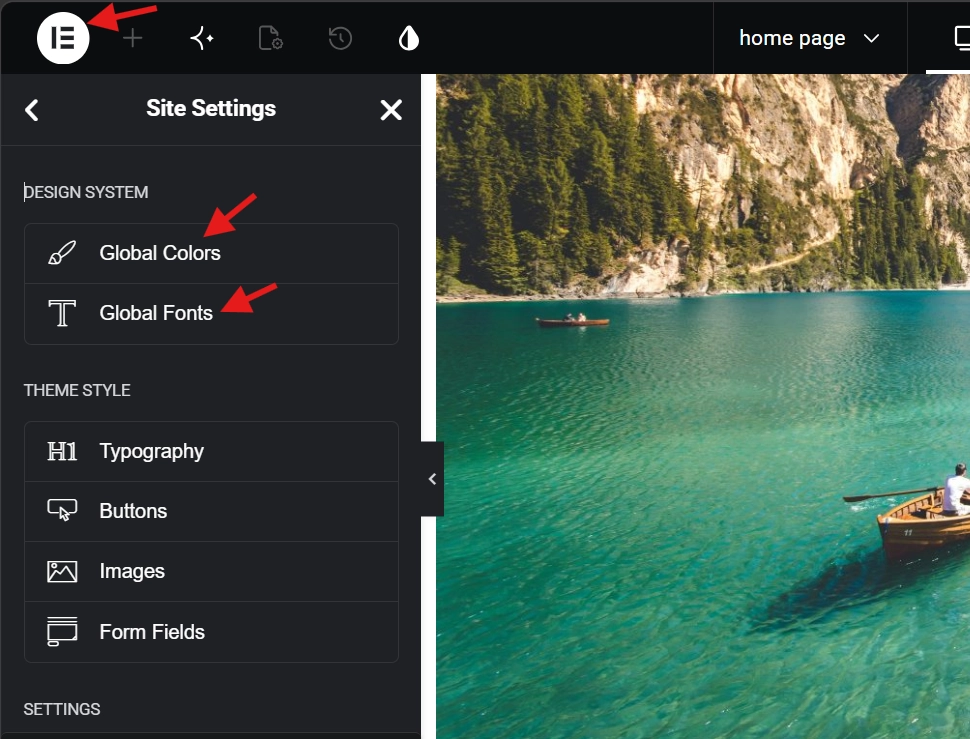
Elementor documents two current access routes:
- Open a page or post with the Elementor Editor, click the Elementor logo in the top toolbar, and select Site Settings; or
- From WordPress admin, go to Elementor → Editor and use the Customize option under Site Settings, Global Colors, or Global Fonts.
The exact labels can shift between editor versions, but the official Configure Site Settings page is the current reference. Site Settings includes the Design System, Theme Style, site identity, layout, backgrounds, lightbox settings, and other global options.
Set Up Global Colors
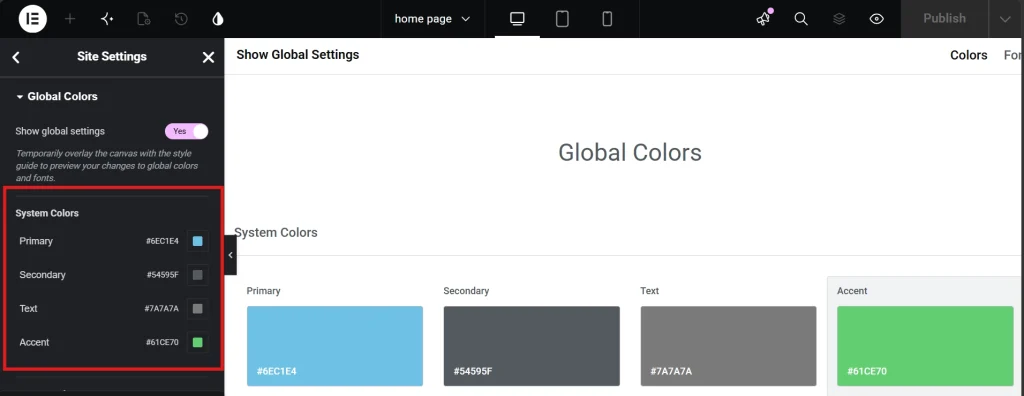
Open Site Settings → Global Colors. Elementor provides four system colors: Primary, Secondary, Text, and Accent. You can change their values and names, but system entries cannot be deleted. Custom colors can be added, renamed, reordered, edited, or removed.
Use names that describe a role rather than a visual appearance. A name such as “Blue 500” describes the current color; “Action Primary” explains how it should be used. Role-based names survive a rebrand because the color can change while the purpose remains clear.
| Suggested role | Typical use | Check before saving. |
|---|---|---|
| Brand Primary | Primary identity accents | Works on light and dark surfaces |
| Action Primary | Main buttons and important links | Text and hover-state contrast |
| Text Primary | Headings and body text | Readability on default background |
| Text Muted | Metadata and secondary copy | Still meets contrast requirements |
| Surface | Cards and section backgrounds | Clear boundary from page background |
| Border | Dividers and input outlines | Visible in normal and focused states |
| Success, Warning, Error | Form and system feedback | Meaning is not communicated by color alone. |
You do not need a fixed number of global colors. Use the smallest palette that covers recurring roles, then add a value only when it will be reused. Too few values lead to repeated custom colors; too many make selection inconsistent.
Set Up Global Fonts
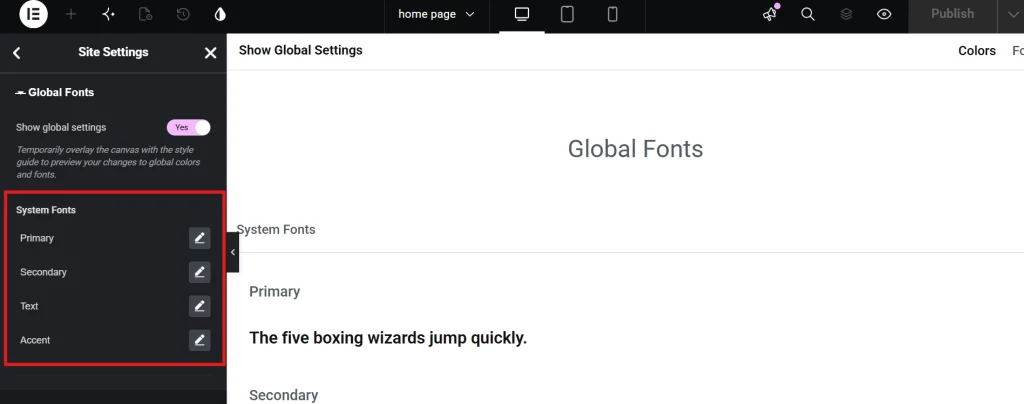
Open Site Settings → Global Fonts. The four system styles are Primary, Secondary, Text, and Accent. Use the edit control to configure typography and add styles to create a reusable custom font style. Elementor’s Global Fonts documentation covers renaming, reordering, editing, and deleting custom styles.
A practical typography system usually needs reusable roles rather than one preset for every HTML tag. For example:
- Display: occasional large hero text;
- Heading: the main heading family and weight;
- Body: readable paragraph and long-form text;
- Label: buttons, navigation, tabs, and form labels;
- Meta: dates, categories, captions, and supporting text.
Choose font weights that actually exist in the loaded font files. Loading unused weights adds resources without improving the design. Test fallback fonts, accented characters, bold and italic text, and the front end—not only the editor preview.
Global Fonts vs. Theme Style
Global fonts create named typography values that you select in widgets. Theme Style sets fallback styling for general HTML elements such as body text, headings, buttons, images, and form fields. Elementor’s developer documentation describes Theme Style as the layer used when a more specific element definition is absent.
A sensible workflow is
- Define the reusable global fonts and global colors.
- Configure the theme style so unstyled HTML has an acceptable baseline.
- Link widgets to global values when they use a recurring role.
- Use local overrides only for genuine one-off exceptions.
Heading structure is semantic, not visual. Choose H1 through H6 according to the document hierarchy, then style the appropriate tag or element. Do not select a heading level merely because its default size looks right.
Apply Global Values to Elementor Widgets

In a classic Elementor widget, open the relevant Style control and select the globe icon beside a color or typography setting. Choose the global value rather than opening the unrestricted color or font control. Elementor’s typography and color guide documents this selection method.
A local value is not automatically wrong. A unique campaign graphic or decorative section may need one. The problem is repeating the same local value across many widgets, because it creates a hidden design dependency that cannot be updated centrally.
Elementor 4 Variables and Classic Global Styles
Elementor 4 atomic elements use classes and variables, while classic Elementor 3 widgets use global colors and global fonts. On mixed sites, Elementor provides a synchronization feature so a variable can appear as a selectable global asset in classic widgets.
- Open the Variables Manager.
- Open the options menu for the relevant variable.
- Select Sync to Global Colors or Sync to Global Fonts.
- Save the changes and confirm that the variable appears in a classic widget’s global selector.
Elementor notes that font synchronization is limited to typography; other font characteristics do not all sync in the same way. Read the current variable synchronization documentation before restructuring an existing mixed-version site.
Build Accessibility Checks Into the System
Global settings can propagate either a good decision or a bad one across the entire site. Validate each common text and background combination before applying it widely. Under WCAG 2.2 Level AA, the minimum text contrast criterion is 4.5:1 for normal text and 3:1 for qualifying large text, with defined exceptions.
- Check normal, hover, focus, active, disabled, success, warning, and error states.
- Do not communicate status using color alone.
- Test text resize to 200% without clipping or loss of functionality.
- Use a readable body size and line height appropriate to the chosen font.
- Test real content, including long headings, links, lists, and form validation.
Relative font units, such as “em” or “rem,”em can support scalable typography, but units alone do not guarantee accessibility. Containers, spacing, line length, breakpoints, and widget behavior must also tolerate zoom and text resizing.
Performance and Font Loading: What Globals Do Not Guarantee
Global styles primarily improve consistency and maintenance. Do not assume that creating a global value automatically makes a stylesheet significantly smaller or produces a measurable Core Web Vitals improvement. Performance depends on the rendered CSS, number and size of font files, loading strategy, cache, theme, plugins, and page content.
For typography, load only required families, weights, and styles. Prefer modern WOFF2 files when self-hosting, provide fallback families, and test for layout shifts. If fonts fail after a migration, Elementor’s font troubleshooting guide covers stale URLs, mixed content, CORS, missing files, and cache regeneration.
Maintenance, Export, and Troubleshooting

Before changing a global value
Create a backup or staging copy, record the old value, and inspect where the global style is used. A color labeled Primary may affect headings, icons, links, or widgets imported from a kit. Check representative pages and templates after the change.
Moving Site Settings
Elementor’s website-template import and export flow can include site settings such as global fonts, theme style, layout, lightbox, and backgrounds. Review every import option and use packages only from trusted sources, especially when a kit includes SVG files or plugins.
Default kit problems
Elementor stores global settings in a required default kit. If site settings disappear or Elementor reports a missing kit, use Elementor’s instructions for recovering the current default. Please avoid deleting and recreating the kit as routine maintenance, as this will reset global settings. settings.
Global Colors and Fonts Checklist
- Decide whether Elementor or the theme controls default fonts and colors.
- Create role-based color and typography names.
- Configure theme style fallbacks.
- Link recurring widget styles through the globe selector.
- Synchronize Elementor 4 variables when classic widgets need them.
- Test contrast, focus states, zoom, responsive behavior, and real content.
- Document font files, weights, fallbacks, and color roles for handoff.
- Back up and review representative pages before a site-wide change.
Bottom Line
Elementor Global Colors and Global Fonts are most valuable as a shared design contract. Define reusable roles, set sensible theme style fallbacks, and link repeated widget styles to global values. The result is easier to maintain and less likely to drift as new pages are added.
Global settings do not automatically improve performance or accessibility. They make decisions reusable. The quality of the system still depends on good contrast, scalable typography, careful font loading, predictable naming, and testing across the real site.