How to Fix Elementor Stuck on the Loading Screen (2026)
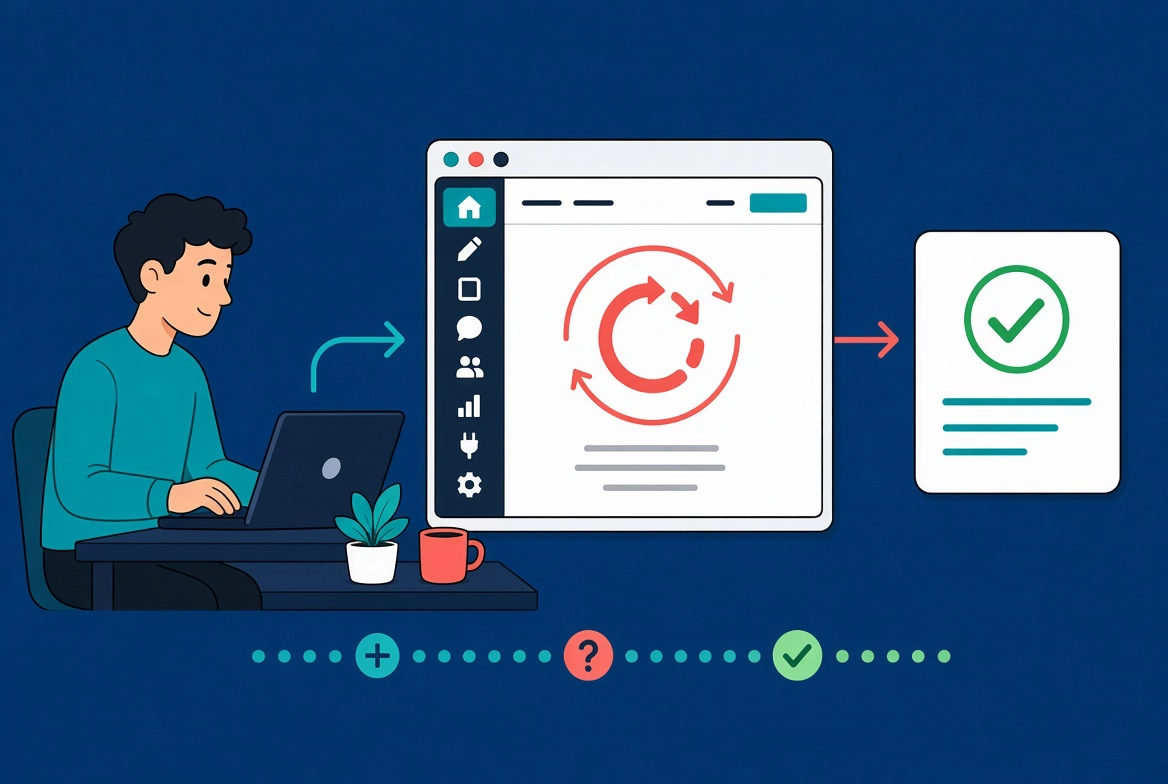
Few things stall a website build faster than Elementor getting stuck on a grey loading screen or an infinite spinner. That error blocks your editor, halts design work, and prevents critical page updates. Rebuilding is almost never necessary. Elementor loading failures almost always trace back to one of four causes: low server memory, corrupted CSS cache, a plugin or theme conflict, or a version mismatch between Elementor Core and Pro.
If you are new to WordPress and Elementor, start with our WordPress tutorials to build a solid foundation before diving into complex troubleshooting. For official hosting environment requirements, refer to the Official WordPress Documentation.
Common Causes at a Glance
| Common Cause | Quick Fix | Difficulty |
|---|---|---|
| Low PHP Memory Limit | Increase to 256M or 512M in wp-config.php | Medium |
| Plugin or Theme Conflict | Deactivate all plugins except Elementor; switch to Hello theme | Easy |
| Corrupted CSS Cache | Click Regenerate CSS & Data in Elementor Tools | Easy |
| Aggressive Caching | Clear CDN or server caches, or use an Incognito window | Easy |
| Version Mismatches | Update Elementor and Elementor Pro to compatible versions | Easy |
Step 1: Increase Your PHP Memory Limit
Low PHP memory is the most frequent Elementor loading culprit. The editor needs substantial memory to load its drag-and-drop canvas. When the server runs out, scripts crash mid-execution and the screen freezes.

- Access your site files via SFTP or your hosting panel’s File Manager.
- Open your WordPress root directory and edit
wp-config.php. - Add this line just before the “That’s all, stop editing!” comment:
define('WP_MEMORY_LIMIT', '256M'); - Save the file, then refresh your editor.
If 256M does not resolve the issue, increase to 512M. Contact your host if the value reverts automatically, as some hosting plans enforce server-level memory caps that override wp-config.php.
Step 2: Regenerate Elementor’s CSS Cache
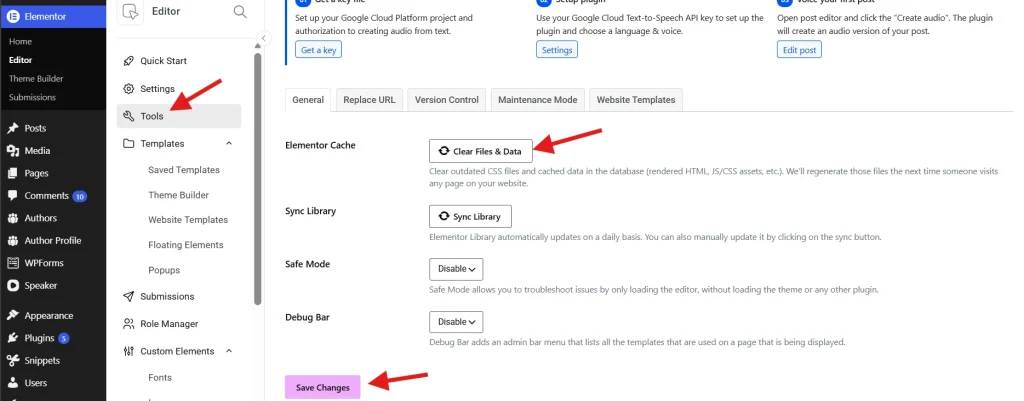
Corrupted stylesheets block editor scripts from executing. Clearing Elementor’s internal cache forces a full rebuild of your design files.
- Go to your WordPress Dashboard and click Elementor > Tools.
- Under the General tab, locate Regenerate CSS & Data.
- Click the Regenerate Files button.
- Navigate to Settings > Permalinks and click Save Changes to reset rewrite rules.
- Test the page in a fresh Incognito or private window to bypass local browser caches.
For deeper design optimization, browse our Elementor Tutorials hub to refine your site architecture beyond basic cache management.
Step 3: Check for Plugin and Theme Conflicts
A newly updated plugin or an incompatible theme frequently clashes with Elementor’s JavaScript, causing the loading spinner to hang indefinitely.
- Go to Plugins > Installed Plugins in your dashboard.
- Select all active plugins except Elementor and Elementor Pro, then choose Deactivate from the bulk actions menu.
- Try opening your page in the editor. If it loads, reactivate plugins one by one to isolate the conflict.
- Temporarily switch your active theme to Hello Elementor to rule out theme-level issues.
For code structures and native hosting configurations, consult the WordPress Developer Resources.
Step 4: Resolve Version and License Mismatches
Running incompatible versions of Elementor Core and Elementor Pro triggers fatal backend errors that appear as loading failures.
- Update both plugins to their latest compatible versions through the Plugins dashboard.
- If you see an “unauthorized download” error, navigate to Elementor > License, click Disconnect, then Reconnect to restore update permissions.
- Check the Official Elementor Help Center for current system requirements if issues persist after updating.
Strategic Tips to Prevent Future Loading Issues
Audit-proofing your Elementor setup avoids most loading failures before they occur. Keep both Elementor Core and Elementor Pro updated as a single maintenance action rather than updating them on separate schedules. Maintain PHP 8.0 or higher on your server. Run a lean plugin stack and test each new plugin on staging before activating it on production.
Developers building custom scripts or hooks to resolve loading loops can reference the Elementor Developer Docs for detailed API material. For a curated list of free tools that optimize your WordPress development workflow without overloading your server, see our Essential Free Tools guide.
💡 Pro Tip: Always test Elementor after any WordPress core update, not just plugin updates. Core updates occasionally change how PHP handles memory allocation, which can reintroduce the loading screen error even on a previously stable installation.
Additional Resources
- WordPress and Elementor Tutorials (CreatePressHub)
- Essential Free Tools for WordPress Developers
- Official WordPress Documentation
- WordPress Developer Resources
- Official Elementor Help Center
- Elementor Developer Docs