How to Save and Reuse Elementor Templates (2026)
Quick answer: Saved templates turn a finished page or container into a reusable starting point. They are useful for repeated calls to action, service layouts, and page shells, but reuse works best when the template is clearly named and reviewed after insertion.
Choose the right kind of reuse.
Duplicate an element when you need another copy on the same page. Save a container when a self-contained section appears on other pages. Save a full page when you need a starting layout. If one design must update everywhere, investigate a global or Theme Builder solution instead of inserting independent copies.
Save a container as a template.
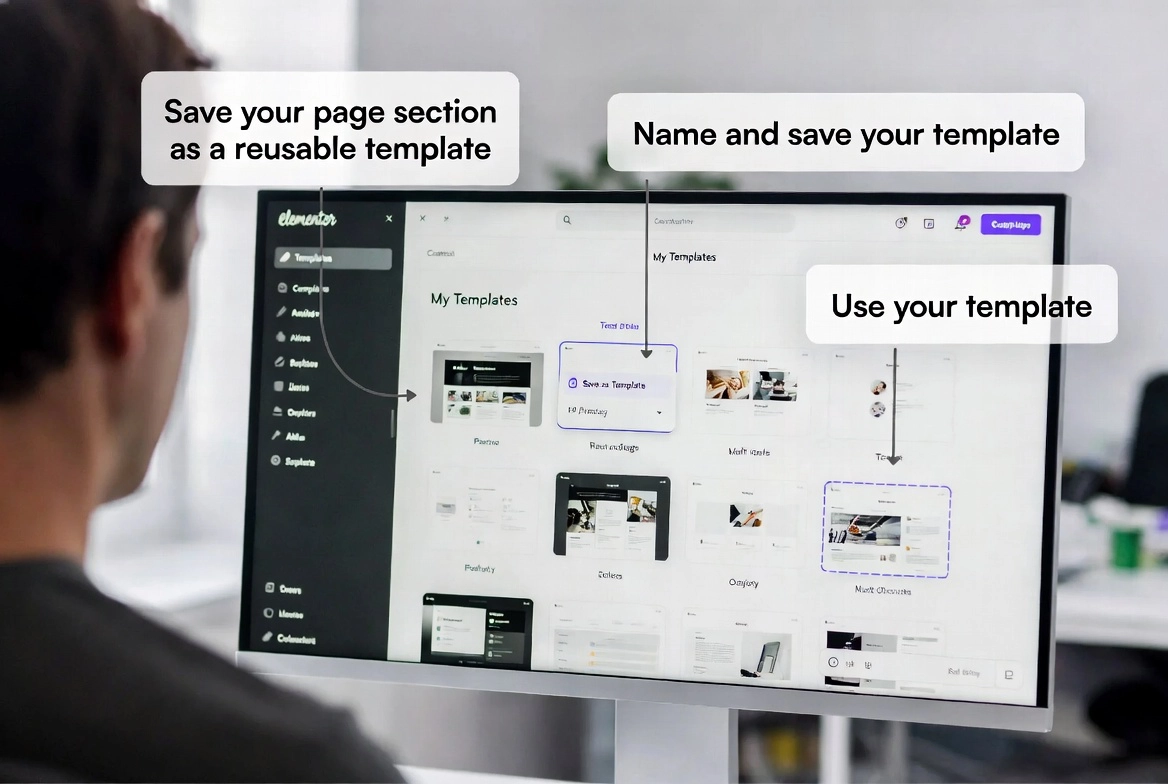
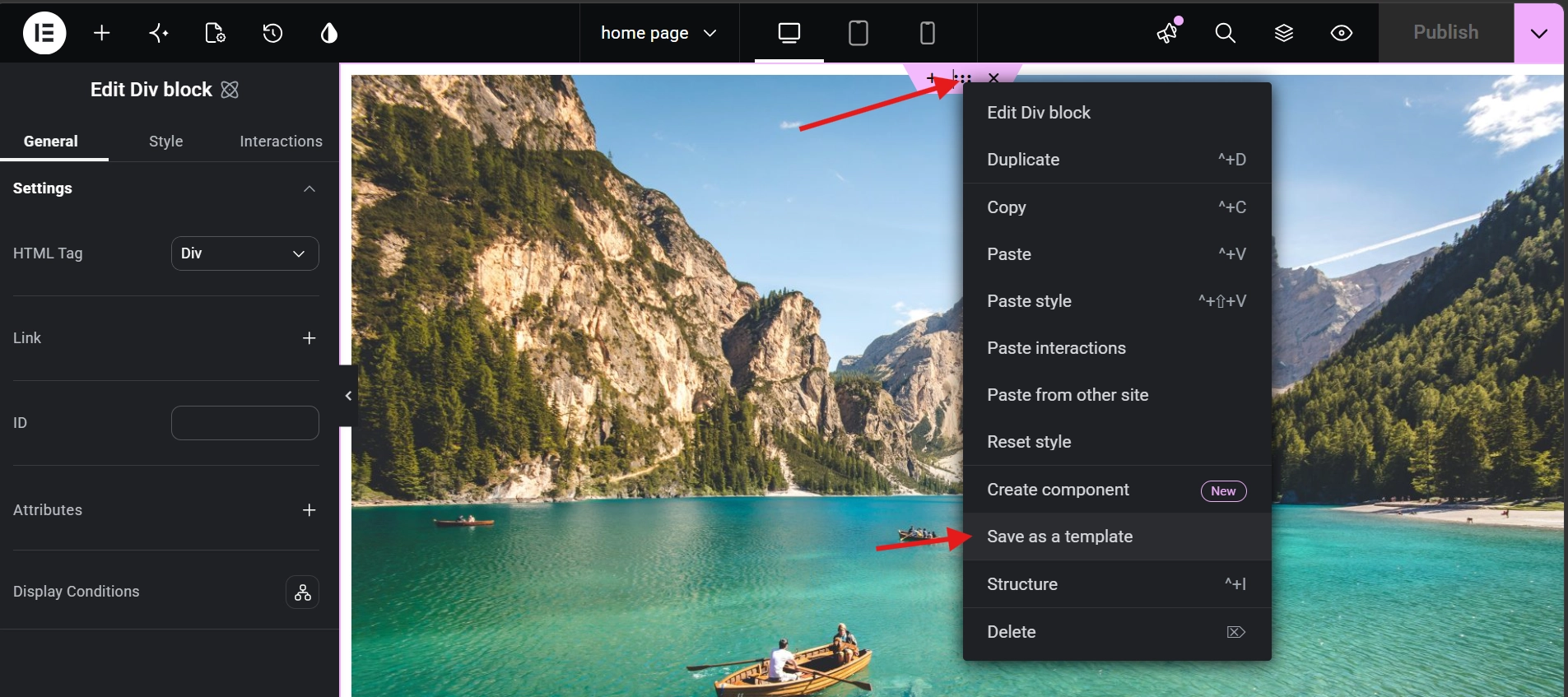
Right-click the container handle, choose Save as Template, assign it a descriptive name, and save it. Elementor places saved containers in the template library. Names like “CTA – newsletter – dark” communicate their purpose and variant better than “Section 1.” Avoid embedding page-specific IDs, outdated offers, or accidental personal data.
Insert and customize a saved template.
Select the folder icon on the canvas, open My Templates, locate the item, and choose Insert. Review global colors and fonts, responsive behavior, links, forms, headings, and image licenses after insertion. A saved template is a copy; later edits to that inserted copy do not automatically correct every other copy.
Import and export carefully.
The current library accepts template uploads in JSON or ZIP format and can export saved templates. Import only files from a trusted source, scan archives, and use staging for third-party templates. A template may depend on Elementor Pro, another plugin, site fonts, or assets that are absent on the destination site.
Maintain a small, reliable library.
Archive obsolete variants and add a date or version to templates that represent campaigns. Test the most-used templates after major Elementor changes. For related workflows, see our Elementor Template Library guide and global colors and fonts guide.
Final quality check
- Preview the page on desktop, tablet, and a real phone.
- Review keyboard navigation, visible focus, heading order, link wording, and color contrast.
- Test the live URL in a private browser window and clear caches if the editor and front end differ.
- Keep a backup before structural changes and confirm that forms, buttons, and links still work.