

How to Add a Contact Form in Elementor (2026)
Quick answer: A contact form is only successful when a real submission reaches the right destination and you handle the data responsibly. Elementor’s Form widget is a Pro feature, so free users need a compatible form plugin and can embed its block or shortcode instead.
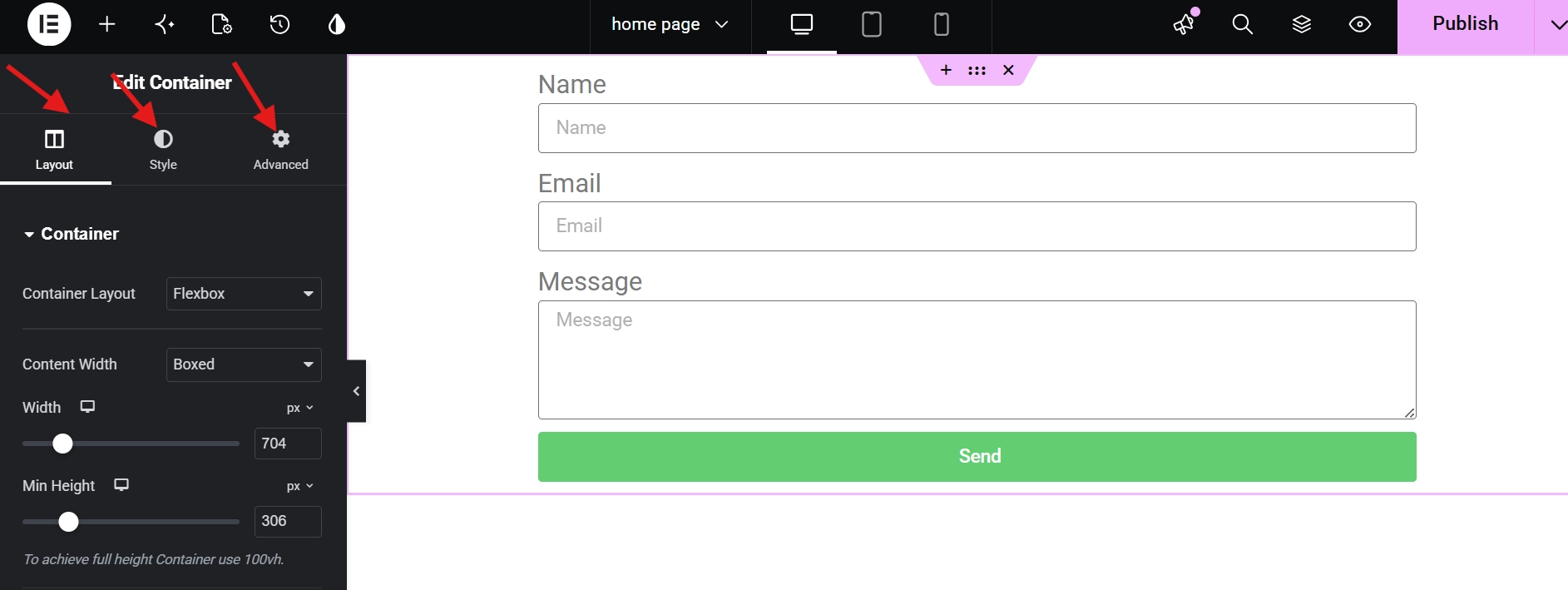
Plan the minimum useful fields.
Ask only for information needed to reply. A basic contact form normally needs a name, email address, message, and submit button. Mark required fields clearly and use visible labels rather than placeholders alone. Extra fields increase privacy obligations and can discourage completion.
Add and configure the Form widget.
In Elementor Pro, drag the Form widget onto the page, name the form, then add, remove, and reorder fields in the Content tab. Give fields clear labels and unique IDs. Set the button wording to describe the action, such as “Send message,” and verify the focus order with a keyboard.
Choose actions after submitting.
Elementor can collect submissions in WP Admin, send email, redirect to a confirmation page, or connect supported third parties. Use only the actions you need. For email, confirm the recipient, subject, reply-to behavior, and sender domain. WordPress email can be filtered or rejected, so test delivery to the actual mailbox.
Protect visitors and reduce spam.
Use appropriate spam protection, rate limiting where available, HTTPS, and updates for WordPress and form components. Link to the privacy policy near the form and add explicit consent only where the processing requires it. Do not request passwords, payment details, or sensitive identity documents through a general contact form.
Run an end-to-end test.
Submit valid and invalid entries on desktop and mobile. Confirm required-field messages, success feedback, email delivery, stored data, redirect behavior, and deletion procedures. Re-test after changing mail or caching settings. See our Elementor shortcode guide if you use a third-party form, plus the publishing checklist.
Final quality check
- Preview the page on desktop, tablet, and a real phone.
- Review keyboard navigation, visible focus, heading order, link wording, and color contrast.
- Test the live URL in a private browser window and clear caches if the editor and front end differ.
- Keep a backup before structural changes and confirm that forms, buttons, and links still work.
Official sources
- Elementor: Form widget settings
- Elementor: Actions after submit
- Elementor: Receive submissions by email