Elementor Maintenance Mode: Safe Setup Guide (2026)
Elementor Maintenance Mode lets you replace a temporarily unavailable WordPress site with a custom page while allowing authorized users to continue working. The important choice is not the page design—it is selecting the correct mode and verifying the HTTP response that visitors and search engines receive.
This guide covers Elementor’s current 2026 menu path, the difference between Coming Soon and Maintenance, access controls, cache testing, and a safe shutdown checklist. Maintenance mode is useful for short planned work, but it does not replace a backup, staging site, or rollback plan.
Coming Soon vs. Maintenance: Choose the correct mode.
| Elementor mode | Use it when | Response behavior |
|---|---|---|
| Coming Soon | The site has not launched, and you want a public pre-launch page. | Serves the coming-soon page as normal public content |
| Maintenance | An established site is temporarily offline for planned work. | Elementor documents this mode as returning HTTP 503 Service Unavailable. |
| Disabled | The work and public verification are complete. | Normal site responses resume. |
A 503 response tells crawlers that the unavailability is temporary, but it is not permission to leave the site offline indefinitely. Google says it retries URLs returning 503 or 429 for about two days in an overload scenario; prolonged responses can cause URLs to be dropped from the index. Keep planned downtime short, monitor it, and restore normal responses as soon as the work is complete.
Before activation: reduce the need for downtime.
Do not begin a major migration or uncertain plugin update on the production site simply because a maintenance screen can hide it. Prepare a current off-server backup, confirm how to restore it, and use staging for changes that can be tested away from visitors. Write down the expected start time, end time, owner, test plan, and rollback trigger.
- Confirm that you can still reach WordPress administration while the mode is active.
- Record the current plugin, theme, WordPress, and PHP versions involved in the change.
- Pause scheduled publishing, imports, or store operations that could conflict with the work.
- Choose a maintenance window based on actual traffic and business impact.
- Assign someone to test the logged-out experience and disable the mode after completion.
For WordPress updates that may break the front end, our WordPress update testing and rollback guide provides a broader preflight workflow.
Create the maintenance page template.
Elementor’s current instructions start in WP Admin → Elementor → Editor. Create a page, open Page Settings, and select Elementor Canvas when you need a distraction-free page without the normal header and footer. You can design from an empty canvas or insert a suitable template, customize it, and save it as a site template.
Canvas is useful here because normal navigation may lead visitors to URLs that are also unavailable. It is not mandatory for every temporary page, so choose deliberately. Our Elementor Canvas vs. Full Width guide explains how these layouts differ.
What the page should communicate
- Identity: Show the site or company name and a recognizable logo.
- Status: say whether the site is being updated, repaired, or prepared for launch.
- Timing: give an honest return window only when one is known; avoid a countdown you cannot meet.
- Alternative: provide a monitored email address, phone number, status page, or social channel when visitors may need help.
- Accessibility: use readable type, strong contrast, descriptive link text, and a simple focus order.
A newsletter form can make sense on a genuine pre-launch page, but it is not essential during a short update. Add only forms that will be monitored and that comply with the site’s privacy and consent obligations. Avoid invented return times, fake progress bars, and unsupported promises.
Activate Elementor Maintenance Mode
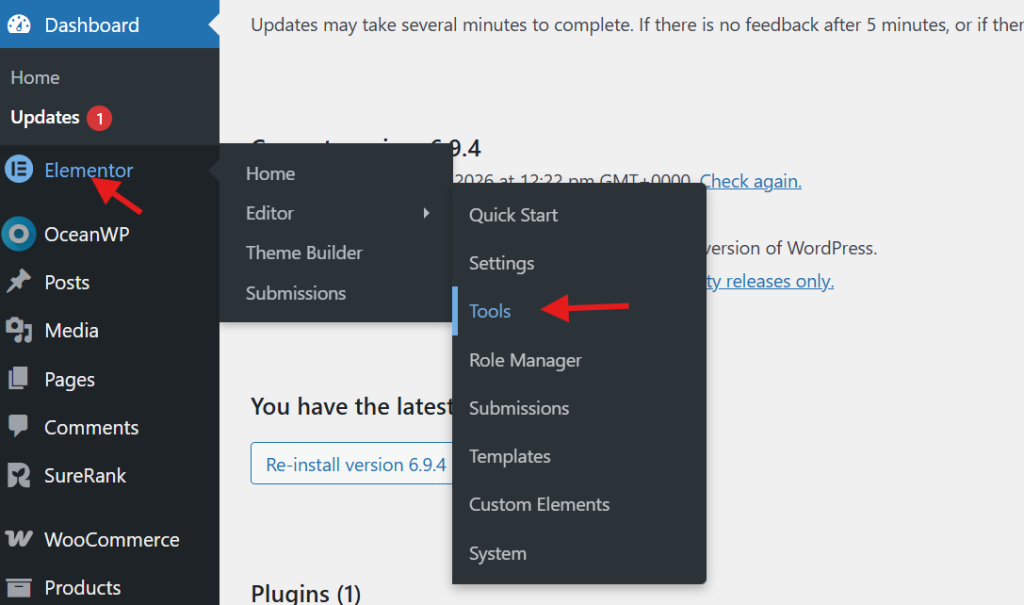
In current Elementor versions, go to WP Admin → Elementor → Editor → Tools → Maintenance Mode. Older installations may still display a shorter Elementor → Tools path. Then configure the three settings:
- Choose Mode: select Coming Soon for an unlaunched site or Maintenance for short work on an established site.
- Who Can Access: allow all logged-in users or select Custom and grant only the roles that need to work or test.
- Choose Template: select the saved page template you prepared.
- Select Save Changes and confirm the Maintenance Mode indicator appears in the WordPress admin bar.
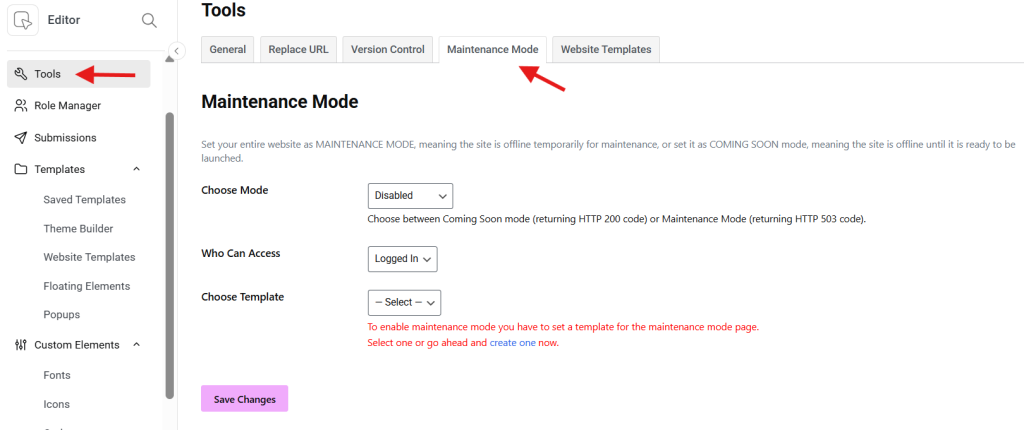
Apply least privilege to the access setting. “Logged In” can expose the normal site to subscribers, customers, or other low-privilege accounts. If those users should experience the maintenance page, choose Custom and allow only administrators or the roles actively performing the work.
Verify the public page and HTTP status.
Testing while logged in is not enough because authorized users may bypass the temporary page. Open a private browser window or a separate browser where you are not authenticated. Check the homepage, an article, a category archive, and one intentionally invalid URL.
- The custom page should load without exposing a broken header, footer, form, or navigation menu.
- Maintenance mode should return HTTP 503 on protected public URLs.
- Coming Soon should behave as the public pre-launch page rather than pretending a launched site has a temporary server failure.
- Administrators or explicitly allowed roles should still reach the working site.
- Critical administration, backup, monitoring, and deployment tools should continue to work as expected.
You can inspect the response with browser developer tools, an HTTP status checker, or a command-line request. Do not assume that seeing the right design proves the status code is correct; a cache or proxy can serve the page with a different response.
Handle WordPress, host, and CDN caches.
Elementor says it automatically clears WP Rocket, W3 Total Cache, WP Super Cache, and WP Fastest Cache when Maintenance Mode changes. That list does not cover every cache. A host-level page cache, reverse proxy, object cache, or CDN may continue serving an old public page or an old maintenance page.
After activation, purge only the layers relevant to your setup and repeat the logged-out check. After deactivation, purge again and confirm normal pages return their expected status. If the editor or generated files behave incorrectly, see our Elementor loading-screen troubleshooting guide.
Mistakes that turn short maintenance into an outage
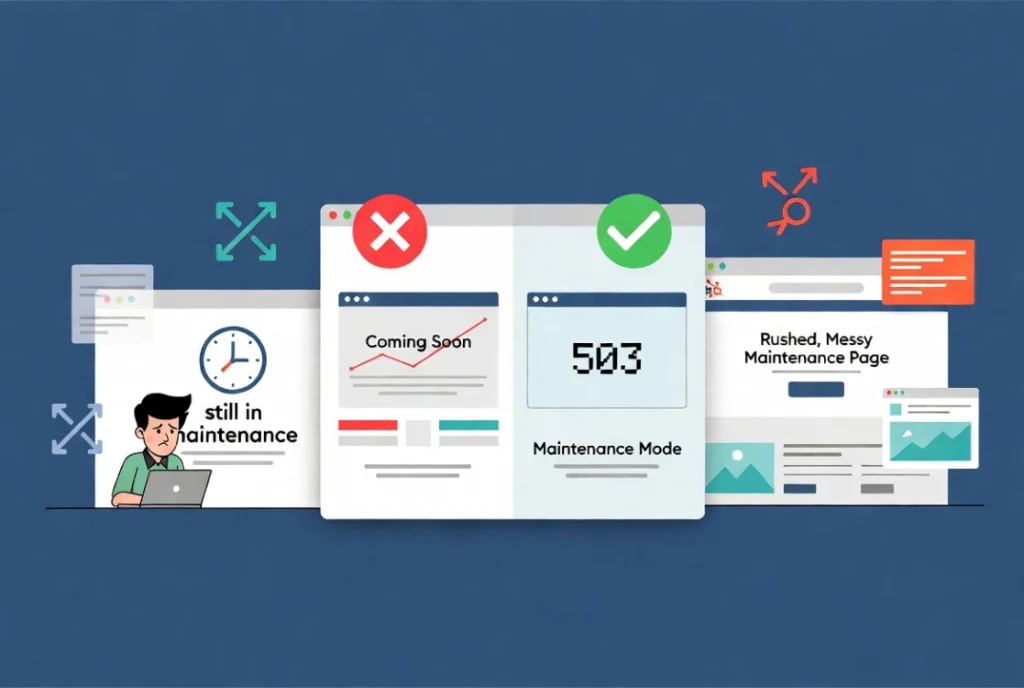
Leaving maintenance mode active too long
A 503 response is temporary by design. Set a timer, assign an owner, and monitor the public status. If work cannot be completed promptly, restore the previous version and move the unfinished work back to staging instead of keeping the live site unavailable.
Using Coming Soon on an established site
Coming Soon is intended for a site that has not launched. It is not a cosmetic substitute for the temporary 503 behavior that Elementor assigns to maintenance mode. Choose based on site status, not on which template looks better.
Allowing every logged-in account to bypass the page
Membership and WooCommerce sites may have many subscriber or customer accounts. Use custom access when those users should see the public maintenance experience, and verify with a test account for each important role.
Treating the temporary page as a security control
Maintenance mode changes what ordinary visitors see; it is not a web application firewall, authentication layer, or substitute for patching. Do not leave sensitive files, development endpoints, or database tools exposed because a maintenance template covers the front end.
Safe deactivation checklist
- Complete the defined functional checks while signed in.
- Confirm forms, checkout, login, search, and other business-critical paths.
- Return to Elementor’s Maintenance Mode settings and set the mode to Disabled.
- Purge relevant plugin, host, and CDN caches.
- Test several URLs while logged out and verify normal HTTP responses.
- Check monitoring, analytics collection, Search Console, and server logs for unexpected failures.
- Keep the backup until the change has remained stable through the agreed observation period.
Elementor Maintenance Mode is effective when it is used as one controlled step in a larger maintenance plan: prepare and test the page, select the correct mode, limit bypass access, verify the real response while logged out, and disable it promptly. The official Elementor maintenance-mode documentation confirms the current menu, template, access, and 503 behavior. Google’s crawl-error guidance explains why temporary server responses must not become permanent.