I once spent 20 minutes trying to log into a client’s WordPress site before realizing I was typing their email address into my own site’s login page. Simple mistakes like using the wrong URL or forgetting which credentials belong to which site waste more time than people admit.
Accessing your site is the first step toward effective management. You cannot publish content or change settings without getting past the login screen. It sounds simple, yet many users lose their way before they even begin. Understanding how to login to your WordPress admin area represents the entry point for the software that powers over 40 percent of the web. Knowing the mechanics of this entry point proves vital for security and efficiency. This guide builds directly on the foundational concepts found in our WordPress Basics and Installation guide.
⚡ Quick Summary (TL;DR)
- Learning how to properly access your WordPress administrative dashboard is the essential first step to successfully managing settings and publishing content.
- Most default websites use standard login URLs like
/wp-admin/or/wp-login.php, making strong passwords and modern security habits absolutely crucial. - You can easily customize your specific login path using a security plugin to hide your gateway from automated bots and malicious brute-force attacks.
- If you find yourself completely locked out, you can safely use the built-in password recovery system or reset your credentials through phpMyAdmin.
Table of contents
- Understanding the WordPress Administrative Gateway
- The Default WordPress Login Path
- WordPress Login URLs for Subdirectories and Subdomains
- The Anatomy of the WordPress Login Screen
- Advanced WordPress Security and Passkeys in 2026
- Customizing the WordPress Login URL
- Troubleshooting Common WordPress Login Issues
- Emergency WordPress Access via phpMyAdmin
- Professional Best Practices for WordPress Login Management
- Additional Resources for WordPress Access Management
Understanding the WordPress Administrative Gateway
WordPress is a dynamic system that relies on a database to store content and a set of PHP files to process requests.
The admin area, often called the dashboard, is the graphical interface where you control these elements. If you’re new to the platform, you might want to review What is WordPress? A Beginner’s Guide to understand why this administrative access is so powerful.
The login page is the lock on your digital front door. We’re going to ensure you have the right keys and know exactly where the door is located.
The Default WordPress Login Path
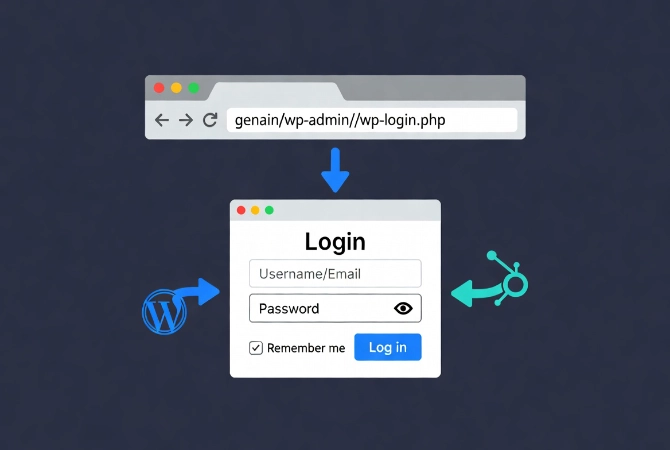
In a standard installation, your login page resides at a predictable URL.
You take your domain name and add a specific suffix to it. Most people use /wp-admin/ or /wp-login.php. Both of these paths usually lead to the same destination.
Understanding wp-admin vs wp-login.php
If your site is located at example.com, your login page is likely at example.com/wp-admin/.
But why are there two different URLs? The wp-login.php file is the actual script that handles the login process. It processes your username and password. The /wp-admin/ directory is the physical folder where the dashboard files live.
When you try to access the folder without being logged in, WordPress recognizes the lack of a session cookie and redirects you to the login script.
Security Implications of Standard URLs
Data suggests that standardizing these URLs helps with platform compatibility, but it also makes sites a target for automated bots.
These bots crawl the web looking for the /wp-admin/ suffix to attempt brute force attacks. While these are the defaults, professional developers often look for ways to secure them.
WordPress Login URLs for Subdirectories and Subdomains
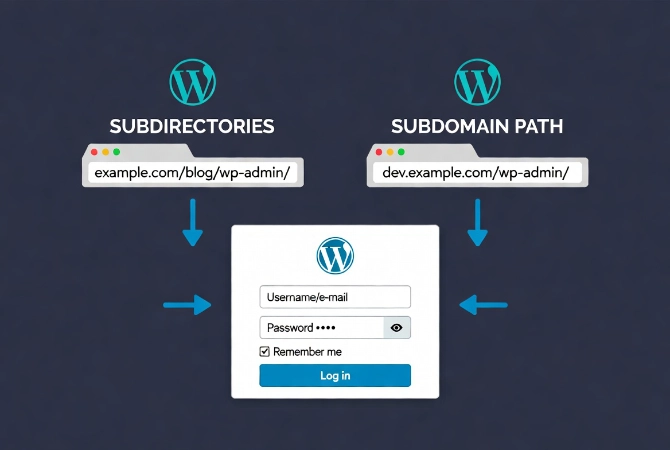
Not every site sits at the root of a domain.
If you installed your site in a folder, the path changes accordingly.
Subdirectory Login URLs
If your blog is at example.com/blog/, your login page will be at example.com/blog/wp-admin/.
This structure is common for businesses that want to keep their main site separate from their content hub.
Subdomain Login URLs
Subdomains follow a similar logic.
If your site is at dev.example.com, you’ll find the login at dev.example.com/wp-admin/. It’s consistent. You just have to know where your WordPress files were placed during the initial setup.
If you’re unsure where your site lives, check your hosting control panel or your FTP client to see the directory structure.
The Anatomy of the WordPress Login Screen
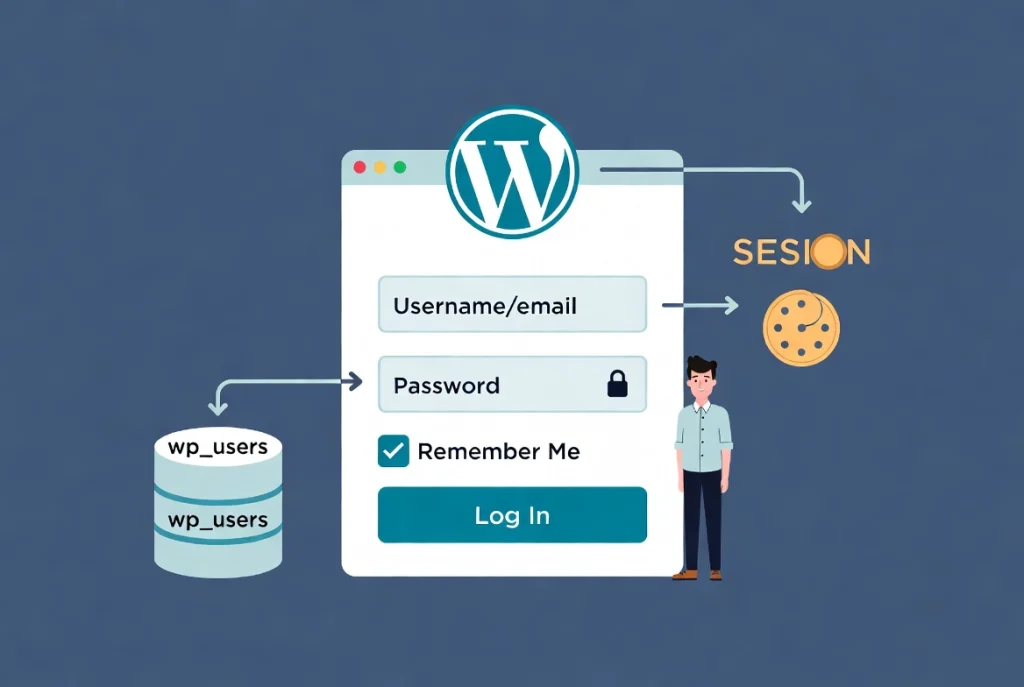
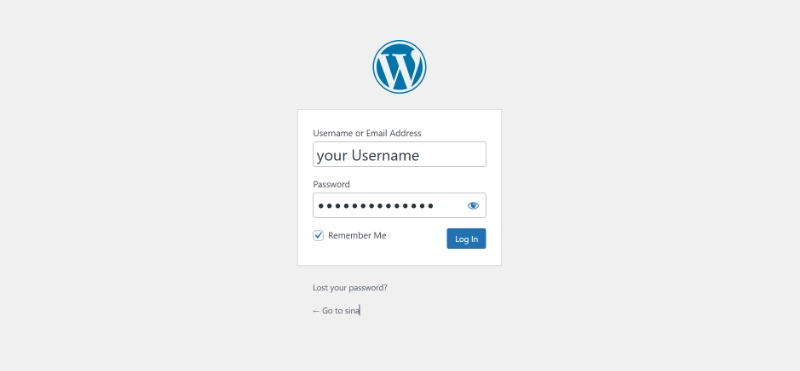
The standard login screen is functional and sparse.
It contains a field for your username or email address and a field for your password. There’s also a Remember Me checkbox.
Understanding the Remember Me Feature
If you check this box, WordPress saves an authentication cookie in your browser for 14 days.
If you leave it unchecked, the cookie expires when you close your browser or after two days of inactivity.
How WordPress Login Authentication Works
The login process involves several steps that happen in milliseconds.
First, the server receives your credentials. Then, WordPress hashes the password you entered and compares it to the hashed version stored in the wp_users table of your database. If they match, a unique session token gets generated.
This token is sent back to your browser as a cookie. From that point on, every time you click a link in the dashboard, your browser sends that cookie back to the server to prove you’re authorized.
This is why you don’t have to log in every time you click a new page. You can read more about what happens after login in our guide on Navigating the WordPress Dashboard: A Tour.
Advanced WordPress Security and Passkeys in 2026
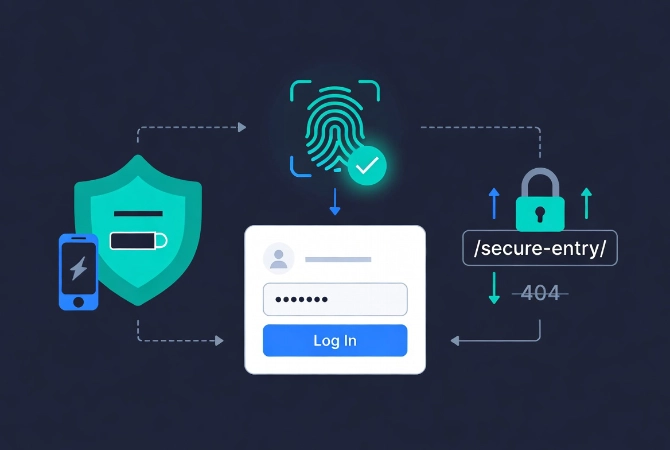
By 2026, the traditional password is becoming a secondary method of entry.
Most enterprise-grade WordPress installations now favor Passkeys. Passkeys utilize the WebAuthn standard to allow users to log in using biometric data like a fingerprint or facial recognition. This eliminates the risk of credential theft through phishing.
The Wikipedia entry for WordPress notes the platform’s long history of security iterations, and the move toward passwordless entry represents the latest step in that evolution.
Password Best Practices for 2026
If you’re still using a standard password, you must follow modern standards.
The NIST Digital Identity Guidelines suggest that length is more important than complexity. A long phrase is harder to crack than a short, complex string of characters.
But even a long password is vulnerable if you don’t have Two-Factor Authentication (2FA). You should use an app like Google Authenticator or a physical hardware key to add a second layer of defense.
In 2026, relying solely on a username and password for a high-traffic site is a professional liability.
Customizing the WordPress Login URL
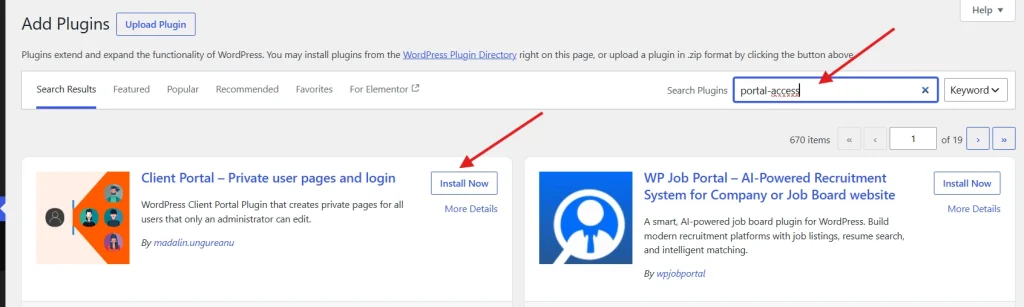
Security experts often recommend changing the login URL to something unique.
This is known as security through obscurity. While it’s not a complete security solution, it stops 99 percent of automated script attacks.
How to Change Your Login URL
You can use a plugin to change /wp-admin/ to something like /portal-access/ or /secure-entry/.
When you change this URL, the old /wp-admin/ link will usually return a 404 error. This confuses bots and keeps your server resources from being wasted on failed login attempts.
Just make sure you bookmark the new URL. If you forget it, you’ll have to access your site via FTP to disable the plugin and restore the default path.
Troubleshooting Common WordPress Login Issues
Sometimes you cannot log in even when you’re sure your password is correct.
This is frustrating but usually fixable. Here’s a breakdown of the most common issues:
| Issue | Probable Cause | Resolution |
|---|---|---|
| Incorrect Password | Human error or expired credentials. | Use the “Lost your password?” link to trigger an email reset. |
| Cookie Errors | Browser cache issues or blocked cookies. | Clear your browser cache and ensure cookies are enabled for your site. |
| Redirect Loops | Plugin conflict or corrupted .htaccess file. | Deactivate plugins via FTP or reset the .htaccess file to default. |
| 403 Forbidden | Server-side security blocking your IP. | Contact your hosting provider or check your firewall settings. |
Using the Lost Password Feature
The “Lost your password?” link is your primary recovery tool.
When you click it, WordPress generates a unique, time-sensitive key and sends it to the email address associated with your user account. You click the link in the email and set a new password.
If you don’t receive the email, check your spam folder. If it’s still not there, your server might have issues sending PHP mail.
Emergency WordPress Access via phpMyAdmin
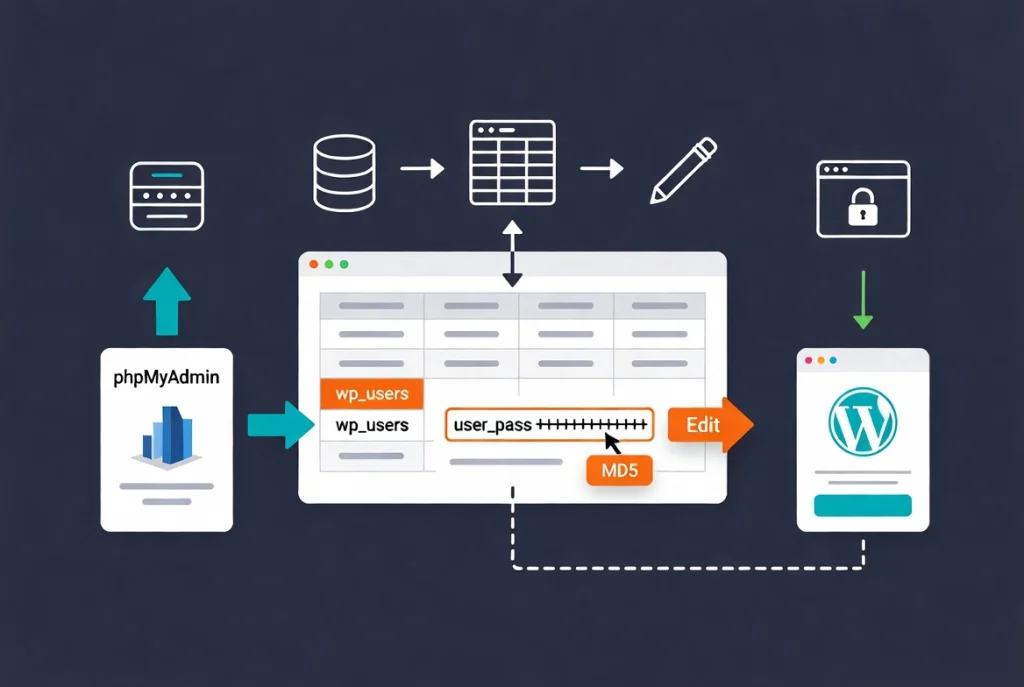
If the email reset fails, you can change your password directly in the database.
Most hosts provide a tool called phpMyAdmin. This allows you to view the raw tables of your WordPress site.
Step-by-Step Database Password Reset
- Access phpMyAdmin through your hosting control panel
- Find the wp_users table and locate your username
- You’ll see a field called
user_pass(it looks like a long string of random characters) - Type a new password in that field
- Select MD5 from the function dropdown menu before saving
- Click “Go” to save your changes
- Log in normally through the standard login page with your new password
This is a technical move, so proceed with caution. Always back up your database before making manual edits.
Review our comprehensive guide on How to Fix Common WordPress Login Issues for detailed troubleshooting.
Professional Best Practices for WordPress Login Management
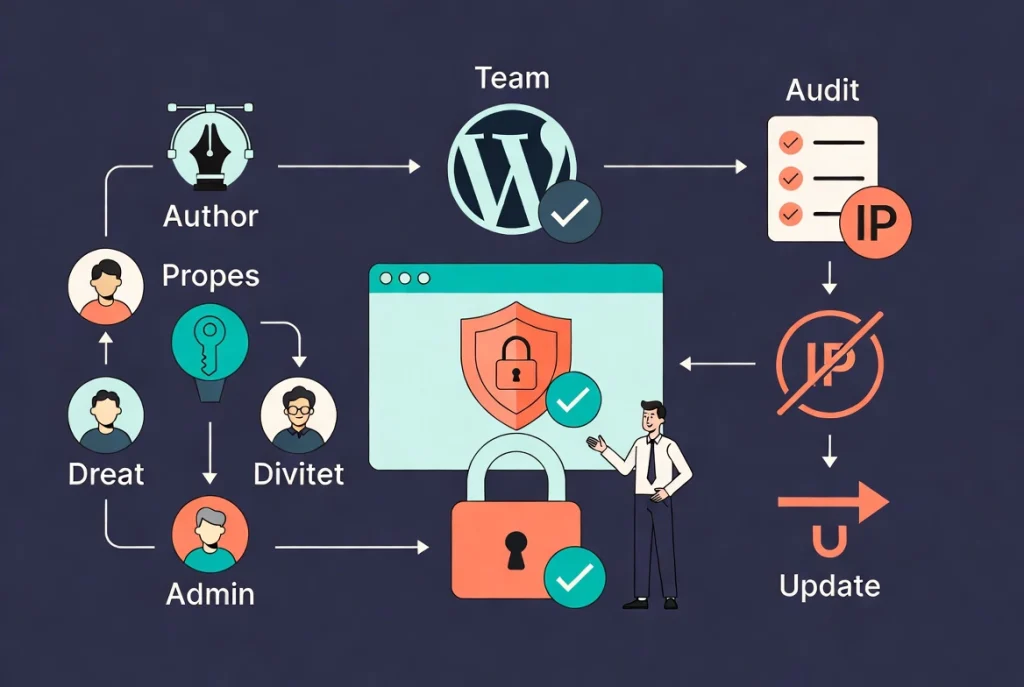
Managing access for a team requires a different approach than managing a personal blog.
You should never share a single login account because it’s a security risk and it ruins your audit trail.
Use WordPress User Roles Properly
WordPress has a robust user role system that you should use consistently.
Give your writers “Author” or “Contributor” roles instead of making everyone an “Administrator.” Learn more in our guide on Understanding WordPress User Roles and Permissions.
Audit User Accounts Regularly
You should audit your user list regularly.
If a contractor finishes their job, delete their account or downgrade their permissions immediately. Leaving old, unused accounts with high-level access is an invitation for a security breach.
Limit Login Attempts
Use a plugin or a server-side firewall to block any IP address that fails to log in five times in a row.
This stops brute force attacks in their tracks.
Keep WordPress Updated
Basic maintenance of your login area keeps your site running smoothly.
Keep your WordPress core, themes, and plugins updated. Many updates include security patches for the login system. If you’re running an outdated version of WordPress in 2026, you’re essentially leaving your door unlocked.
Additional Resources for WordPress Access Management
Continue building your WordPress security expertise with these essential guides:
- Master the complete process in WordPress Basics and Installation
- Understand the platform with What is WordPress? A Beginner’s Guide
- Navigate efficiently using Navigating the WordPress Dashboard: A Tour
- Fix access issues with How to Fix Common WordPress Login Issues
- Control permissions through Understanding WordPress User Roles and Permissions
- Secure your site with WordPress Security Basics for Beginners
The dashboard is where your vision becomes a reality. It’s where you manage everything from the smallest text change to the largest structural overhaul. By mastering the login process, you ensure that you’re always in control of your platform. If you ever feel overwhelmed by the technical side of things, refer back to the WordPress Basics and Installation guide for a refresher on the essential setup steps. Staying informed is the best way to keep your site secure and functional.