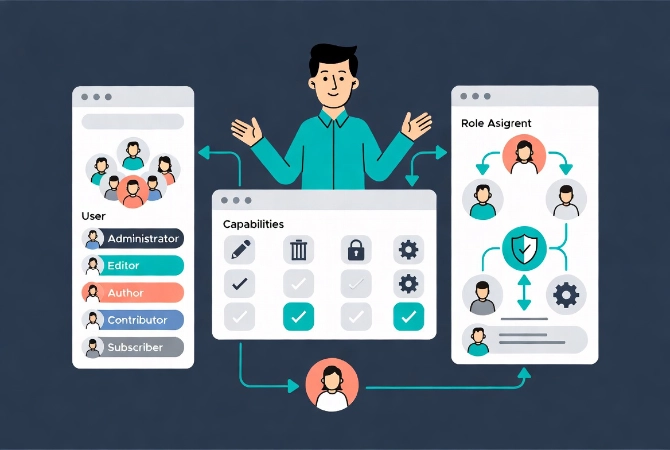
WordPress User Roles and Permissions: Complete Guide (2026)
I once gave my freelance writer full Administrator access because I thought it would “make things easier.”
Two weeks later, I discovered they’d accidentally deactivated a critical security plugin while trying to update their profile picture. The site was vulnerable for days before I noticed. Traffic dropped, and Google flagged us for malware that had slipped through.
Understanding WordPress user roles and permissions isn’t about being controlling—it’s about protecting your site while empowering your team to do their best work. Every permission you grant creates potential risk. Every unnecessary access point is a security vulnerability waiting to be exploited.
This guide builds on our WordPress Basics and Installation series to help you master the critical concepts of user management that separate secure, professional sites from vulnerable ones.
The Principle That Changes Everything: Least Privilege
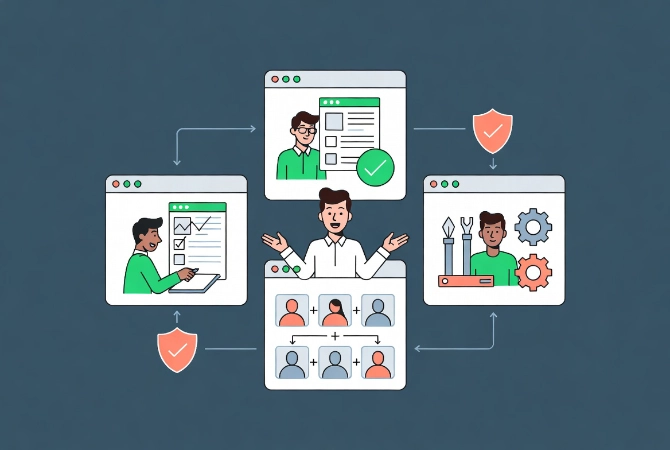
Cybersecurity professionals operate by one foundational rule: the Principle of Least Privilege.
Users should have only the minimum access necessary to perform their job. Nothing more. This isn’t about trust—it’s about limiting damage when things go wrong.
Why Excessive Permissions Create Danger
A compromised account with Author permissions can only mess with their own posts.
A compromised account with Administrator access can delete your entire site, install malware, steal customer data, and destroy years of work in minutes.
Here’s an analogy I use: You wouldn’t give a visitor your house keys, car keys, and safe combination just because they need to use the bathroom. WordPress user roles work the same way.
The 60% Problem Nobody Talks About
Industry data shows that approximately 60% of WordPress security breaches not tied to software vulnerabilities stem from compromised user credentials—especially over-privileged accounts.
The attack isn’t sophisticated. Hackers don’t need to find zero-day exploits when someone’s using “password123” on an Administrator account.
WordPress User Roles Explained: The 6 Default Options
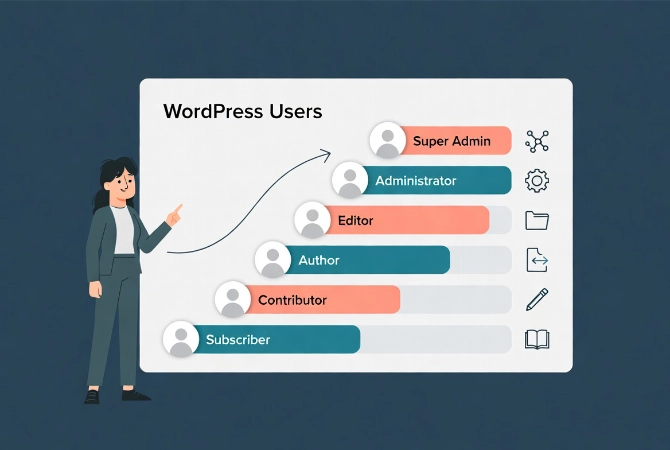
WordPress provides six predefined roles, each with specific capabilities.
Understanding these roles is critical before creating any user accounts. Let me break down each one from least to most powerful.
1. Subscriber: The Most Restricted WordPress User Role
Subscribers can read content and manage their own profile. That’s it.
They cannot create, edit, or publish posts. They have zero access to administrative functions. This role is perfect for membership sites or forums where users primarily consume content.
Best for: Members-only content sites, community forums, newsletter subscribers
2. Contributor: Write But Don’t Publish
Contributors can write and manage their own posts, but they can’t publish them.
Their content stays in “Pending Review” status until an Editor or Administrator approves it. They also can’t upload media files directly—a deliberate security restriction.
I use this role for guest bloggers and new content creators whose work needs review before going live.
Best for: Guest writers, new team members, external contributors
3. Author: Publish Your Own Content
Authors have more autonomy than Contributors.
They can write, edit, publish, and delete their own posts. They can upload images and media for their content. But they can’t touch anyone else’s posts or access site settings.
This role suits trusted individuals who manage their own content pipeline from draft to publication.
Best for: Regular blog writers, trusted content creators, staff writers
4. Editor: Manage All Content
Editors have significant power over content management.
They can publish, edit, and delete any post or page regardless of who wrote it. They moderate comments, manage categories and tags, and control the content hierarchy.
But Editors can’t install plugins, change themes, or modify site settings. This is often the primary role for content managers and editorial teams.
Best for: Content managers, editorial leads, managing editors
5. Administrator: Complete Site Control
Administrators hold absolute power over a WordPress site.
They can install and delete themes and plugins, manage all users, edit core files, change all settings, and access everything. This role should be assigned with extreme caution.
Here’s a critical mistake I see constantly: site owners using Administrator accounts for daily content work. This is a massive security risk.
Best for: Site owners, lead developers, technical managers (but only when performing admin tasks)
6. Super Admin: Multisite Network Control
In WordPress Multisite networks, Super Admins transcend individual site administration.
They manage network settings, install themes and plugins across all sites, create and delete sites, and manage users across the entire network. This is the highest privilege level available.
Best for: Network administrators, hosting companies, enterprise IT managers
WordPress User Role Capabilities: Quick Reference
| Role | Create Posts | Publish Posts | Edit Others’ Posts | Upload Media | Moderate Comments | Manage Plugins/Themes |
|---|---|---|---|---|---|---|
| Subscriber | ❌ | ❌ | ❌ | ❌ | ❌ | ❌ |
| Contributor | ✅ | ❌ | ❌ | ❌ | ❌ | ❌ |
| Author | ✅ | ✅ (Own only) | ❌ | ✅ | ❌ | ❌ |
| Editor | ✅ | ✅ (All posts) | ✅ | ✅ | ✅ | ❌ |
| Administrator | ✅ | ✅ | ✅ | ✅ | ✅ | ✅ |
When Default WordPress Roles Aren’t Enough
Default roles work great for simple sites with straightforward team structures.
But what happens when your SEO specialist needs access only to specific plugin settings? Or when your lead editor needs publish rights but your junior editor needs review-only access?
Understanding WordPress Capabilities
Capabilities are individual actions users can perform—things like ‘edit_posts’, ‘delete_users’, or ‘manage_options’.
Roles are simply collections of these capabilities bundled together. By creating custom roles, you can precisely define which actions each user group can execute.
This is where security meets efficiency.
Real-World Custom Role Example
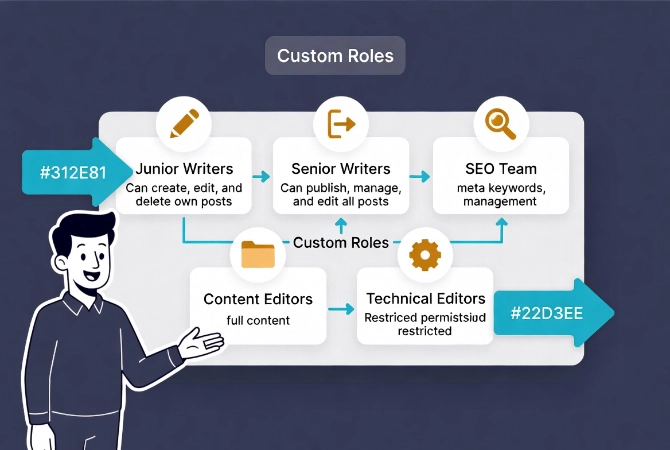
I once worked with a publishing company that needed:
- Junior Writers: Could create posts but not publish
- Senior Writers: Could publish their own posts
- SEO Team: Could edit meta descriptions and keywords but not content
- Content Editors: Could edit and publish all posts but not access plugins
- Technical Editors: Could manage specific plugins but not install new ones
Default WordPress roles couldn’t handle this structure. Custom roles solved it perfectly.
How to Create Custom WordPress User Roles
You have two approaches: plugins (recommended for most users) or code (for developers).
Method 1: Using a Plugin (Recommended)
Plugins like “User Role Editor” or “Members” provide user-friendly interfaces for role management.
What you can do with these plugins:
- Create new roles from scratch
- Duplicate existing roles as starting points
- Add or remove specific capabilities from any role
- Assign multiple roles to a single user
- View all capabilities in an organized interface
This method prevents code errors and site breakage. It’s the safest approach for non-developers, and you can adjust permissions quickly as your team evolves.
Method 2: Direct Code Implementation (Advanced)
Developers can manipulate roles programmatically using WordPress functions.
Functions like add_role(), remove_role(), add_cap(), and remove_cap() allow code-based control in your theme’s functions.php or a custom plugin.
This approach requires deep understanding of WordPress’s Roles and Capabilities API. Misconfigurations create critical security vulnerabilities.
Always test thoroughly in a staging environment before deploying to production.
Critical Security Practices for WordPress User Permissions
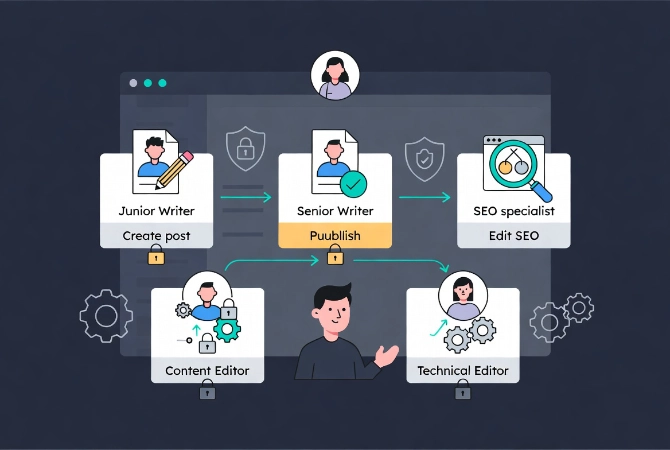
Permission management isn’t a one-time setup—it’s an ongoing security discipline.
1. Never Use Administrator for Daily Tasks
This is my most important advice.
Even if you own the site, create a separate Editor or Author account for content work. Only log in as Administrator when performing actual admin functions like plugin updates or theme changes.
Why? If your everyday account gets compromised while you’re working at a coffee shop, the damage is limited. An Author can’t delete your entire site or install malware.
2. Audit User Accounts Regularly
Set a calendar reminder to review user accounts quarterly.
What to check:
- Remove inactive accounts immediately
- Revoke permissions for users whose roles have changed
- Delete accounts for anyone who’s left your organization
- Verify no one has more permissions than necessary
I discovered a client still had Administrator access for a developer who’d finished their contract eight months earlier. That’s eight months of unnecessary risk.
3. Implement Strong Password Policies
Mandate complex, unique passwords for all users.
Consider implementing two-factor authentication (2FA) for all administrative roles. This single step blocks the vast majority of credential-based attacks.
For comprehensive security guidelines, review the National Institute of Standards and Technology (NIST) Special Publication 800-53 on security controls for information systems.
4. Understand Plugin-Specific Permissions
Many plugins introduce custom capabilities.
WooCommerce adds “Shop Manager” role. SEO plugins add settings management capabilities. Form plugins add submission management.
Be aware of these plugin-specific permissions and assign them carefully. Just because someone manages your shop doesn’t mean they need access to all site settings.
How WordPress User Roles Impact Team Workflow
Proper role management dramatically improves operational efficiency.
Clear Division of Labor
When permissions align with responsibilities, everyone works more effectively:
- Content creators focus solely on writing using the Gutenberg Editor, without distractions from admin panels
- Editors review and publish efficiently without worrying about breaking site functionality
- Developers maintain systems without concern that content changes might break critical features
This clear structure reduces errors and increases productivity.
Scalability Benefits
As your team grows, adding users becomes straightforward.
You have predefined roles ready. New team members get appropriate access from day one. You avoid the chaos of multiple users having excessive or insufficient permissions.
Common WordPress User Role Mistakes to Avoid
I’ve seen these errors destroy security and workflows.
Mistake #1: Over-Granting Permissions by Default
Never start with Administrator and strip permissions.
Always start with the least privileged role and add permissions as genuinely needed. It’s easier to grant access than to take it away after someone’s gotten used to having it.
Mistake #2: Neglecting Permission Revocation
When employees leave or change roles, update their WordPress permissions immediately.
Outdated access is one of the most common security vulnerabilities. Set up a process tied to your HR offboarding workflow.
Mistake #3: Lack of Documentation
For larger teams, document your custom roles and their rationale.
Six months from now, you’ll forget why you created a “Content Reviewer” role with specific capabilities. Documentation aids audits and onboarding.
Mistake #4: Ignoring Plugin-Specific Roles
Complex plugins like WooCommerce create their own roles.
These need to be integrated into your overall permission strategy, not treated as separate systems. A Shop Manager might need certain access but not others—review and adjust accordingly.
Frequently Asked Questions About WordPress User Roles
Can one user have multiple WordPress roles?
By default, WordPress assigns one role per user. However, plugins like “Members” or “User Role Editor” allow assigning multiple roles to a single user, combining their capabilities. This can be useful for complex team structures but adds management complexity.
What happens if I delete a WordPress user role that’s assigned to active users?
Users assigned to a deleted role typically revert to the default “Subscriber” role, losing all their previous permissions. This can break workflows. Always reassign users to appropriate roles before deleting any role.
Can Contributors see unpublished posts from other users?
No, Contributors can only see and edit their own posts. They cannot view drafts or pending posts from other users. This maintains privacy and prevents content leaks before publication.
Should I give my web developer Administrator access?
Only if absolutely necessary for their specific tasks. Many development tasks can be accomplished with Editor permissions plus specific plugin capabilities. If Administrator access is required, revoke it immediately when the project completes.
How do WordPress user roles affect SEO?
Roles don’t directly affect SEO, but they impact who can optimize content. Giving SEO specialists appropriate access to meta descriptions, schema markup, and redirects—without full administrative control—balances security with SEO management needs.
Can I restore default WordPress roles if I mess them up?
Yes, though it requires database knowledge or plugins. The “User Role Editor” plugin includes a “Reset Roles to WordPress Defaults” feature. Alternatively, reinstalling WordPress core (without deleting content) restores default roles.
Your WordPress User Role Security Checklist
Implement these practices today to secure your site:
- ✓ Audit all existing user accounts and their assigned roles
- ✓ Remove or downgrade any unnecessarily privileged accounts
- ✓ Create separate Editor/Author accounts for your daily work
- ✓ Implement two-factor authentication on all Administrator accounts
- ✓ Document your custom roles and their purposes
- ✓ Set quarterly calendar reminders for user permission audits
- ✓ Review plugin-specific roles and capabilities
- ✓ Establish a process for revoking access when team members leave
Additional Resources for WordPress Security
Continue strengthening your WordPress security knowledge:
- Master the basics with WordPress Basics and Installation
- Learn content management with the Gutenberg Editor Tutorial
- Understand URL structure with WordPress Permalinks guide
- Explore web security fundamentals at OWASP
- Review access control guidelines from NIST
Understanding WordPress user roles and permissions isn’t just a technical detail—it’s fundamental to site security, operational efficiency, and long-term maintainability.
By adhering to the principle of least privilege and proactively managing user access, you establish a resilient environment for your digital presence. This knowledge is as critical as understanding your site’s structure or security basics.
Take thirty minutes today to audit your user accounts. The security you gain and the disasters you prevent are worth far more than the time invested.