Elementor Structure (Navigator): Manage Complex Layouts in 2026
Quick answer: Elementor now calls its Navigator panel structure. It is a tree view of the containers and widgets on the current page, and it is often the fastest way to work when the canvas contains nested, overlapping, or absolutely positioned elements. This guide uses the current name while retaining “Navigator” for readers who know the older interface.
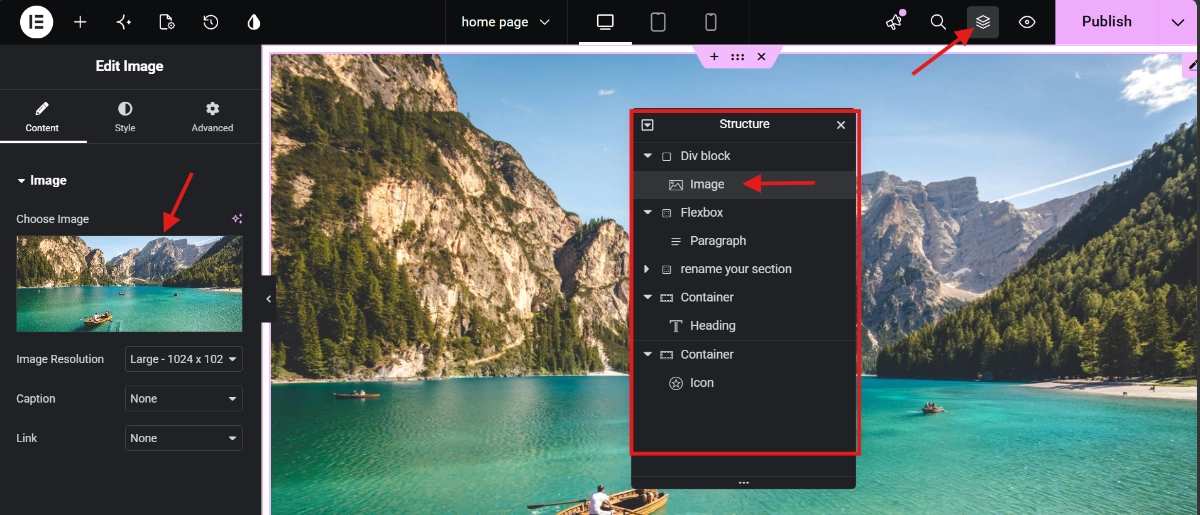
Open structure and understand the tree
Open it from the Structure icon in the top bar by right-clicking an element and choosing Structure, or with Ctrl/Cmd + I. Selecting a row takes you to that element’s editing controls. Indentation shows parent and child relationships, so a widget nested inside two containers appears beneath both. This is a navigation aid, not a second copy of the page.
Name elements before the layout gets complicated.
Double-click an element name and replace generic labels with purpose-based names such as “Hero,” “Primary CTA,” or “Mobile menu.” Consistent names reduce selection mistakes and make handoffs easier. Elementor AI users may see an AI naming option, but manual names remain clearer when they describe the page’s actual function.
Reorder, duplicate, and focus safely.
Drag a row to move an element, but confirm the blue insertion indicator before dropping it. The right-click menu also provides normal actions such as duplicate, copy, and paste. The eye control hides an element in the editor to help you focus; Elementor indicates that this element remains visible on the public page. Use responsive visibility settings for front-end visibility.
Troubleshoot overlaps and excessive nesting.
Structure is especially useful when z-index, negative margins, or absolute positioning make a handle difficult to select. Inspect the hierarchy before increasing z-index values. If a simple layout has many nested wrappers, identify which containers are actually needed; fewer purposeful containers are easier to maintain and can reduce DOM complexity.
A practical naming pattern
Use short names that combine section and role: “Pricing – cards,” “FAQ – accordion,” and “Footer – signup.” Avoid naming elements only by color or position because those properties may change. For more layout fundamentals, read our Elementor containers vs sections guide and Elementor best-practices checklist.
Final quality check
- Preview the page on desktop, tablet, and a real phone.
- Review keyboard navigation, visible focus, heading order, link wording, and color contrast.
- Test the live URL in a private browser window and clear caches if the editor and front end differ.
- Keep a backup before structural changes and confirm that forms, buttons, and links still work.