
Elementor Canvas vs Full Width: Which Layout Should You Use?
Use Elementor Canvas when the page should contain only content created in Elementor. Use Elementor Full Width when you want Elementor content to span the theme’s available width while keeping the header and footer. For normal posts and theme-controlled pages, the default or theme is often the safer choice.
The names sound similar, but page layout and container width solve different problems. The page layout controls which theme or Elementor template surrounds the content. A container’s content width controls how wide an individual section stretches inside that template. This guide reflects Elementor’s official documentation, which was checked on September 10, 2026.
The Four Elementor Page Layout Options

| Layout | What it displays | Typical use |
|---|---|---|
| Default | The site default, which may include theme or Elementor templates, header, footer, content area, and sidebar | Posts and pages that should follow the site’s normal template system |
| Elementor Canvas | Only the content created in Elementor; no theme header, footer, content wrapper, or sidebar | Standalone landing, presentation, or campaign pages |
| Elementor Full Width | Elementor content across the available screen with the header and footer retained | Custom pages that still need site navigation and footer links |
| Theme | The layout predefined by the active WordPress theme | Pages that should explicitly use theme settings rather than the Elementor default |
The exact result can depend on the active theme, Elementor Theme Builder templates, and display conditions. “Full Width” does not promise that every inner container touches both edges of the viewport. A boxed container can remain boxed inside the full-width page template.
Elementor Full Width: Keep the Header and Footer
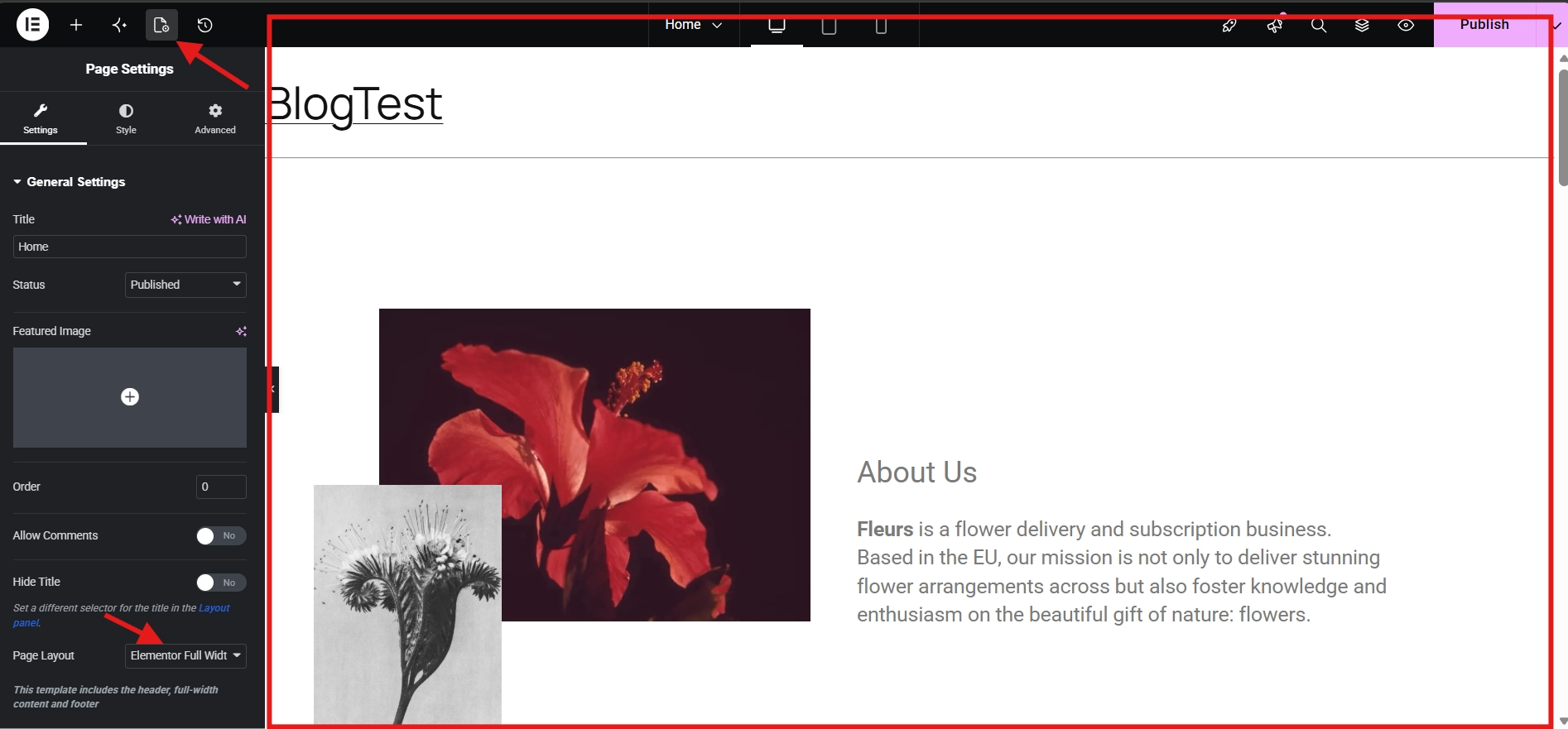
Full width is useful when a page needs a custom Elementor body but still needs to remain part of the wider website. Visitors can use the standard navigation, recognize the site identity, reach policy links, and move to other content through the footer.
Good candidates include a custom About page, service page, product overview, resource hub, or campaign page that still needs normal navigation. After choosing the template, set each main container’s content width to boxed or full width according to the design. Do not confuse that container setting with the page template.
Full Width Can Bypass a Single Post Template
Elementor’s current documentation includes an important warning: a Single Post template applies only to posts using the Default template. A post using Canvas, Full Width, or another non-default page template will not receive that Single Post template even when its display conditions otherwise match.
For regular blog posts, please use the default template unless you have tested a deliberate exception. Otherwise, the post may lose its intended title, author/date area, sidebar, related content, or schema-producing template components.
Elementor Canvas: Start with Only Elementor Content
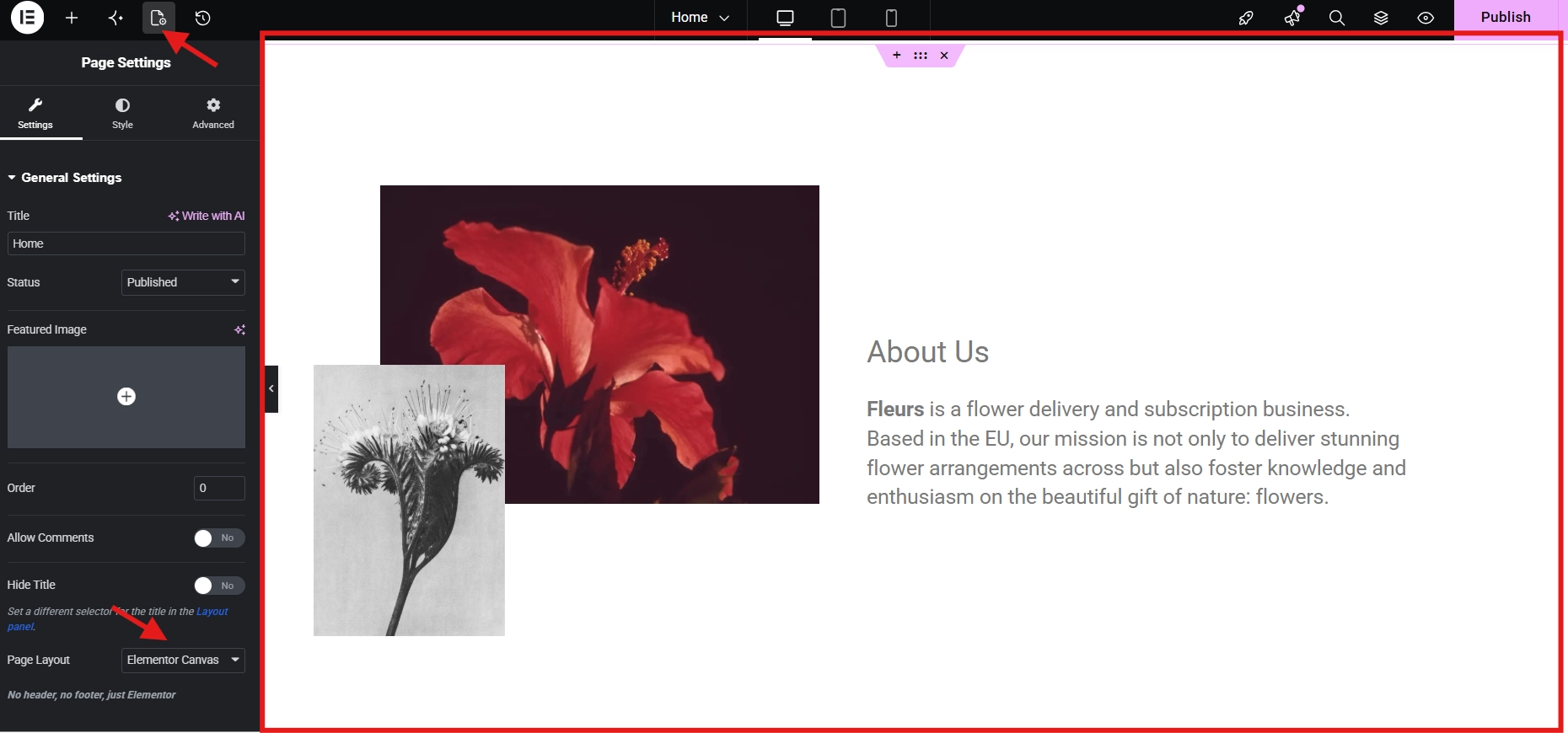
Canvas is appropriate when the page should be self-contained and all visible components will be built inside Elementor. It can suit a focused landing page, webinar registration page, temporary presentation, maintenance page, or a prototype that should not inherit theme chrome.
Removing navigation does not automatically improve conversions, and no layout guarantees a business result. A focused page may still need a logo, privacy link, terms, contact route, accessibility controls, and a way back to the main site. Build those elements into the Canvas design when the context requires them.
Canvas Does Not Mean “No Styles”
Canvas removes the surrounding layout; it does not automatically erase every stylesheet or Elementor global value. Global colors, fonts, and element styles can still influence the page. The practical responsibility is that you must supply any structural components—header, footer, navigation, content width, and spacing—that the selected template no longer provides.
Establish reusable design tokens before building several standalone pages. Our Elementor Global Colors and Fonts guide explains how to keep those pages consistent without manually styling every widget.
Default vs. Theme: Why Both Options Exist
Default follows the default page layout selected in Elementor Site Settings. That site-wide setting can itself be a theme layout, Elementor Canvas, or Elementor Full Width. The theme explicitly requests the predefined layout from the active WordPress theme.
If a page should behave like the rest of the site, default is usually the most maintainable choice. If the site’s Elementor default was changed for a campaign workflow but one page must return to the Kadence, Astra, GeneratePress, or another theme’s template, Theme can make that intent explicit.
How to Change the Page Layout in Elementor
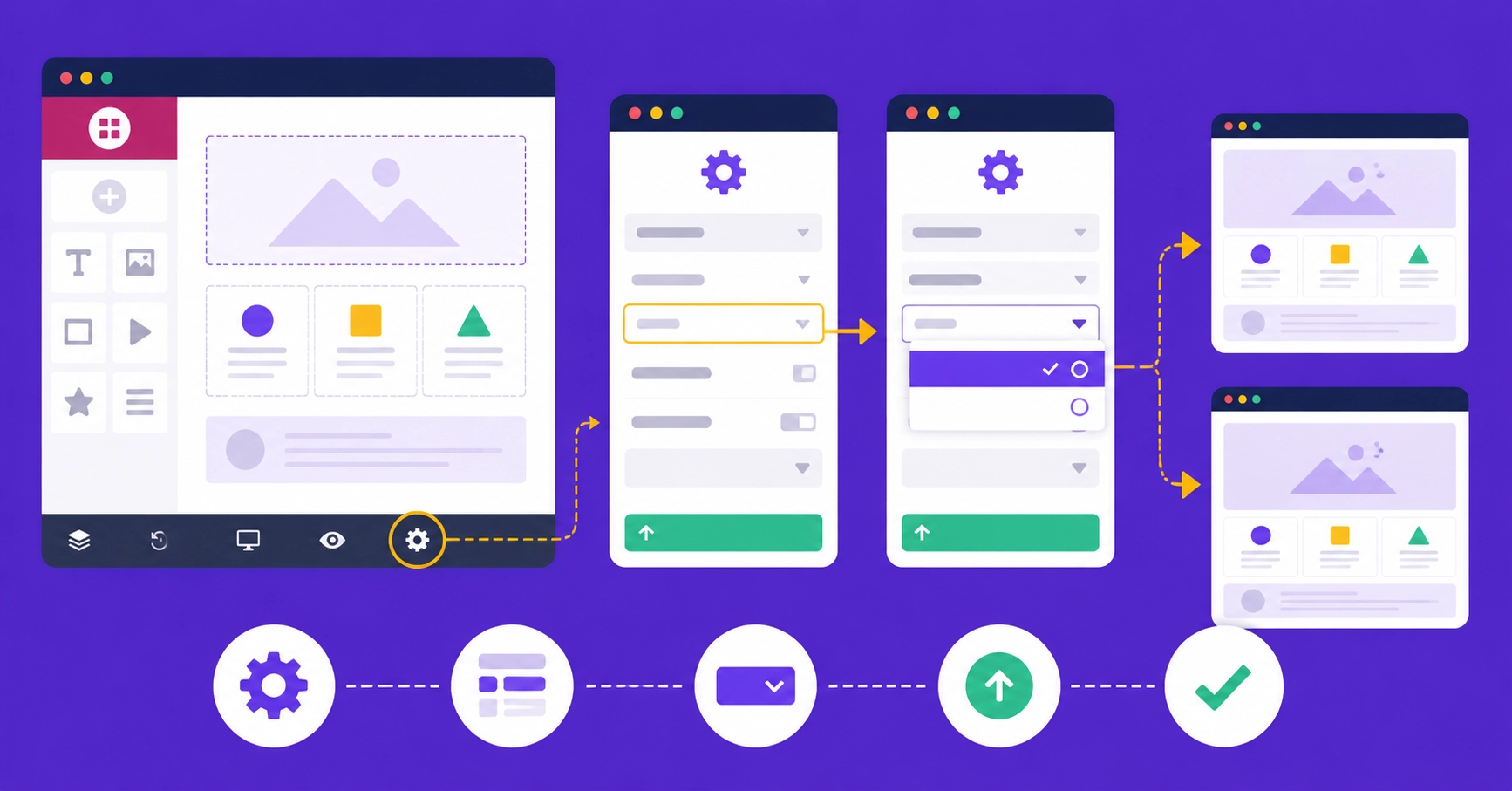
- Open the page with Elementor.
- Select the Page Settings icon in the top bar.
- Open the Page Layout dropdown.
- Choose Default, Elementor Canvas, Elementor Full Width, or Theme.
- Save or update the page, then preview it on the frontend in a private window.
Older Elementor versions placed Page Settings behind a gear icon near the bottom of the panel. Use the top-bar control in the current interface. Changing the template can immediately add or remove site-wide components, so confirm navigation, title display, breadcrumbs, footer links, mobile layout, and tracking before publishing.
How to Set the Default Page Layout
Contrary to what many older tutorials claim, Elementor does provide a global default:
- Open the Elementor editor and select the Elementor logo or menu in the top bar.
- Choose Site Settings.
- Open Layout.
- Select the Default Page Layout and save the change.
This setting affects pages that inherit Default. It does not rewrite a page that explicitly uses Canvas, Full Width, Theme, or another WordPress template. Before changing the global default on an established site, test representative pages and confirm which ones inherit it.
Page Layout vs. Container Content Width
| Setting | Scope | Example result |
|---|---|---|
| Page Layout | The outer page template | Keep or remove the theme header and footer. |
| Container Content Width | One Elementor container | Box content to a maximum width or stretch it across available width |
| Site Settings content width | Default width used by boxed containers | Keep text and repeated sections aligned site-wide. |
| Theme layout settings | Theme templates and content/sidebar behavior | Control the theme wrapper when Default or Theme is active. |
If Full Width is selected but the design remains narrow, inspect the main container’s Content Width, maximum width, padding, and the Site Settings content width. If the theme header remains but should be absent, Canvas is the relevant template; stretching the container will not remove the header.
How Theme Builder Changes the Decision
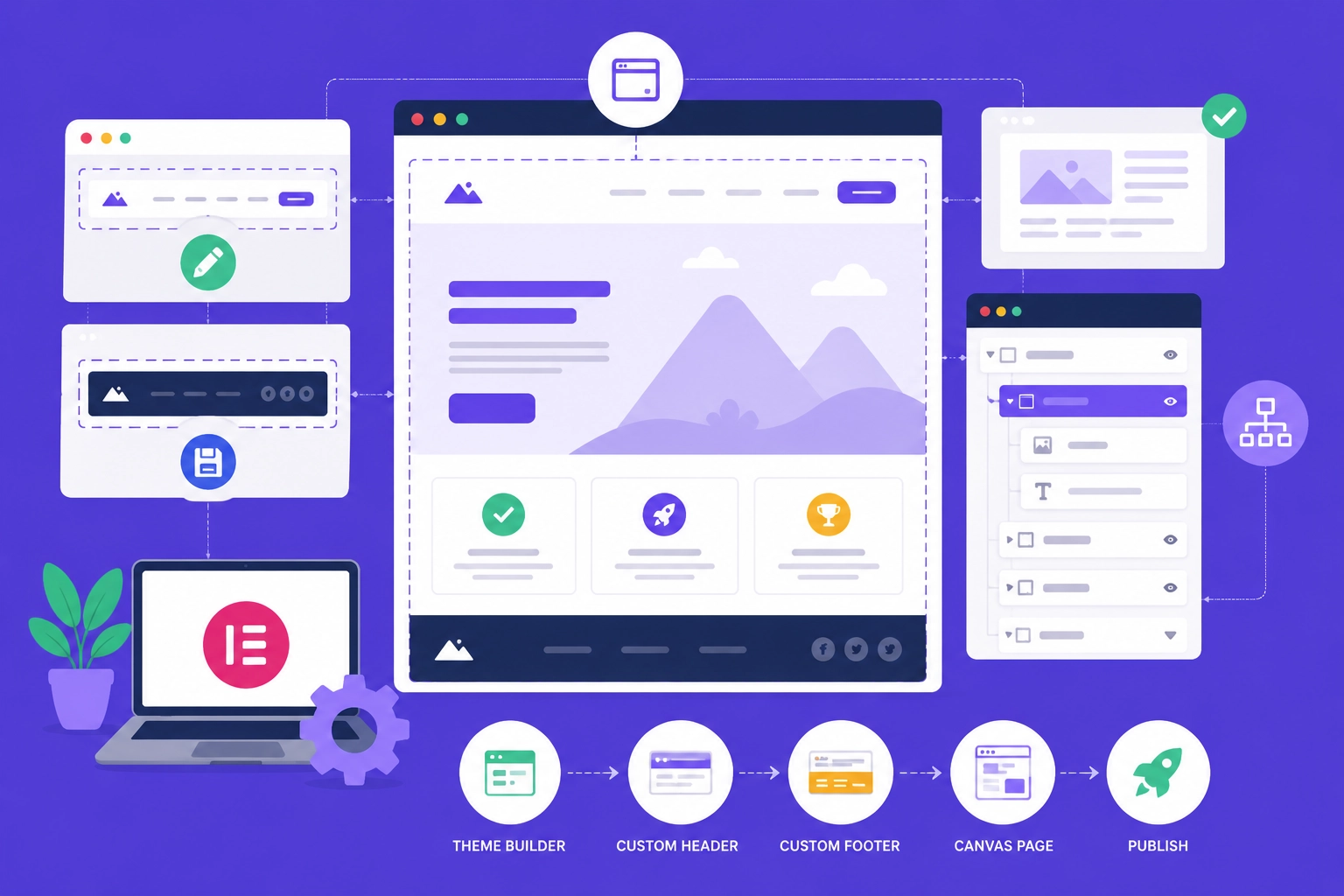
Elementor Pro Theme Builder can replace the active theme’s header, footer, and content templates according to display conditions. For example, one header can apply to the entire site while a simpler header applies only to selected landing pages.
Canvas bypasses the normal header and footer rather than automatically inserting Theme Builder site parts. If a custom header is missing, review the page layout first, then verify that the Theme Builder template is published and its display conditions include the page. Use default or full width when the custom site parts should remain.
Common Elementor Layout Mistakes
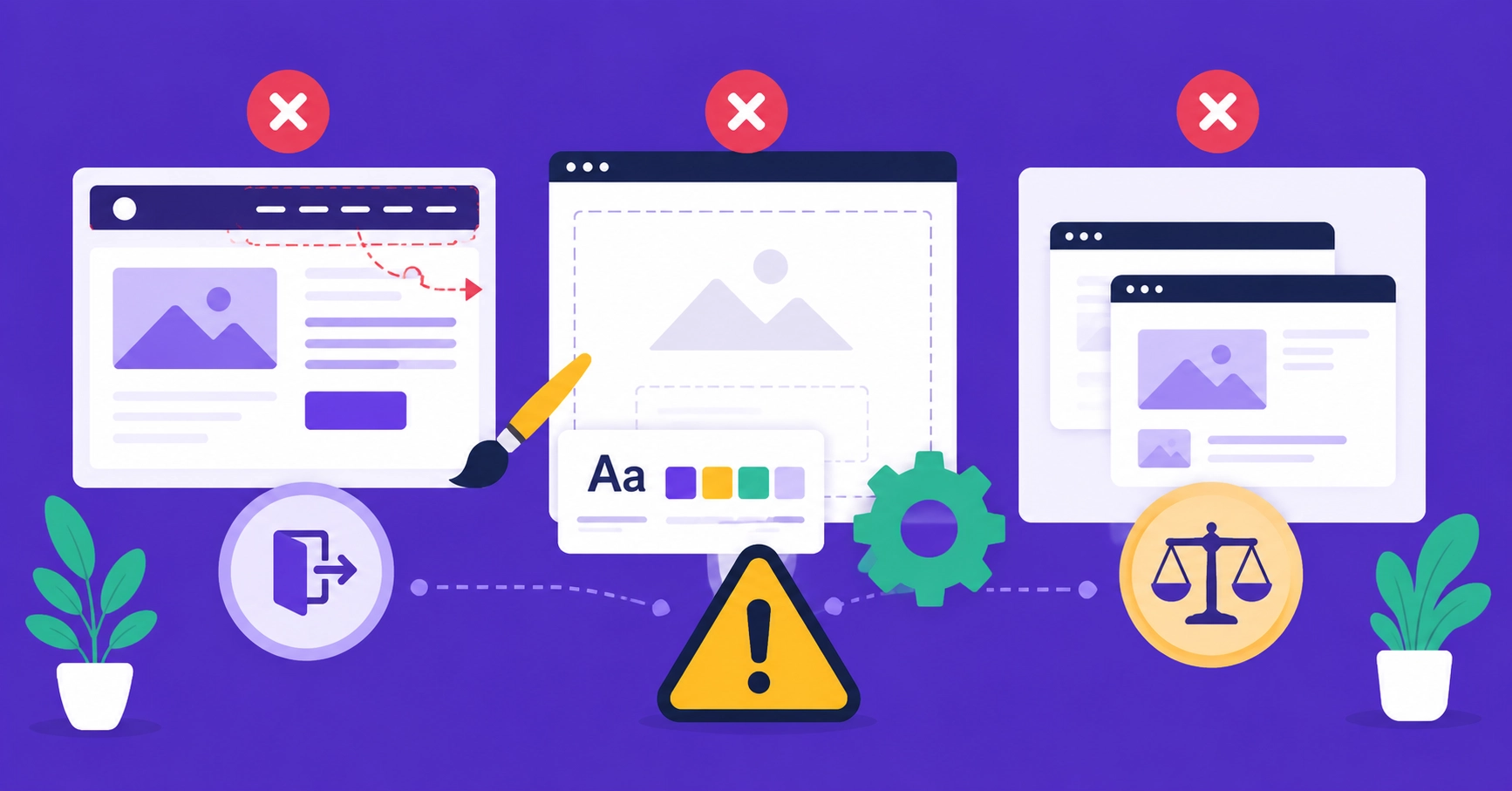
- Using Canvas on ordinary posts: this option can bypass the Single Post template and its author, date, navigation, or related-content elements.
- Expecting Full Width to stretch every container: inner containers can still be boxed or limited by a maximum width.
- Hiding headers with fragile CSS: choose the correct template or display condition instead of targeting changing theme classes.
- Removing essential footer links: a Canvas page may still need privacy, terms, contact, and consent information.
- Changing the site-wide default without testing: every page inheriting Default can change at once.
- Checking desktop only: preview header menus, full-width media, padding, and calls to action at multiple widths.
For spacing inside the selected layout, use the parent container’s gap, padding, and margin before adding empty widgets. Our updated Elementor Divider and Spacer guide explains the cleanest choice for each situation.
Troubleshooting Canvas and Full Width
The Header or Footer Is Missing
Check whether the page layout is set to Canvas. If the page should use a Theme Builder site part, switch to Default or Full Width as appropriate, then confirm that the template is published and its display conditions include this page. Also verify responsive visibility settings.
The Page Is Still Boxed
Confirm Elementor Full Width is selected, then inspect the parent container’s Content Width, maximum width, margin, and padding. Review Site Settings > Layout and the active theme’s content-width options. A template can be full width while a deliberate inner content column remains boxed for readable line length.
Saved Changes Do Not Appear
Review the frontend in a private browser window and clear the page, browser, CDN, and server cache. If the generated Elementor styles are out of sync, use Elementor > Editor > Tools > Clear Files & Data, then regenerate the page and test again. Our Elementor troubleshooting guide covers the broader checks.
Canvas vs. Full Width Decision Checklist
- Choose Canvas when every visible element comes from this Elementor page and no normal theme wrapper is needed.
- Choose Full Width when Elementor should control a wide content area while the header and footer remain.
- Choose Default for standard posts and pages that should inherit the site’s template system.
- Choose Theme when the active theme’s predefined layout must be used explicitly.
- After choosing the template, configure container width separately.
Final Recommendation
Do not select Canvas merely because a design should look wide. Canvas removes the surrounding header, footer, content wrapper, and sidebar. Select it only when that isolation is intentional. Full width is the better option when a custom Elementor page still belongs inside the site’s normal navigation. Default remains the safest starting point for posts and template-driven pages, especially when Elementor Single Post display conditions must apply.
Official Elementor Sources
- Canvas, Full Width, Default, and Theme layouts
- Configure Page Settings
- Use Elementor Full Width
- Control global layout settings
- Create a full-width page or container
- Theme Builder display conditions