How to Troubleshoot Elementor Loading Issues (2026)
A client called me panicking two days before their product launch. The Elementor site we had built together was loading in eleven seconds on mobile. Google PageSpeed Insights gave it a score of 23. We had a deadline, no clear single cause, and a lot to do quickly. Over the next eight hours, we worked through seven diagnostic areas systematically: images, plugins, theme, caching, database, scripts, and server configuration. By the time we finished, the site loaded in under two seconds and scored 91. None of the individual fixes were complicated. What made the difference was working through them in order rather than guessing. This guide documents that exact process so you can apply it to any slow Elementor site without the panic. If the Elementor editor is still new territory, the Getting Started with Elementor guide covers the interface foundation first. For the WordPress layer beneath everything here, the WordPress basics and installation guide is where that foundation starts.
⚡ Qbeginsummary (TL;DR)
- Slow loading times directly lower search rankings and drive away valuable traffic by triggering cognitive friction and high bounce rates.
- Testing in an incognito window alongside diagnostic tools creates a clear performance baseline to measure your optimization results.
- Converting your heavy media library to compressed WebP files eliminates the single biggest cause of slow page loading speed.
- Configuring a reliable caching plugin combined with database cleaning reduces server strain by delivering static pages instantly to visitors.
- Switching to lightweight themes while increasing the PHP memory limit solves core performance bottlenecks that hold back complex Elementor builds.
Why Elementor Loading Speed Cannot Be Ignored
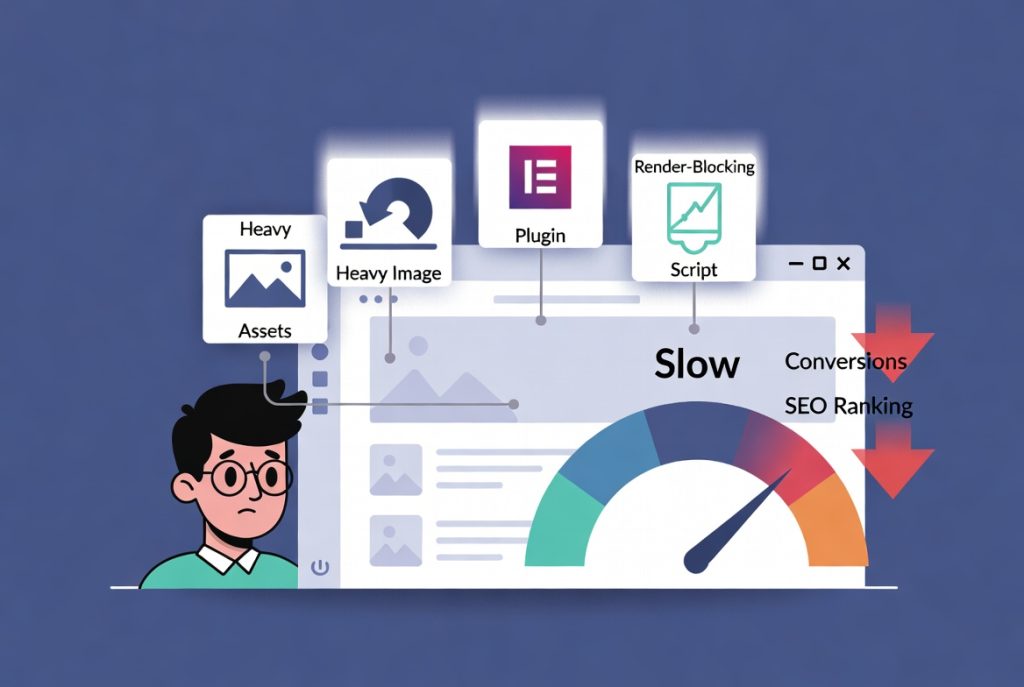
A one-second delay in page load time reduces conversions by 7 percent. Google uses Core Web Vitals as a direct ranking signal, which means a slow Elementor site loses both revenue and search visibility simultaneously. In 2026, visitor expectations for rapid content delivery are higher than at any previous point. Slow sites do not receive second chances. Visitors bounce and rarely return.
Most Elementor performance problems trace back to a small set of diagnosable causes: unoptimized media assets, plugin bloat, heavy themes, missing caching, database clutter, render-blocking scripts, and outdated server configurations. Working through each area methodically produces faster results than making random changes and hoping one of them helps.
Step 1: Run the Diagnostics Before Touching Anything
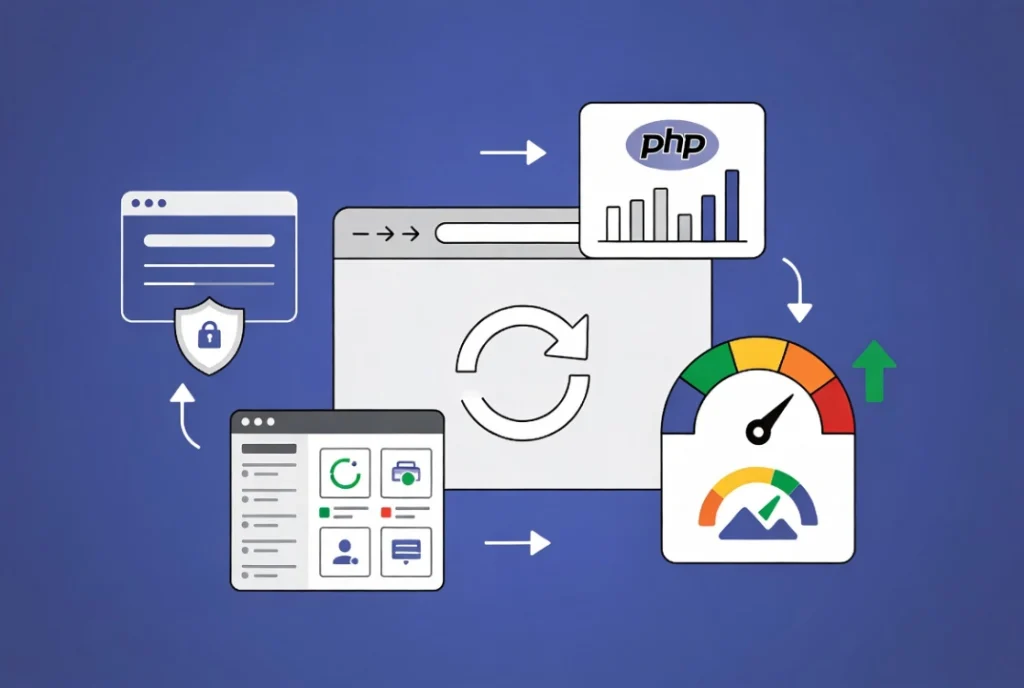
Testing in an incognito browser window eliminates local cache and browser extensions from the results, giving an accurate view of what a new visitor actually experiences. Always start there before collecting any data.
Elementor’s built-in System Info panel, found under Elementor or System Info in the WordPress dashboard, displays the PHP version, memory limits, active plugins, and theme details in a single exportable report. Red flags appear immediately: PHP versions below 8.1, memory limits under 256MB, and plugin counts above twenty all indicate likely performance contributors worth investigating.
Running Google PageSpeed Insights on the live URL produces a score alongside specific recommendations ranked by impact. GTmetrix and WebPageTest add waterfall charts that show exactly which asset loads slowest and how long each request takes. Collect this data before making any changes so you can measure every fix against a baseline. If the scores are poor even before you address any content-related factors, consult your hosting provider about server load and resource allocation. addressed. Shared hosting that oversells resources affects performance regardless of how well the site itself is optimized.
Step 2: Fix Images First Because They Cause the Most Damage
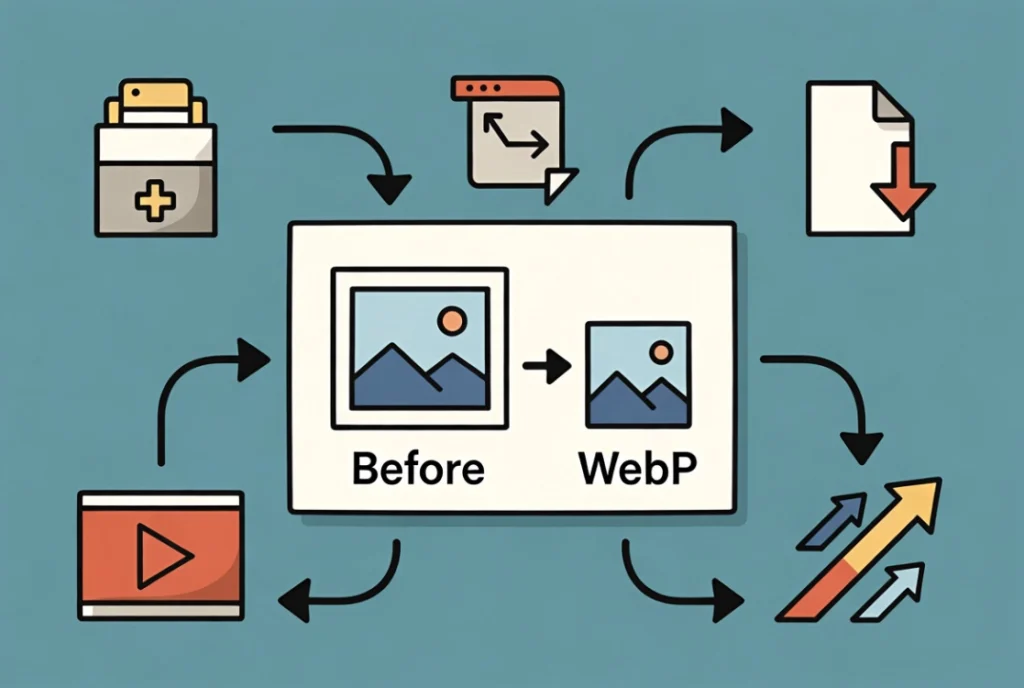
Unoptimized images are the single most common cause of slow Elementor pages. A 3000px-wide photograph displayed at 400px in an icon box still downloads at a full 3000px file size unless it was resized before upload. Every uncompressed image above the fold directly damages the Largest Contentful Paint score that Google measures for rankings.
Compress all images using a plugin like ShortPixel, Imagify, or EWWW Image Optimizer before or immediately after upload. Convert to WebP format, which delivers the same visual quality at 25 to 35 percent smaller file sizes compared to JPEG or PNG. Browser support for WebP is near-universal in 2026, making it the safe default for all new uploads. Enable lazy loading so images below the fold only download when a visitor scrolls toward them, reducing the initial page load to only the assets the visitor immediately sees.
Large video files should never be hosted directly on the WordPress server. External platforms like YouTube and Vimeo handle bandwidth and processing efficiently at no additional server cost. Embedding through Elementor’s Video widget keeps the page lightweight while retaining full playback functionality.
Step 3: Audit Plugins and Remove What Is Not Earning Its Place

Every active plugin adds code, database queries, and potential conflicts to every page load. A plugin count above twenty on a standard Elementor site is a performance warning sign worth investigating. Deactivating all non-Elementor plugins, clearing the cache, and testing speed immediately reveals whether plugin overhead is a contributing factor. Reactivating plugins one at a time and retesting after each identifies the specific plugin causing degradation without disrupting the diagnostic process.
Quality matters as much as quantity. Poorly coded plugins from developers who rarely release updates introduce a performance drain that well-written plugins at the same feature level prevent. Prioritize plugins with strong update histories, positive reviews referencing performance, and active support channels. You can often replace many utility functions that plugins provide with a small snippet of custom code that adds no overhead at all.
Step 4: Switch to a Lightweight Theme
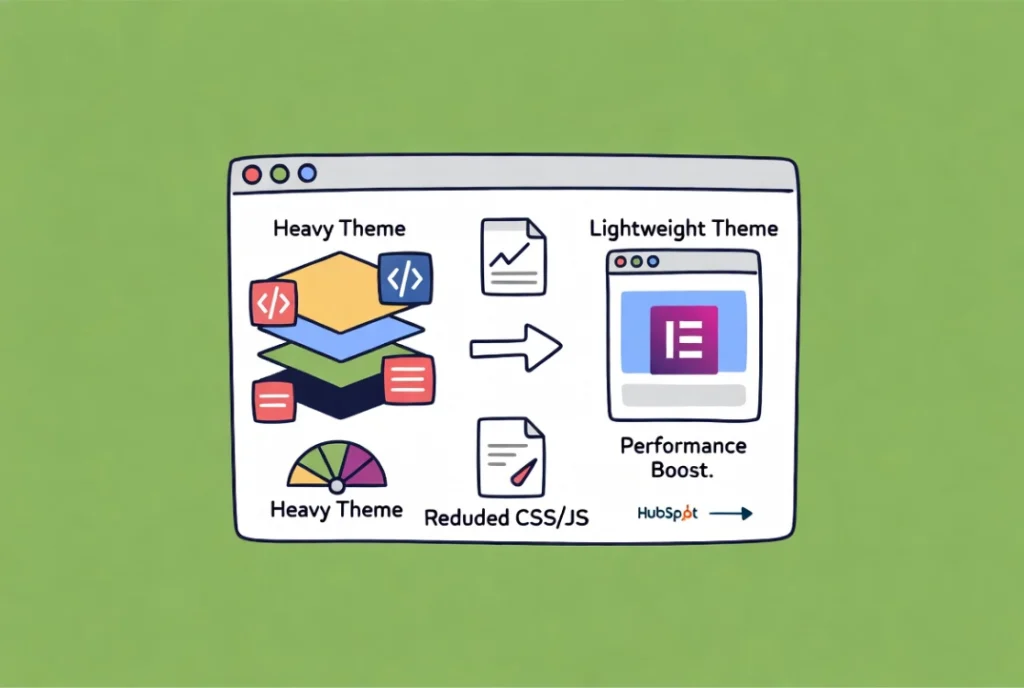
Resource-heavy WordPress themes load scripts and stylesheets that conflict with Elementor or add significant page weight before any Elementor content renders. Hello Elementor, Astra, GeneratePress, and Kadence are all built specifically for performance and for Elementor compatibility. Each loads minimal CSS and JavaScript at the theme level, leaving Elementor in full control of the visual output without competing overhead.
Switching themes on a live site requires Please test the replacement theme on a staging environment first to confirm that existing Elementor layouts remain intact before pushing the change to production.
Step 5: Configure Caching Properly
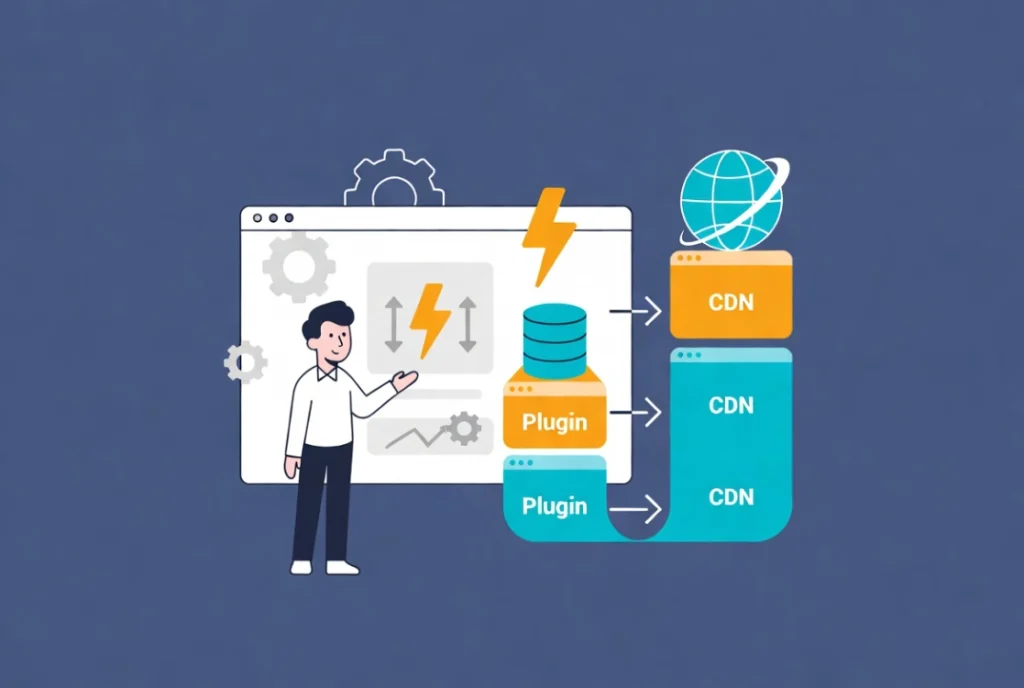
Caching generates static HTML versions of Elementor pages and serves them instantly to visitors without processing PHP or querying the database on every request. A site without caching runs the full WordPress execution stack for every single visit, even on pages that have not changed in months. That unnecessary processing is both slow and wasteful.
WP Rocket, LiteSpeed Cache, and SG Optimizer are reliable page caching plugins that handle page caching, browser caching headers, and cache preloading from a single configuration panel. Server-side caching through Redis or Memcached, available through most managed WordPress hosting providers, speeds up database queries and object retrieval at the infrastructure level before the caching plugin even runs. A Content Delivery Network (CDN) distributes static assets across servers globally and delivers each file from the server geographically closest to the visitor, cutting latency for international audiences significantly.
| Caching Type | What It Does | Where to Configure |
|---|---|---|
| Page caching | Serves static HTML instead of processing PHP | WP Rocket, LiteSpeed Cache |
| Browser caching | Stores assets locally for returning visitors | Caching plugin or server headers |
| Server-side caching | Speeds up database queries and object retrieval | Hosting provider, Redis or Memcached |
| CDN | Delivers assets from the nearest global server | Cloudflare, KeyCDN, StackPath |
Step 6: Clean the Database

WordPress databases accumulate post revisions, expired transients, orphaned metadata, and spam comments over time. Each one of these adds weight to database queries that run on every page load. A site that has been live for two years without any database cleanup can hold tens of thousands of unnecessary rows, which measurably slow down every query.
WP-Optimize and Advanced Database Cleaner both handle routine cleanup with scheduled automation. Limiting post revisions through wp-config.php prevents the database from accumulating unlimited revision history going forward. Adding define('WP_POST_REVISIONS', 5); to wp-config.php caps revisions at five per post, which is sufficient for recovery purposes without allowing unchecked database growth. The Elementor History Tool guide covers revision management specifically within the Elementor context in How to Use the Elementor History Tool.
Step 7: Optimize JavaScript and CSS Delivery

Unminified CSS and JavaScript files contain whitespace, comments, and formatting that browsers do not need but still download. Minification removes that unnecessary content and reduces file sizes without changing how the code functions. Most caching plugins include minification for both CSS and JavaScript files and apply it automatically after configuration.
Render-blocking scripts delay the browser from displaying visible content because the browser waits for scripts to finish loading before it renders the page. Adding the defer attribute to non-critical JavaScript files allows the browser to continue rendering while those scripts load in the background. Critical CSS, which is the styling required to render above-the-fold content correctly, benefits from being inlined directly into the HTML so the visible portion of the page appears immediately without waiting for external stylesheets to download.
Step 8: Update PHP and Increase Memory Limits
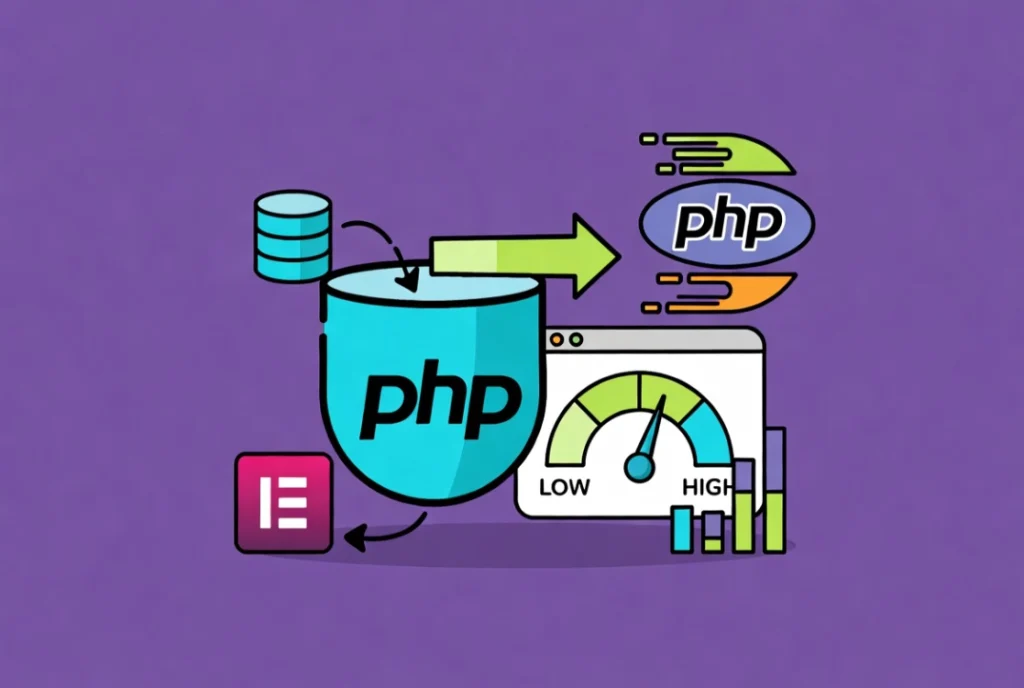
PHP 8.1 or higher delivers significant performance improvements over PHP 7.4 and earlier versions. Elementor and most modern plugins perform measurably faster on current PHP versions, and the PHP 8.1 documentation details the specific engine improvements that produce those gains. Most hosting control panels allow PHP version selection from the server settings panel without contacting support.
Memory limits below 256MB cause Elementor to slow down or fail when loading complex pages with multiple widgets and containers. Adding define('WP_MEMORY_LIMIT', '512M'); to wp-config.php above the “That’s all, stop editing” line increases the allocation to 512MB, which handles most Elementor builds comfortably. Complex sites with extensive Theme Builder templates benefit from 1GB.
Additional Resources
- WordPress Basics and Installation: The Complete Beginner’s Guide
- Getting Started with Elementor in 2026: The Complete Guide
- How to Use the Elementor History Tool
- Responsive Design Basics: Making Elementor Sites Mobile-Friendly
- Elementor Best Practices for Beginners
- How to Add Video Backgrounds to Elementor Sections the Right Way
- How to Add Background Images and Overlays in Elementor
- 7 Basic SEO Settings Every Elementor Page Needs
- Google PageSpeed Insights Documentation
- Core Web Vitals: web.dev
- PHP 8.1 Release Notes
Final Thoughts: Diagnose First, Fix Second
Guessing at Elementor performance problems wastes hours. Working through the seven areas in order—images, plugins, theme, caching, database, scripts, and server configuration—turns a slow site into a fast one systematically. Collect baseline data before making any change and measure after each fix so the impact of every intervention is visible. Performance is not a one-time task. It requires checking again after every major update, every new plugin addition, and every significant content change. A fast Elementor site in 2026 is not an accident. It is the result of deliberate decisions made consistently over time. If you need to revisit the WordPress foundation beneath all of this, the WordPress basics and installation guide is always the right place to start.