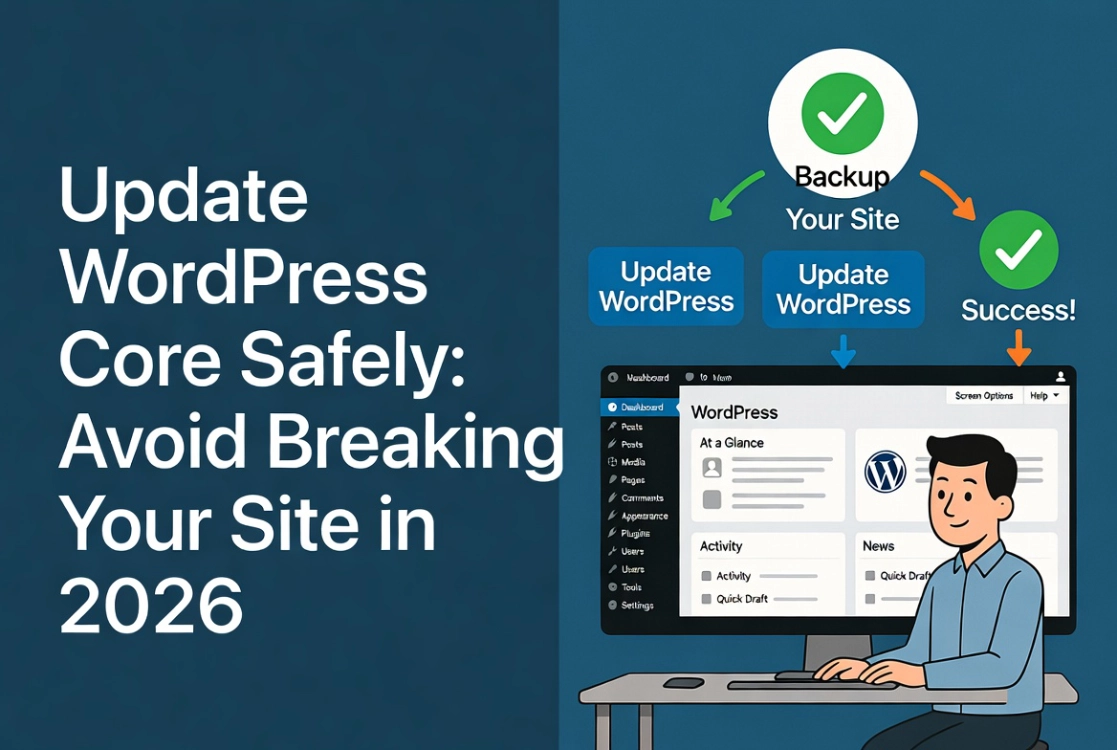
I clicked “Update Now” on a Friday afternoon without backing up first. The update broke a critical e-commerce plugin during their biggest sale weekend. Restoring from a week-old backup meant losing 200 customer orders, and the client sued for damages.
Maintaining a WordPress installation demands a disciplined approach, especially concerning its core software. Neglecting updates is not merely a lapse in judgment because it constitutes a significant security liability and a missed opportunity for performance enhancements. In 2026, with cyber threats growing more sophisticated daily, ensuring your WordPress core is current is fundamental to its integrity and your digital presence. Understanding how to safely update WordPress core represents a critical component of effective site management. This guide outlines the precise, professional methodology you need, building on our WordPress Basics and Installation foundation.
The Undeniable Imperative: Why Update WordPress Core?
The question is not if you should update, but when and how.
WordPress, like any widely adopted software, faces constant scrutiny from both benevolent developers and malicious actors. Every core release addresses critical aspects of the platform.
Security: Your First Line of Defense
Outdated software is an open invitation for exploits.
Statistics consistently show that a substantial percentage of compromised websites run outdated core applications. The WordPress security team and a global community of developers identify and patch vulnerabilities regularly.
When you delay an update, you operate a known-vulnerable system. That is a fact.
According to a 2024 report by Sucuri, 47% of infected websites at the time of their cleanup were running outdated WordPress core versions. This data underscores the direct correlation between neglected updates and security breaches.
Staying current closes these security holes, protecting your data, your users, and your reputation.
Performance and Stability Gains
Each major WordPress release and many minor ones include refinements to the codebase.
This means faster page loads, more efficient database queries, and better resource utilization. Performance improvements directly impact user experience and search engine rankings because slow sites drive visitors away.
Updates also resolve bugs, leading to a more stable, predictable platform.
New Features and Compatibility
WordPress evolves continuously with each release.
New core versions often introduce powerful features that enhance content creation, site management, or extend functionality. Think about the advancements in the block editor (Gutenberg) over the past several years.
Furthermore, plugin and theme developers frequently target specific core versions for compatibility. An outdated core can lead to plugin malfunctions, rendering critical site features inoperable.
Understanding WordPress Core Update Types
WordPress offers different types of updates, each with specific implications.
Knowing the difference is key to safe updating.
Minor WordPress Releases (e.g., 6.4.1, 6.4.2)
These are primarily security and maintenance releases.
Minor updates contain bug fixes and critical security patches but rarely introduce new features. WordPress typically handles these as automatic background updates by default.
This automatic process is generally safe and reliable.
Major WordPress Releases (e.g., 6.3, 6.4, 6.5)
Major releases introduce new features, significant interface changes, and substantial code improvements.
These are not typically automatic, so you initiate them manually through the WordPress dashboard. While offering significant enhancements, major updates also carry a higher potential for compatibility issues with older plugins or themes.
This is where meticulous preparation becomes non-negotiable.
The Non-Negotiable Pre-Update Protocol
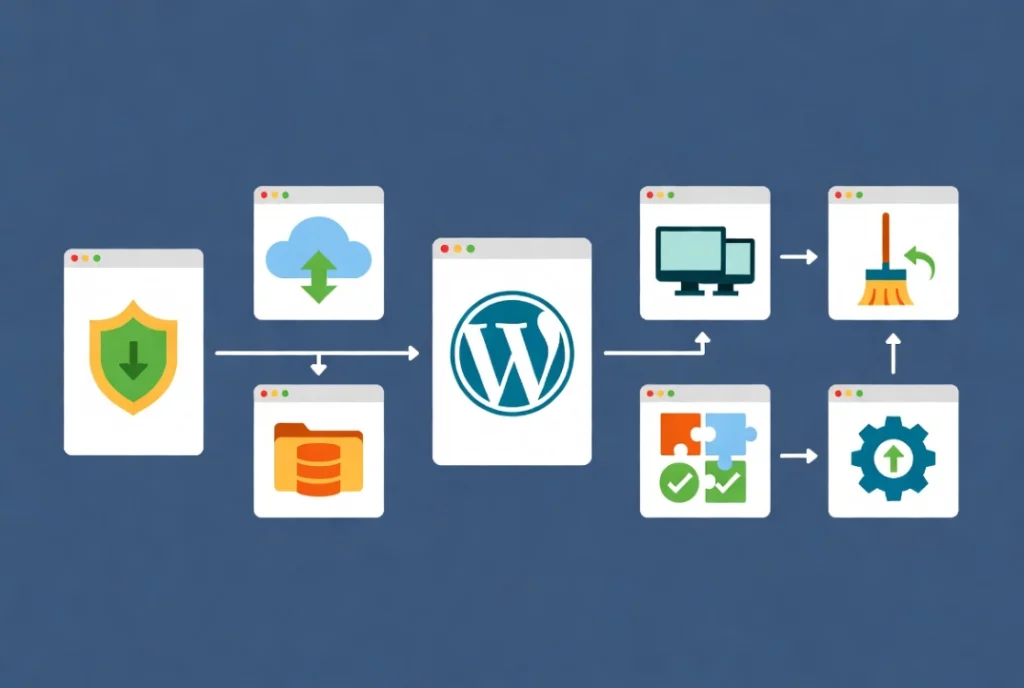
Before you even consider clicking that “Update Now” button, a series of critical steps must be completed.
Skipping these is amateurish and irresponsible.
1. Comprehensive Backup: Your Digital Lifeline
This is the single most important step in the entire process.
Without a recent, verifiable backup, you risk permanent data loss. You need both your database and your site files.
Database Backup
Use a reputable plugin (UpdraftPlus, Duplicator) or access phpMyAdmin through your hosting control panel.
Export the entire database and store it securely.
File Backup
Use an FTP/SFTP client (FileZilla) or your hosting file manager.
Download your entire wp-content directory (themes, plugins, uploads) and the wp-config.php file. For absolute completeness, download the entire WordPress installation.
Store this backup off-site in cloud storage or on a local drive. Do not rely solely on your hosting provider’s backups because they may not be granular enough or immediately accessible for a quick rollback.
Review our comprehensive guide on How to Backup Your WordPress Website for detailed strategies.
2. Staging Environment: Test Before You Commit
For any production website, especially with custom themes or a complex plugin ecosystem, a staging environment is indispensable.
This is a duplicate of your live site, isolated from public access. Many managed WordPress hosts provide one-click staging setup.
If your host doesn’t offer this feature, consider using a tool like Local by WP Engine. You could also Install WordPress Locally on Windows and Mac and replicate your site there for testing.
Perform the update on the staging site first to identify and resolve any conflicts here. This isolates potential issues, preventing downtime on your live platform.
3. Review Plugin and Theme Compatibility
Visit the official WordPress plugin and theme repositories.
Check for compatibility notes against the upcoming WordPress core version. Most developers explicitly state which core versions their products support.
Prioritize updates for any critical plugins. Sometimes, a plugin itself needs an update before the core update.
4. Clear All Caches
Before starting the update, clear all caching layers:
- WordPress caching plugins (WP Super Cache, WP Rocket)
- Server-level caching (via your hosting panel)
- CDN caching (Cloudflare)
This ensures you work with the most current version of your site’s files and database, preventing conflicts during the update process.
5. Update Plugins and Themes First
Once caching is clear, update all your plugins and themes before updating WordPress core.
This ensures they run their latest versions, which are more likely to be compatible with the new core. Perform these updates on your staging environment first, if possible.
Executing the WordPress Core Update
With your pre-update checks complete, you can now proceed with the core update.
Method 1: Automatic Update via WordPress Dashboard
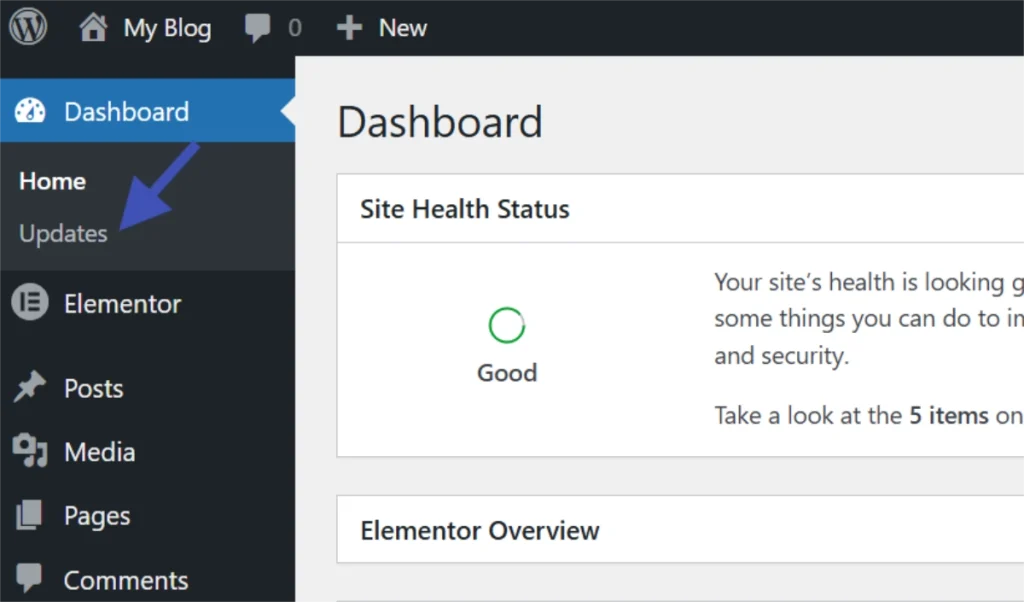
This is the simplest and most common method for most users.
- Log in: Access your WordPress administrator area (review How to Login to Your WordPress Admin Area if needed)
- Navigate to Updates: Go to “Dashboard,” then “Updates”
- Initiate Update: If a major update is available, you’ll see a prominent banner (click “Update Now”)
- Database Update: If prompted, click “Update WordPress Database” (critical for data integrity)
The system will download and install the new core files automatically. Upon completion, you’ll be redirected to a welcome screen outlining new features.
Method 2: Manual Update via FTP/SFTP
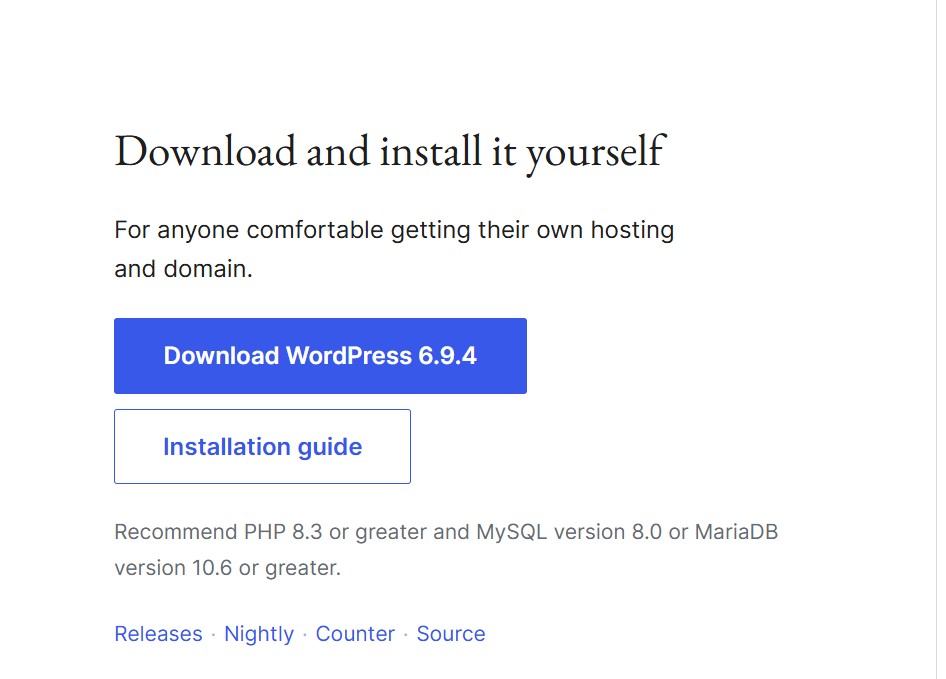
Use this method if the automatic update fails, or if you prefer a higher degree of control.
- Download the Latest WordPress Package: Visit wordpress.org and download the latest .zip file
- Extract the Files: Unzip the package on your local computer
- Connect via FTP/SFTP: Use your client to connect to your website’s server
- Delete Old Directories: On your server, delete the
wp-includesandwp-admindirectories (do NOT deletewp-contentorwp-config.php) - Upload New Files: Upload the new directories from the extracted package to your server
- Update Database: Navigate to
yourdomain.com/wp-admin/upgrade.phpand follow the prompts
This manual process requires precision because any misstep here can break your site.
Post-Update Verification and Troubleshooting
The update is complete, but now you must confirm everything works as expected.
1. Clear Caches Again
Clear all caching layers again after the update.
This includes your WordPress caching plugin, server cache, and CDN. Clearing ensures you view the site with the newly updated files.
2. Test Frontend Functionality
Browse your website extensively and check:
- Homepage layout
- Internal pages
- Blog posts (remember WordPress Posts vs Pages: Key Differences)
- Forms (contact, subscription)
- E-commerce functionality (add to cart, checkout process)
- User login/registration
3. Test Backend Functionality
Log back into your admin area and verify:
- All plugins are active
- You can create new posts or pages
- Media library uploads work
- Site settings are intact
Troubleshooting Common WordPress Update Issues
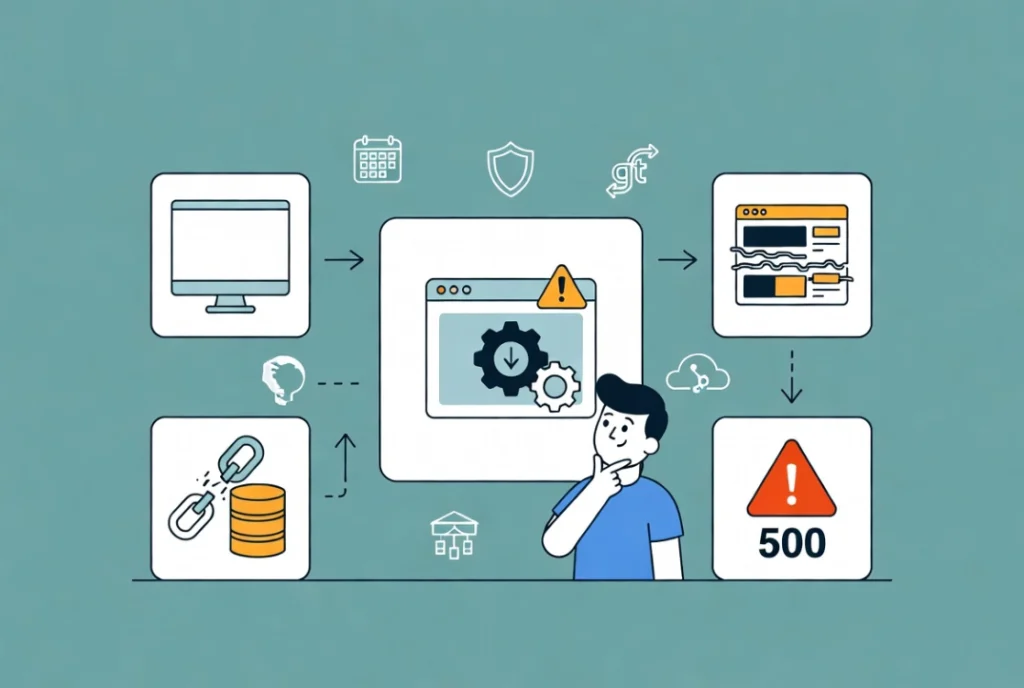
Problems can occur even with careful preparation.
White Screen of Death (WSOD)
This often indicates a PHP memory limit issue or a fatal error from a plugin/theme conflict.
Check your server error logs. If you can’t access the admin, use FTP to rename your plugins folder (to plugins_old) to disable all plugins.
If the site comes back, reactivate them one by one to find the culprit.
Database Update Failed
Restore your database from your backup and reattempt the update.
If it consistently fails, contact your hosting provider for assistance.
Visual Anomalies
Clear your browser cache first.
If problems persist, it’s likely a theme compatibility issue. Check your theme’s support forum or consider switching to a default theme temporarily (Twenty Twenty-Six).
HTTP 500 Internal Server Error
This is often a server configuration issue or a corrupt .htaccess file.
Try regenerating permalinks from the admin (Settings, Permalinks). If you can’t access the admin, use FTP to backup and then delete your .htaccess file.
WordPress will regenerate it automatically.
Best Practices for Ongoing WordPress Maintenance
Updating WordPress is not a one-time event but a continuous operational requirement.
Establish a Regular Schedule
Set up a routine for checking and applying updates.
Monthly checks represent a good baseline for most sites.
Consider Managed WordPress Hosting
These providers often handle core updates automatically or provide advanced staging environments and dedicated support.
This reduces your operational burden significantly.
Implement Version Control
For complex or custom-developed sites, implement version control (Git).
This allows for precise tracking of changes and easier rollbacks when needed.
Use Security Scanners
Utilize security scanning tools (Wordfence, Sucuri) to monitor your site for integrity after updates.
Learn more in our guide on WordPress Security Basics for Beginners.
Frequently Asked Questions About WordPress Core Updates
How often should I update WordPress core?
Update WordPress core immediately for security releases (minor updates). For major releases, update within 1-2 weeks after testing on staging. Never delay security updates beyond a few days.
Will updating WordPress break my site?
Updates can cause compatibility issues with outdated plugins or themes. This is why you must backup, test on staging, update plugins/themes first, and follow the pre-update protocol outlined in this guide.
What’s the difference between minor and major WordPress updates?
Minor updates (6.4.1, 6.4.2) are security and bug fixes that auto-update. Major updates (6.3, 6.4, 6.5) introduce new features and significant changes that require manual initiation and careful testing.
Can I skip WordPress updates?
No, absolutely not. Skipping updates exposes your site to known security vulnerabilities. According to Sucuri, 47% of hacked sites were running outdated WordPress core. Updates are mandatory for security.
How do I update WordPress if the dashboard is broken?
Use the manual FTP/SFTP method: download the latest WordPress package, delete wp-includes and wp-admin directories via FTP, upload new files, then run yourdomain.com/wp-admin/upgrade.php.
Should I update WordPress on a live site?
Only for minor security updates. For major updates, always test on a staging environment first, then schedule the live update during low-traffic periods with a backup ready.
Additional Resources for WordPress Updates
Continue building your WordPress maintenance expertise with these essential guides:
- Master the foundation in WordPress Basics and Installation
- Protect your work through How to Backup Your WordPress Website
- Test safely using How to Install WordPress Locally on Windows and Mac
- Access your site via How to Login to Your WordPress Admin Area
- Understand content with WordPress Posts vs Pages: Key Differences
- Secure your site with WordPress Security Basics for Beginners
Safely updating WordPress core is an exercise in meticulous planning and execution. The process demands a professional mindset, recognizing the critical importance of backups, testing, and systematic verification. Overlooking these steps invites instability, security breaches, and potential data loss. By adhering to this protocol, you maintain a robust, secure, and high-performing WordPress platform, ensuring its longevity and effectiveness in your digital strategy. This diligence represents a cornerstone of responsible WordPress administration. Return to WordPress Basics and Installation whenever you need to review the foundational concepts that make professional WordPress site management possible.