How to Manage Comments and Reduce WordPress Spam
I ignored my comment section for two weeks while on vacation. When I returned, 847 spam comments had flooded the site with casino links and malware. Google flagged the site as compromised, and my traffic dropped 70% overnight. Emergency cleanup took three days.
User engagement is a critical metric for any successful digital presence. On a WordPress platform, comments serve as a direct channel for this interaction, fostering community and feedback. However, this open channel also introduces significant management responsibilities because unmoderated comments can quickly degrade site quality, undermine trust, and even introduce security vulnerabilities. Effective WordPress comment moderation is not merely an administrative task; it’s a foundational component of site integrity and user experience. For those establishing their initial WordPress basics and installation, understanding this function early is non-negotiable.
No setting can eliminate all spam without trade-offs. WordPress can hold comments for moderation based on account, link count, words, IP addresses, and previous approval. Anti-spam services may process comment data externally, so review their privacy terms, disclosures, and regional requirements before enabling them.
Practical checklist
- Choose whether comments support the purpose of each content type.
- Moderate abuse and personal information consistently using a written policy.
- Treat a sudden spam surge as an operational issue; update software and review logs as well as filtering comments.
⚡ Quick Summary (TL;DR)
- WordPress spam comments can damage your SEO, security, and user trust if left unmanaged.
- Start by configuring Discussion Settings to require moderation and limit spam triggers like links and anonymous comments.
- Use Akismet anti-spam to automatically filter the majority of unwanted comments.
- Apply a clear comment moderation strategy by reviewing, approving, or blocking comments based on quality and relevance.
- For stronger protection, combine blacklists, manual review, and optional plugins to keep your comment section clean.
The Fundamental Structure of WordPress Comments
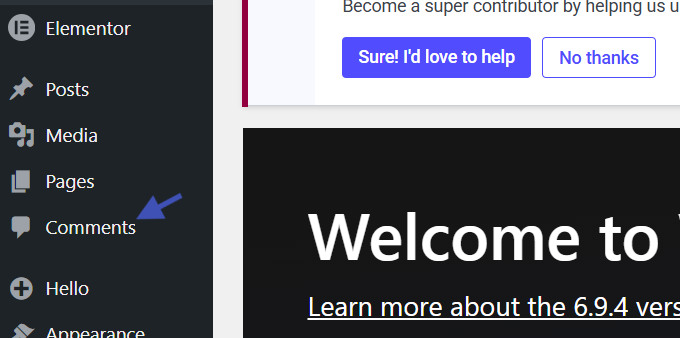
WordPress provides a robust, built-in comment system.
This system allows visitors to post feedback directly on articles and pages. You can access and manage these comments easily through the WordPress Admin Dashboard.
The WordPress Comments Dashboard
Under the “Comments” menu item, site administrators find a comprehensive list of all submitted comments.
Each entry displays the author, their email, associated URL, and the comment content itself.
Available Comment Actions
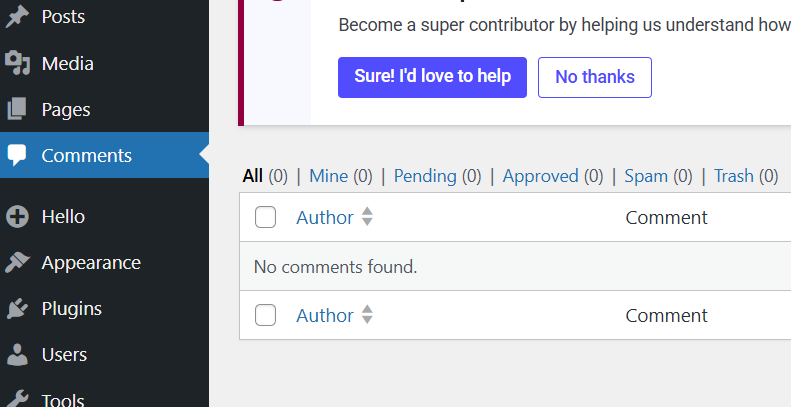
From this central interface, administrators can execute several actions:
- Approve pending comments, marking them as publicly visible
- Reply directly to facilitate engagement
- Edit comments for minor corrections
- Flag content as spam
- Move items to trash or recover them with “untrash.”
- Use bulk actions for efficiency
This granular control is essential for maintaining order.
Configuring Core WordPress Comment Moderation Settings
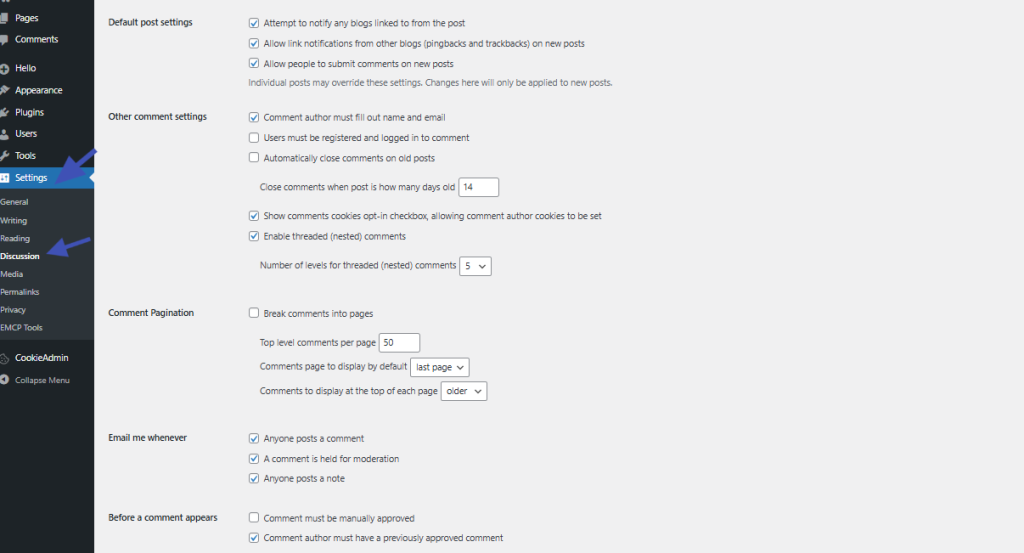
WordPress’s default “Discussion Settings,” located under “Settings” in the dashboard, are your primary tools for proactive comment management.
These aren’t just preferences because they dictate the baseline behavior of your entire comment system.
General Discussion Settings
Key settings to configure:
- Attempt to notify blogs linked from the post: Controls whether your site pings external blogs when you link to them
- Allow link notifications from other blogs: Enables pingbacks and trackbacks (frequent spam target; many professionals disable it)
- Allow people to post comments on new articles: Fundamental global switch for comments
- The comment author must fill out name and email: Highly recommended (filters casual spam)
- Users must be registered and logged in to comment: Dramatically reduces spam but can deter casual engagement
- Automatically close comments on articles older than X days: Useful for managing stale content
- Show comments on the cookies opt-in checkbox: GDPR compliance feature (keep enabled)
- Enable threaded comments X levels deep: Allows nested replies (up to 5 levels sufficient)
- Break comments into pages: Essential for performance on high-traffic sites
WordPress Comment Moderation and Blacklist Settings
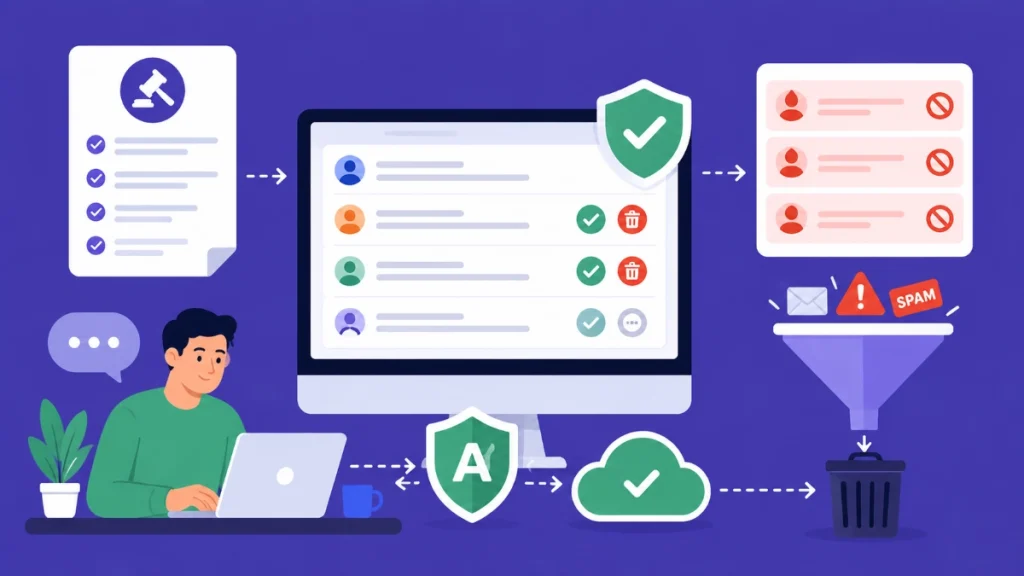
This is where gatekeeping occurs.
Before a Comment Appears
You have two primary moderation options:
The administrator must always approve the comment: the most secure setting that guarantees quality but demands consistent time.
The comment author must have a previously approved comment: A hybrid approach that balances security with efficiency. First comments require moderation, while subsequent ones from the same user get approved automatically.
Comment Moderation Queue
WordPress holds comments in a queue if they contain a specified number of links (typically 2 or more, as excessive links are often spam indicators) or specific words.
This is a powerful, proactive filter. Maintain this list vigilantly.
Comment Blacklist Strategy
The blacklist represents an aggressive filter.
Comments containing any word or IP address on this list are immediately moved to the trash. Use this list for known spammers, vulgarity, or specific malicious phrases. Update it regularly.
Implementing an Effective WordPress Comment Moderation Strategy

Effective moderation extends beyond technical settings.
A clear policy and consistent application are required.
Define a Comment Policy
Before any comment is approved, establish clear guidelines.
What kind of discourse is acceptable? What language is prohibited? Are self-promotional links allowed? Please publish this policy clearly (on a “Comment Policy” page) and link to it from your comment section.
This sets expectations for your community and provides a basis for your moderation decisions. Without a policy, moderation can appear arbitrary.
Utilizing Akismet Anti-Spam for WordPress
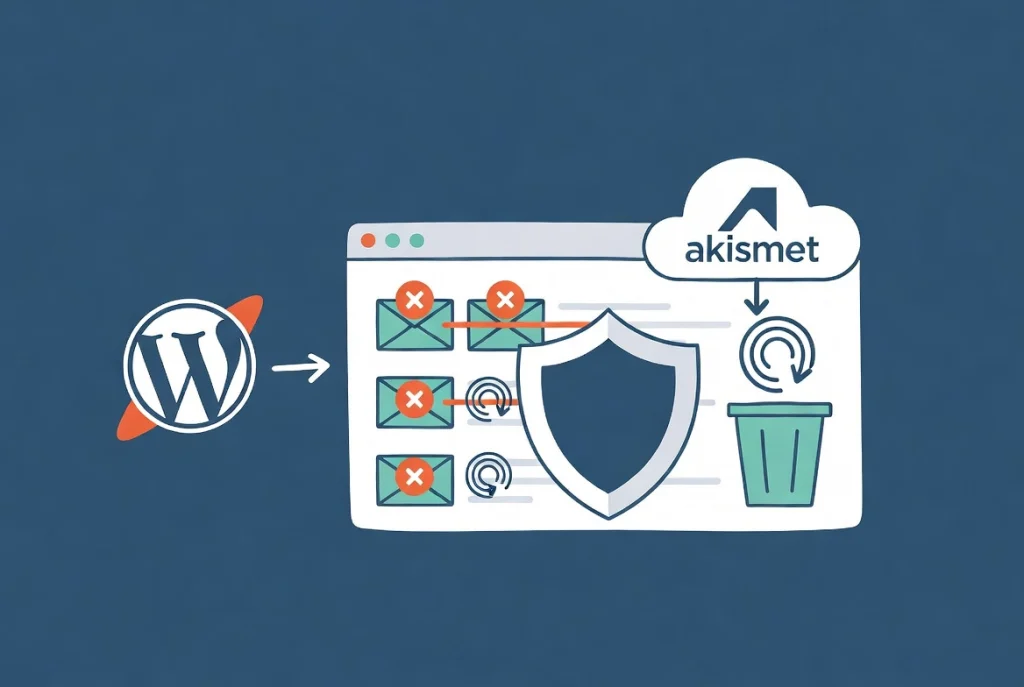
Akismet is practically mandatory for any WordPress installation.
This powerful cloud-based anti-spam service filters out the vast majority of unsolicited comments, pingbacks, and trackbacks. The plugin comes pre-installed with WordPress.
Activating Akismet
Activation requires an Akismet API key, which is free for personal use.
In 2024, Akismet processed over 100 million spam attempts daily, demonstrating its effectiveness against automated threats. Data from Akismet reveals that over 99.9% of comments submitted across the internet are spam.
Ignoring this tool represents a critical security oversight. For more details on protecting your site, refer to WordPress Security Basics for Beginners.
The Manual WordPress Comment Review Process
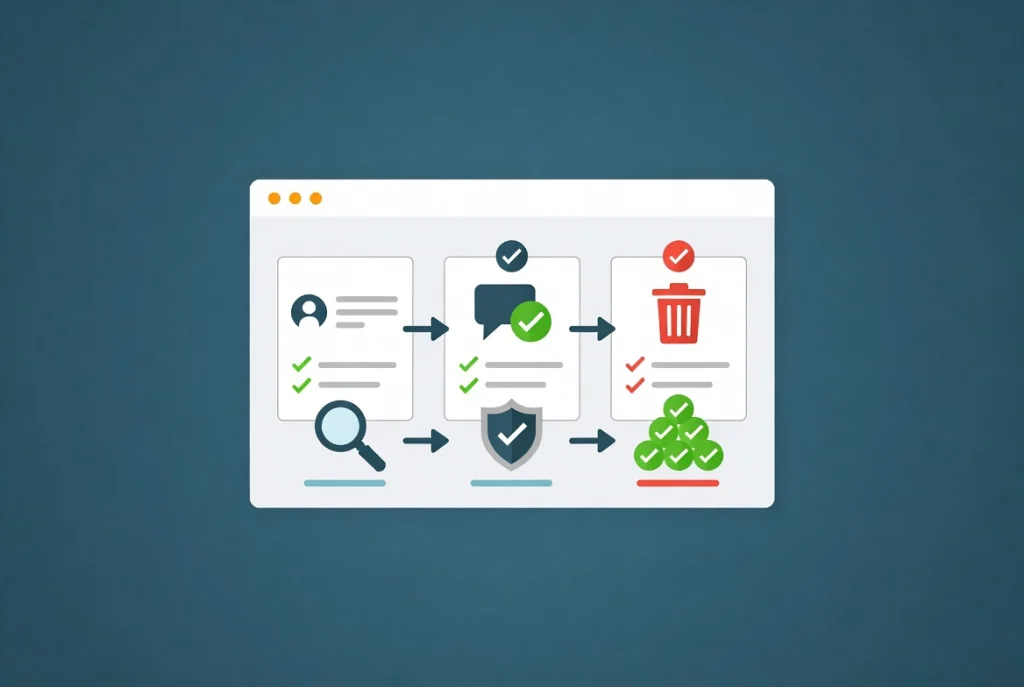
Even with Akismet and strict settings, some comments will require human judgment.
Comment Review Checklist
When reviewing comments, follow these guidelines:
- Read for Context: Does the comment add value? Is it on-topic?
- Check for Assessment Is it respectful? Does it engage in constructive dialogue?
- Verify Links: Are they relevant and safe? Malicious links pose serious threats.
- Identify Hate Speech: Zero tolerance for this content (erodes community trust)
Timeliness Matters
Prompt approval or rejection shows your community that their input is valued.
Active management demonstrates that the site receives consistent attention.
Dealing with Specific WordPress Comment Challenges
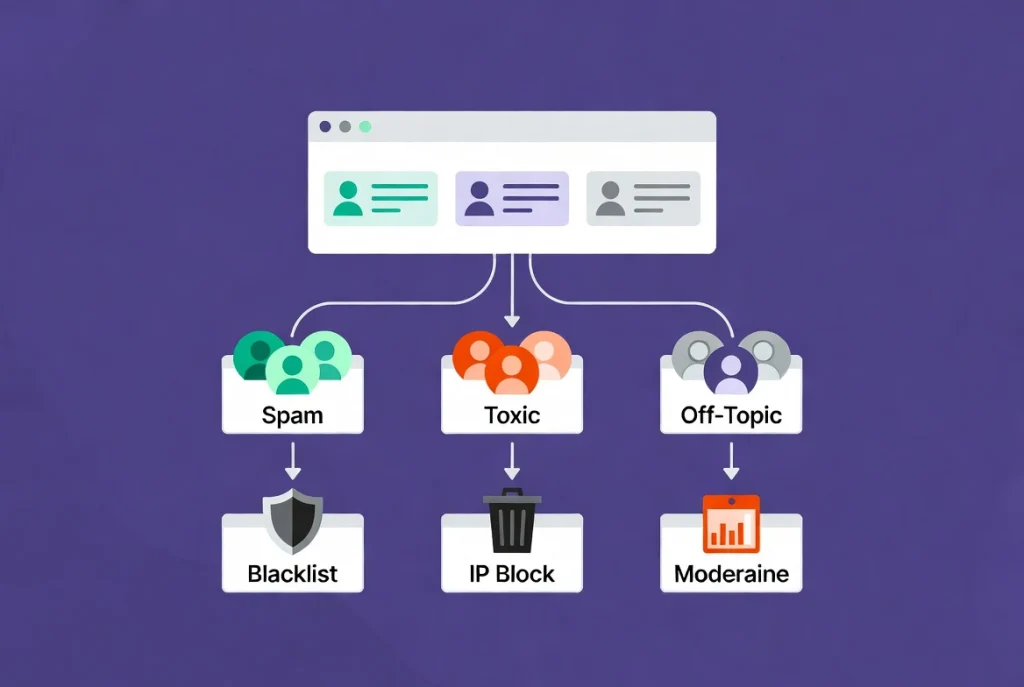
Different problems require different solutions.
Persistent Spam
In addition to Akismet, please consider using the blacklist aggressively.
Add common spammer IP addresses or frequently used keyword phrases to your comment blacklist settings. Consider a captcha plugin if spam becomes overwhelming, but be aware this adds friction for legitimate users.
Toxic or Abusive Comments
Please delete these immediately and block the user’s IP if necessary.
Do not engage with trolls in public; such behavior only encourages them. Your policy should explicitly cover this scenario.
Off-Topic Discussions
If a comment strays significantly but is not malicious, you might approve it with a polite editorial note.
For repeated offenders, a private email or direct moderation works better.
Advanced Comment Management with WordPress Plugins

While the native WordPress system is capable, specific plugins can enhance functionality.
Disqus Comment System
Disqus is a popular third-party comment system that offloads comments to its own servers.
This reduces your server load and offers advanced moderation tools, spam filtering, and robust user profiles. However, it introduces an external dependency and can impact site performance. The system often comes with its own advertising.
wpDiscuz
For those who prefer to keep comments on their own server, wpDiscuz offers a highly customizable, feature-rich comment system.
The plugin provides real-time updates, multi-level threading, and powerful anti-spam options. Keeping the data within your WordPress installation provides a significant advantage for data control and SEO.
Choosing the Right Solution
Your site’s scale and specific needs determine the best approach.
For most small to medium sites, a well-configured native WordPress system with Akismet proves more than adequate.
The Impact of WordPress Comments on SEO and User Experience
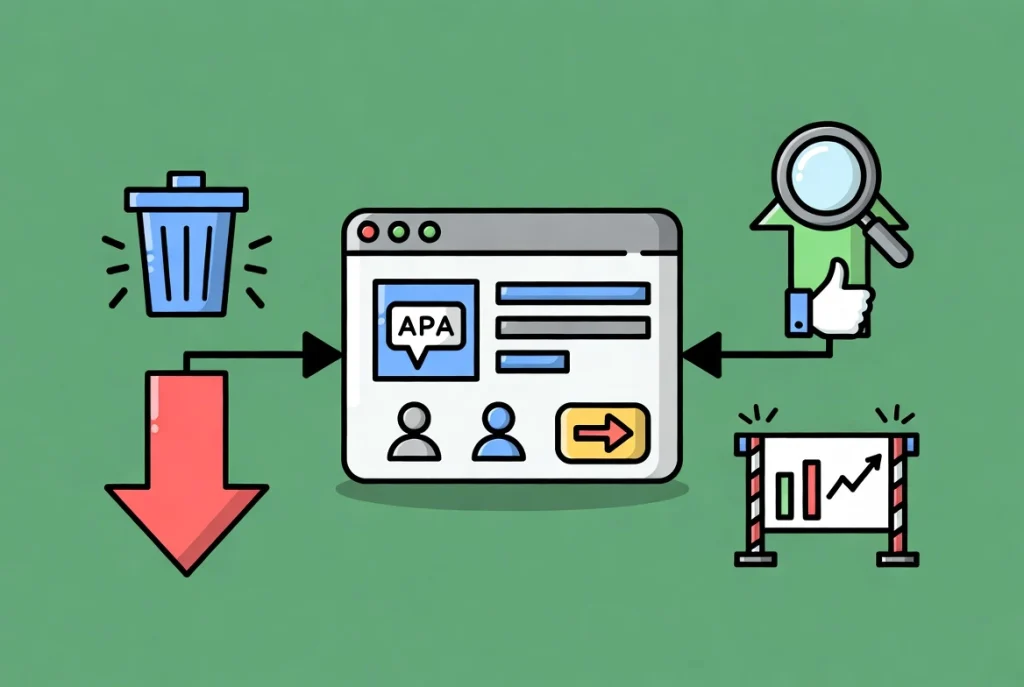
Comments are not just social features because they have tangible effects.
SEO Implications
User-generated content (UGC), including comments, provides fresh content to search engines.
This can signal to Google that your page is active and relevant, potentially improving rankings. Keywords used in comments might even contribute to your page’s topical authority.
However, unmoderated comments laden with spam links or low-quality content can have the opposite effect. Poor quality signals can lead to penalties. A good moderation strategy ensures comments contribute positively to SEO.
User Experience and Community Building
A well-moderated comment section promotes community.
Users feel safe to express their opinions, knowing that moderators will respect their input and remove malicious content. This encourages repeat visits and deeper, more profound engagement.
Conversely, a comment section filled with spam, negativity, or irrelevant content quickly deters users. This hostile environment directly impacts your site’s reputation.
Best Practices for Long-Term WordPress Comment Management
Comment management is an ongoing process, not a one-time setup.
Regular Review
Periodically review your discussion settings.
Spam tactics evolve, so your filters should too.
Policy Updates
As your community grows or content changes, your comment policy might need adjustments.
Keep it current and relevant to your audience.
Staff Training
If multiple individuals moderate, ensure everyone understands the policy and tools.
Consistency is key to fair moderation.
Data Backup
Always ensure your entire WordPress site, including comments, receives regular backups.
This is a critical aspect of site maintenance, as covered in How to Backup Your WordPress Website.
Additional Resources for WordPress Comment Management
Continue building your WordPress security expertise with these essential guides:
- Master the foundation in WordPress Basics and Installation
- Secure your site with WordPress Security Basics for Beginners
- Protect your work through How to Backup Your WordPress Website
- Understand the platform with What is WordPress? A Beginner’s Guide
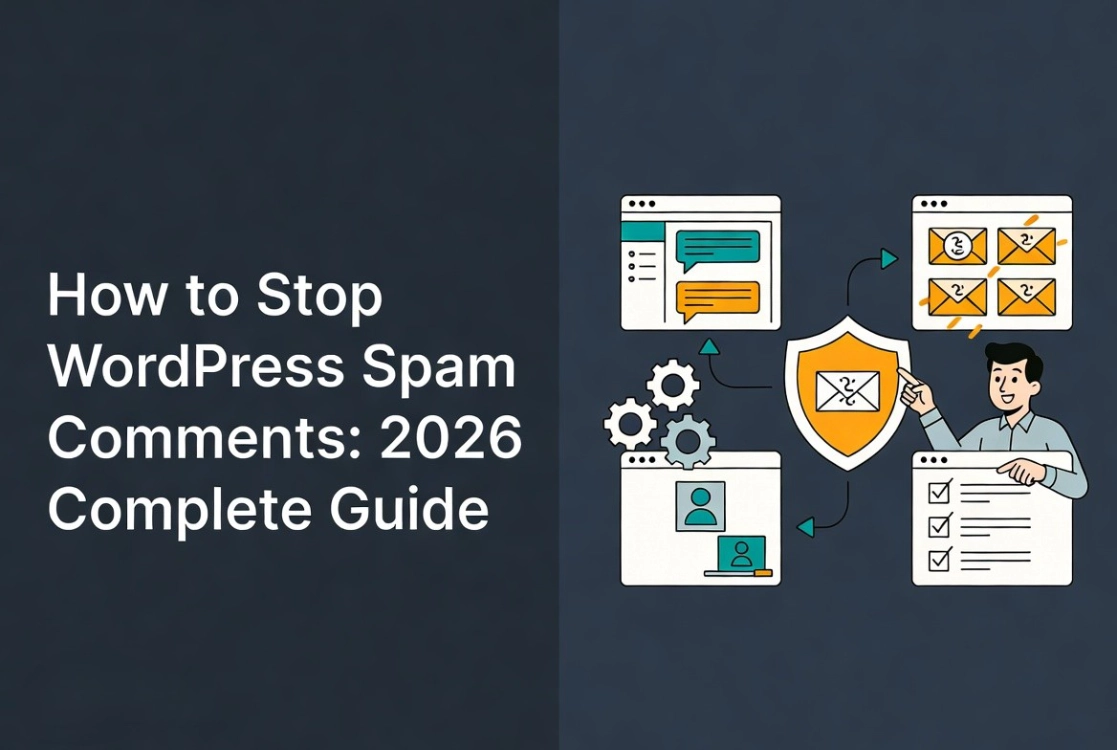
- Jetpack more resources How to Stop WordPress Spam Comments: Full 2026 Guide
Managing and moderating WordPress comments is a fundamental aspect of digital publishing. The process requires vigilance, clear policies, and the judicious use of available tools. Prioritize security and user experience by actively curating your comment sections because the integrity of your content and the health of your community depend on it. Proactive moderation isn’t a chore; it’s an investment in your site’s longevity and reputation. Return to WordPress Basics and Installation whenever you need to review the foundational concepts that make professional WordPress site management possible.