
10 Core Elementor Widgets and When to Use Them (2026)
Quick answer: Widgets are Elementor’s content building blocks. The best widget is the one that expresses the content clearly with the least complexity. Availability can differ between Elementor Free, Pro, and add-ons, so this list focuses on broadly useful building blocks and flags important alternatives.
1–4: Heading, Text Editor, Image, and Button
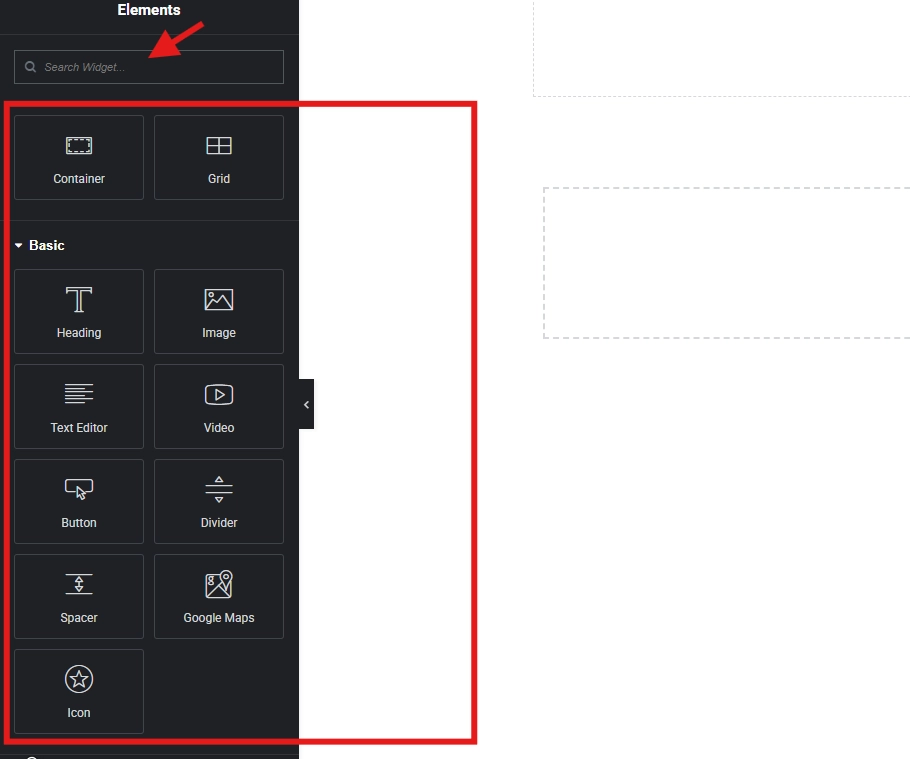
Use headings for semantic section titles, keeping one logical hierarchy rather than choosing levels by visual size. The text editor handles paragraphs and simple formatted content. The image is appropriate for meaningful visuals because it supports alt text. A button creates a prominent action; its label should describe the destination or result.
5–7: Video, Icon, and Icon List
Video embeds media but can affect privacy, accessibility, and load time; provide captions or a transcript when the content needs them. Icon adds a decorative or meaningful symbol—hide decorative icons from assistive technology when possible. Icon List works well for concise features or contributions but not for long prose.
8: Image Box
Image Box combines an image, heading, and description into a card-like unit. It is useful for services or category links when each card has comparable content. Keep heading levels consistent across sibling cards and make the link destination clear.
9: Spacer—and the better alternatives
Spacer creates empty vertical space, but container gap, padding, or margin usually produces a more systematic responsive layout. Use Spacer only when the space is intentional and cannot be represented cleanly by the parent layout. Our Divider and Spacer guide explains the trade-off.
10: HTML, plus plan-dependent widgets
The HTML widget is for trusted markup or scripts that you understand; unsafe code can break the page or introduce security and privacy risks. Forms, posts, theme elements, and other advanced widgets may require Elementor Pro or another product. Check current plan details before designing around them. Continue with our Elementor Free vs Pro comparison.
Final quality check
- Preview the page on desktop, tablet, and a real phone.
- Review keyboard navigation, visible focus, heading order, link wording, and color contrast.
- Test the live URL in a private browser window and clear caches if the editor and front end differ.
- Keep a backup before structural changes and confirm that forms, buttons, and links still work.