
Elementor Background Images and Overlays: 2026 Guide
Quick answer: A background should support the content without making it harder to read or slower to load. Elementor supports classic color or image backgrounds, gradients, video, and slideshows, although availability can vary by element and plan.
Add a classic image background.
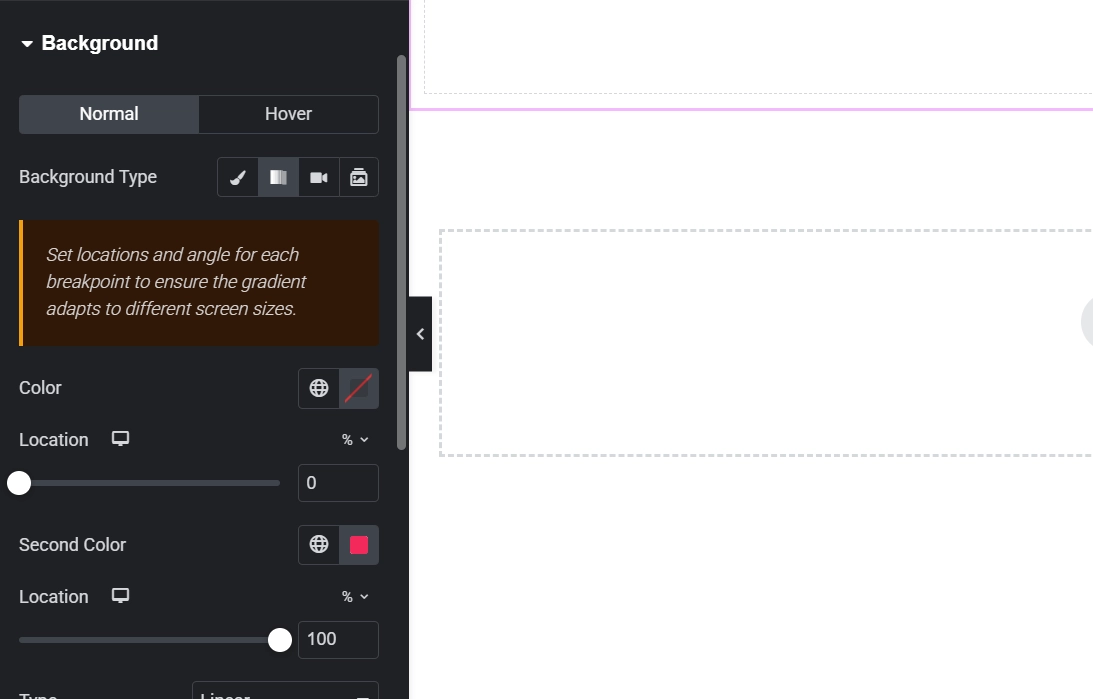
Select the container or element, open Style → Background, choose Classic, and select the image. Choose position, attachment, repeat, and size based on the design. Cover fills the area but can crop edges, so keep the subject away from vulnerable edges and verify multiple viewport ratios.
Use an overlay for readable text.
Open the background overlay and choose a color or supported image overlay. Adjust opacity until the text retains sufficient contrast over both the lightest and darkest parts of the image. A dark overlay is common, but the correct value depends on the actual image and text color; verify with a contrast checker.
Choose responsive images deliberately.
Elementor can use different background images for different devices. A tighter mobile crop often communicates better and can reduce transfer size. Background images do not provide an ordinary image alt attribute, so never use them for information that must be available to screen-reader users; use an Image widget with meaningful alt text instead.
Protect performance and layout stability.
Resize and compress files before upload, prefer modern formats supported by your workflow, and avoid using a huge desktop image for a small card. Set the container to a stable minimum size when needed, but avoid forcing full-screen heights that clip content on short devices. Motion and parallax effects deserve extra mobile testing.
Troubleshoot common problems.
If text disappears, verify overlay opacity and stacking. If the subject is cropped, change position or supply a device-specific image. If the live page differs from the editor, clear Elementor files/data and site caches. See our guide for optimizing images in Elementor and our global style guide.
Final quality check
- Preview the page on desktop, tablet, and a real phone.
- Review keyboard navigation, visible focus, heading order, link wording, and color contrast.
- Test the live URL in a private browser window and clear caches if the editor and front end differ.
- Keep a backup before structural changes and confirm that forms, buttons, and links still work.