
Elementor Divider and Spacer Widgets: Complete Guide (2026)
Elementor’s Spacer creates an adjustable empty block, while the Divider adds a visible line or pattern between content areas. Both can be useful, but neither should be the default solution for every gap. Elementor’s own spacing guidance recommends using container gap, padding, or margin when possible because adding spacer widgets creates extra elements and code.
This guide shows when each tool makes sense, how to configure it in Elementor Editor v3, what changes in Editor v4, and how to avoid fragile desktop-only layouts. The instructions and interface details were checked against Elementor’s official documentation on September 10, 2026.
Spacer, Divider, Gap, Padding, or Margin?
| Control | Use it for | Avoid using it for |
|---|---|---|
| Container Gap | Consistent space between child elements | Space around the outside of a container |
| Padding | Space inside a container, around its content | Pushing unrelated neighboring elements apart |
| Margin | Space outside an element or a deliberate overlap | Every repeated item when Gap can manage the group |
| Spacer | A standalone empty area, responsive gap, or decorative masked shape | Routine spacing that belongs to the parent layout |
| Divider | A visible transition or decorative separator | Replacing headings or meaningful document structure |
A simple rule is to control repeated spacing at the parent container whenever possible. If five cards need equal separation, set the container’s gap once instead of inserting four spacer widgets. Use padding when the container background should surround the empty area. Use margin for space outside a particular element. Choose Spacer only when the empty block itself needs independent height, background, mask, or responsive behavior.
Build a Spacing System Before Adding Widgets
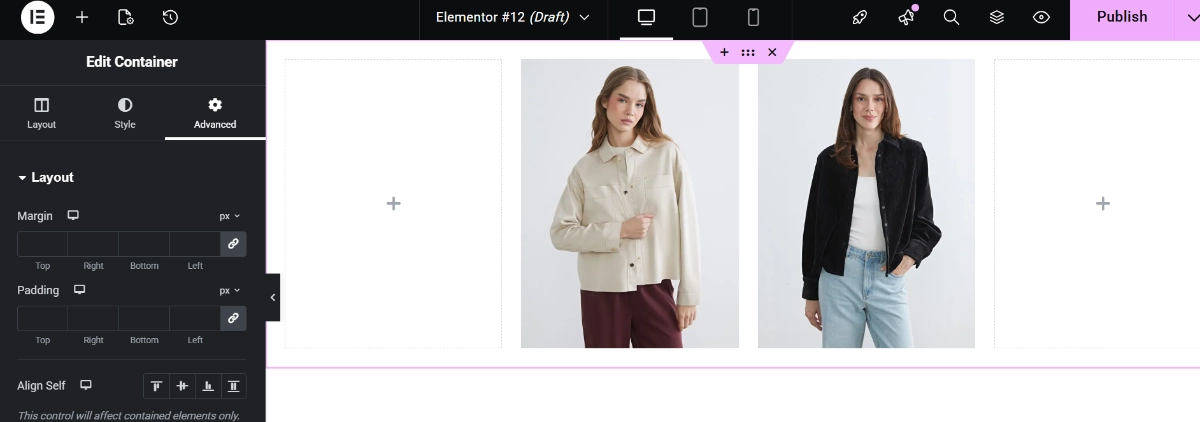
Consistent spacing is easier to maintain when a site uses a small scale instead of unrelated values on every page. For example, a team might define small, medium, large, and extra-large gaps using global variables or agreed values. The exact numbers depend on the design; consistency and responsive behavior matter more than copying a universal pixel formula. Pair that scale with the palette and typography system in our Elementor Global Colors and Fonts guide.
In Elementor v3, Site Settings > Layout controls default container padding and element gaps. Individual containers can override those defaults. Elementor’s current container documentation also supports responsive Gap values, making Gap a better choice than separate Spacer widgets for many rows, card grids, navigation groups, and stacked content sections.
How to Use the Elementor Spacer Widget
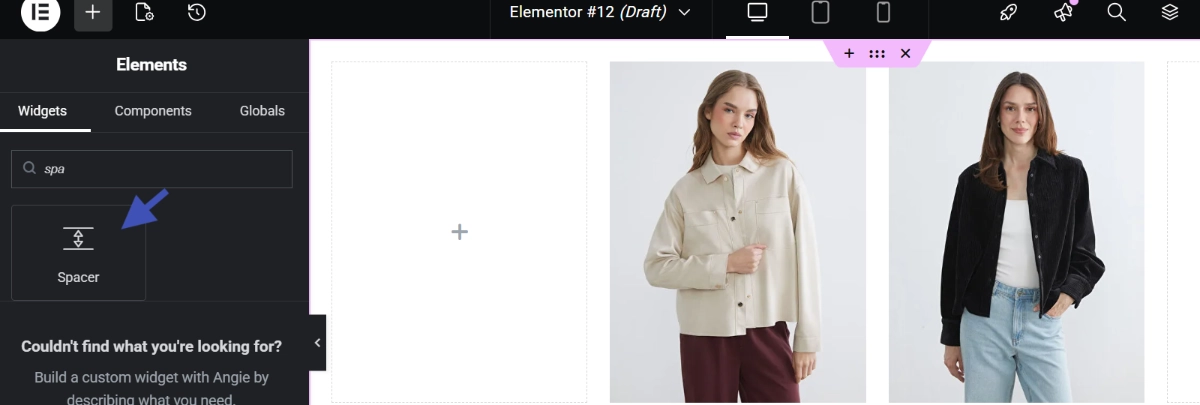
- Open the page with Elementor and select the container where the space is needed.
- Find Spacer in the elements panel and drag it to the canvas.
- In the Content tab, set its height and choose an appropriate unit.
- Switch to tablet and mobile views and adjust any setting that has responsive controls.
- Preview the page at several widths—not only the three editor presets—before publishing.
Choose the Spacer Unit Deliberately
The official Spacer documentation lists PX, EM, REM, %, VW, and VH units. Pixels are fixed CSS units and can be predictable for small interface gaps. REM follows the root font size and can fit a typography-based spacing system. Viewport units respond to browser dimensions, but large VH or VW values can create excessive whitespace on unusually tall, narrow, or wide screens.
Do not assume that a fluid unit removes the need for testing. Content wrapping changes with language, font loading, accessibility zoom, and available width. Check the smallest supported viewport: landscape, mobile, tablet, and a wide desktop. If the purpose is simply to separate siblings evenly, replace the spacer with a container gap.
A Spacer Can Also Be a Decorative Element
Elementor documents backgrounds and masks as additional spacer uses. That makes the widget useful when the empty block is intentionally visible as a shape or a controlled visual pause. Keep purely decorative elements out of the reading order where possible, ensure they do not obscure text, and test that removing the decoration does not remove information needed to understand the page.
How to Use the Divider Widget in Elementor v3
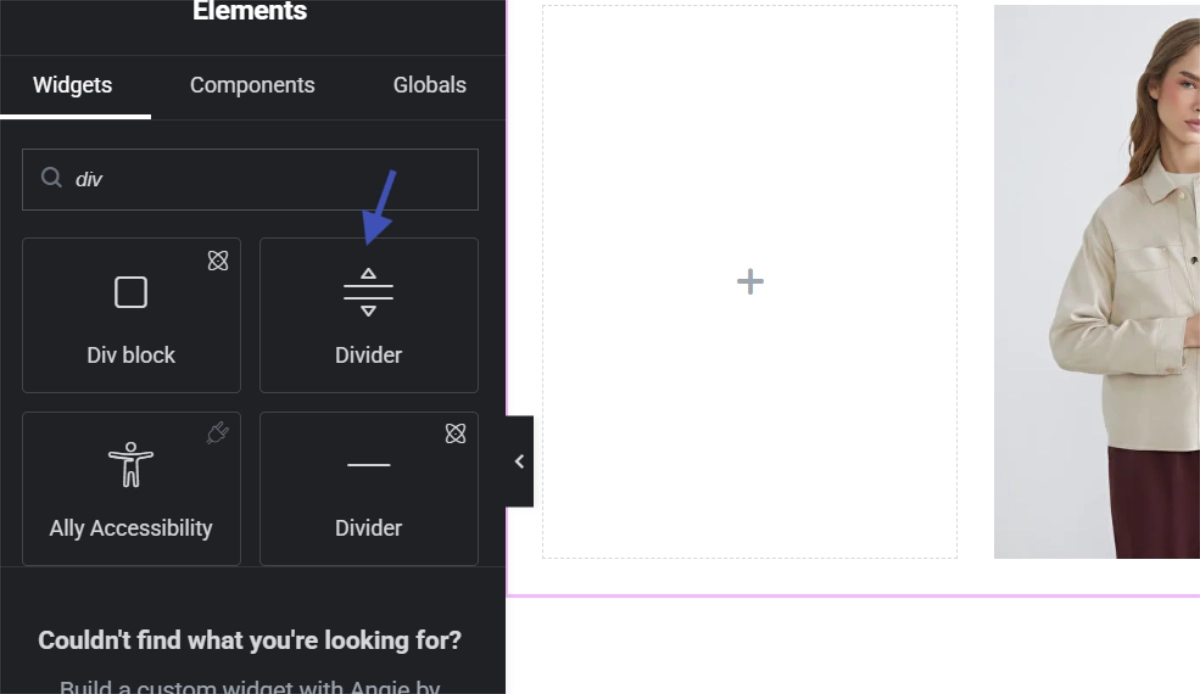
Drag the Divider widget between the content areas that need a visible transition. In its Content settings, choose a classic or patterned style, set the width, and align a divider that is narrower than its container. Elementor’s v3 documentation lists more than 25 SVG patterns in addition to standard line styles.
You can add text or an icon before, after, or in the middle of the divider. The Style tab controls color, size, pattern amount, and the gap above and below it. Text has its typography, position, and spacing controls. Icons can use default, stacked, or framed views with size, color, padding, rotation, border, and radius options depending on the selected view.
Use the simplest style that communicates the intended transition. A strong patterned divider can become the most prominent object on the page, even when the content should receive attention. Pull colors from the global palette and verify contrast where the divider includes meaningful text or an icon.
The Divider Is Different in Elementor Editor v4
Elementor maintains separate documentation for the v3 Divider widget and the v4 Divider element. In Editor v4, adding a divider can automatically create a container, and the official setup example uses the element’s size, background, and border controls. The v3 instructions for patterned styles, text, and icon placement should not be assumed to match the v4 interface.
Before following a tutorial, identify which editor is active. If the panel labels or available controls do not match, please consult the corresponding official help article instead of trying to force v3 steps into v4. Elementor v4 remains a newer editing system, so recheck the documentation as its elements evolve.
Do Not Use a Divider as the Only Structure
A visual line helps sighted visitors perceive a transition, but it should not replace an accurate heading hierarchy. Sections still need descriptive H2 and H3 headings where appropriate. If a divider includes text that introduces the next sentence, make sure the actual content structure communicates the same relationship.
Avoid relying on color alone to distinguish two areas. Review the page with keyboard navigation, at increased zoom, and with images or decorative styles disabled. The layout should remain understandable without the divider’s visual effect.
Make Spacing Responsive Without Hiding Problems
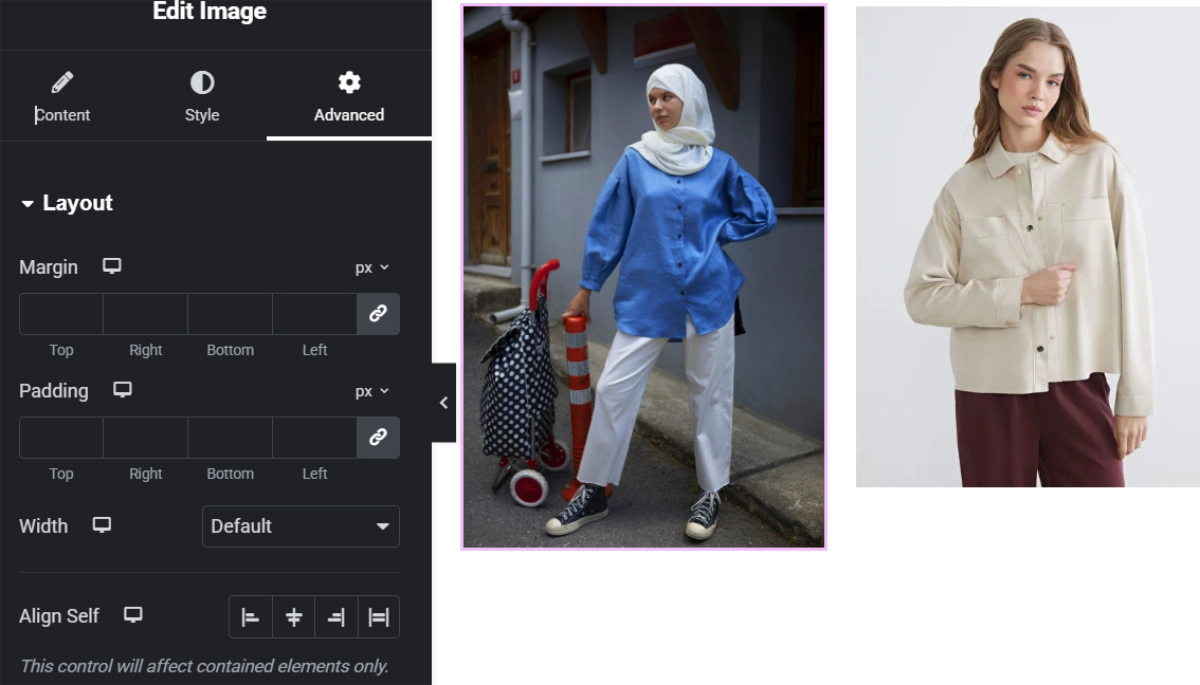
Elementor lets many layout and spacing values differ by breakpoint. A desktop value does not automatically produce a balanced mobile layout. Large vertical gaps can push useful content below the fold, while a small fixed gap can disappear visually when headings wrap onto multiple lines.
Responsive editing should not mean creating unrelated designs at every breakpoint. Begin with flexible containers, wrapping, gaps, and sensible widths. Add overrides only when the content demonstrates a problem. Drag the viewport through intermediate widths because an issue may appear between Elementor’s named presets. For a complete breakpoint workflow, see our Elementor responsive design guide.
Common Divider and Spacer Mistakes
- Stacking spacing controls: a container gap, widget margin, and spacer can combine into a much larger gap than expected.
- Using empty widgets everywhere: repeated Spacer widgets make a layout harder to understand and update.
- Fixed heights around variable content: translated or enlarged text can overflow or create awkward blank areas.
- Too many dividers: frequent decorative lines add noise and weaken the importance of real section boundaries.
- Negative margins without testing: overlaps can hide controls, disrupt focus visibility, or break at intermediate widths.
- Desktop-only review: tablet, mobile, zoomed text, and long headings can expose spacing failures.
Troubleshooting Unexpected Gaps or Missing Changes
If a gap is larger than its visible setting, inspect the parent container gap, the neighboring widgets’ margins, container padding, theme styles, and any custom CSS. Elementor’s Navigator can help reveal empty widgets and nested containers that are difficult to select on the canvas.
If responsive changes appear in the editor but not on the live page, save the update, test in a private browser window, and clear the relevant page, object, CDN, and browser caches. Elementor’s current troubleshooting guidance also points to Elementor > Tools > Clear Files & Data when generated styles are out of sync. Use that tool only after saving and backing up important work.
A Practical Layout Workflow
- Set the global container padding and gap in the site settings.
- Use container layout and gap for repeated groups.
- Use padding for breathing room inside sections and cards.
- Use margin for a specific element’s outside spacing.
- Add a spacer only when an independent empty or decorative block is genuinely useful.
- Add a divider only at a meaningful visual transition.
- Test responsive widths, keyboard focus, and zoom before publishing.
Final Recommendation
The spacer and divider are useful tools when their jobs are clearly defined. Use Spacer for an independently controlled empty or decorative block. Use a divider for a visible transition. For everyday layout rhythm, prefer the parent container’s Gap plus purposeful padding and margin. That approach produces cleaner, more consistent pages and makes future responsive changes easier to manage. Continue with the broader checklist in Elementor best practices for beginners.
Official Elementor Sources
- Spacer widget
- Divider widget for Editor v3
- Divider element for Editor v4
- Create space with padding and margins
- Global layout settings
- Responsive design with containers