Novamira Visual Review: Live AI Editing in WordPress (2026)
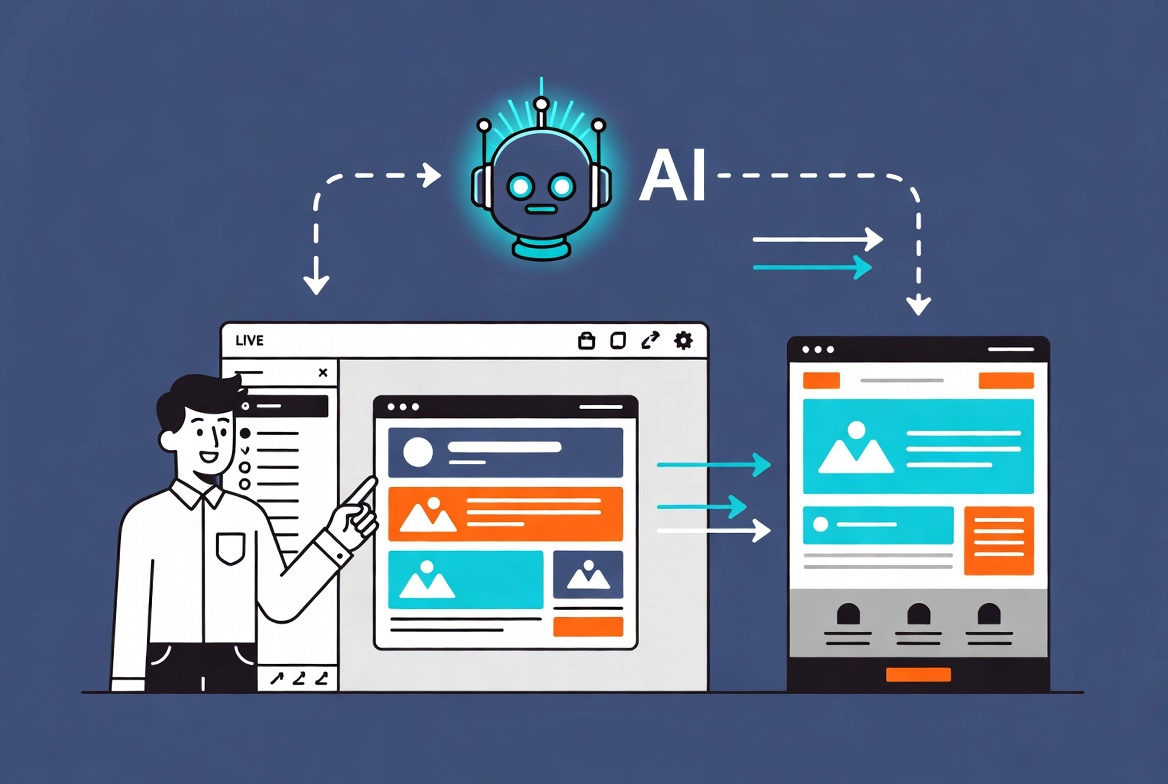
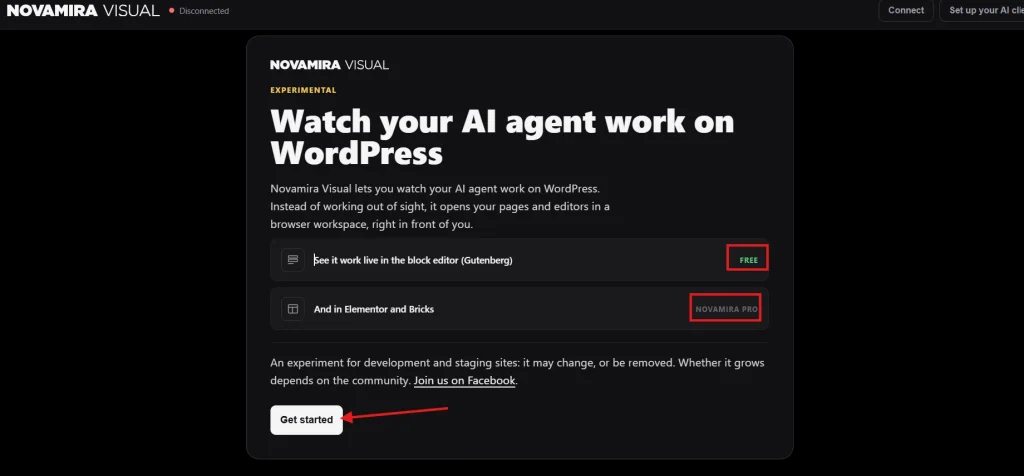
Novamira Visual is an experimental browser workspace where you can watch an AI agent open and edit WordPress pages in real time. Instead of asking an agent to work invisibly and checking the result later, you keep the editor visible while the agent navigates the page and makes changes.
The idea is compelling, but the word “experimental” matters. Novamira recommends Visual for development and staging sites with backups. This guide explains what the feature does, how Gutenberg, Elementor, and Bricks support differ, what the public demonstration showed, and the safety limits to consider. Details were verified against official Novamira documentation and the changelog on September 10, 2026.
Novamira Visual at a Glance
- Novamira Visual is part of the free Novamira plugin, not a separate plugin.
- The free version brings the Gutenberg block editor into the Visual workspace.
- Live Elementor and Bricks editing inside Visual requires Novamira Pro.
- The visual integrations are different from Novamira Pro’s standard Elementor and Bricks abilities.
- Novamira describes Visual as experimental and recommends it only for development or staging sites with backups.
- You still need to review the finished page, responsive behavior, accessibility, and generated content before deployment.
What Is Novamira Visual?
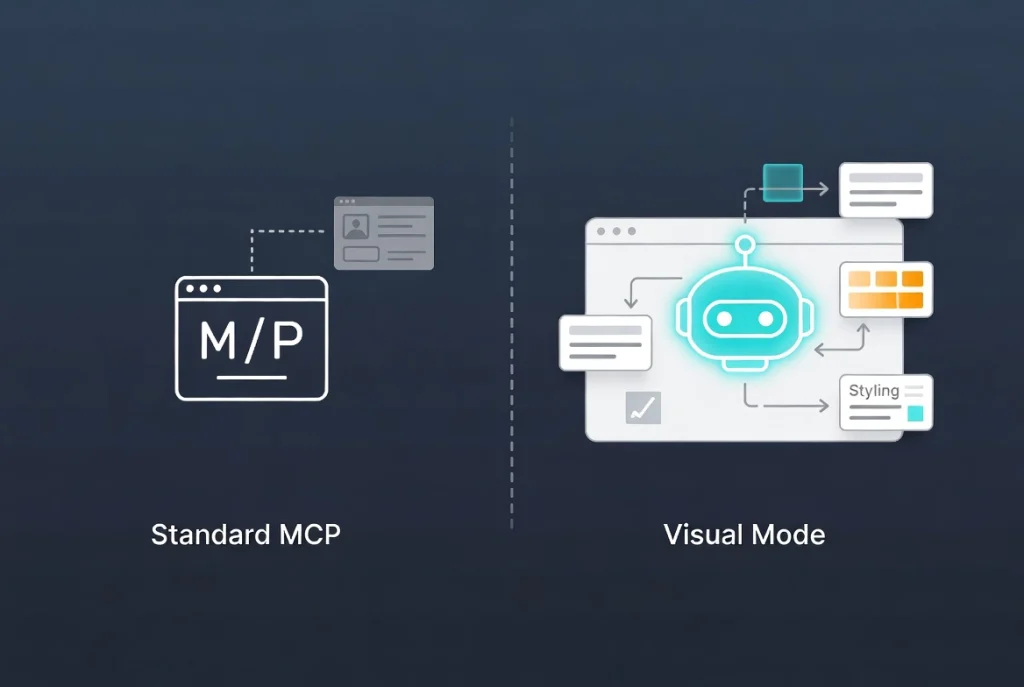
Novamira introduced Visual in version 1.8.0 on June 30, 2026. The official changelog describes it as a browser workspace that lets users watch an AI agent open pages and work in the block editor. The launch announcement confirms that it is included with Novamira and can coexist with the plugin’s standard MCP connection.
That distinction is important. Standard Novamira gives a connected AI client programmatic WordPress abilities. Visual adds a browser-based feedback loop. The agent can interact with an editor while you observe the canvas, which makes layout and styling problems easier to notice than when work happens entirely in the background.
Visuals do not make AI output automatically correct. It changes how the work is observed. The person running the session still needs to judge the design, verify the saved page, and decide whether the result should move to production.
Visual Workspace vs. Standard Novamira Connection
| Question | Novamira Visual | Standard connection |
|---|---|---|
| Where does the work appear? | Inside a live browser workspace with the WordPress editor visible | Usually through programmatic abilities called by the AI client |
| Best fit | Work that benefits from seeing the page or editor during the session | Content, code, configuration, data, and builder operations that do not require a visible canvas |
| Gutenberg | Included with the free plugin | Supported through Novamira’s block-editor abilities |
| Elementor and Bricks | Live editor integrations require a Pro license and are still experimental. | Pro provides separate, more mature builder-specific abilities. |
| Risk level | Real site changes; staging and backups required | Real site changes; staging and backups required |
Novamira’s launch announcement says the standard Pro integrations for Elementor and Bricks were more established than their Visual counterparts. That is a vendor assessment, not an independent benchmark, but it is a useful warning: choose Visual for visibility, not because you assume it produces better builder output.
Gutenberg, Elementor, and Bricks Support
Gutenberg
The free Novamira plugin includes the Visual workspace for the WordPress block editor. Novamira’s current documentation says its agents can author and edit posts, pages, templates, template parts, and navigation menus using native blocks. Keep in mind that third-party block libraries may introduce their own attributes and rendering behavior, so saved output still needs front-end verification.
Elementor and Bricks
Elementor and Bricks in the live Visual workspace require Novamira Pro. These integrations let the agent work while the builder is open, but they are separate from the standard Pro abilities that manipulate builder data programmatically.
Compatibility is version-sensitive. For example, the Pro changelog records a later update for the Elementor editor on Elementor 4.1 and newer. Before beginning a real project, confirm the current requirements for your builder and test a disposable page rather than assuming an older video matches today’s interface.
What the Public Bricks Demonstration Showed
Paul Charlton of WPTuts published a launch-period demonstration of Novamira Visual with Bricks Builder. The observations below describe that video; they are not CreatePressHub hands-on test results and should not be treated as a performance benchmark.
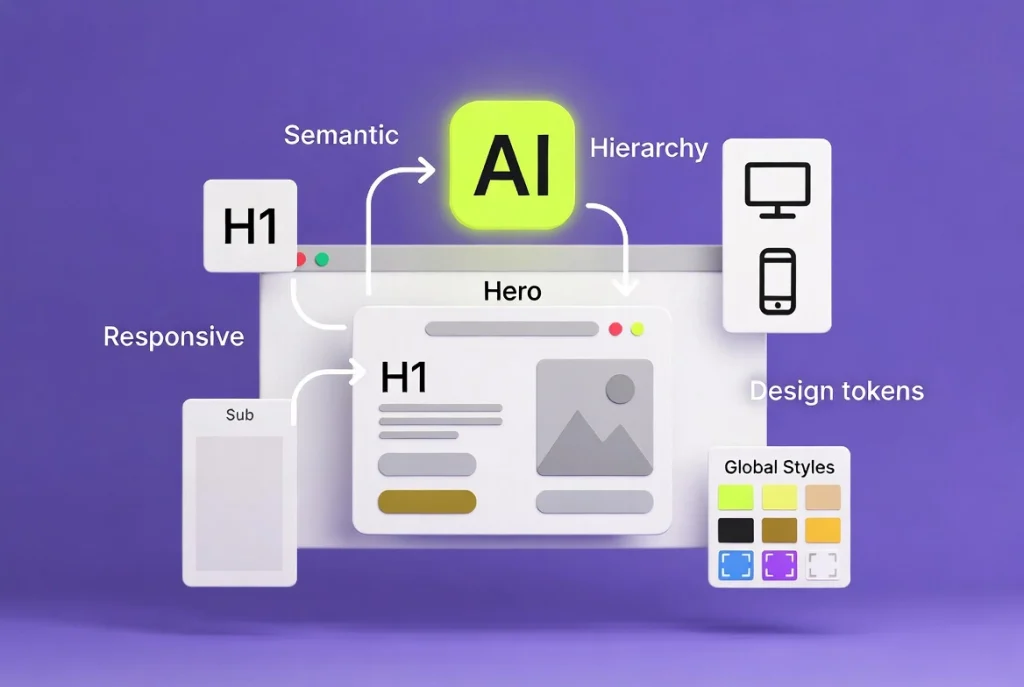
In the demonstration, the agent built a hero section while the Bricks editor remained visible. The presenter supplied project design guidance, then asked for follow-up changes to styling. The session illustrated three potential benefits:
- Immediate visibility: the user could see the agent’s actions instead of waiting until the end to inspect the page.
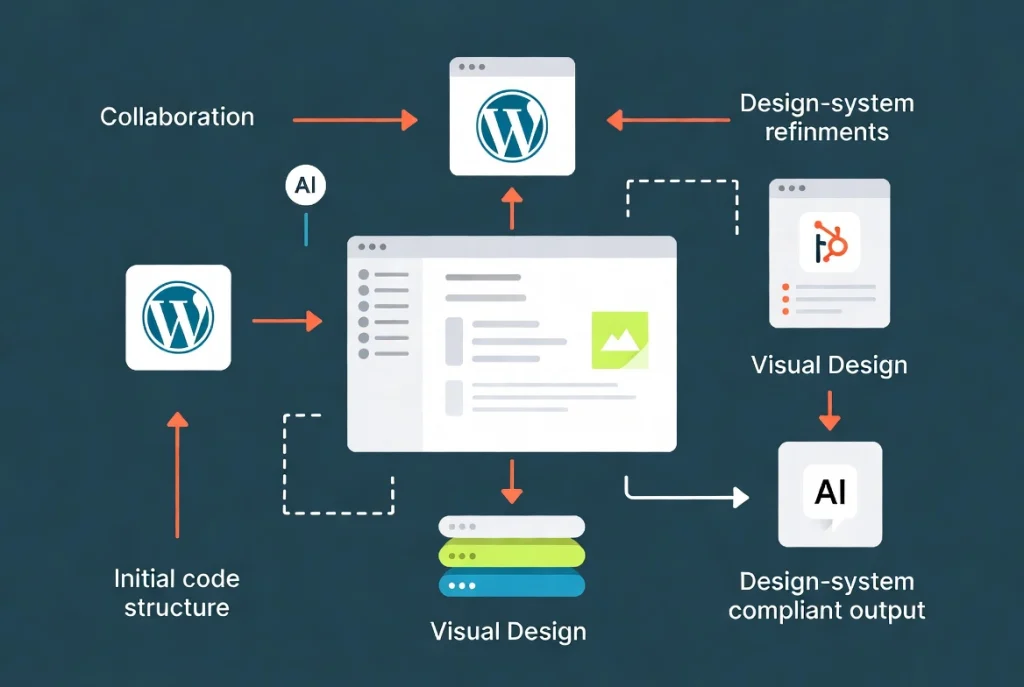
- Design-system context: the agent attempted to use supplied colors, spacing, and other project rules rather than inventing every value.
- Conversational iteration: the presenter requested adjustments after the initial build and watched them appear in the builder.
A demonstration can show that a workflow is possible, but it cannot establish reliability across every theme, plugin stack, page type, and prompt. Use it to understand the interaction model, then validate the feature against your environment.
How to Start a Novamira Visual Session Safely
1. Prepare a staging or local site.
Clone the site to an environment that can be discarded or restored. Confirm that the clone does not send real customer email, process live payments, or expose sensitive production data. Novamira’s production guidance says AI abilities should be enabled only on development or staging sites.
2. Create a verified backup.
Back up both files and the database before the session. Novamira does not make backups and does not roll changes back automatically. A backup is useful only if you know how to restore it, so verify the restore path before giving an agent access.
3. Check versions and requirements
Current Novamira requirements list WordPress 6.9 or later, PHP 8.0 or later, and HTTPS for remote connections. Elementor or Bricks work inside Visual only with a compatible Novamira Pro version. Update carefully on staging and review the current changelog for builder-specific fixes.
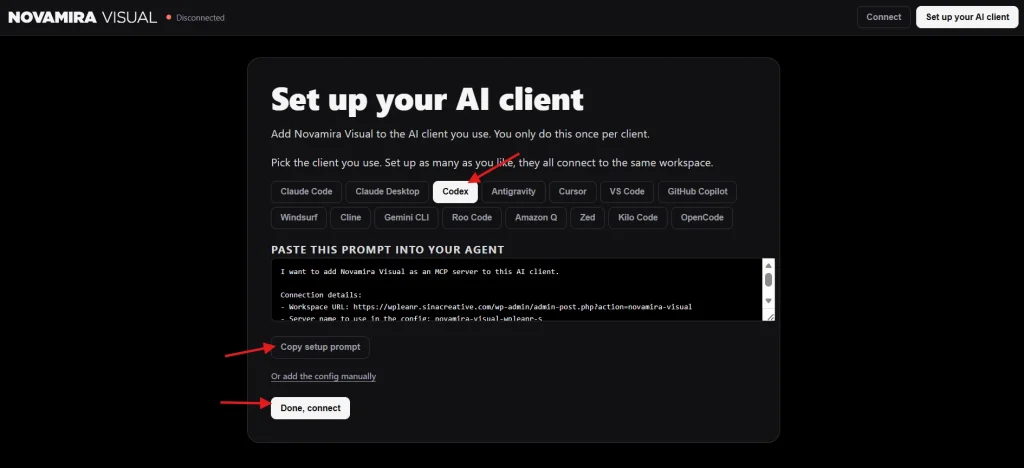
4. Follow the current in-product instructions.
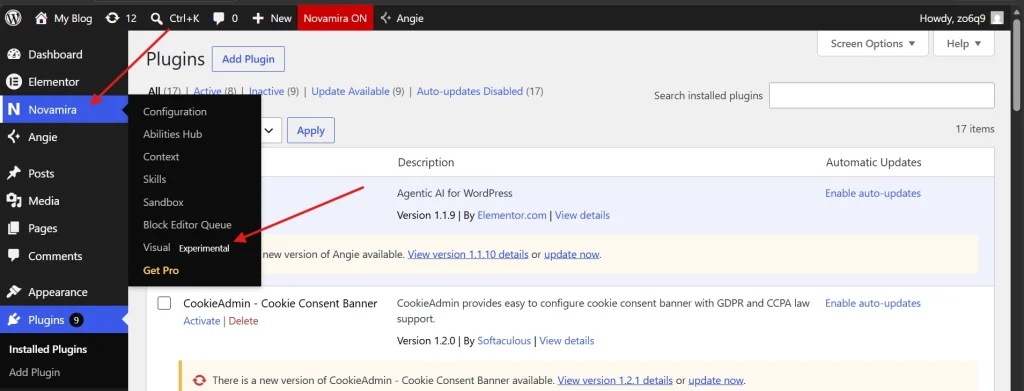
Open Novamira → Visual and use the instructions generated for your selected AI client. Do not copy credentials from screenshots or third-party tutorials. Novamira’s connection methods have evolved since launch, including OAuth, Application Password, and CLI routes for standard connections.
5. Begin with a disposable test page.
Ask for a small, reversible task: create a draft page with a heading, paragraph, button, and simple responsive layout. Avoid starting with the homepage, global header, checkout, membership area, or a page that contains irreplaceable content.
6. Review, save, and disconnect
Review the saved result outside the editor at desktop, tablet, and mobile widths. Test keyboard navigation, headings, link destinations, forms, and any interactive element. When the session is finished, disable AI abilities or revoke the connection if it is no longer needed.
Give the Agent Clear Design Guidance
An AI agent cannot reliably infer your entire design system from a vague request. Before building, provide the information a human designer would need:
- the page goal and primary audience;
- approved fonts, colors, spacing tokens, and component styles;
- the expected heading hierarchy and content outline;
- mobile behavior and maximum content width;
- accessibility requirements and prohibited patterns;
- elements that the agent must not change.
Novamira later added Novamira Design, which stores a site design direction for agents to follow. Whether you use that feature or a project brief, please inspect the actual output. Design rules can reduce drift, but they do not replace visual judgment.
Limitations and Risks
- Watching is not approval control. Novamira says changes made by an agent are real; there is no separate pending layer for every operation.
- There is no read-only mode. AI abilities are either enabled with broad access or disabled.
- Visual quality is prompt- and context-dependent. A successful demo does not guarantee consistent, responsive, or accessible output.
- Builders change. Updates to Elementor, Bricks, Gutenberg, WordPress, or Novamira can affect the workspace.
- Generated content needs editorial review. Verify claims, links, licensing, alt text, and calls to action before publishing.
Who Should Use Novamira Visual?
Novamira Visual is best suited to developers, technical designers, and agencies that already use AI coding clients and have a staging-to-production workflow. It can be useful when seeing the editor materially improves the task: building a section, checking responsive structure, or iterating on design tokens.
It is a poor fit for someone who has only one live site, no tested backup, and no experience reviewing WordPress changes. In that situation, use lower-risk editor assistance or ask a developer to prepare a staging environment first.
Verdict
Novamira Visual makes agent work easier to observe, which is valuable for page-building tasks. Gutenberg support is included with Novamira, while live Elementor and Bricks editing requires Pro. The feature remains experimental, and Novamira’s standard builder abilities may be the more appropriate choice when repeatable structured operations matter more than watching the canvas.
The right way to evaluate Visual is on a staging copy with a small test page, explicit design rules, and a verified backup. Judge the saved front-end result—not just the animation of the agent working—before deciding whether it belongs in your workflow. For the broader architecture behind these tools, read WordPress 7 vs. Novamira or compare Novamira, WPVibe, and NibWP.