Flowguard for WordPress: Automated Testing and Rollback Guide
Flowguard is a WordPress testing and monitoring plugin that can replay browser-based user journeys, check uptime, send alerts, generate reports, and optionally roll back plugin or theme files after a failed post-update test. It is designed to catch problems such as a broken form, missing button, failed checkout step, or unexpected visual change before they remain unnoticed for long.
This guide is based on Flowguard’s official documentation, changelog, legal terms, privacy policy, and pricing page, checked on September 10, 2026. It is a documentation-based evaluation, not a hands-on performance test. That distinction matters because the product’s website contains marketing claims that should not be treated as independently measured results.
Flowguard at a Glance
- Best fit: WordPress site owners, freelancers, and agencies that need repeatable checks after updates.
- Core workflow: record or build a test flow, run it in a browser, and receive a pass or failure result.
- Execution: remote servers are the default; an optional local runner requires Node.js 18 or newer and Playwright.
- Safety: Test Mode attempts to block emails, orders, payments, stock changes, and registrations, but it cannot guarantee interception of every third-party integration.
- Rollback limit: auto-rollback restores plugin or theme files, not database migrations or other data changes.
- Current release checked: version 1.2.2, dated July 31, 2026.
What Flowguard Does—and What It Does Not
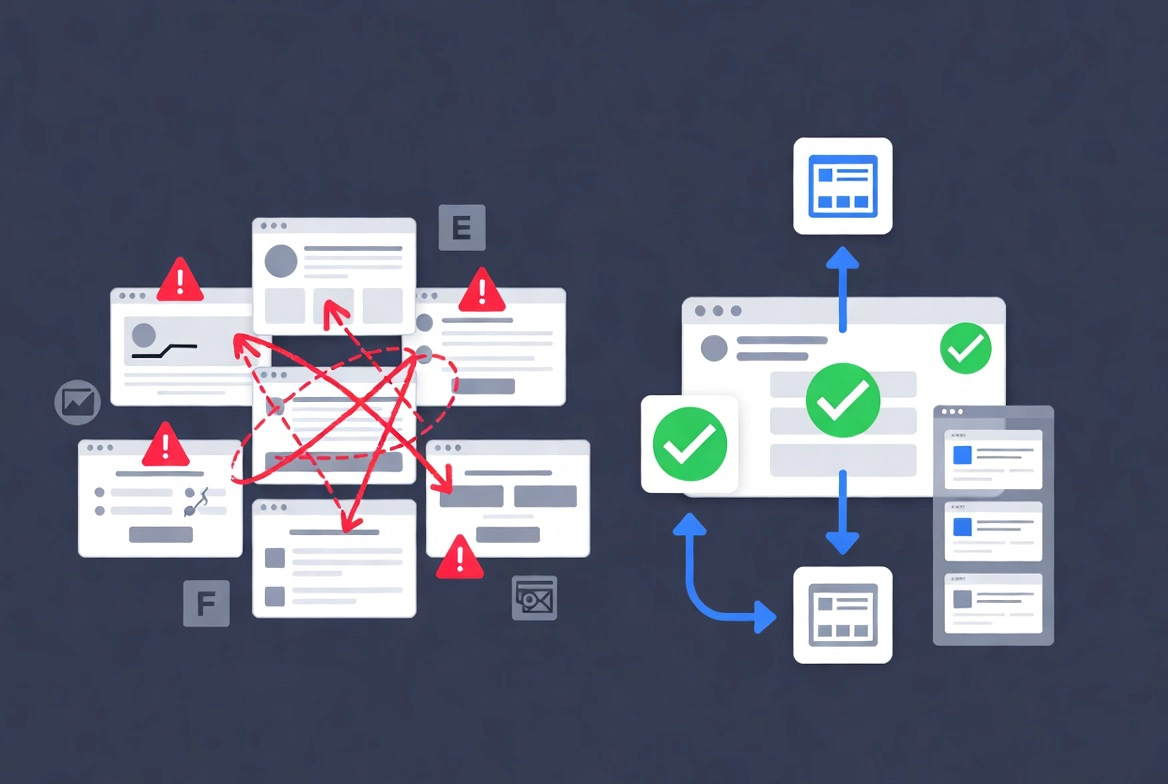
A Flowguard “flow” is a sequence of browser actions and checks. Supported steps include navigation, clicks, form input, assertions, waits, scrolling, hovering, dropdown selections, and checkbox or radio interactions. The point-and-click recorder captures a journey while you use the site, after which you can refine the steps and expected results.
This is functional monitoring, not a complete quality-assurance replacement. A flow can confirm that a contact form displays a success message, but it cannot prove that every visitor, device, browser, payment method, or unusual data combination will work. Good coverage depends on choosing important journeys and maintaining their selectors and assertions as the site changes.
Recorded Flows, Assertions, and AI Generation

The recorder is the simplest starting point: open a page, perform the intended actions, then add explicit assertions. An assertion should check a meaningful outcome—not merely that the browser reached another URL. For a lead form, that might be the success message. For a store, it might be the appearance of a product in the cart while using safe test data.
Version 1.2.0 added AI test generation. According to the official product page, you can describe a test in natural language and use your OpenAI or Anthropic key. The generated flow may include navigation, form filling, assertions, and custom code. Treat the generated result as a draft: inspect selectors, remove sensitive inputs, and run it on staging before enabling a schedule.
For advanced cases, version 1.1.0 introduced a Run Code step in browser mode or Playwright mode. Custom JavaScript and external API calls increase flexibility, but they also increase risk. Review generated or copied code, limit credentials to the minimum scope, store secrets in Flowguard’s encrypted environment-variable feature, and never paste a production administrator password into a test step.
Visual Checks Need Stable Baselines
Flowguard can compare screenshots with a saved reference, including full-page screenshots in newer releases. Such comparisons reveal layout shifts that a text assertion would miss: a hidden call-to-action, a broken grid, an overlapping header, or a component rendered with the wrong spacing.
Pixel comparisons are also sensitive to harmless differences. Cookie banners, rotating testimonials, timestamps, animations, ads, personalized content, and asynchronously loaded elements can create false failures. Build references in a controlled state, exclude or stabilize dynamic areas where possible, and combine visual checks with functional assertions. A screenshot difference is evidence to review, not proof that the site is broken.
Update Triggers, Schedules, and Device Sizes
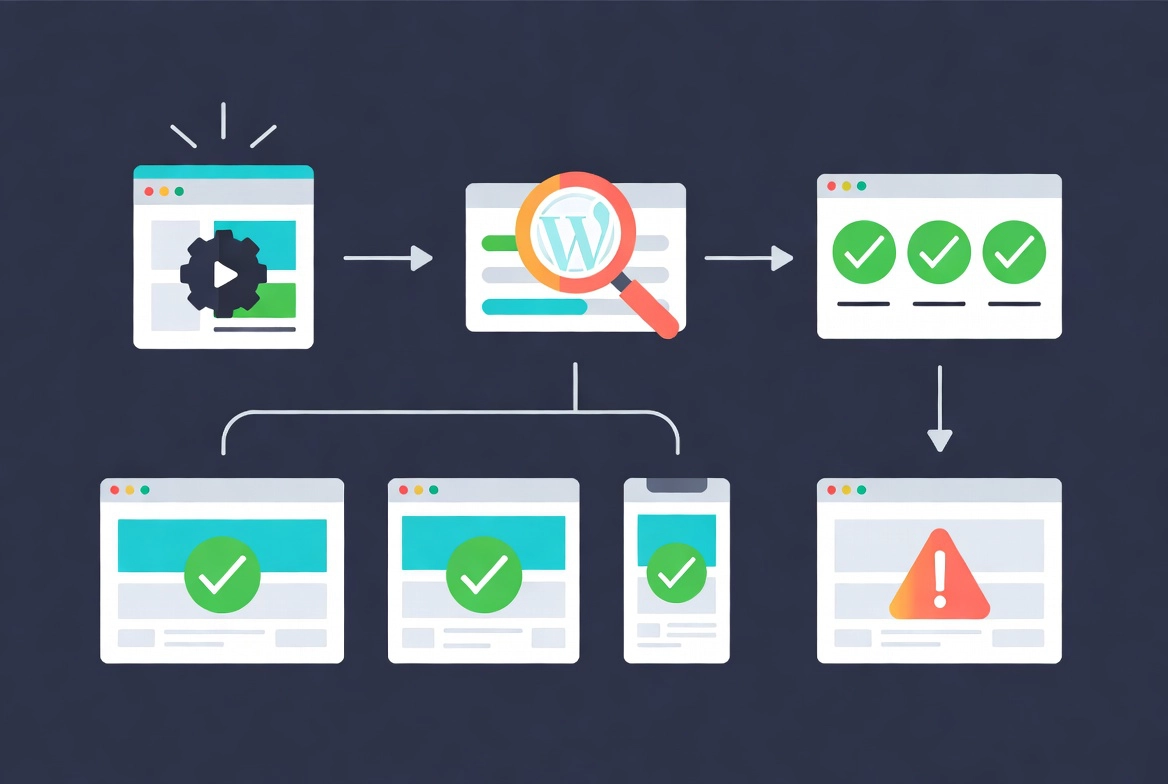
The official FAQ lists automatic triggers after plugin, theme, and WordPress core updates, plus scheduled and manual runs. Flowguard also supports desktop, tablet, and mobile sizes. These viewport options help catch responsive-layout problems, but they do not equal testing on every physical device or browser engine. Our guide to safely updating WordPress core explains the wider staging and recovery process around an update.
Start with a small critical set rather than recording every page. Useful flows include:
- Open the homepage and confirm the primary navigation and call-to-action are visible.
- Submit the contact form using a designated test address and confirm the expected result.
- Search for a product or article and open a result.
- For a store, add a product to the cart and exercise a sandbox checkout path.
- Check one representative template at each important viewport size.
Test Mode Reduces Risk, but Does Not Remove It
Flowguard says Test Mode intercepts email sending, WooCommerce orders, payments, stock changes, and user registrations. Its changelog also documents fixes and expanded compatibility for Bricks, Elementor, Fluent Forms, captcha tools, object caches, and other integrations.
The product’s Terms and Conditions add an essential limitation: Test Mode relies on WordPress hooks. A plugin using direct database queries, an external SDK, or a custom API call may bypass those hooks. Flowguard therefore recommends non-production data and verifying Test Mode before running potentially destructive flows on a live e-commerce site.
Use a staging site first. On production, use sandbox payment credentials, a clearly labeled test customer, non-sensitive form values, and a controlled recipient. Review the debug log and the third-party system itself to confirm that no order, contact, ticket, SMS, or email was created unexpectedly.
Auto-Rollback Has an Important Database Limit
When a post-update flow fails, Flowguard can optionally restore the previous plugin or theme version. This may shorten recovery from a file-level regression, and version 1.0.2 added an option to clear the page cache after rollback.
However, the official terms state that rollback restores plugin or theme files only. It does not reverse database schema migrations or data transformations made during the update, and Flowguard does not roll itself back. Restoring older files against a newer database can create incompatibilities. Keep independent off-site backups, know how to restore both files and the database, and verify everything after any automated rollback. If that recovery layer is not ready, start with our WordPress backup guide.
Uptime Monitoring, Alerts, and Reports
Uptime checks run from Flowguard’s external infrastructure at an interval between 1 and 60 minutes. The dashboard tracks availability, response time, HTTP status codes, and incidents. Email and webhook notifications can report downtime, recovery, and flow results; version 1.2.0 added Discord notification controls.
Branded PDF reports can summarize monitoring data for a team or client. The FAQ says PDFs are generated on the WordPress server with Dompdf, while reports and monitoring data remain subject to storage and retention settings. Uptime monitoring confirms that an endpoint responds; it does not replace security monitoring, server metrics, backups, or a tested disaster-recovery plan.
Remote Testing and Data Privacy
Remote execution is the default. Flowguard’s Privacy Policy says its servers make HTTP requests to the tested site, process test results, and receive monitoring data. It says test-flow configurations are stored locally in WordPress, while test results, screenshots, and monitoring data may be retained for the subscription duration or according to user settings, then deleted within 30 days after the subscription ends.
This is more specific than the FAQ’s shorter statement that test data is immediately discarded. Organizations with regulated or sensitive workflows should read the current privacy policy, verify what appears in screenshots and results, confirm retention and data-processing terms, and avoid exposing personal data or secrets in test inputs.
When the Local Runner Makes Sense
The optional local runner requires Node.js 18 or newer, Playwright, and port configuration. It can be useful when a site is not publicly reachable or when an organization prefers to control execution. It also moves browser-runtime maintenance to your infrastructure: browser dependencies, updates, resource limits, logging, and network access become your responsibility.
For a typical public WordPress site, remote execution is simpler. For an intranet, restricted staging environment, or stricter compliance requirement, evaluate the local runner with the hosting provider and security team before opening ports or bypassing access controls.
Flowguard Pricing Checked in September 2026
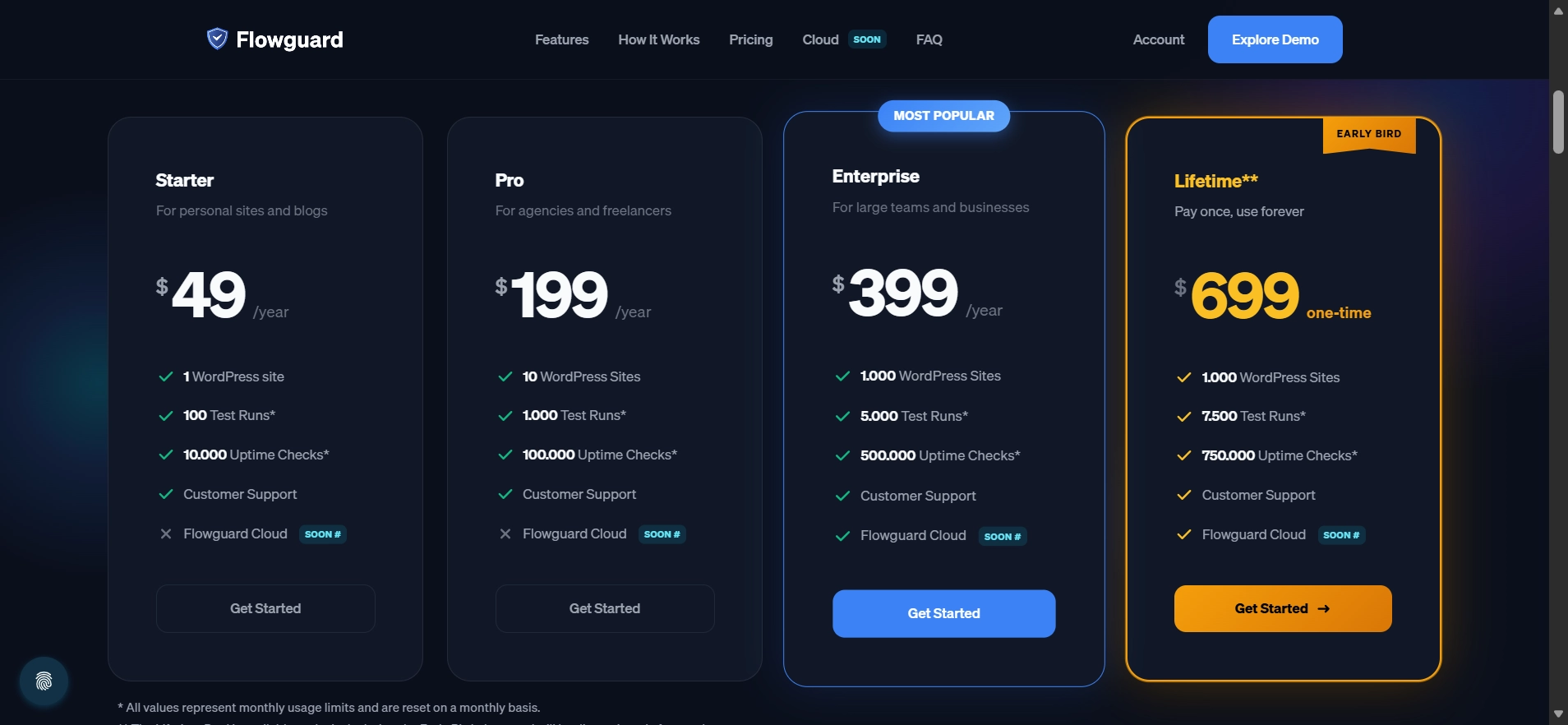
| Plan | Annual price | Sites | Monthly test runs | Monthly uptime checks |
|---|---|---|---|---|
| Starter | $49 | 1 | 100 | 10,000 |
| Pro | $199 | 10 | 1,000 | 100,000 |
| Enterprise | $399 | 1,000 | 5,000 | 500,000 |
The page says all three annual plans include testing, uptime monitoring, reports, and support, with limits increasing by tier. A launch-period lifetime offer also appears, but its availability can change without notice. Confirm the checkout price, tax, renewal terms, included features, and current refund policy directly on the official Flowguard pricing page.
Who Should Consider Flowguard?
Flowguard is most relevant when a site has a small set of high-value user journeys that must remain functional after frequent WordPress updates. An agency can reuse a documented maintenance process across client sites; a store can monitor a safe checkout path; a lead-generation site can check its main form and confirmation state. Automated checks should sit alongside the access controls and maintenance habits covered in our WordPress security basics guide.
It may be unnecessary for a minimal static site whose owner already performs a reliable manual check after infrequent changes. It is also not sufficient by itself when you need broad cross-browser testing, load testing, vulnerability scanning, database rollback, server observability, or formal compliance controls.
A Safe Flowguard Setup Checklist
- Confirm WordPress 5.8+, PHP 8.0+, HTTPS, hosting compatibility, and the current plan limits.
- Create and test the first flows on staging with non-production data.
- Add explicit assertions for the result that matters, not only navigation steps.
- Verify Test Mode against each form, payment, CRM, email, and external integration you intend to exercise.
- Configure alerts to reach a monitored channel and define who responds.
- Enable auto-rollback only after confirming backups and understanding that database changes remain.
- Review failed runs, screenshots, and debug logs instead of assuming every failure is a real regression.
- Revisit flows when templates, selectors, consent tools, or critical business journeys change.
Final Assessment
Flowguard combines useful WordPress maintenance functions in one dashboard: repeatable browser flows, visual checks, post-update triggers, uptime monitoring, notifications, reports, and optional file rollback. The current feature set is broader than it was at launch, with AI-generated tests, custom-code steps, environment variables, failure videos, and ongoing compatibility fixes documented in the changelog.
The strongest reason to consider it is consistency: you can check an important workflow the same way after each update. The main cautions are equally clear. Coverage is only as effective as the flows you build; Test Mode cannot intercept every possible third-party side effect; remote testing processes site responses and stores some results; and rollback does not reverse database changes. Use it as one layer in a maintenance system that still includes staging, independent backups, security monitoring, and human review.
Official Sources
- Flowguard documentation
- Flowguard features
- Flowguard changelog
- Flowguard FAQ
- Flowguard pricing
- Flowguard privacy policy
- Flowguard terms and conditions