
Bricks 2.4 RC AI Abilities: MCP Setup and Safety Guide
Bricks 2.4 introduces experimental AI abilities that let an authorized MCP-compatible client read or update parts of a Bricks website. The feature covers pages, elements, templates, components, design-system data, dynamic content, media, WooCommerce templates, revisions, and other builder workflows.
The original version of this article covered the July 2026 beta. Bricks 2.4 reached release-candidate status on September 2, 2026, so this guide now reflects the RC documentation verified on September 10, 2026. Bricks still labels AI abilities experimental and recommends local or staging use rather than production.
Bricks 2.4 AI Abilities at a Glance
- Bricks registers structured actions with the WordPress Abilities API.
- The separate WordPress MCP Adapter exposes those abilities to an MCP-compatible AI client.
- Bricks provides controls to enable or disable individual abilities and restrict actions through WordPress and Builder permissions.
- Optional Bricks skills teach supported clients preferred workflows but do not add permissions or abilities.
- Post and template element writes can create Bricks revisions; global classes, variables, theme styles, and components are not protected by post revisions.
- Direct PHP execution is disabled by default, requires a separate code-level opt-in, and is not sandboxed.
Current Release Status: Bricks 2.4 RC
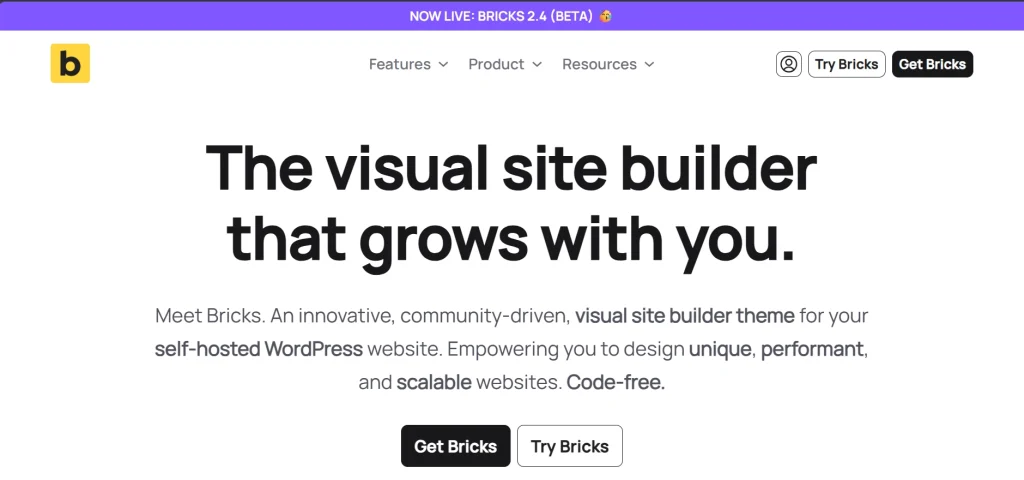
The first Bricks 2.4 beta launched on July 15, 2026, with AI capabilities, a Builder Browser, global import and export, CSS synchronization, and other builder changes. The Bricks 2.4 release candidate followed on September 2 after additional beta releases and fixes.
A release candidate is closer to final than a beta, but it is still pre-release software. Bricks explicitly recommends testing the RC on local or staging installations. Do not update a production client site merely to experiment with MCP access.
The AI feature is also broader than “AI builds a page from a prompt.” It exposes defined Bricks operations that a capable agent can combine. Output quality depends on the model, instructions, permissions, existing site structure, and whether the agent inspects and verifies its work.
How the Bricks MCP Connection Works
The official Bricks AI Abilities and Skills documentation describes three separate pieces:
| Component | Where it runs | Purpose |
|---|---|---|
| WordPress MCP Adapter | WordPress plugin | Provides the MCP endpoint that exposes registered abilities |
| Bricks’ abilities | Bricks | Registers structured Bricks actions through the WordPress Abilities API |
| Brick skills | Supported AI client | Adds optional workflow instructions for using the abilities carefully |
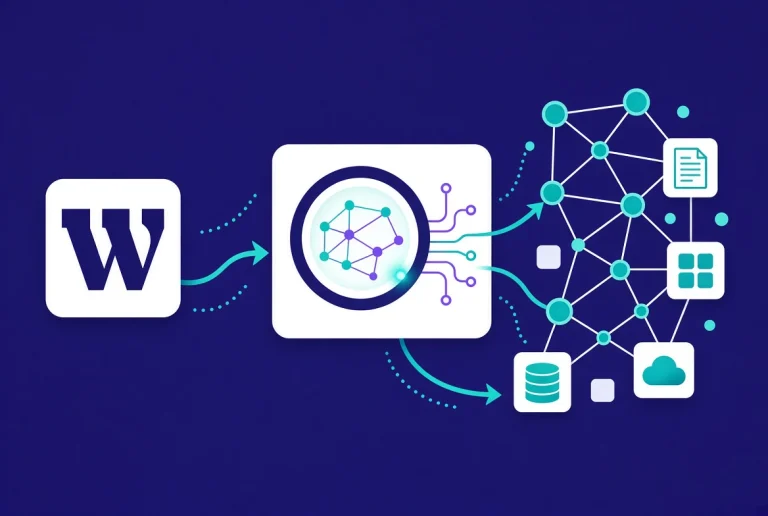
Bricks, therefore, does not operate as a completely standalone MCP server. It detects or helps install the WordPress MCP Adapter, then supplies builder-specific abilities. The generated client configuration uses Automattic’s remote MCP bridge and a WordPress application password.
Every request runs as the WordPress user associated with that application password. Bricks checks the user’s WordPress capabilities, Builder access, and Builder permissions before anyy ability can read or write. This makes the selected user account part of the security boundary.
What a Connected Agent Can Do
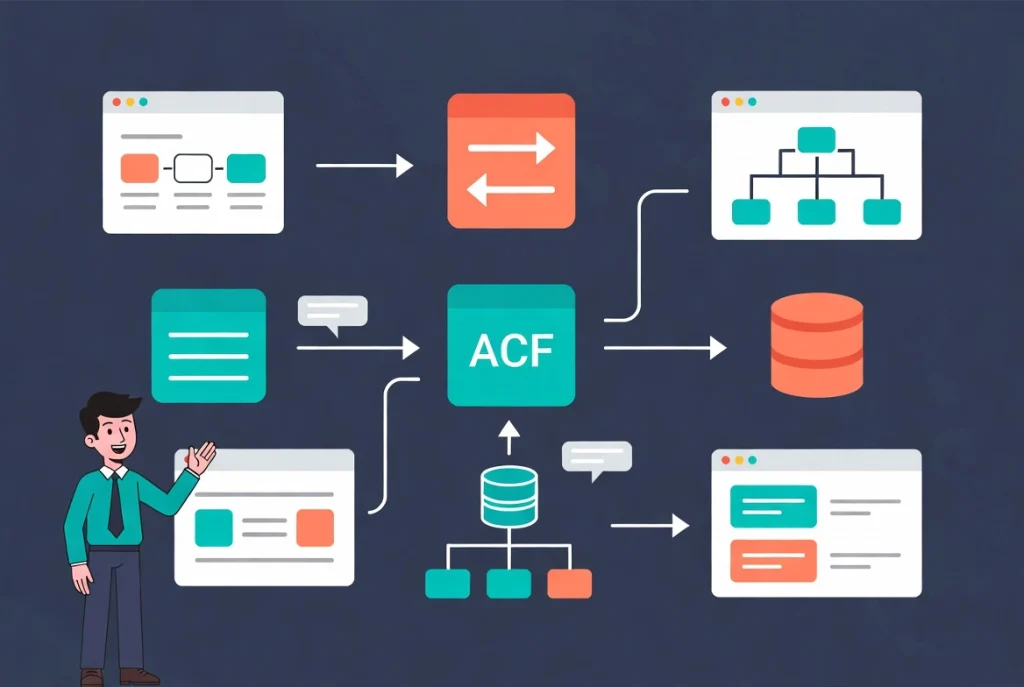
Bricks says the initial ability set covers page and element operations, templates, components, global data, design systems, dynamic data, query loops, navigation menus, WooCommerce setup, remote libraries, import and export, and HTML-to-Bricks conversion. The exact available list should be read from the connected site rather than copied from an old article.
Pages, elements, templates, and components
An agent can inspect existing element trees, create or update Bricks content, and work with reusable structures when the relevant abilities and permissions are enabled. A safer prompt asks the agent to inspect the current page and design system, show a plan, and then make a narrow change instead of replacing an entire page in one operation.
Design-system data
Abilities can work with global classes, variables, palettes, theme styles, and related settings. This can help an agent reuse an existing system rather than invent duplicate tokens. These global changes require special care because they may affect many pages and are not covered by normal post-revisions.
Dynamic data and query loops
The ability set includes dynamic-data and query-loop workflows. An agent can help inspect a content model, build a listing structure, or connect existing fields to elements. This functionality does not prove that it will automatically configure every ACF relationship or complex query correctly. Verify field identifiers, query arguments, empty states, pagination, and access controls with real staging data.
Settings, imports, and remote libraries
Settings abilities use an allow-list rather than exposing the complete Bricks global-settings record. Bricks also excludes sensitive remote-library passwords from reads and writes. Even with those protections, importing global data or changing a remote-library configuration can have site-wide effects, so review conflicts and dependencies before approval.
How to Set Up Bricks 2.4 AI Abilities
Use the values generated by your site. Never copy a username, endpoint, or password from a screenshot or tutorial.
1. Prepare staging and a restore point
Install the current Bricks 2.4 pre-release exclusively on a local or staging copy. Back up files and the database, then confirm you can restore them. If the site contains customer information, use sanitized staging data.
2. Open Bricks → AI → Configuration
The AI screen contains Configuration, Abilities, and Skills tabs. Configuration detects the MCP Adapter, manages the main feature toggle, creates a credential, and generates client-specific instructions.
3. Install or activate the MCP Adapter.
Check the adapter status in the Abilities API section. If it is missing, use the Bricks installer where available or obtain the stable Adapter release from the official source linked by Bricks. Do not install an unrelated package merely because its name contains “Bricks MCP.”
4. Enable Bricks abilities and reduce the scope.
Enable the Abilities API, then open the Abilities tab. Disable operations the planned workflow does not need. Bricks marks some actions as default-off or destructive. The site-level toggle does not replace user permissions; both layers are evaluated.
5. Create a dedicated user and credential.
Bricks recommends using an administrator to complete initial setup, but the working connection can use a more restricted WordPress user. Configure appropriate Builder access, select that user under Credentials, give the credential a recognizable name, and generate the Application Password. Please copy it immediately, as WordPress displays it only once.
6. Connect the AI client
Select your client in the Connect AI Client section and use its generated configuration. Bricks provides formats for clients such as Codex and Claude Code plus generic JSON. Prefer the explicit configuration option when available so the credential stays out of the chat transcript.
7. Test discovery before writing
Start a new client session so it reloads the MCP configuration. The current Bricks documentation recommends calling the start, version, and ability-status checks first. Confirm the connected domain, Bricks version, and disabled abilities before asking for a change.
What Bricks Skills Do—and Do Not Do
Bricks skills are optional instructions for AI clients that support reusable skills, rules, or project guidance. They can teach workflows such as inspecting the design system, avoiding duplicate classes, building query loops, converting HTML and CSS, and verifying the front end.
Skills do not install new Bricks actions and do not grant additional WordPress permissions. The MCP connection can still work without them. Get the connection working first, then use the install and verification prompts from Bricks → AI → Skills. Do not rely on an old fixed count of skills or abilities because the package changes during pre-release development.
Launch-Period Demonstration
The following video is a third-party first look at the beta workflow. It is useful for understanding the concept, but it is not a CreatePressHub hands-on test, and its interface may differ from the current release candidate.
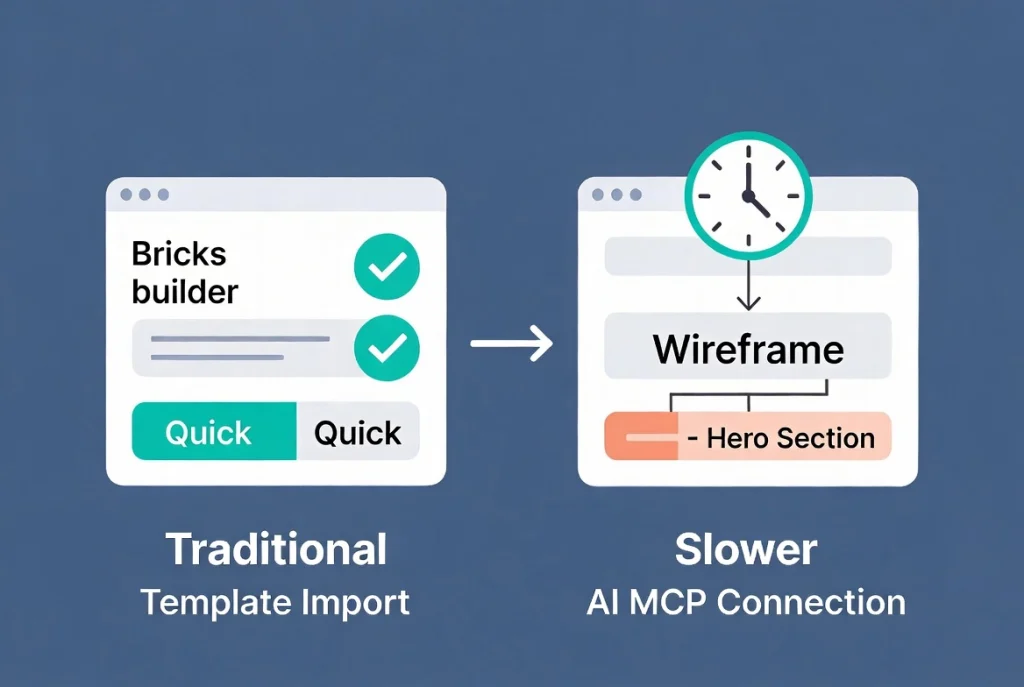
The previous version of this article claimed a hero section took 13 minutes in our real-world testing. We lack a documented test environment, recording, prompt, repeat runs, or comparable manual build evidence to support that result, so it has been removed. A responsible speed comparison would require identical source material, bricks and model versions, connection settings, start and stop criteria, multiple runs, and published evidence.
Optional PHP Execution Changes the Risk
Most Brick’s abilities are structured builder operations. Bricks 2.4 also documents an optional bricks/execute-php ability that runs one-off PHP with WordPress loaded. It is disabled by default and cannot be enabled through a normal database setting or wp-admin toggle. A developer must define it BRICKS_ENABLE_EXECUTE_PHP_ABILITY as true in the configuration.
Bricks states that this ability is not sandboxed. It can access anything available to the PHP process, including files and data outside dedicated builder operations. Additional conditions are checked on every call, including authentication, Bricks code-execution permission, custom-code settings, and code-signature configuration.
Leave PHP execution disabled unless a specific development task requires it. If enabled temporarily, use version control and a restorable backup, inspect the proposed code, and remove or disable the constant afterward.
Revisions, Global Data, and Rollback Limits
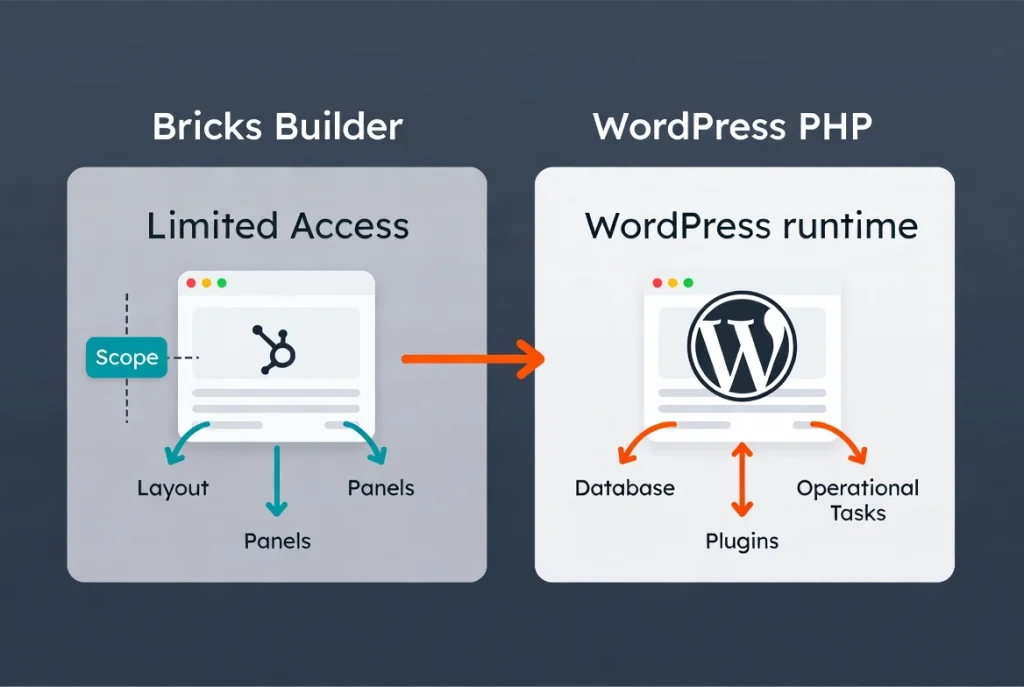
Bricks says that supported post and template element writes create revisions. That provides a useful recovery path for those records, but it is not a complete rollback sysPost-revisions do not cover global classes, variables, theme styles, and components, and PHP execution can change data outside the Bricks revision history.tory.
- Create an independent file and database backup before the session.
- Ask the agent to identify every global object it plans to change.
- Use a disposable page for the first build.
- Review revisions, global design data, and the rendered front end.
- Test desktop, tablet, mobile, keyboard navigation, dynamic states, and forms.
- Revoke the application password and disable abilities when the session ends.
Bricks Abilities vs Broader WordPress MCP Plugins
Bricks abilities are designed around Bricks data and permissions. A broader WordPress MCP product may expose general PHP, filesystem, plugin, or database workflows. The boundary is not absolute because Bricks has optional unsandboxed PHP execution, but leaving that feature disabled keeps the workflow closer to structured builder operations.
Choose Bricks abilities when the task primarily involves Bricks pages, templates, components, design tokens, or dynamic layouts. Evaluate a broader product when work must span multiple plugins or general WordPress development. Our Novamira MCP feature guide explains one broader approach, while Novamira vs WPVibe vs NibWP compares several MCP-focused tools.
Verdict
Bricks 2.4 AI abilities provide a serious, structured way for compatible agents to work with builder data. The strongest parts of the design are per-ability controls, WordPress and Builder permission checks, optional workflow skills, and revisions for supported post or template element writes.
It remains experimental pre-release functionality. Use a restricted account, enable only the abilities required for the task, keep PHP execution off by default, and test on a backed-up staging site. The feature is promising, but a visible successful build is not enough—inspect the saved Bricks data and rendered page before deployment.