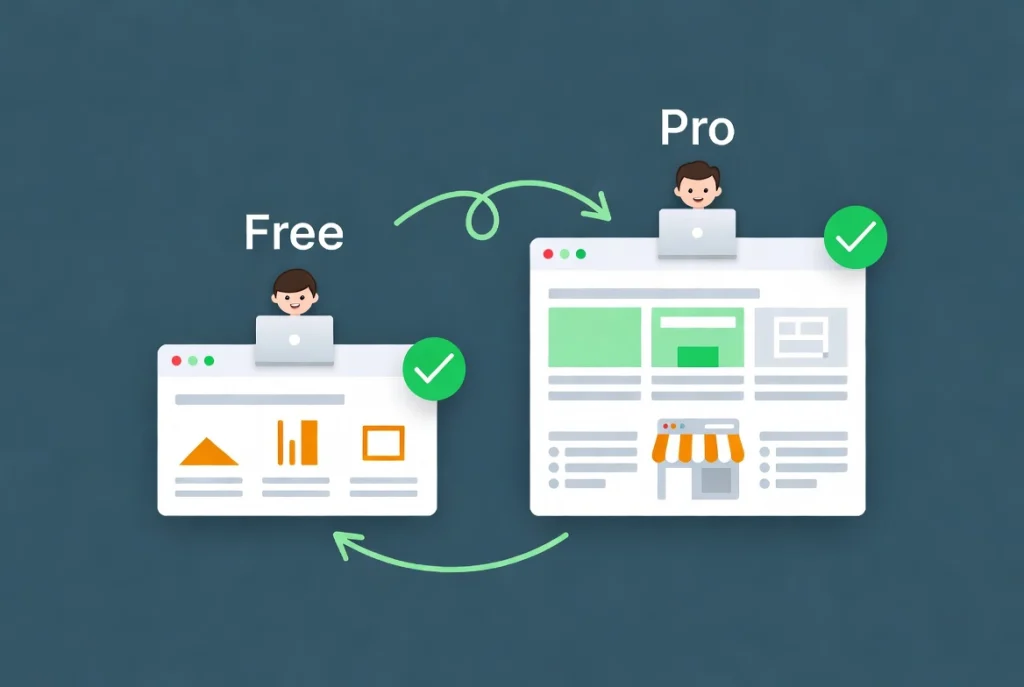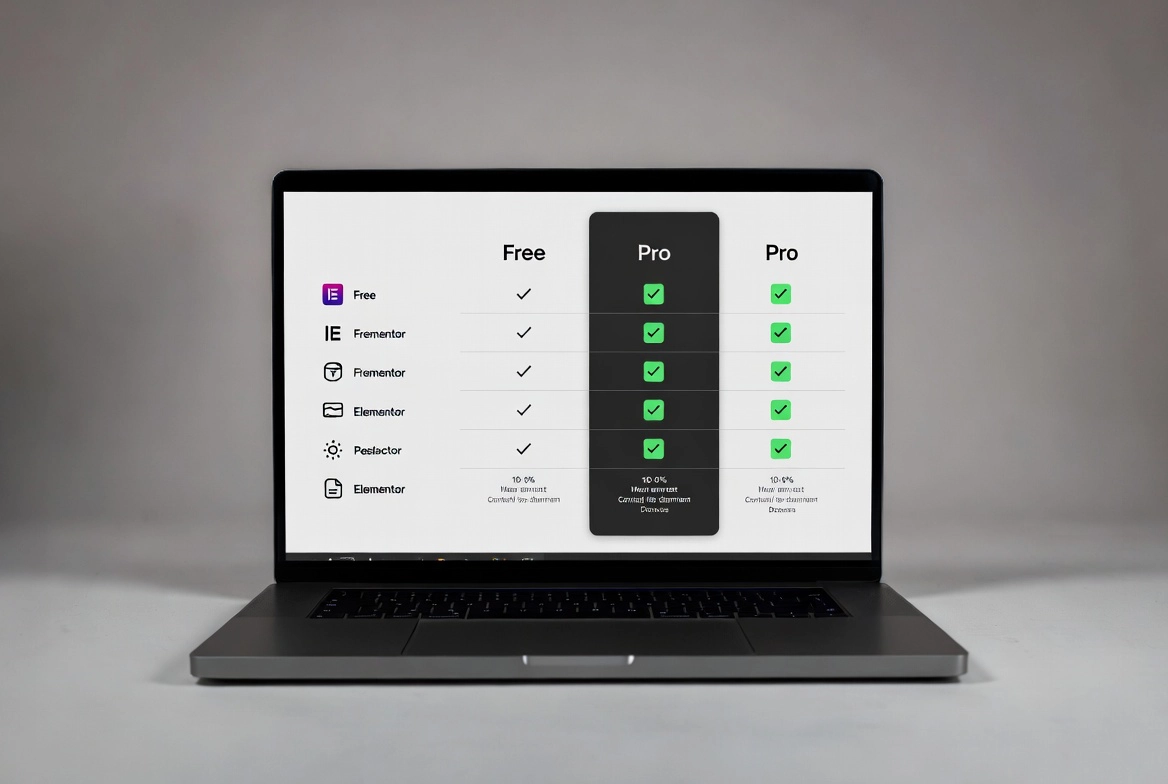
Elementor vs Pro comparison chart for 2021, highlighting features and differences between the two versions.

Elementor Free vs Pro Comparison: Which Version Do You Need? (2026)

A few years ago, a client asked me which version of Elementor she should use for her small business site. I told her the free version would be fine to start. Six months later, she called me frustrated. Her header looked nothing like her brand, her blog posts had no consistent layout, and she had stacked four extra plugins just to handle a contact form. That conversation taught me something important. The Elementor Free vs Pro comparison is not really about budget. It is about understanding what you are trying to build before you build it. This guide gives you that understanding so you can make the right call from day one.

Before diving in, make sure your environment is properly set up by reviewing our guide on Getting Started with Elementor. The version you choose will directly affect how much manual CSS you write and how many third-party plugins end up running on your server.

What Elementor Free Actually Gives You

image showing the logo of elementor free versions
logo of the Elementor free version

The free version of Elementor is a genuinely capable page builder. You get the core drag-and-drop engine, around 30 basic widgets including headings, images, buttons, and text editors, and solid control over margins, padding, and basic responsiveness. For a simple landing page or a personal blog, this is often enough to get started.

But here is the limitation that catches most people off guard. The free version only lets you edit the content area of your pages. You cannot touch the header and footer. You are completely dependent on whatever your WordPress theme provides for those global areas. If your theme has a bulky, outdated header you cannot stand, Elementor Free cannot help you fix it. You are working inside a box set by someone else’s design decisions.

The free version also has no Theme Builder. This means every time you publish a new blog post, it uses whatever static template your theme provides. There is no way to design a global Single Post Template that automatically applies to every article. For a site publishing content regularly, that is a significant time sink. To understand how these limitations show up in your daily workflow, see our Elementor Interface Tour: Understanding the Editor Panel.

What Elementor Pro Adds to the Comparison

image showing the logo of elementor paid versions

When you do a proper Elementor Free vs Pro comparison, the Pro version stands out less as a plugin upgrade and more as a complete site-building framework. The single most important feature it adds is the Theme Builder. With the Theme Builder, you can design and control every part of your WordPress site visually: headers, footers, archive pages, single post templates, search result layouts, and even custom 404 pages. You stop searching for a theme that fits your vision because Elementor Pro becomes the theme itself.

The second major advantage Pro brings is dynamic content. In the free version, if you want to display a post title inside a widget, you type it manually. In the Pro version, you use a Dynamic Tag that pulls the title directly from the database. This becomes essential the moment you are working with Custom Post Types or Advanced Custom Fields. Building a real estate site? You need Price and Location fields to populate automatically in every listing layout. The free version simply has no answer for that. According to WordPress.org plugin statistics, the shift toward dynamic, data-driven site structures has made these Pro features the standard for any non-static website in 2026.

Elementor Free vs Pro Comparison: Feature Breakdown

The table below covers the core differences that affect your daily workflow. This is not just a list of extra widgets. It is a look at what each version can and cannot do at a technical level.

Elementor Free vs Pro Comparison Table
Feature Free Pro
Drag-and-Drop Page Builder
Total Widgets ~30 100+
Theme Builder (Header, Footer, Archives)
WooCommerce Builder
Form Builder
Email Integrations (Mailchimp, ActiveCampaign)
Dynamic Tags (ACF, Toolset, Pods)
Popup Builder
Loop Builder (Custom Post Grid Skins)
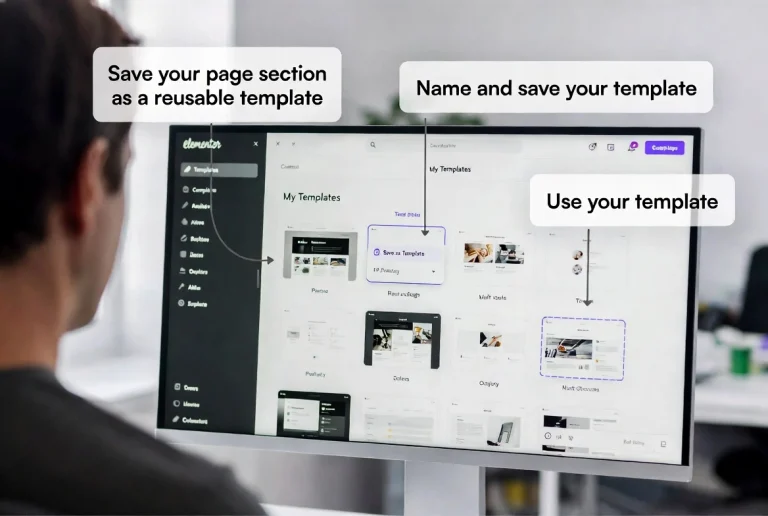
Global Widgets
Custom CSS per Widget
Responsive Controls
Global Colors and Typography
Motion Effects and Animations
Priority Customer Support

✓ Included  |  ∼ Partial  |  ✕ Not included

Looking at that breakdown, the Elementor Free vs Pro comparison becomes a straightforward decision the moment your project involves a store, a lead generation form, or a blog with a consistent custom layout. If any of those apply to you, you need Pro. For handling forms specifically, our guide on Adding a Contact Form to Your Elementor Page walks through the full process.

Marketing and Conversion Tools: A Key Part of the Pro Advantage

One aspect of the Elementor Free vs Pro comparison that most guides ignore is the marketing toolset that comes with Pro. The Popup Builder alone is worth serious attention. Most standalone popup plugins charge a monthly subscription that costs more than an entire year of Elementor Pro. With the Pro version, you design popups using the exact same interface you use for your pages. You trigger them based on exit intent, scroll depth, time on page, or specific user behavior. For lead generation, this level of control is a major advantage that would otherwise require a separate paid tool.

The native Form Builder is another feature that changes the economics of your site. In the free version, most people end up installing a separate form plugin, dragging in a shortcode, and then spending an hour writing custom CSS to make it look right. Pro’s form builder is fully integrated. It supports multi-step forms, file uploads, and conditional logic. It connects directly to Mailchimp, GetResponse, and ActiveCampaign without any extra plugin. Every tool you replace with a native Pro feature is one less plugin loading on your server, one less security vulnerability, and one less update to manage.

Does Elementor Pro Make Your Site Slower?

A common concern in any Elementor Free vs Pro comparison is performance. People assume that more features means more code means a slower site. This is a misunderstanding of how Elementor Pro actually works. Elementor uses a modular loading system. It only loads the code for the widgets you use on a specific page, not the entire widget library on every request.

In practice, switching to Pro often makes sites faster, not slower. The reason is simple: Pro replaces multiple separate plugins. Instead of running a standalone header plugin, a separate form plugin, a popup plugin, and a social sharing plugin, you run one integrated system. Fewer plugins mean fewer HTTP requests, fewer security vulnerabilities, and far fewer update conflicts. According to Wikipedia’s entry on WordPress security, plugin vulnerabilities are one of the leading causes of site compromises. Consolidating your toolset into one ecosystem is one of the smartest things you can do for both performance and security.

Real-World Scenarios: Choosing the Right Version

The most helpful way to think about the Elementor Free vs Pro comparison is through real use cases, because the right answer genuinely depends on what you are building.

If you are a student learning web design for the first time, start with the free version. You will get comfortable with the drag-and-drop interface, learn how containers and widgets work, and build your first few pages without spending anything. You can still create clean, well-structured layouts using tools like the Elementor Divider and Spacer Widgets to add breathing room and visual hierarchy to your designs.

If you are running a personal blog and you are happy with your theme’s default header and footer, the free version will serve you well for a long time. You do not need Pro for that use case.

However, the moment you are building for a client, launching a business site, running an online store, or publishing content that needs a consistent branded layout across every post, the Elementor Free vs Pro comparison tilts decisively toward Pro. The Loop Builder alone, which lets you design custom skins for post grids and listing pages without writing a single line of PHP, is worth the entire subscription cost for most professional projects. That feature used to require a developer. Now you do it visually in minutes.

If you value your time at more than a few dollars an hour, the free version becomes expensive quickly. The hours you spend writing manual CSS workarounds, managing plugin conflicts, and designing each blog post from scratch add up fast. Pro pays for itself in the first month for any serious project.

The Verdict: Which Version Do You Need in 2026?

Here is where the Elementor Free vs Pro comparison lands after looking at everything. The free version is a solid starting point and a genuine tool for simple projects. It is not a trick or a limited demo designed to force an upgrade. For the right use case, it is perfectly adequate.

But for anyone building a site that needs to convert visitors, scale with a growing business, maintain a consistent brand across every page, or compete professionally in any market, Elementor Pro is the only logical choice. The Theme Builder, the Loop Builder, the native Form Builder, and the Popup Builder together create a platform that replaces an entire stack of third-party tools while making your site faster and more secure in the process.

Choose free to learn. Choose Pro to build. That is the clearest way I can summarize this Elementor Free vs Pro comparison after years of working with both versions across dozens of client projects. To make the most of whichever version you choose, return to our Getting Started with Elementor guide for the latest performance optimization tips.


Frequently Asked Questions About Elementor Free vs Pro

Is the Elementor Free vs Pro comparison really about budget?

Not primarily. Budget is a factor, but the more important question is what your project actually needs. If you need a Theme Builder, dynamic content, a native form builder, or a popup system, Pro is the right choice regardless of budget, because the alternatives cost more in time and extra plugins than the Pro subscription does.

Can I start with Elementor Free and upgrade to Pro later?

Yes, and this is a perfectly reasonable approach. The free version installs as the core plugin, and Pro installs on top of it. All your existing content and layouts are preserved when you upgrade. You do not need to rebuild anything. The Pro features simply become available on top of what you have already built.

Does Elementor Pro work without the free version installed?

No. Elementor Pro is an add-on that requires the free version to be installed and active. You always need both plugins running together. The free version is the core engine and Pro layers additional capabilities on top of it.

Is Elementor Pro a one-time payment or a subscription?

Elementor Pro is an annual subscription. The subscription covers updates, access to the template library, and customer support. If you let the subscription lapse, the plugin continues to work but you stop receiving updates and lose access to the template library. For security reasons alone, keeping the subscription active is strongly recommended.

Will Elementor Pro slow down my website?

In most cases, no. Elementor Pro uses a modular loading system that only activates code for widgets actually used on a given page. Because Pro replaces multiple standalone plugins, many sites actually load faster after upgrading. The performance gains from removing extra plugins typically outweigh any additional overhead from Pro features.

Which Elementor version is best for a WooCommerce store?

Elementor Pro is the clear choice for any WooCommerce store. The Pro version includes a dedicated WooCommerce Builder that lets you design custom product pages, cart layouts, and checkout pages visually. The free version only includes a handful of basic WooCommerce widgets with no ability to customize the core store templates.

What is the Loop Builder and why does it matter?

The Loop Builder is an Elementor Pro feature that lets you design custom display templates for post grids, archive pages, and custom post type listings. Instead of relying on your theme’s default styling for how blog posts appear in a grid, you design exactly how each card looks using the visual editor. This used to require custom PHP code. With the Loop Builder, you do it entirely without touching a single line of code.


Additional Resources

.

Author

  • Jordan Reyes, Elementor Web Designer and Digital Media Expert at CreatePressHub

    Jordan Reyes is a web designer from the United States who specializes in Elementor and visual site-building tools. He graduated from Arizona State University with a degree in Digital Media Design, where he learned how design and technology come together to create engaging user experiences.

    Jordan has spent the last five years helping small businesses and beginners turn their ideas into beautiful websites using Elementor’s drag-and-drop simplicity. His tutorials focus on creativity, clarity, and real-world solutions that anyone, no matter their skill level, can apply.
    Outside of design work, Jordan loves sketching, visiting local coffee shops, and supporting the creative community through workshops and online design challenges.
    Languages: English.

Our Newsletter

Get awesome content delivered straight to your inbox.

Related Articles

The Ultimate

WordPress Toolkit

Get FREE access to our toolkit – a collection of WordPress related products and resources that every professional should have!

Leave a Comment

white background featuring a white icon, representing the WordPress Toolkit guide.