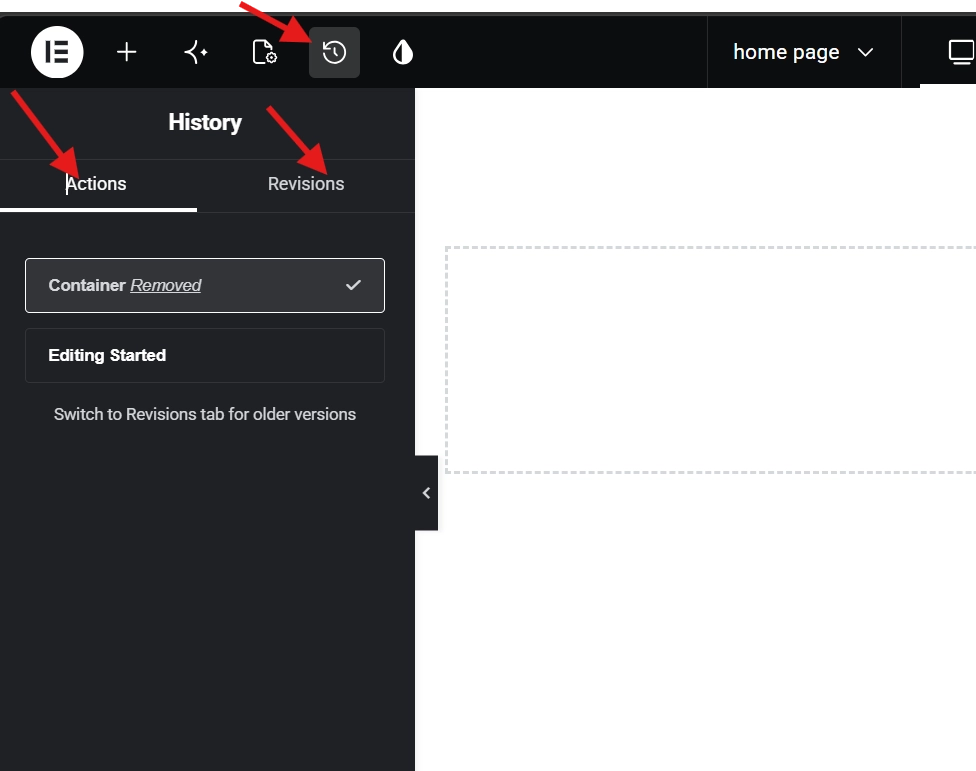
About a year into client work, I made a change I instantly regretted. I was deep into a landing page build, adjusting a container’s padding, and somehow deleted a complex hero section I had spent three hours on. No warning, no confirmation dialog, just gone. The Actions list in the History panel was my only way back, and because I had not refreshed the editor, every step of that three-hour session was still there waiting for me. One click and the section reappeared exactly as it was. That moment taught me more about the Elementor History Tool than any tutorial ever had.
The History Tool is not simply an undo button wearing a different label. It operates as a dual-layered system that tracks every granular change during a live session and archives significant milestones permanently in your database. Understanding the distinction between those two layers is what separates designers who use it reactively from those who build it into their workflow deliberately. If the Elementor editor is still new territory, the Getting Started with Elementor guide covers the foundational interface knowledge worth having before going deeper here. For the WordPress layer underneath everything, the WordPress basics and installation guide is where that foundation starts.
The Two Pillars of the Elementor History Tool
Opening the History panel reveals two distinct tabs at the top: Actions and Revisions. Each serves a fundamentally different purpose, and treating them as interchangeable is the most common mistake users make with this feature.
The Actions Tab: Your Session Safety Net
The Actions tab records every change from the moment you open the editor. Moving a heading, updating a hex code, adjusting padding on a container, every one of these creates a new entry in a chronological breadcrumb trail. Clicking any entry in the list reverts the page to that exact state instantly, which makes rapid experimentation genuinely practical. Five different typography scales in thirty seconds, then a single click back to the first option, no repeated Ctrl+Z required.
The critical limitation to understand is that this data lives in browser memory, not on your server. Closing the tab, refreshing the page, or losing your connection wipes the Actions list completely. It is powerful within a session and nonexistent outside of one. Professionals use it for short-cycle experimentation and rely on Revisions for anything that needs to survive beyond the current working session.
The Revisions Tab: Your Database Checkpoint System
Every time you click the Update button, WordPress writes a permanent snapshot of the page to your MySQL database. Power outages, browser crashes, and accidental closures cannot touch these. The Revisions tab displays every save with its date, time, and the user who triggered it, which makes it an invaluable audit tool on team projects. A colleague breaks a layout at an inconvenient hour, and you simply roll the page back to the previous day’s version without rebuilding anything manually.
This system relies on the core WordPress revision architecture, which Wikipedia’s entry on Revision Control explains in detail as a standard version management approach. The practical implication is that Revisions are permanent and reliable in a way that Actions cannot be, but they also accumulate in your database over time in ways that require active management.
How to Access the History Panel
The History panel sits in the footer of the Elementor side panel, which is why many users overlook it entirely. At the bottom left of the editor, a small counter-clockwise clock icon opens the panel when clicked. It defaults to the Actions tab on opening, and the toggle between Actions and Revisions sits at the top of the panel. Keeping this panel visible during complex structural work pays off consistently, particularly when changing page layouts between Canvas and Full Width, where layout type changes can shift content unexpectedly and the Actions log makes it straightforward to identify exactly which step caused a structural displacement.
Keyboard Shortcuts for High-Efficiency Workflow
Reaching for the mouse every time you need to undo a change slows down any fast-paced design session. Elementor supports standard browser undo commands that move through the Actions list without touching the panel. Ctrl+Z on Windows or Cmd+Z on Mac steps one action backward. Ctrl+Shift+Z or Cmd+Shift+Z steps one action forward, which lets you toggle between two design states in real time to compare them visually.
One important boundary applies here. Keyboard shortcuts only operate within the Actions tab. Restoring a Revision from three days ago requires the manual panel, not a shortcut. Always verify the date and timestamp before clicking Restore on any Revision, because saving the page after a restore overwrites the ability to undo it through the panel.
Managing Revisions for Database Performance
Unlimited revisions sound appealing until your database starts showing the cost. Every revision adds a row to the wp_posts table, and a page with a hundred saves forces the database to work through significantly more data on every query. Research on database management from sources including Harvard University’s technical resources indicates that indexed table size correlates directly with query latency, which means revision bloat eventually affects editor loading times and, in high-traffic environments, can influence frontend performance during dynamic content calls.
Professional developers follow four standards to keep revision data manageable. First, limit revisions at the configuration level by adding define( 'WP_POST_REVISIONS', 10 ); to the wp-config.php file, which caps WordPress at the ten most recent saves per page. Second, periodically run a database optimization tool to scrub redundant revision rows from pages that are already finalized. Third, save with intent rather than clicking Update after every minor pixel adjustment, using the Actions tab for small experiments and reserving Update for meaningful milestones. Fourth, audit the user log in the Revisions tab on collaborative projects to track which saves belong to which team member.
If the Elementor loading spinner consistently takes more than five seconds to resolve, checking the revision count on high-traffic pages is the right first diagnostic step before investigating other causes.
Advanced Workflow: Pairing History with the Navigator
The History Tool answers the question of when something changed. The Navigator answers the question of where that change now sits in the page structure. Using both together resolves the “lost element” problem that trips up many intermediate Elementor users. When an accidental deletion shows up in the Actions log as “Column Deleted,” clicking the step immediately before that entry restores the column. Opening the Navigator after the restore confirms the column reappeared inside its correct parent container rather than drifting into an adjacent section.
For a detailed look at how to read and navigate the structural tree that makes this diagnostic process work, the guide on Elementor Navigator: How to Manage Complex Layouts covers every aspect of the panel in depth.
When the History Tool Behaves Unexpectedly
Two failure modes appear regularly enough to be worth knowing in advance. The first is an unresponsive Actions list where clicking a previous entry produces no visible change on the canvas. Elementor relies on JavaScript to render history states, and a browser running low on memory can break the undo chain without warning. Refreshing the editor clears the issue but also wipes the entire Actions list, so saving any important work through the Update button before refreshing is essential.
The second issue is an empty Revisions tab. Some managed WordPress hosting providers and certain security plugins disable revisions entirely to reduce database overhead. If no revision history appears, checking the site’s wp-config.php settings or contacting the host to confirm revision status is the right path forward. Operating without Revisions means the Actions tab is the only rollback option available, which eliminates the database-level safety net entirely.
Autosave in 2026: The Middle Layer
Elementor now includes an autosave feature that stores a local recovery point when the browser closes unexpectedly. This sits between the volatility of Actions and the permanence of Revisions, offering a useful fallback for session interruptions without replacing either layer. Autosaves do not substitute for deliberate manual saves after significant blocks of work. Clicking Update after completing each meaningful section of a build remains the professional standard regardless of autosave availability.
Frequently Asked Questions About the Elementor History Tool
What is the difference between Actions and Revisions in Elementor?
Actions track every change within the current browser session and store the data in local browser memory, which disappears when you close or refresh the editor. Revisions record permanent database snapshots every time you click Update, surviving browser crashes, power outages, and connection drops. Actions support rapid in-session experimentation. Revisions provide long-term project safety and team audit capability.
How many revisions should I keep on my Elementor site?
Ten is a practical default for most projects. Adding define( 'WP_POST_REVISIONS', 10 ); to wp-config.php caps WordPress at the ten most recent saves per page. Sites with very active collaborative editing may benefit from fifteen or twenty, but allowing unlimited revisions on high-content sites leads to database bloat that slows editor loading times and increases backup file sizes over time.
Can I use keyboard shortcuts to restore a Revision?
No. Keyboard shortcuts only move through the Actions tab entries. Ctrl+Z and Ctrl+Shift+Z step backward and forward through in-session changes only. Restoring a Revision from a previous date requires opening the History panel manually, navigating to the Revisions tab, selecting the target snapshot, and clicking Restore. Always verify the timestamp before confirming a revision restore, as saving the page afterward makes it the new active version.
Why does my Actions list disappear when I refresh the Elementor editor?
The Actions list lives in browser memory rather than on the server. Refreshing the page, closing the browser tab, or losing the connection clears it completely because the data has no persistent storage location outside the active session. This is why the Revisions tab exists as a complementary system. Clicking Update regularly throughout a build session ensures that session work survives any interruption even when the Actions list does not.
What should I do if the Elementor History Tool becomes unresponsive?
First, try clicking a different entry in the Actions list to see whether the issue is specific to one step or affects the panel generally. If nothing responds, the browser’s JavaScript memory is likely the cause. Save the current state through the Update button before doing anything else, then refresh the editor to clear the memory issue. The Actions list will reset, but the saved Revision preserves the current page state for recovery if needed.
Additional Resources
- WordPress Basics and Installation: The Complete Beginner’s Guide
- Getting Started with Elementor in 2026: The Complete Guide
- Elementor Navigator: How to Manage Complex Layouts
- How to Create Your First Page with Elementor
- How to Change Page Layouts in Elementor: Canvas vs Full Width
- Elementor Best Practices for Beginners
- How to Save and Reuse Elementor Templates
- Elementor Interface Tour: Understanding the Editor Panel
- How to Preview and Publish Your Elementor Page
- Revision Control: Wikipedia
Final Thoughts: Save Deliberately, Revert Confidently
The designers who get the most value from the Elementor History Tool are the ones who treat it as a system rather than an emergency button. Using the Actions tab for rapid in-session experimentation, committing meaningful progress through the Update button at regular intervals, limiting revision count in wp-config.php before the database accumulates unnecessary overhead, and pairing the panel with the Navigator when structural changes need diagnosing. These habits together make the History Tool a genuine workflow asset rather than a feature you remember only when something goes wrong.
Speed and accuracy in web design depend on confidence, and confidence depends on knowing that mistakes are recoverable. The History Tool provides that foundation. Build it into your process from day one and it will save your project more than once. If you need to revisit the WordPress layer beneath all of this, the WordPress basics and installation guide is always the right starting point.