The first time I tried to build a page with Elementor, I did what most beginners do. I opened a blank canvas, started dragging widgets around, and just kind of hoped it would look good by the end. It did not. The layout was inconsistent on mobile, the page loaded slowly, and I had no idea why. It took me an embarrassingly long time to figure out that the problem was not Elementor. The problem was that I had no plan.
Creating your first page with Elementor is not just about making something look pretty. It is about building a structured, fast, conversion-ready digital asset that works on every screen and holds up under real-world traffic. In 2026, Core Web Vitals are a hard ranking factor, not a suggestion. Search engines now penalize slow, bloated pages, and they reward sites that are built with precision and purpose.
This guide is going to walk you through the entire process, from configuring your page settings before you touch a single widget, all the way through auditing your performance before you hit publish. If you have not yet set up your WordPress environment and installed Elementor, start with the Getting Started with Elementor guide first. It covers the PHP 8.4+ server requirements and installation steps you need to have in place before building anything.
Ready? Let us build something properly.
⚡ Quick Summary (TL;DR)
- Setting up your full page layout settings before dragging widgets onto the canvas prevents massive layout inconsistencies later.
- Building exclusively with modern flexbox containers slashes your page’s wrapper code by roughly 40 percent for much faster rendering speeds.
- Structuring your content with a logical sequence of placeholder containers keeps your design workflow efficient and completely eliminates mid-build redesigns.
- Optimizing your text sizes, container padding, and button tap targets specifically for mobile viewports ensures a perfect experience on smaller screens.
- Executing a thorough performance audit using browser tools right before publishing keeps your core web vitals in the green.
Set Up Your Page Settings Before You Touch Any Widget
Most beginners skip this step entirely, and it costs them hours later. Before you drag a single widget onto the canvas, you need to configure the technical foundation of the page itself.
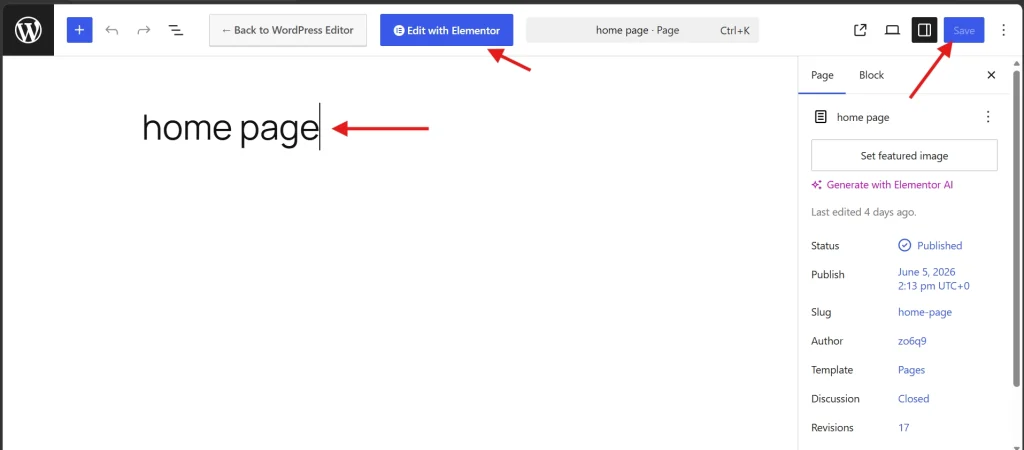
Go to your WordPress dashboard and navigate to Pages, then click Add New. Give your page a title, then click Edit with Elementor. When the editor loads, resist the temptation to start building immediately. Instead, look at the bottom left corner of the screen and click the gear icon. This opens your Page Settings panel.
Set your Page Layout to Elementor Full Width. This option keeps your theme’s header and footer in place while giving you total control over the content area in between. If your theme is getting in the way or you want a completely custom look from top to bottom, choose the Canvas layout instead, which removes the theme entirely. For most standard pages, Full Width is the right starting point.
While you are in settings, also confirm that your global styles are ready to go. If you have not already configured your brand colors and typography, do that now by following Setting Up Global Colors and Fonts in Elementor. Skipping this step means you will manually style every heading and button on every page, which is exactly the kind of inconsistency that makes a site look amateurish and takes forever to fix later.
Pro Tip: Define your global styles once and build everything from that foundation. Every H1, H2, button, and link should pull from your centralized style guide. Designers who do this maintain consistent, professional output at a fraction of the time cost.
Why Elementor Containers Are the Only Way to Build in 2026
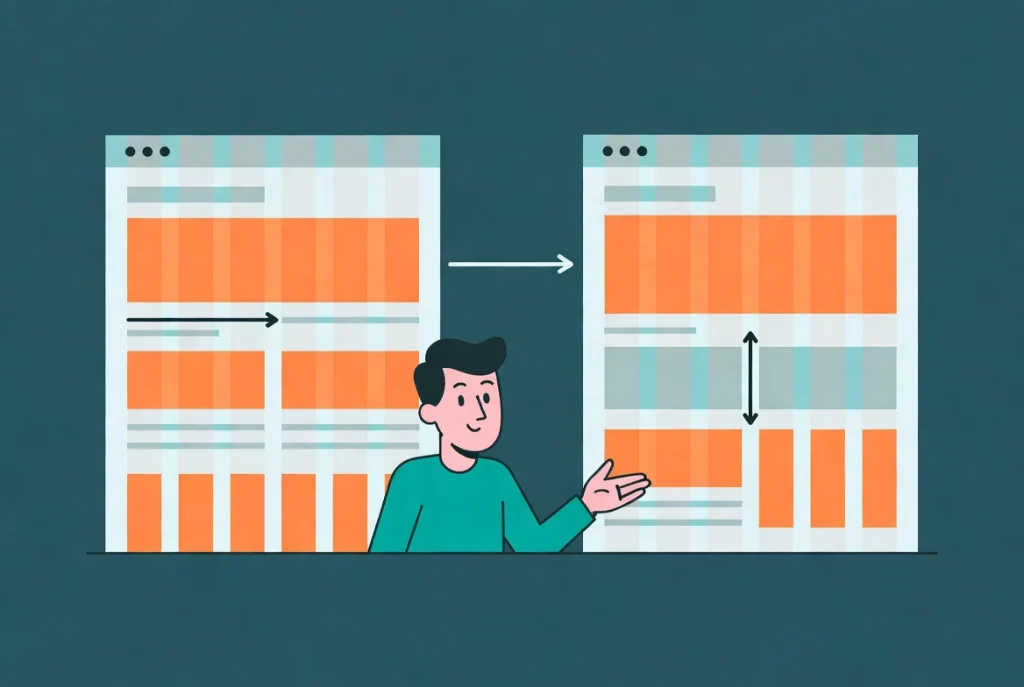
If you learned Elementor even two or three years ago, you probably built with Sections and Columns. That system is now outdated. In 2026, the correct way to build in Elementor is with Flexbox Containers, and the difference matters more than you might think.
Containers use CSS Flexbox and CSS Grid logic, which is far more efficient for the browser to process than the old wrapper-heavy column system. Switching to Containers reduces the number of wrapper divs in your page code by roughly 40 percent. Fewer divs means a leaner DOM, faster rendering, and better Lighthouse scores. If you are not yet familiar with how Containers work, read How to Use Elementor Flexbox Containers: A Beginner’s Guide before you continue. The mental model is simple once it clicks: a Container is a box that holds other boxes, and you control how those inner boxes align and flow.
To add your first Container, click the blue plus icon in the center of the canvas. Choose a direction for the Container. For a standard hero section, a vertical direction works best, meaning your content stacks from top to bottom inside it. Once the Container is on the canvas, click on it to open its settings in the left panel, then set the Content Width to Boxed, usually at 1140px or 1280px, which covers the standard range for modern desktop displays. Set the Min Height to 80vh so the hero section takes up 80 percent of the viewport height on most screens, creating a focused first impression without pushing other content completely off screen.
Warning: Do not set your hero Container to 100vh Full Height if your site has a sticky header. On mobile devices, this combination causes layout shifts because the sticky header eats into the viewport without the browser recalculating the full height value.
Building Your Very First Page from Scratch
If you’re completely new to Elementor, starting with a blank canvas can feel a little intimidating. This introductory tutorial walks you through the absolute basics of the interface, showing you how sections, columns, and widgets all pieced together to create a beautiful web page. It’s the perfect starting point to help you get comfortable dragging elements around and designing your first layout without touching any code.
Plan Your Page Structure Before You Add Content
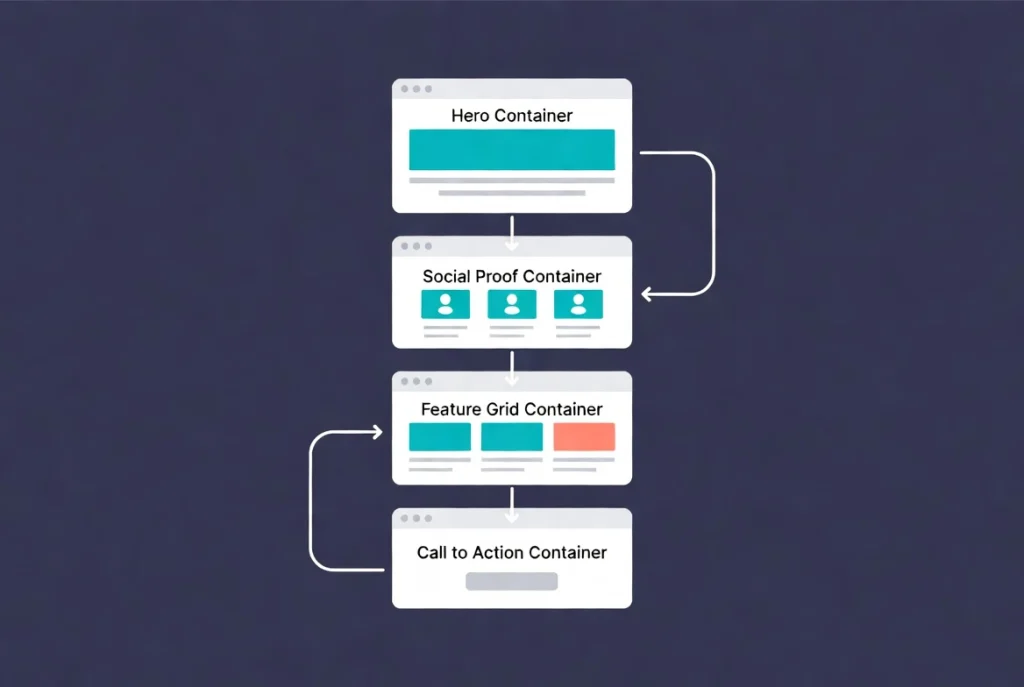
Before you start filling Containers with widgets, take two minutes to map out the structure of the entire page. This is the habit that separates builders who finish pages in two hours from those who spend all day moving things around and still feel like something is off.
A high-converting page almost always follows the same logical sequence. It starts with a Hero Container, which carries the primary value proposition and immediately answers the visitor’s question of what this page is about and why they should care. Below that comes a Social Proof Container, where you display client logos, testimonials, or trust indicators that reduce friction and build credibility. After that, a Feature Grid Container breaks down the specific benefits or capabilities of your product or service in a scannable format. Finally, a Call to Action Container closes the page with a single, focused prompt that tells the visitor exactly what to do next.
Build these four Containers first as empty placeholders. Get the structure right before you add a single word or image. This approach means you are never redesigning the layout mid-build, which is where most of the wasted time actually goes.
Adding Widgets the Right Way: Headings, Text, Images, and Buttons
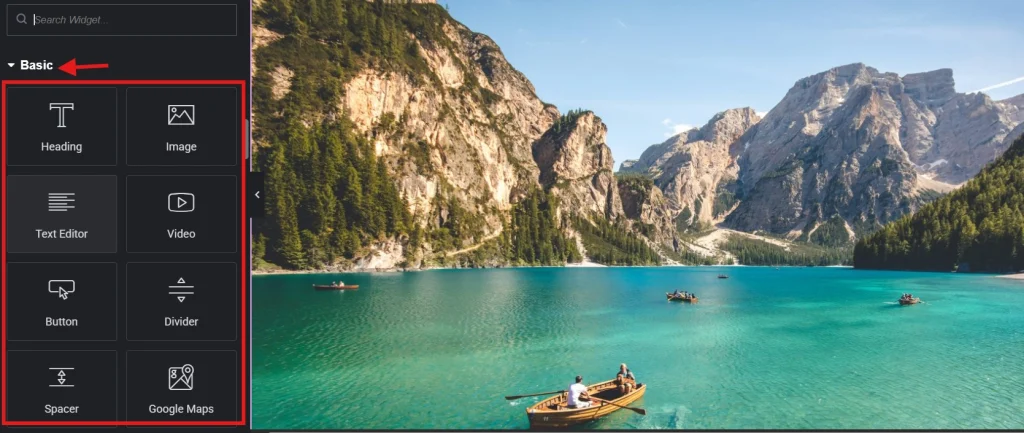
With your structure in place, it is time to fill the Containers with content. The key principle here is using the right widget for the right job, rather than defaulting to the same handful of widgets for everything.
Start with your hero heading. Drag a Heading widget into the Hero Container. In the Content tab, set the HTML Tag to H1. You get exactly one H1 per page, so make it count. Use specific, outcome-focused language rather than generic slogans. A headline like “Enterprise Mobile Development with 99.9% Uptime” tells a potential client exactly what they are getting. A headline like “We Build Great Apps” tells them nothing they could not find on a hundred other sites. Precision wins attention.
Below the H1, add a Text Editor widget for your subheadline. Keep this under 25 words. Long paragraphs in a hero section kill engagement before the visitor has even decided whether to scroll. Give them a clear, concise hook, then get out of the way.
For images, think carefully about whether an image actually needs its own widget. If an image is purely decorative, use it as a background style directly on the Container. Set it via the Style tab using background-size: cover, which handles responsiveness automatically and scales the image correctly across all screen sizes. Reserve the Image widget for images that carry meaning, diagrams, product photos, portraits, and anything that a screen reader should describe. When you do use the Image widget, always fill in the Alt Text field. In 2026, search engines penalize pages that skip descriptive alt tags, and screen reader users depend on them to navigate visual content.
Buttons are where conversions happen. Drag a Button widget below your hero text and write the label as a specific action rather than a generic placeholder. “Get the Technical Audit” converts better than “Learn More.” “View the Case Study” outperforms “Click Here” every time. In the Style tab, set the border-radius to match your brand. Keep box shadows minimal. Heavy shadows require extra browser repaints, which slows down mobile scrolling and hurts your performance score.
Building the Feature Section With a Grid Container
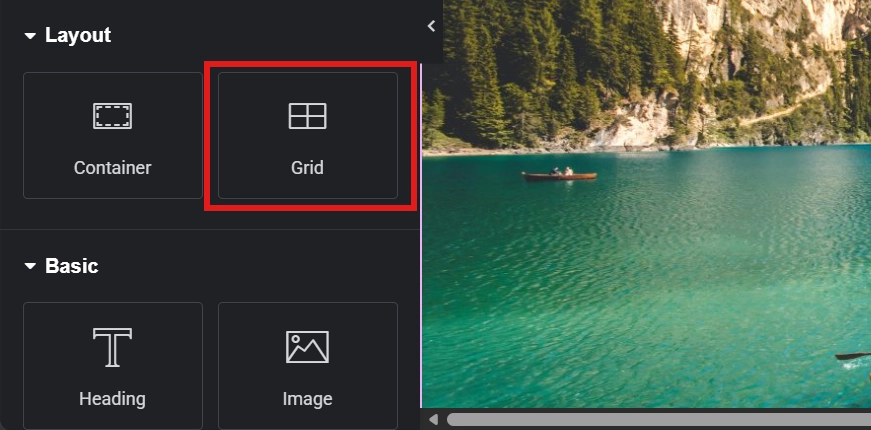
For the Feature Grid section, use a Grid Container rather than a standard Flexbox Container. Grid logic allows you to create a three-column layout that automatically wraps into a single column on smaller screens without writing a single line of custom CSS.
Inside each grid cell, use an Icon Box widget. When it comes to the icons themselves, always use SVG format. Do not load an entire icon font library like FontAwesome just because you need three icons. Pulling in a full font library for three small graphics is inefficient and adds unnecessary weight to your page. Upload your own SVGs directly through the Elementor media library. SVGs are tiny in file size, infinitely scalable without quality loss, and fully supported across all modern browsers. Using these modern CSS layout techniques also ensures your site stays compatible with future browser updates without needing to go back and rebuild layouts.
Adding Motion and Video Without Destroying Your Performance Score
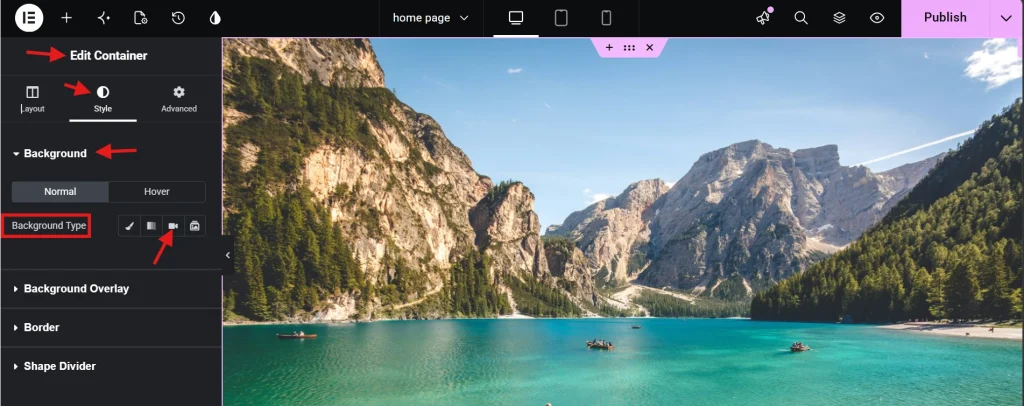
A static page can feel flat, and it is tempting to add animations and video backgrounds to add some energy. You can do this, but only with discipline. Too many animations on a single page will tank your Core Web Vitals score, especially on mobile devices with slower processors.
If you want to add a video background to your hero section, follow the process outlined in Adding Video Backgrounds to Elementor Sections. Keep the video file under 2MB and use the WebM format wherever possible. WebM offers the best compression-to-quality ratio among video formats, and 2026 browser standards heavily favor it over legacy MP4. The video should serve a functional purpose, reinforcing your brand or demonstrating a product, not just playing in the background for the sake of motion.
For entrance animations on individual widgets, use them sparingly. One or two subtle fade-in effects can guide the eye down the page. Twenty animated elements firing at once creates visual chaos and forces the browser to work overtime on every scroll event.
Mobile-First Hardening: Making Every Element Work on Small Screens
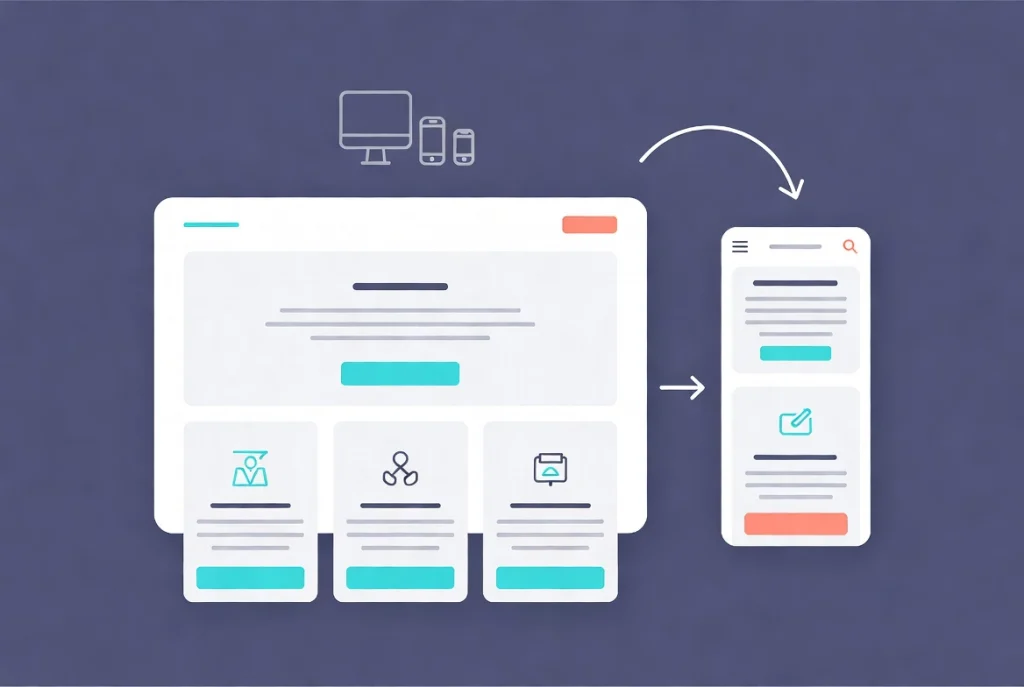
Over 65 percent of web traffic now comes from mobile devices. Building a great desktop layout and then hoping it works on a phone is not a strategy. Mobile optimization is a required part of the build process, and Elementor makes it straightforward once you know where to look.
At the bottom of the Elementor editor panel, you will see responsive breakpoint icons for Desktop, Tablet, and Mobile. Click the Mobile icon. Now you are editing specifically for small screens. Check your hero heading first. It will almost certainly be too large. Reduce the font size for the mobile breakpoint only. This change does not touch your desktop layout at all.
Next, check your Container padding. Eighty pixels of padding on each side looks polished on a wide desktop monitor. On a phone screen, that same padding eats up nearly the entire usable width and squeezes your content into a narrow strip. Drop your mobile padding to 15px or 20px. While you are there, also check your button sizes. The minimum tap target size is 44×44 pixels, according to responsive web design usability standards. Anything smaller fails Google Search Console’s usability test and frustrates real users trying to tap with their thumbs.
If a background image makes your mobile text unreadable, go to the Advanced tab for that element and look under the Responsive section. You can hide specific elements on mobile using this toggle. Use this option carefully though. If the content matters to desktop users, it probably matters to mobile users too. Rather than hiding things, look for a way to restack the content into a better vertical flow that works for both contexts.
Pro Tip: Always test your mobile layout on an actual device, not just in the Elementor responsive preview. The preview gives you a rough idea, but real browsers on real phones sometimes render things differently. Five minutes of physical device testing catches issues that the simulator misses.
Run a Performance Audit Before You Publish Anything
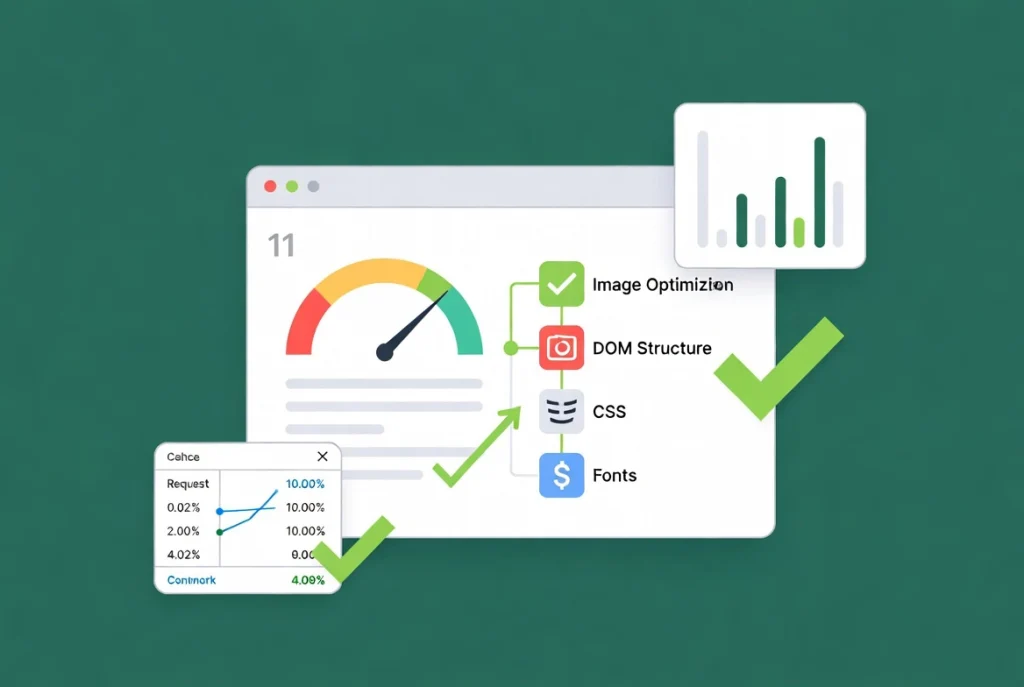
This is the step most beginners skip, and it is also the step that most determines whether your page actually performs in search and in the real world. Before you click Publish, you need to audit the page.
Open your page in a private browser window. Open the browser’s developer tools by right-clicking the page and selecting Inspect. Navigate to the Lighthouse tab and run a full report. You are targeting a Performance score above 90. Anything below that is leaving money and rankings on the table.
The four most common issues you will encounter are these. First, unoptimized images. Install a plugin to convert all images to WebP or AVIF format automatically on upload. Second, excessive DOM size, which happens when you nest too many Containers inside each other without good reason. Simplify your structure wherever possible. Third, unused CSS loading on the page. Elementor has an experimental feature in its settings menu under Features that loads CSS conditionally, meaning only the styles needed for that specific page load, rather than the entire library. Enable it. Fourth, render-blocking fonts. In your Global Fonts settings, make sure your fonts are set to the Swap display mode. This tells the browser to show text immediately in a system font while the custom font downloads in the background, which dramatically improves your First Contentful Paint score.
Once all four scores in Lighthouse are green, you are ready to publish. Click the Update button. What you have just built is not just a visual layout. It is a high-performance digital asset built on a technical foundation that will hold up under real traffic and real scrutiny.
Additional Resources
- WordPress Basics and Installation: The Complete Beginner’s Guide
- Getting Started with Elementor in 2026: The Complete Guide
- How to Use Elementor Flexbox Containers: A Beginner’s Guide
- Setting Up Global Colors and Fonts in Elementor
- Adding Video Backgrounds to Elementor Sections
- Elementor Interface Tour: Understanding the Editor Panel
- Responsive Design Basics: Making Elementor Sites Mobile-Friendly
- Basic SEO Settings for Elementor Pages
- Elementor Best Practices for Beginners
- How to Preview and Publish Your Elementor Page
- MDN Flexbox Documentation
- Responsive Web Design: Wikipedia Overview
Final Thoughts: Build Once, Build Right
Every page you build carelessly in Elementor creates technical debt you will eventually have to pay. Every container you add without purpose, every image you upload without compressing, every widget you pile on without thinking about mobile, all of it accumulates into a site that is harder to maintain, slower to load, and less likely to rank.
Creating your first page with Elementor the right way takes a little more thought upfront. Configure your page settings before you build. Set up global styles before you touch a widget. Plan your Container structure before you add content. Test on mobile before you publish. Audit your performance before you call it done. These are not extra steps. They are the actual job.
Once you have this one page built correctly, the next one gets faster. The one after that gets faster still. The habits you build here will carry through every project you take on, and they are what ultimately separate a site that just exists from a site that actually works. Keep going, and if you ever need to go back to the WordPress fundamentals, the WordPress basics and installation guide is always there as your foundation.