How to Add and Style Images in Elementor (2026)
Elementor’s Image widget can select a Media Library image, control display size and alignment, apply visual effects, add a caption, and link the image. A production-ready image also needs the right dimensions, compression, alternative text, responsive crop, licensing, and destination behavior.
Prepare the image before upload.
- Confirm ownership, license, attribution, and model or property releases when applicable.
- Crop to the composition and aspect ratio the layout needs.
- Export close to the largest rendered dimensions, allowing for high-density displays where needed.
- Use JPEG/WebP/AVIF for photographic content where the workflow supports it and PNG or SVG only when their properties are required.
- Compress while checking visible quality.
- Use a descriptive filename without keyword stuffing or personal data.
Do not upload a multi-megabyte original and expect a 300-pixel widget width to solve performance. WordPress can generate responsive sizes, but the source and selected size still matter.
Add the Elementor Image widget.
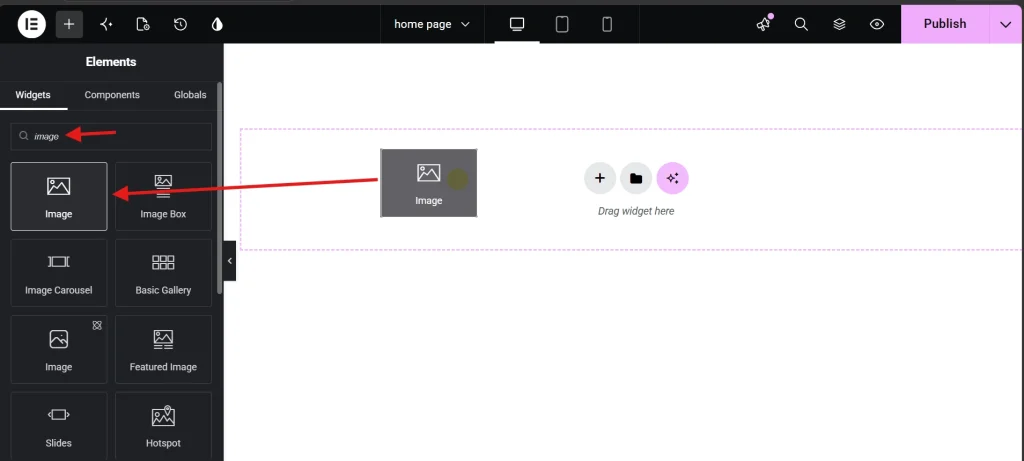
- Drag the Image widget into the intended container.
- Select Choose Image and use the Media Library.
- Choose an appropriate WordPress image size rather than Full when a smaller derivative is sufficient.
- Select a caption source only when the caption adds useful context or attribution.
- Choose None, Media File, or Custom URL for the link based on a real interaction need.
Write alt text for purpose, not SEO decoration.
Describe the information or function an image contributes in its context. If a linked image performs an action, the alternative text should communicate that action or its destination. If nearby text already conveys the same information and the image is decorative, use an empty alt attribute. Avoid “image of,” filenames, captions copied blindly, and keyword lists.
Elementor’s own accessibility guidance recommends descriptive alt text for informative images and empty alt text for decorative ones. Alt text can support image discovery, but its primary job is equivalent access. Our Elementor best-practices guide covers the surrounding heading, link, and keyboard checks.
Control size without distortion
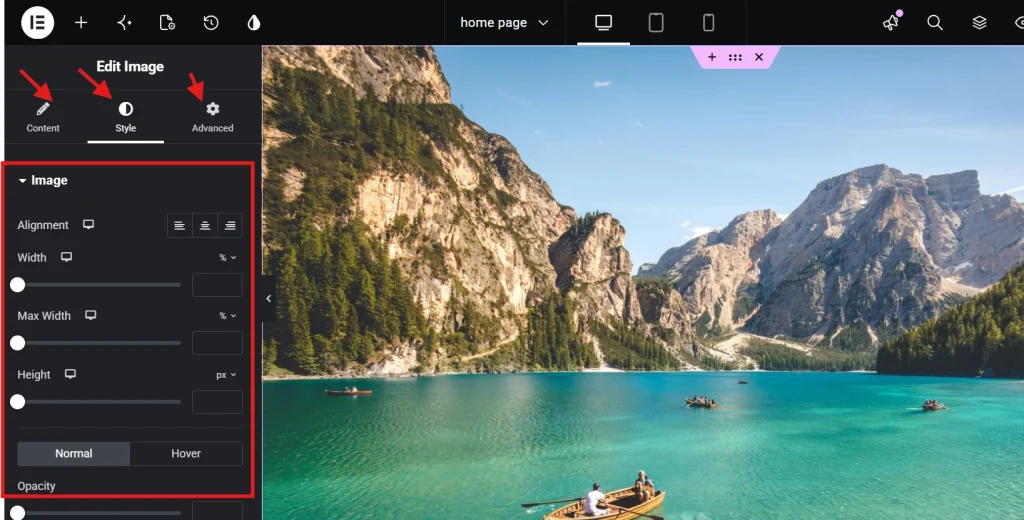
Set the display width relative to its container and let height remain automatic for an uncropped image. When a fixed card or hero crop is required, use a consistent aspect ratio and object-fit behavior, then verify the subject remains visible at each breakpoint. Do not stretch a low-resolution image or distort one axis independently.
Use visual effects with restraint.
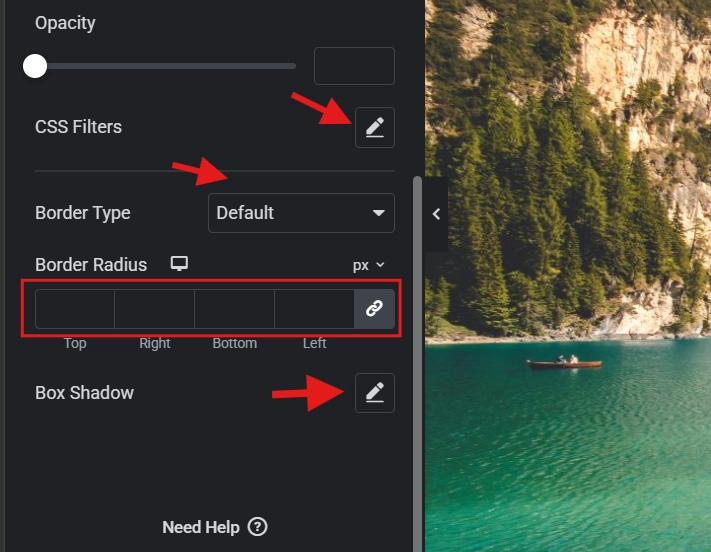
A subtle radius or shadow can distinguish a card, but repeated heavy effects reduce clarity. CSS filters change presentation, not the source file. Check hover styles with keyboard focus and touch devices; a meaning available only on hover is not dependable. Avoid motion effects that distract or ignore reduced-motion preferences.
Responsive images and performance
WordPress normally outputs srcset and sizes for Media Library images, allowing the browser to choose a suitable file. Preserve that pipeline by using the Image widget and registered media sizes. Elementor’s performance settings can apply priority to likely LCP images and lazy loading below the fold, but confirm the rendered HTML and measure the actual page.
- Do not lazy-load the likely above-the-fold LCP image without testing.
- Do lazy-load ordinary below-the-fold images when the platform does so safely.
- Reserve dimensions to reduce layout shifts.
- Limit decorative images that add requests without information.
- Test on a mobile connection and inspect transferred bytes, not just a score.
When to use a background image instead
Use an Image widget when the image is content, needs alternative text, or should be in the document flow. Use a container background for decoration or a visual layer behind content. Essential information should not exist only in a CSS background because it has no native image alternative. See our Elementor backgrounds and overlays guide.
Pre-publish image checklist
Image questions
Should every image have alt text?
Every image needs an alt decision, not necessarily words. Informative and functional images need an equivalent description; decorative images should normally have empty alt text so assistive technology can skip them.
Is WebP always better than JPEG?
Modern formats often compress efficiently, but you should compare the actual file size, visible quality, transparency, animation, editing workflow, and compatibility requirements. Use the smallest acceptable result rather than changing the extension as a ritual.
Why is an image blurry in Elementor?
The selected media library size may be smaller than the rendered area, the source may lack resolution, or optimization may be too aggressive. Inspect the browser’s selected source and displayed dimensions before uploading a significantly larger replacement.
Why is a correct image cropped on mobile?
Check fixed dimensions, aspect ratio, object-fit, container overflow, and breakpoint-specific settings. A separate crop can be appropriate when the subject cannot survive one composition across all aspect ratios, but avoid duplicating downloads unnecessarily.
Confirm license, crop, dimensions, compression, selected media size, responsive behavior, alt decision, caption or attribution, link destination, and loading behavior. Test the page logged out and verify there are no broken media URLs or layout shifts using our responsive Elementor workflow. Elementor’s current Image widget documentation explains its controls; the editorial and performance decisions remain specific to each image’s purpose.