
I once handed a client a landing page I had spent two days building, proud of every section. They opened it on their phone, looked at me, and said: “Why does it have the full site menu at the top?” I had built the entire page on Full Width layout. The navigation bar sat there, offering visitors eleven ways to leave the page before they ever read the headline. We switched to Canvas layout, republished, and the inquiry rate doubled within the first week. Choosing the right Elementor page layout is not a minor technical detail. It is a strategic decision that shapes every visitor’s experience from the first second they land on the page. This guide covers exactly when to use Canvas, when to use Full Width, and how to switch between them without confusion. If the Elementor editor is still new territory, the Getting Started with Elementor guide covers the interface foundation worth having first. For the WordPress layer beneath everything here, the WordPress basics and installation guide is where that foundation starts.
⚡ Quick Summary (TL;DR)
- Page layout settings dictate how your active theme interacts with a builder, determining whether default structural headers and footers appear.
- The Elementor Full Width layout preserves your theme’s default navigation and footer to maintain consistent site orientation for informational pages.
- The Elementor Canvas layout wipes the screen entirely blank to eliminate distracting links and keep visitors focused on a single call to action.
- Changing individual layout styles takes just two clicks within the page settings panel and will never impact other published pages across your site.
- Forgetting to explicitly define your global styling on a canvas page can lead to unstyled fonts and broken design hierarchy.
What Page Layouts Actually Control in Elementor

A page layout setting controls how Elementor interacts with the active WordPress theme. It determines whether the theme’s header, footer, and sidebar appear alongside the Elementor content area or get removed entirely. This single setting shapes the entire visual environment a visitor encounters when they land on the page.
Elementor offers several layout options depending on the active theme. Two stand out as the most strategically important: Elementor Full Width and Elementor Canvas. Both give Elementor control over the main content area. The critical difference is what happens to everything surrounding that content area.
Elementor Full Width: Consistency Across the Site
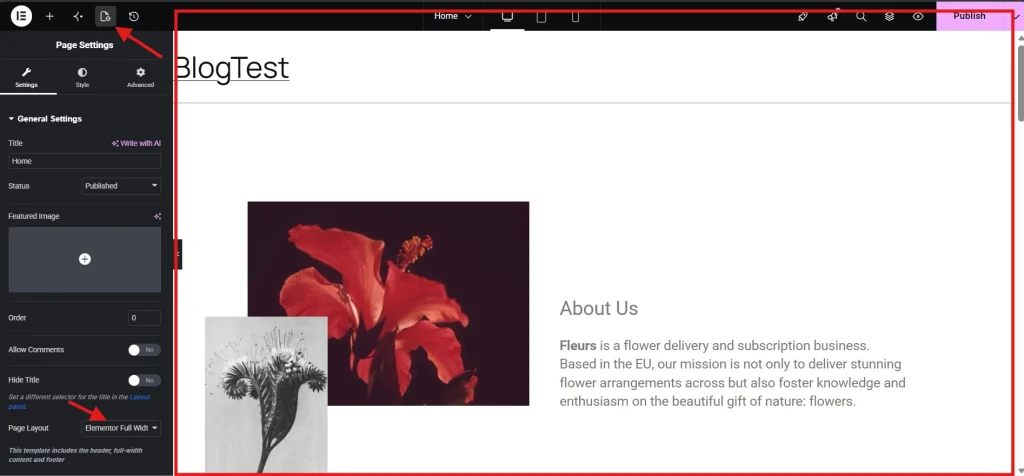
Full Width keeps the theme’s header and footer visible while giving Elementor complete control over the main content area between them. The site navigation stays in place. The footer with its links and copyright information remains at the bottom. Any sidebar the theme includes continues to appear if the page template calls for it.
This layout suits pages where visitors need to feel oriented within the broader site. Blog posts, About pages, Contact pages, and service description pages all benefit from Full Width because users arrive expecting to navigate. Removing the header from an informational page creates a dead end that frustrates visitors and increases bounce rates. Research from the Nielsen Norman Group consistently confirms that consistent navigation across informational pages directly supports user orientation and task completion. Full Width delivers that consistency without requiring any extra design work.
Best Use Cases for Full Width
Any page that serves an informational purpose and sits within a navigation structure belongs on Full Width. Blog posts need it because readers expect to move between articles. About and Contact pages need it because visitors arriving from external sources need to explore the rest of the site. Product and service description pages need it because brand recognition depends on consistent visual identity across every touchpoint.
Elementor Canvas: Total Control for Focused Pages
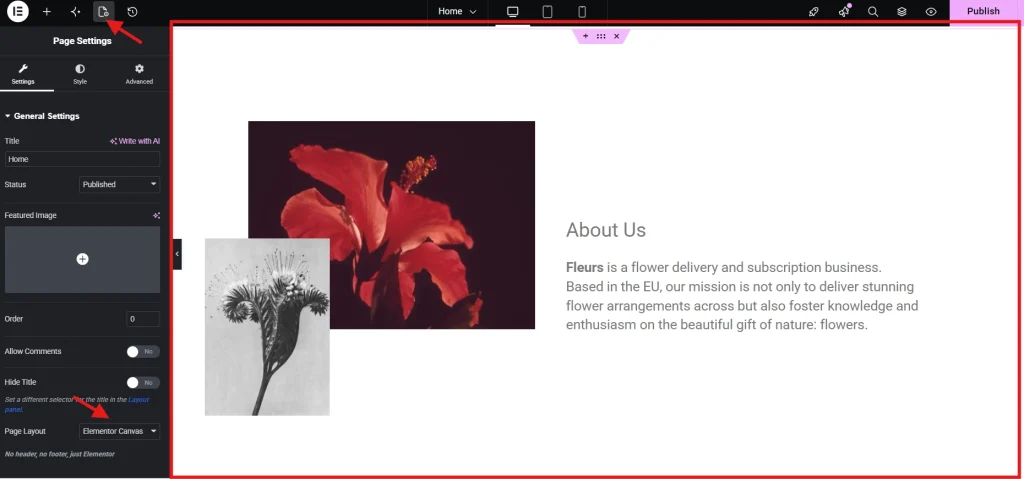
Canvas removes the theme’s header, footer, and sidebar entirely. The page renders as a blank HTML document containing only what is built inside the Elementor editor. No navigation links, no footer menus, no sidebar widgets, nothing the theme provides automatically.
This layout exists for pages where every element on the screen should point toward a single action. Landing pages for marketing campaigns, dedicated sales pages, coming soon pages, and maintenance mode pages all belong on Canvas. HubSpot’s research on landing page performance consistently shows that reducing navigational elements increases conversion rates by eliminating paths away from the primary call to action. Canvas makes that reduction automatic rather than requiring CSS tricks to hide theme elements manually.
Best Use Cases for Canvas
Any page built around a single conversion goal belongs on Canvas. A lead generation page sending paid traffic from an ad campaign loses conversions every time a visitor clicks the navigation menu instead of the CTA button. A product launch page with a countdown timer and a single purchase button performs better without a footer full of links pulling attention downward. The rule is simple: if the page has one goal and navigation would distract from it, use Canvas.
How to Change the Page Layout in Elementor
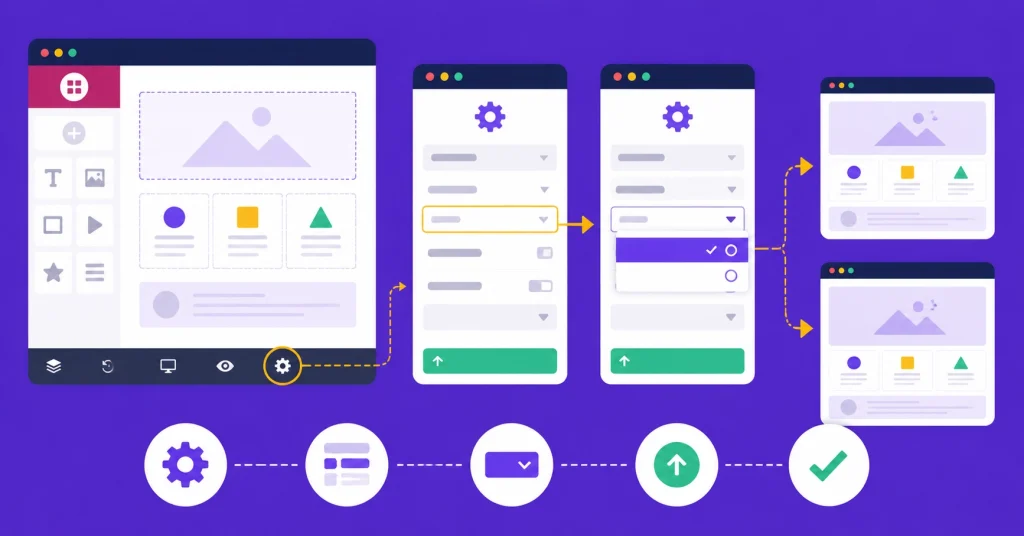
Open the page in the Elementor editor. Click the gear icon in the bottom-left corner of the sidebar panel. This opens Page Settings. Find the Page Layout dropdown near the top of the settings panel. Click it and select either Elementor Full Width or Elementor Canvas depending on the page’s purpose. Click the green Update button at the bottom of the sidebar to save the change. The page immediately renders with the new layout on the live site.
This setting applies per page. There is no global toggle that switches all pages to Canvas or Full Width at once. That granularity is intentional. Different pages on the same site serve different purposes and need different layout environments. Changing one page’s layout never affects any other page on the site.
Comparing Canvas and Full Width Side by Side
| Feature | Full Width | Canvas |
|---|---|---|
| Theme Header | Visible | Removed |
| Theme Footer | Visible | Removed |
| Global Theme Styles | Applied automatically | Must define manually |
| Best For | Informational pages, blogs, service pages | Landing pages, sales pages, campaign pages |
| Conversion Focus | Low to medium | High |
| Design Responsibility | Shared with theme | Entirely in Elementor |
Common Mistakes to Avoid

Using Full Width on a conversion-focused page is the most costly mistake. Every navigation link in the header is a potential exit from the conversion funnel. Using CSS to hide the header on a Full Width page works technically but creates maintenance overhead. Switching to Canvas is cleaner and faster.
Building a Canvas page and forgetting that the theme provides no default styles is the second most common mistake. Fonts, colors, button styles, and spacing that the theme handles automatically on Full Width pages must be defined explicitly in Elementor on Canvas pages. Setting up global colors and fonts before building any Canvas page prevents unstyled elements from appearing. The guide on Setting Up Global Colors and Fonts in Elementor covers that setup in full.
Switching layouts inconsistently across similar page types creates a disjointed experience. About pages, Contact pages, and service pages should all use the same layout unless a specific strategic reason justifies the exception. Every layout choice should serve a clear purpose rather than reflecting an accidental setting left from a previous edit. Planning page structure before beginning a build is a strong habit. The guide on How to Create Your First Page with Elementor covers that planning process in detail.
Advanced Layout Management with the Theme Builder
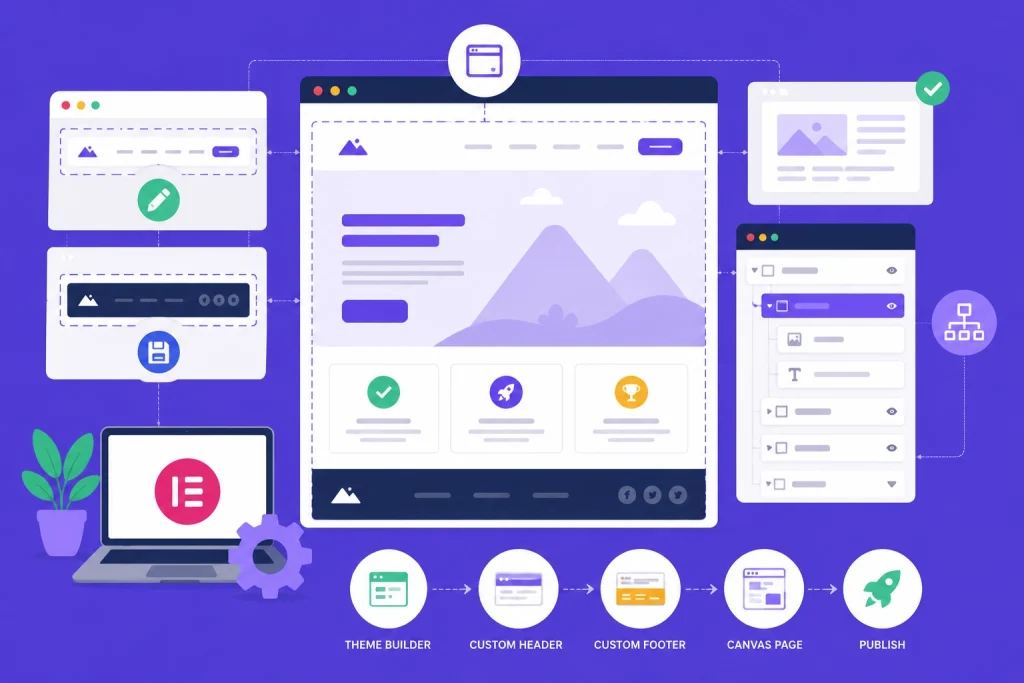
Elementor Pro’s Theme Builder offers a hybrid approach that sits between Full Width and Canvas. It allows custom headers and footers designed entirely in Elementor to replace the theme’s defaults while keeping the site’s structural integrity intact. A Canvas page for a landing campaign can include a minimal branded header saved as a template and inserted at the top of the page without touching the theme at all. The Elementor Navigator helps manage the structure of complex Canvas pages by making the container hierarchy immediately visible, which is especially useful when building a full-page layout with no theme scaffolding to fall back on.
Additional Resources
- WordPress Basics and Installation: The Complete Beginner’s Guide
- Getting Started with Elementor in 2026: The Complete Guide
- How to Create Your First Page with Elementor
- Setting Up Global Colors and Fonts in Elementor
- Elementor Navigator: How to Manage Complex Layouts
- How to Build a High-Converting Landing Page with Elementor
- Using the Elementor Divider and Spacer Widgets
- Responsive Design Basics: Making Elementor Sites Mobile-Friendly
- How to Save and Reuse Elementor Templates
- How can I get a full screen canvas in the editor? | Elementor
Final Thoughts: Every Layout Choice Should Serve a Purpose
Full Width and Canvas are not interchangeable defaults. Each one serves a specific type of page and a specific visitor experience. Informational pages that live within a site’s navigation structure belong on Full Width. Conversion-focused pages with a single goal belong on Canvas. Making that distinction deliberately from the start of every new page build eliminates a category of performance problems that no amount of design polish can fix after the fact. If you need to revisit the WordPress foundation beneath all of this, the WordPress basics and installation guide is always the right place to start.