Elementor SEO Checklist: 7 Essential Page Settings (2026)
Six months after launching a client’s Elementor site, we checked Google Search Console together. The pages were indexed. The design looked professional. Traffic from organic search was essentially zero. We had spent weeks perfecting every section, choosing fonts, refining colors, and testing mobile layouts. No afternoon had been spent on the SEO settings. The meta titles were all “Home” and “Page.” The URLs were strings of random numbers. The heading structure jumped from H1 directly to H4 on three key pages. Every basic SEO signal the site sent to Google was wrong. Fixing those settings took two days. Organic traffic started climbing within six weeks. Good Elementor design and basic SEO settings are not separate disciplines. One earns the visitor’s trust. The other ensures the visitor ever arrives. This guide covers the seven foundational SEO settings that every Elementor page needs before it goes live. If the Elementor editor is still new, the Getting Started with Elementor guide covers the interface foundation first. For the WordPress layer beneath everything here, the WordPress basics and installation guide is where that foundation starts.
⚡ Quick Summary (TL;DR)
- Foundational optimization must happen alongside design because search engines rely on backend signals rather than visual aesthetics to rank a webpage.
- Configuring meta titles and descriptions through an integrated WordPress plugin turns standard search listings into high-converting organic real estate.
- Switching to a clean permalink structure creates short, keyword-rich URLs that human visitors and search crawlers instantly understand.
- Establishing a logical heading hierarchy with a single H1 tag ensures that search engines can easily read and navigate your content.
- Adding descriptive alt text and compressing images provides a significant boost to your overall page speed and mobile responsiveness.
Why Basic SEO Settings Cannot Wait Until After Launch
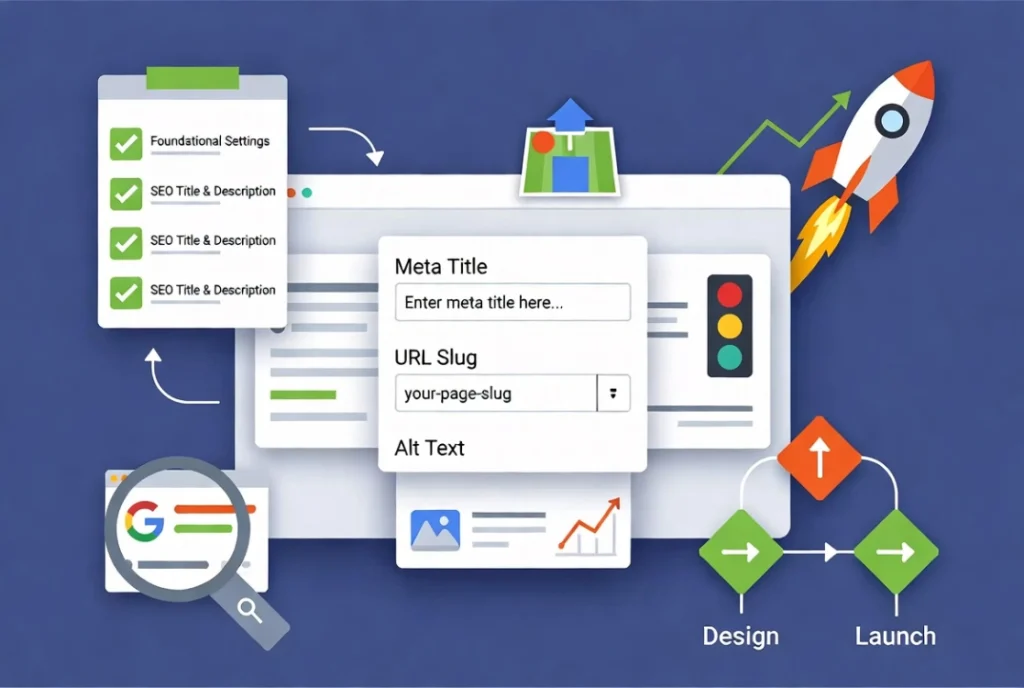
Google processes trillions of searches annually, and its algorithms decide which pages deserve visibility based on signals that Elementor’s design tools do not automatically generate. A stunning page with no meta title, a generic URL, and unoptimized images sends the same signal to a search crawler as an empty page. Pages ranking on Google’s first page capture the vast majority of search clicks. Everything below position ten on page one receives dramatically less traffic. Setting the foundational settings correctly from the start provides every Elementor page a realistic chance of reaching that tier.
1. Meta Titles and Descriptions: Your Search Result Real Estate
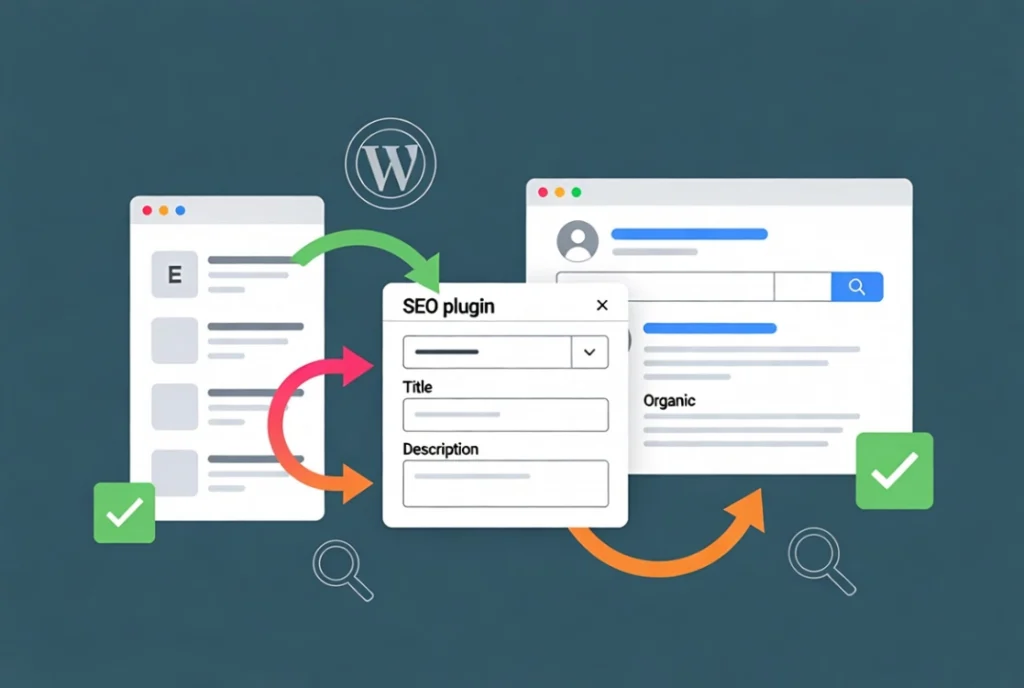
The meta title appears as the clickable headline in Google search results. The meta description sits beneath it as the short summary that convinces someone to click. Both are the first thing a potential visitor sees before they ever reach the page, which makes them the most important copy on any site that relies on organic traffic.
Elementor does not manage these fields directly. A dedicated SEO plugin handles them. Yoast SEO and Rank Math are both excellent choices and integrate cleanly with WordPress and Elementor. After editing a page in Elementor, return to the WordPress editor to find the SEO plugin’s meta box and configure both fields there.
Meta titles should stay between 50 and 60 characters, contain the primary keyword, and accurately describe the page content. Meta descriptions need to stay under 160 characters, include relevant keywords naturally, and give the reader a compelling reason to click. Every page on the site needs a unique meta title and description. Duplicate meta content is one of the most common and most avoidable SEO mistakes across Elementor-built sites.
2. Permalink Structure: Clean URLs That Signal Relevance
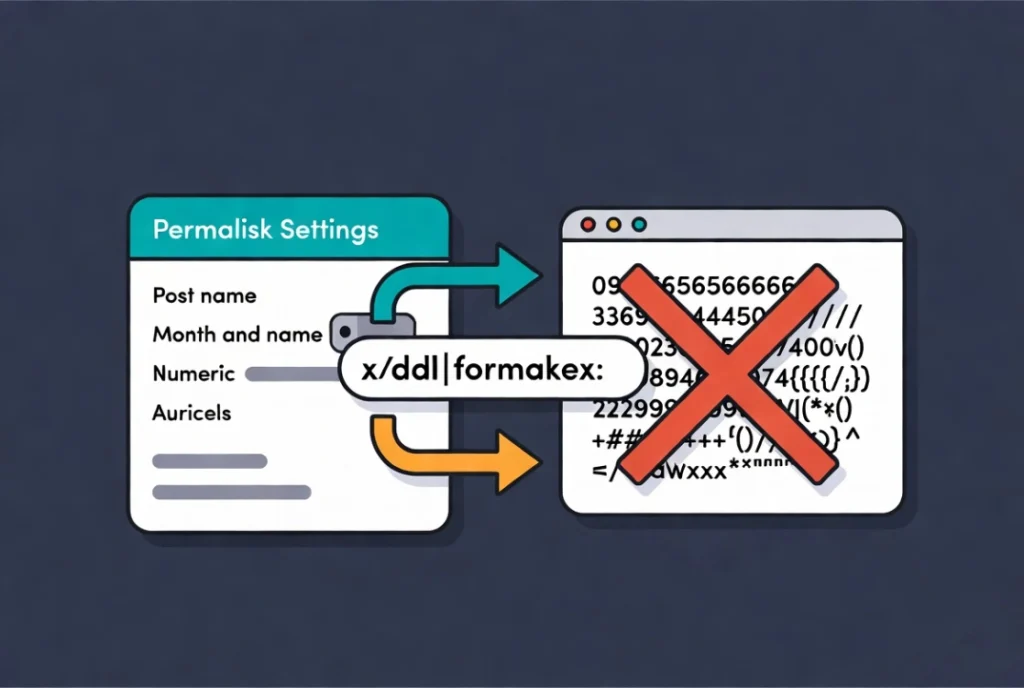
A URL is both a navigation tool for visitors and a relevance signal for search engines. A clean, descriptive URL communicates the page topic before anyone reads a single word of the content. The URL `yourdomain.com/basic-elementor-seo` tells Google and the visitor exactly what the page covers. The URL `yourdomain.com/p=1234` tells neither of them anything useful.
From the WordPress dashboard, go to Settings, then Permalinks, and select the Post name option. This sets the global structure. For individual pages, the Permalink field in the WordPress editor lets you set a custom slug. Keep slugs short, use the primary keyword, separate words with hyphens, and remove stop words like “and,” “the,” and “of” that add length without adding meaning. Avoid dates in page URLs unless the content is explicitly time-sensitive, because dated URLs become a liability when content gets updated years later.
3. Heading Structure: Content Hierarchy That Search Engines Read
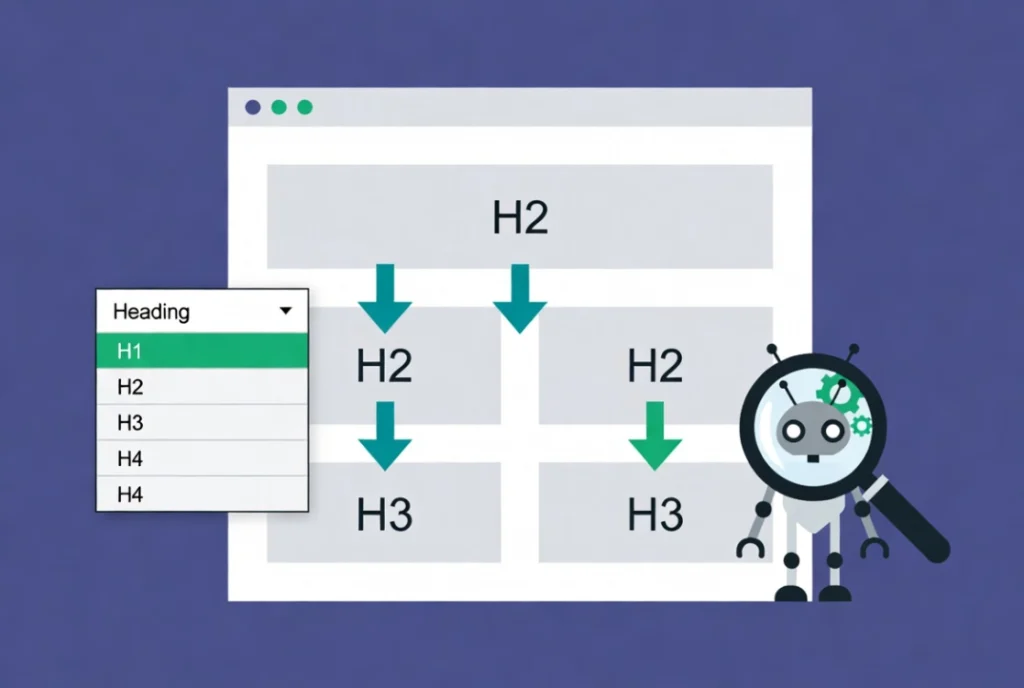
Elementor’s Heading widget controls the HTML tag assigned to every heading on the page. That tag assignment matters as much as the visual styling. Search engine crawlers use heading hierarchy to understand how content is organized and which topics a page prioritizes.
Every page needs exactly one H1 tag containing the primary keyword. It belongs at the top of the content and clearly states what the page is about. H2 tags break the content into major sections. H3 tags subdivide within those sections. Skipping levels, such as jumping from H1 directly to H3 without an H2, breaks the logical hierarchy that both crawlers and screen readers depend on. In the Elementor Heading widget, the HTML Tag dropdown in the Content tab controls the tag assignment independently from the visual size. Changing the font size does not change the HTML tag. Both settings require deliberate configuration. For a deeper look at heading best practices in Elementor, the guide on Understanding Elementor Sections, Columns, and Widgets covers the Heading widget’s full role in page structure.
4. Image Optimization: Speed and Accessibility in One Setting

Every image on an Elementor page affects two critical SEO factors simultaneously: page load speed and content comprehension. Google explicitly lists both as ranking signals, which makes image optimization one of the highest-return tasks in any SEO workflow.
Alt text is the most important image SEO setting and the most frequently neglected one. It tells search engines what the image depicts and provides the text that screen readers announce to visually impaired visitors. Every image uploaded to WordPress or added through the Elementor Image widget needs descriptive alt text that includes the relevant keyword where it fits naturally. A missing alt attribute on a page with twenty images means twenty missed opportunities to reinforce the page topic.
File size directly affects load time, and Elementor does not compress images on upload. Compress images before uploading using tools like TinyPNG or a plugin like Smush. Serve images in WebP format where possible. Name image files descriptively before uploading, using hyphens between words and including the primary keyword where relevant. The filename `elementor-seo-settings.jpg` communicates context to Google’s image crawler. The filename `IMG_004.jpg` does not.
5. Content Quality and Keyword Integration: What Google Actually Reads

Elementor builds the visual structure of a page. The words inside that structure are what search algorithms analyze for relevance and quality. High-quality content that genuinely answers the question a visitor typed into Google is the most durable SEO asset any page can have.
Keyword research identifies the exact terms a target audience uses. Tools like Ahrefs, SEMrush, and Google Keyword Planner surface the search volume and competition level for specific phrases. The primary keyword belongs in the H1 tag, the meta title, the first paragraph, and naturally throughout the body content. Secondary keywords and related phrases reinforce topical relevance without forcing unnatural repetition. Keyword stuffing, placing the same phrase repeatedly in ways that feel unnatural to a reader, triggers quality penalties from Google’s algorithms. Write for the visitor first and trust that covering a topic comprehensively naturally produces the keyword density that search engines reward.
User engagement metrics also factor into rankings. Visitors who spend time on a page, read through the content, and click internal links to related articles signal quality to Google. Internal linking between related Elementor pages keeps visitors engaged and distributes authority across the site at the same time.
6. Schema Markup: Telling Google Exactly What the Page Is

Schema markup is structured data code that gives search engines explicit context about a page’s content type. Article schema tells Google the page is an editorial piece. The FAQ schema can produce expandable question-and-answer results directly in the search listing. The local business schema helps the site appear in map results and local search packs.
Elementor Pro provides basic schema support for certain widget types. For comprehensive schema coverage across all page types, Yoast SEO and Rank Math both include schema builders that integrate directly with Elementor pages through the WordPress editor. Implementing the correct schema type for each page is one of the most underused SEO tactics on Elementor-built sites, particularly for FAQ pages, service pages, and blog posts where rich snippet eligibility is available.
7. Page Speed and Mobile Responsiveness: Technical Foundations
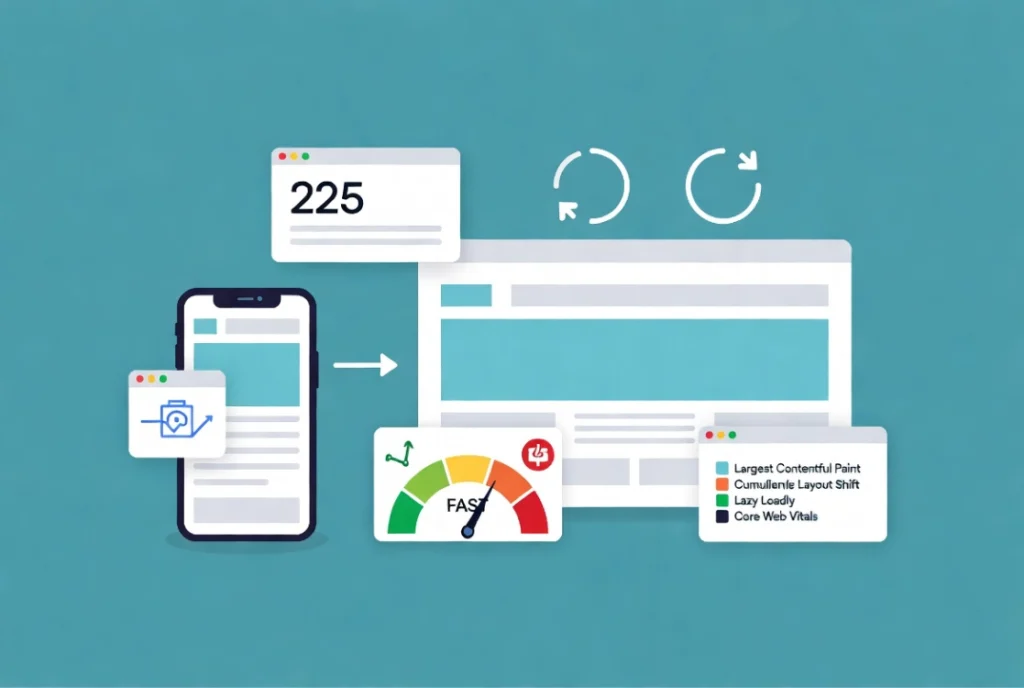
Google has used mobile-first indexing since 2018, which means the mobile version of an Elementor page is the version Google primarily evaluates for ranking. A page that looks perfect on desktop but breaks on a phone ranks based on the broken mobile version. Elementor’s responsive breakpoint controls let every element be adjusted independently at mobile and tablet screen sizes. Testing on real devices before publishing catches issues that the Elementor preview mode does not always reveal.
Page speed affects rankings through Core Web Vitals metrics that Google measures directly. Largest Contentful Paint, which measures how long the main visual content takes to appear, is particularly vulnerable to large image files, uncompressed video backgrounds, and excessive plugin scripts. Running Google PageSpeed Insights on every Elementor page after publishing identifies the specific issues pulling the score down. Limiting unnecessary widgets, removing unused plugins, and enabling lazy loading for images below the fold are the three fastest interventions for most Elementor pages.
Comparing SEO Plugin Options for Elementor Builds
| Feature | Yoast SEO | Rank Math |
|---|---|---|
| Meta title and description | Yes | Yes |
| Schema builder | Yes, Pro required for full control | Yes, free version included |
| XML sitemap | Yes | Yes |
| Readability analysis | Yes | Yes |
| Free plan depth | Strong fundamentals | More features in free tier |
Monitoring Performance with Google Search Console
SEO is not a one-time configuration. It is an ongoing cycle of implementation, measurement, and refinement. Google Search Console reveals how each Elementor page appears in search results, which keywords trigger impressions, what click-through rates look like, and whether any crawl errors are preventing proper indexing. Submitting the XML sitemap generated by the SEO plugin through Search Console ensures Google discovers every Elementor page on the site. Checking the Core Web Vitals report inside Search Console identifies which specific pages have speed issues that need attention before they become ranking penalties.
Google Analytics complements Search Console by showing what happens after visitors arrive. Bounce rates, time on page, and conversion rates for individual Elementor pages reveal whether the content is meeting visitor expectations. A high bounce rate on a well-ranked page usually signals a mismatch between what the search result promised and what the page delivers. That misalignment is a content problem, not a design problem, and addressing it requires revisiting the meta description and the page’s opening paragraph together.
Additional Resources
- WordPress Basics and Installation: The Complete Beginner’s Guide
- Getting Started with Elementor in 2026: The Complete Guide
- Understanding Elementor Sections, Columns, and Widgets
- Responsive Design Basics: Making Elementor Sites Mobile-Friendly
- Adding and Styling Images in Elementor
- Setting Up Global Colors and Fonts in Elementor
- How to Build a High-Converting Landing Page with Elementor
- Elementor Best Practices for Beginners
- Google PageSpeed Insights Documentation
Final Thoughts: Design Gets Visitors to Stay. SEO Gets Them There.
Every hour spent perfecting an Elementor layout is an hour that rewards visitors who arrive. Without the right SEO settings in place, far fewer visitors ever do. Meta titles, clean URLs, correct heading structure, optimized images, quality content, schema markup, and fast mobile-first performance are not advanced tactics. They are the baseline that every Elementor page should meet before a single visitor is sent to it. Set them correctly from the start, monitor performance through Search Console and Analytics, and refine based on what the data reveals. If you need to revisit the WordPress foundation beneath all of this, the WordPress basics and installation guide is always the right place to start.