
I spent the first three months of my Elementor journey doing something most beginners do without realizing it. I dragged widgets onto the canvas, moved things around until they looked close enough to what I had in my head, and called it done. The pages looked okay on my screen. On mobile, they were a mess. On a slow connection, they crawled. I had no idea why, because I had never stopped to understand the structure underneath what I was building.
Understanding Elementor sections, columns, and widgets is the single most important foundational concept in this tool. Everything else, the templates, the animations, the responsive settings, all of it sits on top of this three-tier hierarchy. Get the hierarchy wrong and you end up with a bloated, slow, hard-to-maintain site. Get it right and every page you build from here on becomes faster, cleaner, and easier to manage. If you are brand new to Elementor and have not yet set up your environment, start with the Getting Started with Elementor guide first and then come back here.
This guide covers both the classic Section and Column system, which still powers millions of existing sites, and how its logic maps onto the newer Flexbox Container approach. Whether you are building something new or maintaining a client site from a few years ago, this is the structural knowledge you need.
⚡ Quick Summary (TL;DR)
- Understanding the three-tier hierarchy of Elementor sections, columns, and widgets is the single most important foundation for building clean, fast-loading pages.
- Keeping your document structure flat by avoiding nested inner sections prevents slow mobile rendering and protects your Core Web Vitals scores.
- Reusing identical widget types across your page keeps the underlying CSS payload light and helps improve your Google PageSpeed rankings.
- Aligning column content vertically using built-in settings eliminates the need for heavy spacer widgets that add unnecessary weight to your code.
- Mapping classic structural rules directly to the modern flexbox container system allows you to maintain older client sites effortlessly while building new ones.
Why the Elementor Hierarchy Determines Your Site’s Performance
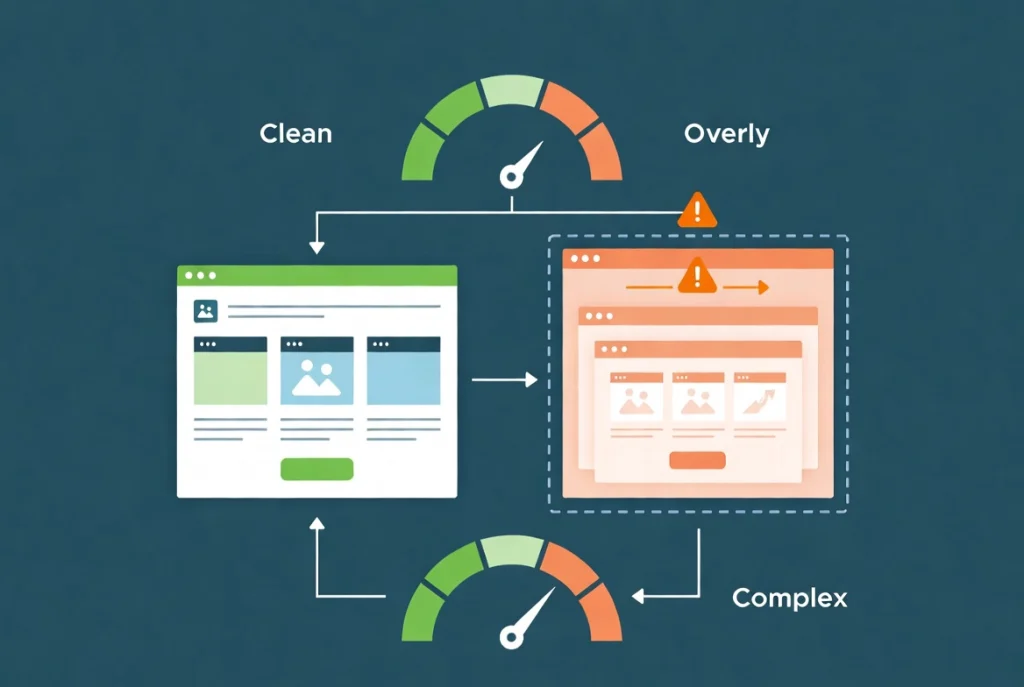
Every element you add to an Elementor page creates a new layer in the Document Object Model, which is the browser’s internal representation of your page’s structure. The DOM is what the browser has to read, process, and paint before your visitor sees anything on screen. More layers mean more processing. More processing means slower load times. And in 2026, slower load times mean lower rankings, because Core Web Vitals are now a primary metric Google uses to evaluate and rank pages.
This is why understanding Elementor sections, columns, and widgets is not just an organizational preference. It is a performance decision. Every time you add an unnecessary wrapper, nest a section inside a column inside another section, or drop in a widget you do not actually need, you are adding to the computational cost your visitors pay every time they load your page. The good news is that once you understand the hierarchy, keeping things clean becomes second nature.
Sections: The Highest Level of Your Page Structure

A section is the outermost container in the classic Elementor hierarchy. Think of it as a full-width horizontal strip that stretches across the entire page. Everything else, columns and widgets, lives inside a section. The section is where you set the background color or image for a given area of the page, control the overall padding around the content inside it, and define whether the content width is boxed or stretches edge to edge.
The average high-converting landing page contains between seven and twelve sections. Going beyond that range starts to increase your Time to Interactive, which is the measure of how long the browser takes to make the page fully usable. A typical structure covers the hero, social proof, feature breakdown, testimonials, and a closing call to action, with each section grouping related content together rather than splitting it across multiple unnecessary wrappers. When content belongs together logically, it should live together structurally.
Sections also play an important role for web accessibility standards. Screen readers use the structural boundaries of your page to help users navigate. Well-organized sections with logical content groupings make it significantly easier for assistive technologies to interpret your page correctly, which benefits both your users and your SEO.
Section Width Settings and the Performance Case for CSS Over JavaScript
Inside each section’s settings, you will find two width options: Boxed and Full Width. Boxed keeps your content within a defined pixel range, typically 1140px or 1200px, which is the standard for modern desktop layouts. Full Width lets the background of the section stretch to the browser edges while you can still keep the inner column content boxed. Most professional Elementor builds use this combination because it allows background images and colors to fill the screen dramatically while keeping text and buttons within a readable, comfortable width.
You will also notice a Stretch Section toggle in the settings panel. This toggle uses JavaScript to force a section to the browser edge. The important thing to know here is that CSS is always faster than JavaScript for layout purposes. If your theme allows it, set the page template to Elementor Full Width rather than relying on the stretch toggle. This achieves the same visual result with cleaner, faster code. If you have not yet set up your WordPress environment and installed Elementor, the How to Install Elementor on WordPress: A Step-by-Step Guide covers everything you need before you start building.
Organizing Complex Layouts with the Inner Section Widget
The Inner Section widget lets you build nested columns within your main layout blocks, giving you absolute control over spacing and backgrounds. This quick tutorial shows you how to organize your text and images cleanly, plus a great responsive design trick to reverse column stacking on mobile screens.
Columns: Controlling How Content Is Divided Horizontally
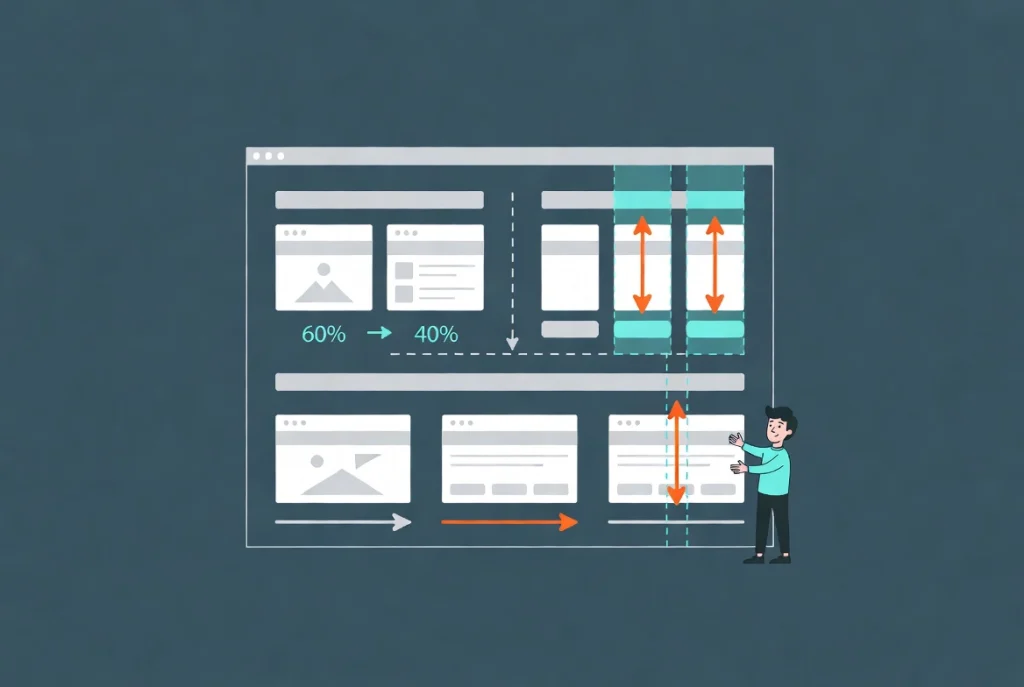
Columns live inside sections. They are what allow you to place content side by side, an image on the left and text on the right, three feature boxes in a row, a two-thirds content area with a one-third sidebar. Without columns, everything in Elementor stacks vertically.
The math behind columns is straightforward. The total width of all columns inside a section must add up to 100 percent. Three equal columns are 33.33 percent each. A two-column layout might be 60 percent and 40 percent. You can drag the edge handles between columns to resize them freely, but sticking to clean round numbers is wise. Unusual percentages like 31.4 percent can cause rounding errors in older browsers that produce small “ghost” pixel gaps or layout shifts, which are exactly the kinds of subtle visual inconsistencies that make a site feel slightly off without users being able to explain why.
Vertical alignment inside columns is a feature that a lot of beginners overlook. You can set column content to align at the top, middle, or bottom of the column height. Middle alignment is the standard choice for hero sections where you want a heading and a subheadline to sit perfectly centered next to an image. Using vertical alignment this way replaces the old habit of adding empty Spacer widgets above and below content to push it into position. Spacer widgets add DOM weight. Vertical alignment settings do not. Stop using spacers and start using alignment.
Why Nested Sections Are a Performance Problem You Should Avoid
In older Elementor builds, designers frequently used Inner Sections to create more complex grid layouts. The setup looked like this: a section containing a column, containing another section, containing more columns. It worked visually. Structurally, it was a problem.
Each level of nesting adds more divs to the Document Object Model. A page with deep nesting can render up to 40 percent more slowly on mobile devices than the same layout built with a flat structure. If your design requires more than two columns in a row, the correct approach is to add more columns directly to the main section rather than nesting a new section inside an existing one. Flat is fast. Deep is slow. This is one of those rules that is worth tattooing on your brain early.
Widgets: The Content Units That Visitors Actually See and Use
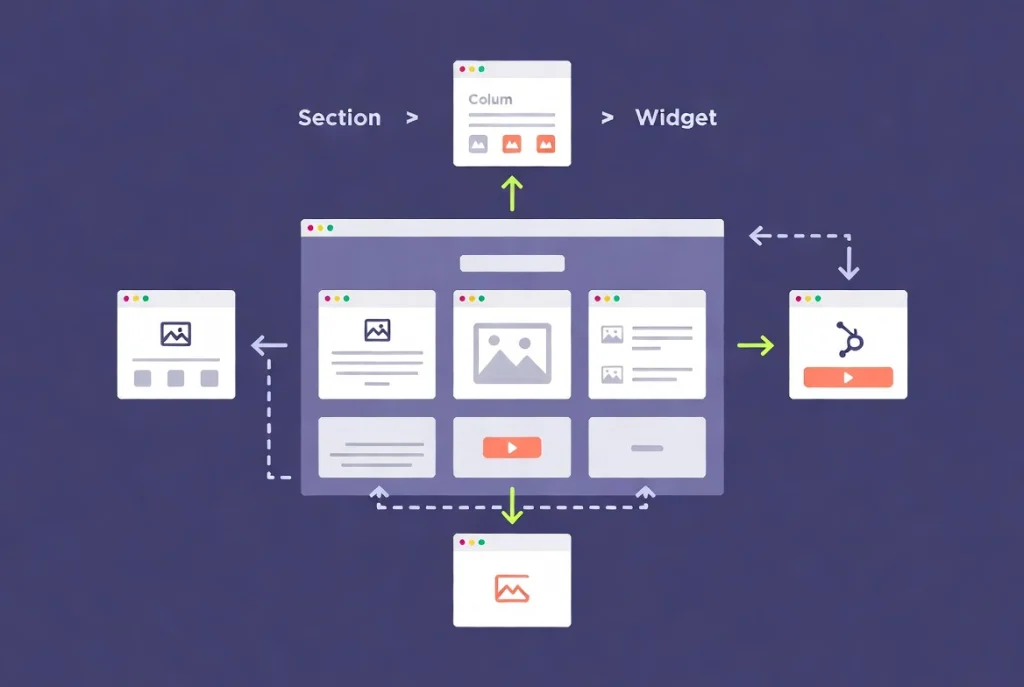
Widgets are the smallest unit in the Elementor ecosystem and the layer that most beginners spend almost all of their attention on, for understandable reasons. They are the headings, the text blocks, the images, the buttons, the contact forms, the video players, and everything else that makes a page functional and useful.
In the classic Elementor hierarchy, a widget cannot exist on its own. It must live inside a column, which lives inside a section. That is the complete chain: Section, Column, Widget. Every piece of content on a classically built Elementor page follows this structure, and understanding that chain is what allows you to navigate the editor confidently, select the right element when clicking around, and use the Navigator panel to keep track of everything.
One critical performance point about widgets that most beginners miss: each widget type carries its own CSS payload. When the browser loads your page, it has to load the styles for every unique type of widget you have used. If you use 50 different widget types across a single page, that is 50 separate style payloads loading. The fix is simple. Reuse the same widget types wherever possible and change the settings rather than reaching for a different widget. For example, use the Heading widget for all your headings and simply change the HTML tag from H1 to H2 to H3 in the settings panel. The CSS footprint stays small because the browser only needs to load the Heading widget styles once.
Some widgets are significantly heavier than others. A Text Editor widget is lightweight and fast. Pro Gallery widgets, Price Table widgets, and interactive map embeds are heavy. They load additional scripts to function. If you need to embed a map, for example, follow the specific guidance in How to Add Google Maps to Your Elementor Site to make sure the implementation does not drag down your PageSpeed scores.
Widget Best Practices That Save Time and Keep Pages Fast
Set your global fonts and colors before you style a single widget. This is the most important habit you can build. When every widget pulls its typography and color from the global style guide, your pages stay consistent automatically, and you never have to manually hunt down every button on a site when a client wants to change the brand color.
Use the Navigator tool constantly. You can open it by right-clicking anywhere on the canvas and selecting Navigator from the menu. It gives you a collapsible tree view of every section, column, and widget on the page. On complex builds, clicking the correct element in the Navigator is far faster than trying to click the right layer directly on the canvas. Learn to love the Navigator early.
Avoid Absolute Positioning for widgets unless you are working with a purely decorative element that does not need to be part of the page flow. Absolute positioning breaks the natural stacking behavior of the layout and almost always causes problems on mobile, where screen sizes and orientations vary in ways that absolute coordinates do not account for gracefully. If widgets are overlapping when you do not want them to, check the Z-index settings in the Advanced tab rather than reaching for absolute positioning as a fix.
How Sections, Columns, and Widgets Compare in Practice
The table below shows how the three layers of the classic Elementor hierarchy interact at a technical level and what the right approach is for each one.
| Element Type | Primary Function | DOM Impact | Best Practice |
|---|---|---|---|
| Section | Structural wrapper for full-width page areas | Low (1 div) | Use for major page breaks and background changes. Aim for 7 to 12 per page. |
| Column | Horizontal alignment of content within a section | Medium (2 to 3 divs) | Avoid nesting. Use for side-by-side content layouts with clean percentage widths. |
| Widget | The actual content and interactive functionality | Variable by widget type | Limit unique widget types to keep the CSS payload small. Target under 30 widgets total per page. |
How the Classic System Maps to the New Flexbox Container Approach
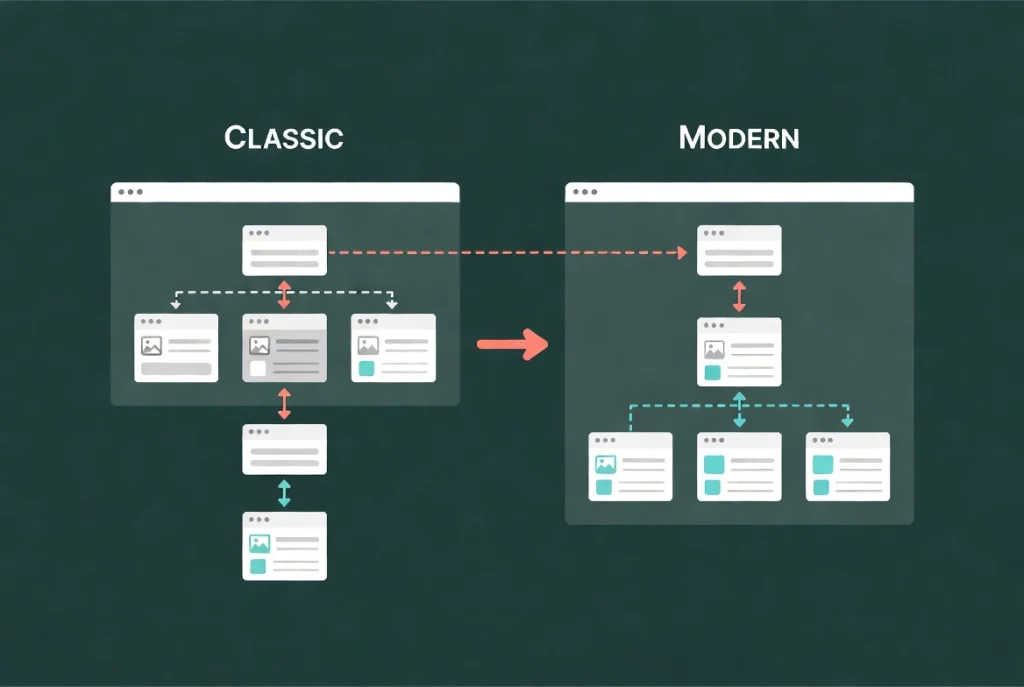
The industry is moving toward Flexbox Containers as the standard for new Elementor builds. Containers solve the nesting problem by achieving the same complex layouts with fewer divs, which translates directly into faster rendering. But the classic Section and Column system is not going anywhere soon. Millions of existing client sites were built on it and will need to be maintained for years to come. Knowing both systems is what makes you genuinely versatile.
The conceptual mapping between the two systems is clean. A Parent Container in the new system does what a Section did in the old one. A Child Container nested inside the Parent does what a Column did. Widgets work the same in both systems. The principles of hierarchy have not changed. You still group content logically. and still manage widths. You still keep an eye on the total number of elements. The underlying logic transfers directly even as the technical implementation improves.
If you are starting a new site in 2026, use Containers. If you are maintaining or updating a site built a few years ago on Sections and Columns, master that system on its own terms rather than trying to force a migration that could break existing layouts. Both paths are valid, and both reward the same fundamental discipline: keep the hierarchy flat, keep the DOM lean, and group content in a way that makes logical sense to both the browser and the human beings navigating the page.
Pro Tip: When working in the classic Section and Column system, use the Duplicate command instead of building new sections from scratch. Right-click any section and select Duplicate. This preserves all your padding, margin, and background settings instantly and ensures consistency across the page. Inconsistent padding from section to section is one of those invisible design problems that makes a site feel subtly “wrong” to users even when they cannot identify exactly what is off.
Thinking in Blocks, Not Individual Widgets

The biggest shift in mindset that separates beginner Elementor users from efficient professionals is moving from thinking about individual widgets to thinking in complete blocks. A block is a fully assembled section with its columns and widgets already in place, styled, and ready to use. Once you build a great Testimonial block or a strong Contact block, you save it to your template library and pull it into any future page in seconds.
This is how experienced designers build fast without cutting corners on quality. They are not starting from scratch on every page. They are assembling pre-built, pre-tested blocks and customizing the content inside them. The How to Use the Elementor Template Library guide covers exactly how to save and manage your own blocks alongside Elementor’s built-in template options.
The goal underneath all of this is speed, and not just the speed of building, but the speed of the finished page itself. A beautiful site that takes five seconds to load is a failure. By keeping your hierarchy flat, your section count reasonable, your column nesting minimal, and your widget count purposeful, you give the browser the cleanest possible path to rendering your page quickly. Use columns for horizontal layout. Use widgets for the message. Keep the Navigator open and watch your DOM count. That is the workflow of someone who builds sites that actually perform.
Additional Resources
- WordPress Basics and Installation: The Complete Beginner’s Guide
- Getting Started with Elementor in 2026: The Complete Guide
- How to Install Elementor on WordPress: A Step-by-Step Guide
- How to Use Elementor Flexbox Containers: A Beginner’s Guide
- Setting Up Global Colors and Fonts in Elementor
- Elementor Navigator: How to Manage Complex Layouts
- How to Use the Elementor Template Library
- How to Add Google Maps to Your Elementor Site
- Responsive Design Basics: Making Elementor Sites Mobile-Friendly
- Elementor Best Practices for Beginners
- Web Accessibility Introduction: W3C WAI
- Document Object Model: Wikipedia
Final Thoughts: Master the Structure Before the Style
Understanding Elementor sections, columns, and widgets is not a glamorous topic. There are no flashy animations to show off at the end and no dramatic before-and-after screenshots. But this structural knowledge is the foundation that every other Elementor skill is built on. The designers and developers who build the fastest, most maintainable, most professionally consistent sites are not the ones who know the most widgets. They are the ones who understand the hierarchy deeply enough to keep it clean instinctively.
Keep your sections purposeful and limited. Keep your widget count lean and your widget types consistent. Watch the Navigator. Respect the DOM. And remember that every extra layer you add is a small tax your visitors pay in loading time every single time they land on your page.
Get the structure right now, and everything you build on top of it will be faster, cleaner, and easier to maintain for years. If you want to go deeper into the WordPress foundation underneath all of this, the WordPress basics and installation guide is always there as your starting point.