How to Use the Elementor Shortcode Widget (2026 Guide)
Elementor’s Shortcode widget lets you place output from a WordPress plugin, theme, or custom function inside a visual layout. The shortcode is only a reference: WordPress must have a registered handler for that tag, and the plugin or code that provides it must remain active.
This guide shows how to use the dedicated Shortcode widget when the Text Editor or HTML widget is appropriate and how to avoid broken pages, unsafe code access, and stale dynamic output. If you are learning the editor, start with our first Elementor page tutorial.
What a WordPress shortcode does
A shortcode is text enclosed in square brackets, such as [example id="123"]. A plugin, theme, or custom code registers the tag and a callback. When WordPress filters the page content, it recognizes the registered tag, passes its attributes to that callback, and replaces the shortcode with the returned output.
WordPress introduced the Shortcode API in version 2.5. It supports self-closing tags, attributes, and enclosing tags. The official Shortcode API handbook also explains an important failure mode: an unregistered tag is not functional. If its source plugin is disabled, the bracketed text may remain visible instead of producing the expected form, gallery, table, or other feature.
Choose the right Elementor method.
| Method | Use it for | Main caution |
|---|---|---|
| Shortcode widget | A standalone shortcode block | The provider must remain installed and active. |
| Text Editor widget | A shortcode placed with ordinary text | Large block-level output may not fit correctly inside a paragraph. |
| HTML widget | A shortcode combined with deliberate HTML, CSS, or JavaScript | Code access is security-sensitive and normally admin-only. |
These are placement methods, not three different shortcode engines. The output, permissions, database queries, scripts, and styles still come from the shortcode’s provider. Elementor controls where the result sits on the page.
Method 1: Use the Elementor Shortcode widget.
- Copy the shortcode from the plugin’s own settings or documentation.
- Edit the target page with Elementor.
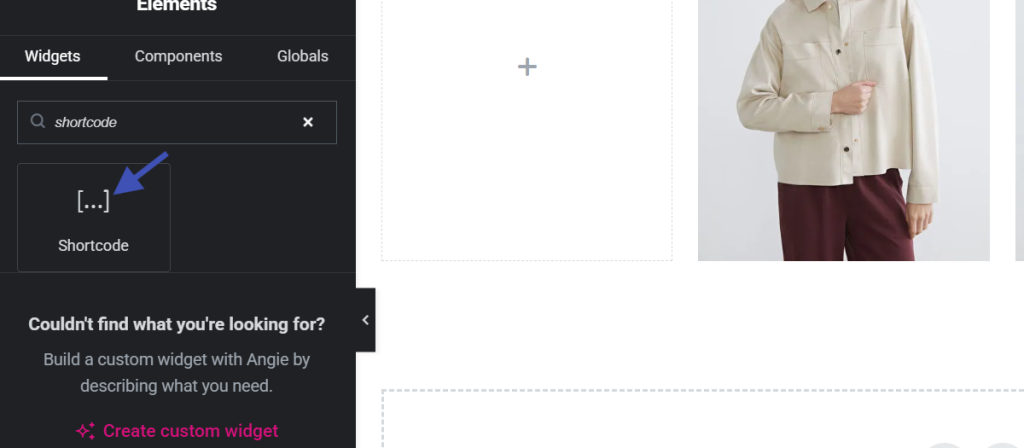
- Search the widget panel for Shortcode and drag it into the desired container.
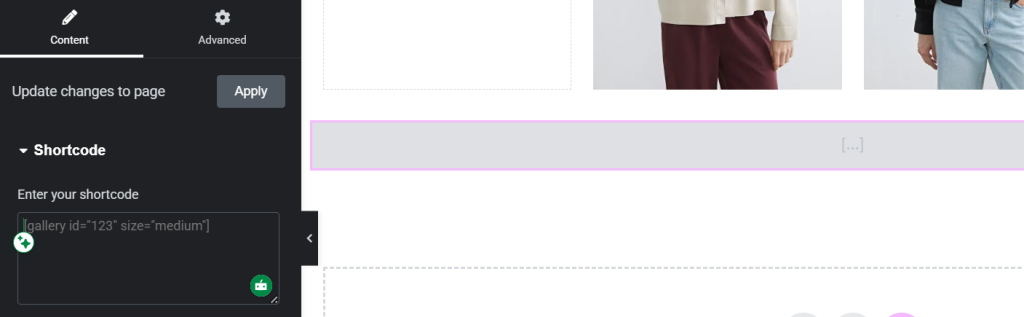
- Paste the complete shortcode into the Content field without changing its brackets, tag name, or attribute quotes.
- Update the page and test the saved front end while logged out.
Elementor says the dedicated widget renders shortcode output in the editor, which makes it more convenient than a plain text placement. Do not treat the editor preview as the final test. Some providers load scripts, permissions, user data, or conditional output differently on the public page.
Method 2: Place a shortcode in the Text Editor widget.
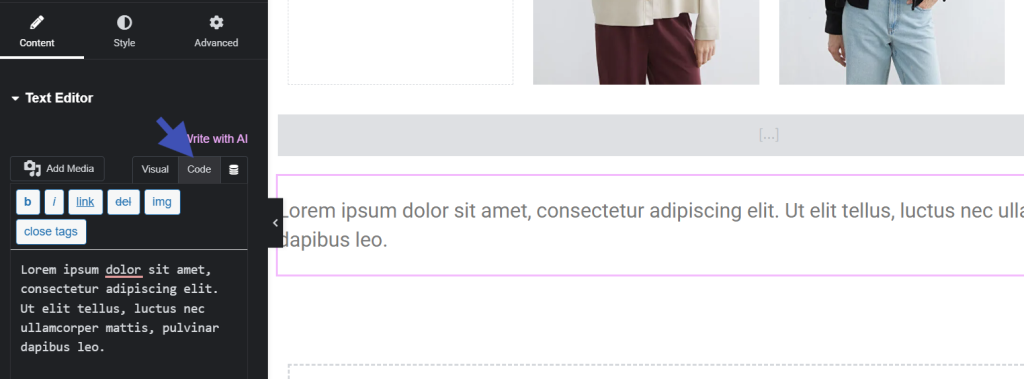
Elementor also supports shortcodes in its regular Text Editor widget. This feature can be useful for a small dynamic value or output that belongs next to explanatory text. Paste the exact tag into the editor and update the page.
Avoid inserting a complete form, gallery, or table in the middle of a sentence. Those components usually return block-level markup and should have their own widget or container. A dedicated placement gives you clearer spacing, responsive controls, and a simpler path when troubleshooting.
Method 3: Use the HTML widget carefully.
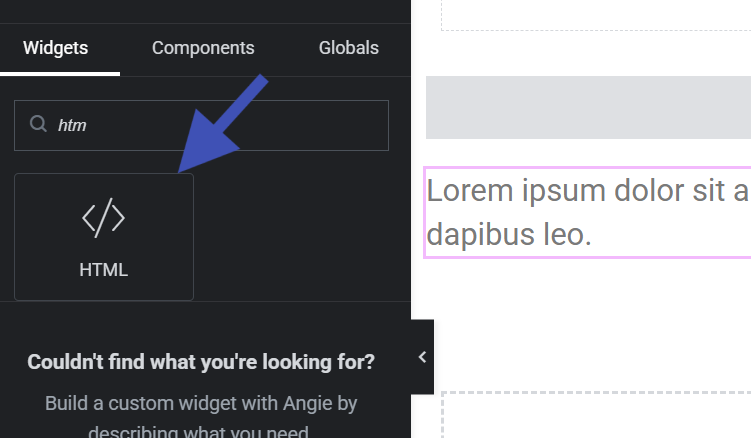
The HTML widget is appropriate when trusted administrators need to combine a shortcode with specific wrapper markup. Elementor’s official documentation says the widget accepts HTML, CSS, JavaScript, and shortcodes. It also warns that inserted code can contain malware, which is why access is restricted to administrators by default.
Do not weaken the Role Manager restriction simply to make routine content editing more convenient. A user who can insert arbitrary scripts can affect visitors and sensitive sessions. If a reusable wrapper is needed, a developer-maintained plugin or block is often safer than copying script-capable markup across pages.
Shortcode attributes and dependency checks
Attributes change how a shortcode behaves. In [example id="123" theme="light"], id and theme are attributes interpreted by the provider. They are not universal Elementor settings. Use the provider’s documentation to confirm which values are accepted, required, escaped, or deprecated.
- Record the plugin or custom module that registers each important shortcode.
- Record where it is used before disabling or replacing the provider.
- Confirm that IDs refer to published objects that the current visitor can access.
- Test output for logged-out visitors and each relevant user role.
- Verify mobile layout, keyboard access, form behavior, and validation messages.
This inventory prevents “orphaned shortcodes”—visible tags or empty spaces left behind when a dependency is removed. It is particularly important during an Elementor or plugin migration. For broader layout organization, see our Elementor Navigator guide.
When a shortcode is the wrong tool
Do not introduce a shortcode simply to reuse a sentence, phone number, or visual card if a synced pattern, global element, template, custom field, or native widget fits the job better. Shortcodes hide their behavior behind a tag, which makes the editing experience less transparent and creates a dependency on the code that registers them.
For new custom functionality, ask who will maintain the callback, how its inputs are validated, how output is escaped, and what happens when the dependency is removed. WordPress’s developer handbook says shortcode callbacks should return their output. Developers are also responsible for handling shortcode attributes and any enclosed content safely. Put maintainable custom code in a version-controlled plugin or other appropriate development layer, not in an undocumented production edit.
Performance and caching
A shortcode may execute database queries, request remote data, enqueue scripts, or render user-specific information. The square brackets do not reveal that cost. Measure the complete saved page before and after adding a shortcode, and inspect network requests and server behavior when the change is significant.
Elementor’s current Element Caching documentation states that elements containing dynamic tags or dynamic information, such as shortcodes, cannot safely use that feature as ordinary static output. Do not force-cache personalized, permission-based, cart, account, nonce, or rapidly changing shortcode results. Use only caching explicitly supported by the provider and verify that one visitor never receives another visitor’s content.
Troubleshoot Elementor shortcode problems.

The shortcode appears as plain text.
Please copy it again from the provider, verify both brackets and the exact tag name, and confirm that registering the plugin or custom code is active. WordPress’s do_shortcode() documentation notes that content can remain unchanged when no matching shortcode tag is registered.
The widget is empty.
Check required attributes, object status, permissions, and whether the shortcode deliberately returns nothing for the current user. Test the same tag in a plain WordPress shortcode block. If it fails there too, please check the provider before concluding that Elementor is the issue.
It works in the editor but not on the public page.
Test while logged out, open the browser console, review failed network requests, and clear only the relevant caches. Consent tools, optimization plugins, script delays, and role checks can change front-end behavior. If the editor itself is stuck, follow our Elementor loading-screen guide.
The output is present but badly styled.
Inspect the rendered markup and computed styles. Determine whether the provider’s stylesheet failed to load or whether the theme and Elementor global styles override it. Prefer a narrowly scoped class and documented CSS adjustment over broad selectors that can affect every form, table, or button.
Final checklist
- The shortcode came from a trusted, documented provider.
- Its tag, attributes, and dependency are recorded.
- The dedicated shortcode widget is used unless another method has a clear reason.
- HTML widget access remains limited to trusted administrators.
- Output is tested and logged out on mobile and for relevant user roles.
- Dynamic or personalized output is correctly cached.
- There is a removal plan before the provider plugin or code is retired.
Use Elementor’s Shortcode widget as the default because it isolates the tag and provides a direct preview. Use the Text Editor only when the resulting output genuinely belongs with text, and reserve the HTML widget for trusted administrators who need controlled markup. The maintainable solution is not the one with the most shortcodes; it is the one whose owner, dependency, purpose, output, and removal path are clear.