
WordPress powers 43% of all websites. According to W3Techs data, it’s the world’s most popular CMS. The platform attracts millions of users. Why? User-friendly interface makes creation simple. Extensive customization satisfies advanced needs. Vibrant ecosystem supports diverse projects. Sites range from personal blogs to enterprise platforms.
Understanding fundamentals prevents common mistakes. This guide covers essential topics systematically. You’ll learn platform selection first. Installation methods come next. Dashboard navigation builds confidence. Content creation develops naturally. Customization expands possibilities. Security fundamentals protect investments. Beginners become proficient through structured learning.
Table of contents
- Understanding WordPress Platform
- Pre-Installation Requirements
- WordPress Installation Methods
- Dashboard Navigation
- Essential Initial Settings
- Creating Content
- Customizing Appearance
- User Management
- Maintenance and Security
- Troubleshooting Issues
- WordPress File Structure
- Conclusion: Begin WordPress Journey
- Additional Resources
Understanding WordPress Platform
WordPress exists in two distinct versions. Understanding differences prevents future frustration.
What is WordPress?
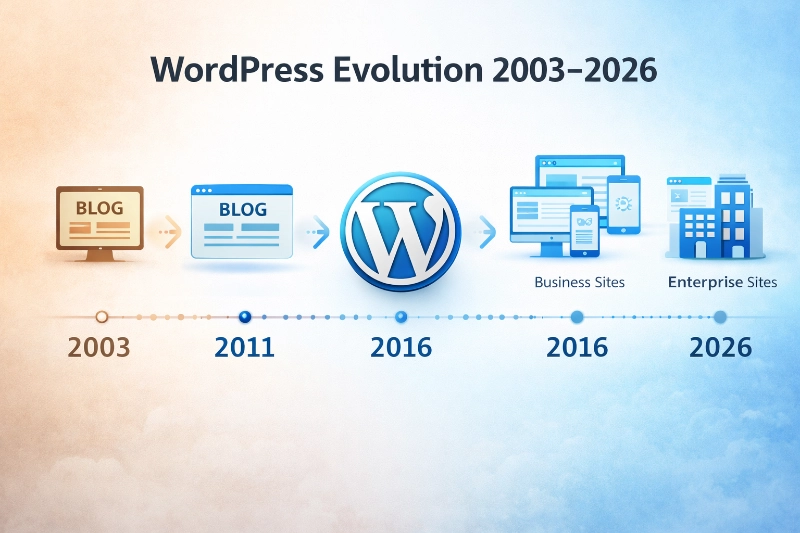
WordPress started as blogging software in 2003. Today it powers diverse website types. Open-source nature enables free usage. No licensing fees exist. Anyone can download and modify it. The ecosystem includes thousands of themes. Plugins extend functionality infinitely. Read What is WordPress? A Beginner’s Guide for complete history and capabilities.
WordPress.com vs WordPress.org
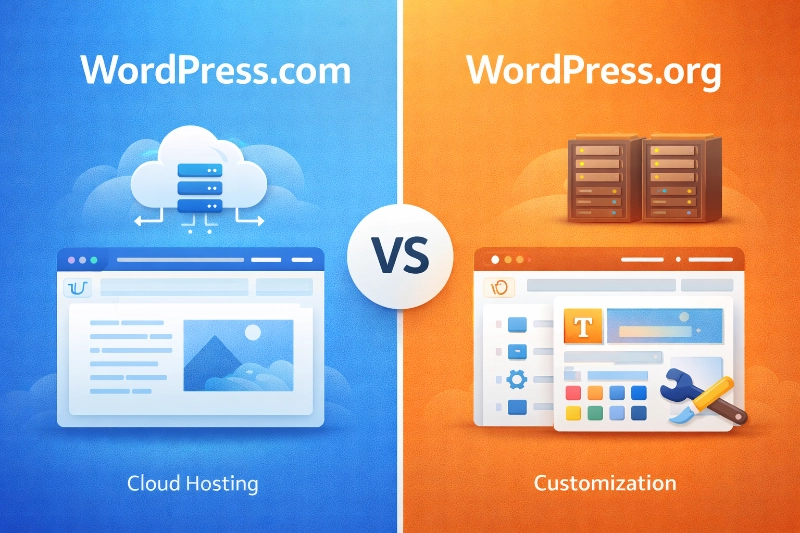
This decision affects everything. WordPress.com offers hosted solution. Automattic manages servers and security. Limited customization exists on free plan. Paid plans unlock more features. WordPress.org requires separate hosting. Complete control comes with responsibility. Install any themes or plugins freely. No platform restrictions limit creativity. Explore WordPress.com vs WordPress.org: Which One to Choose? for detailed comparison.
Pre-Installation Requirements
Proper preparation ensures smooth installation. Technical requirements must be met.
System Requirements
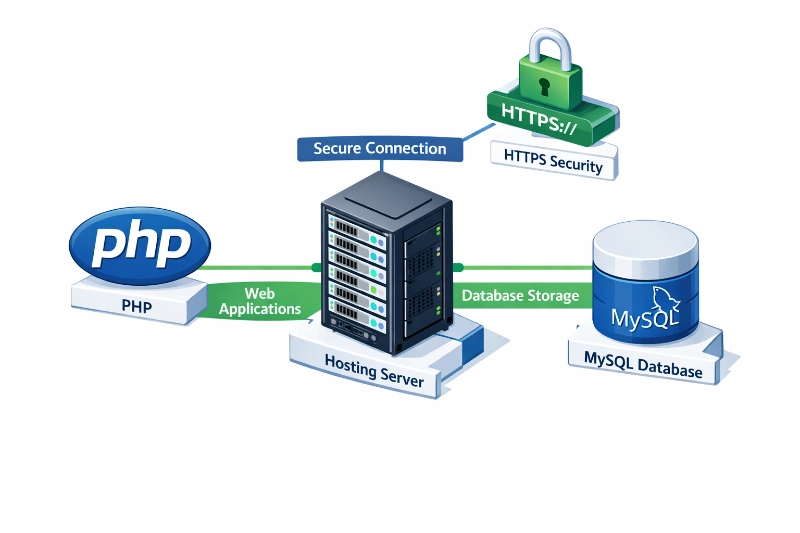
WordPress runs on PHP and MySQL. Specific versions are required. Check Official WordPress Requirements for current specifications. Typically PHP 7.4+ is needed. MySQL 5.7+ handles databases. HTTPS support improves security. Most quality hosts meet requirements automatically. Read WordPress System Requirements Explained for technical details.
Choosing Hosting
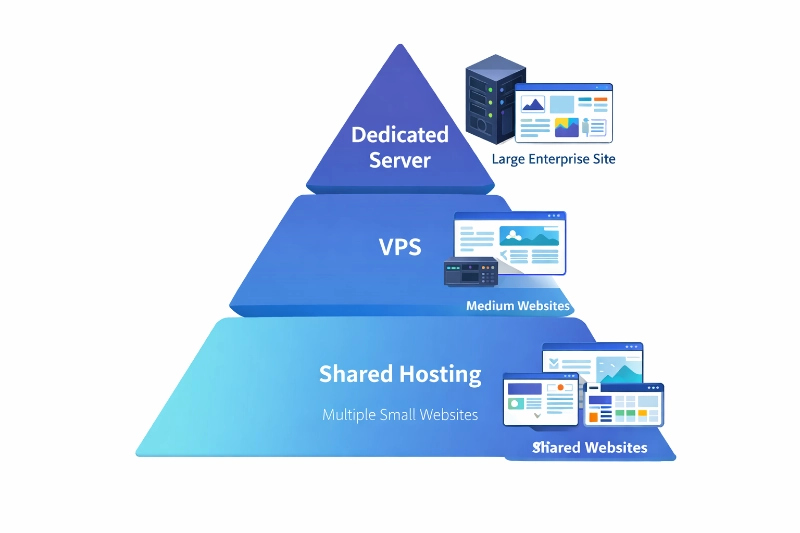
Hosting quality affects everything. Performance depends on server resources. Security requires proper configuration. Reliability ensures constant availability. Support quality matters during problems. Shared hosting suits beginners. VPS serves growing sites. Dedicated servers handle enterprise needs. Review How to Choose the Best WordPress Hosting for selection guidance.
Domain Registration
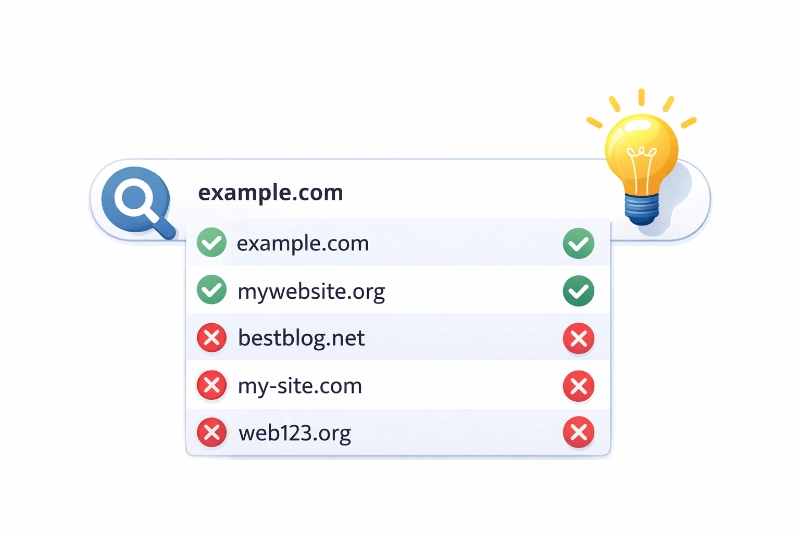
Domain names serve as website addresses. Choose memorable, brandable options. Avoid hyphens and numbers. Extensions affect perception. .com remains most popular. .org suits organizations. .net works for networks. Follow Registering Your First Domain Name for WordPress for step-by-step registration.
WordPress Installation Methods
Multiple approaches accommodate different skill levels. Choose based on technical comfort.
One-Click Installation
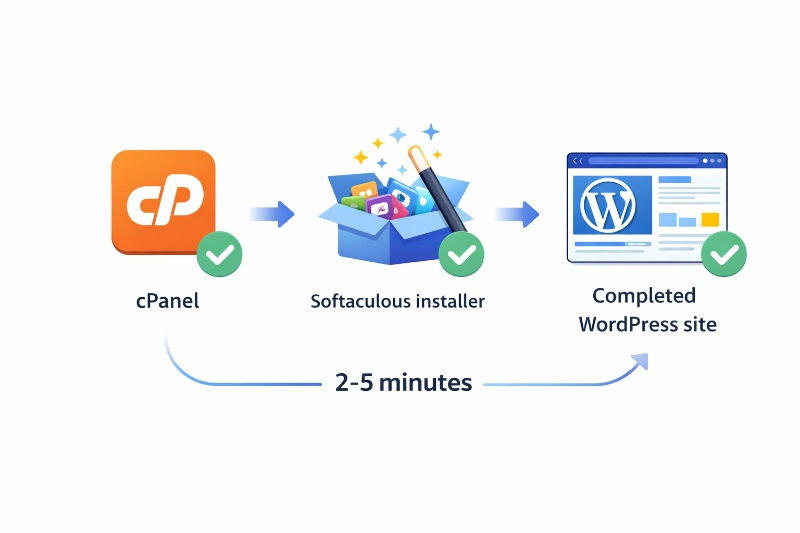
Most hosts offer automated installation. Softaculous simplifies the process. Access cPanel first. Locate WordPress installer. Configure basic settings. Click install button. Process takes 2-5 minutes. See How to Install WordPress Using Softaculous for complete walkthrough.
Manual Installation
Manual method provides deeper understanding. Download WordPress files first. Create database through cPanel. Upload files via FTP. Run installation script. Configure database settings. This approach teaches file structure. Follow Manual WordPress Installation via FTP for hands-on guide.
Local Development
Local installations enable safe testing. No live site gets affected. Tools like Local simplify setup. XAMPP works for Windows. MAMP serves Mac users. Perfect for learning safely. Theme development benefits greatly. Plugin testing happens without risk. Check How to Install WordPress Locally on Windows and Mac for environment setup.
Dashboard Navigation
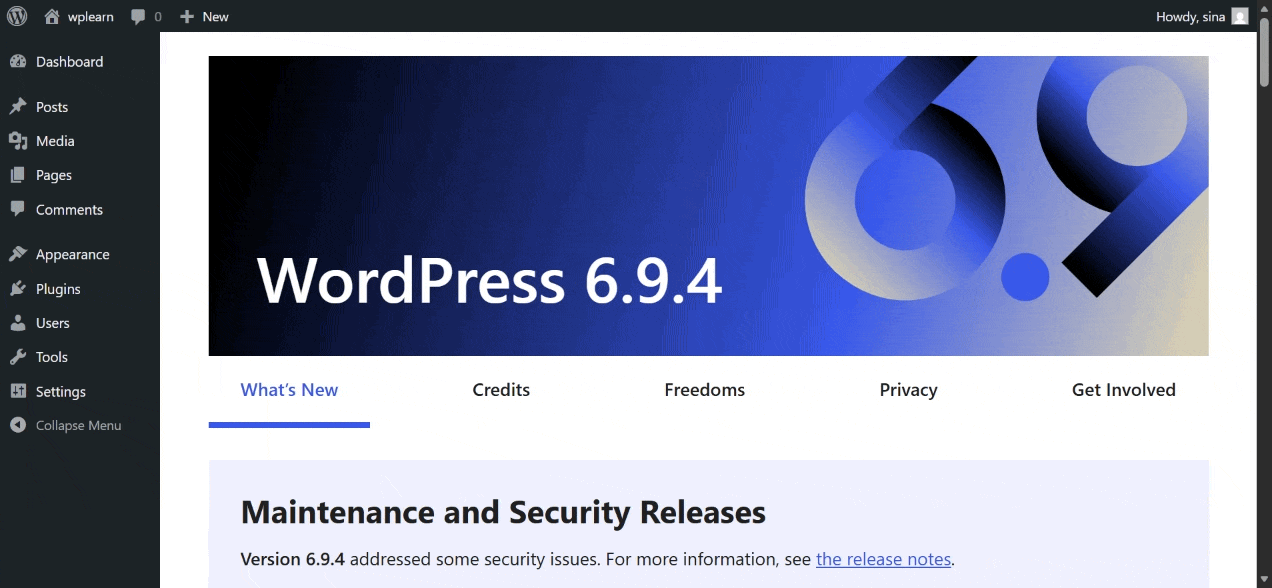
WordPress admin controls everything. Understanding layout improves efficiency.
Accessing Admin
Access admin at yoursite.com/wp-admin. Enter username and password. Dashboard appears immediately. Initial view shows overview. Recent activity displays prominently. Quick draft enables fast posting. Learn How to Login to Your WordPress Admin Area for access tips.
Dashboard Layout
Left sidebar contains main navigation. Posts manage blog content. Media stores images and files. Pages create static content. Comments moderate discussions. Appearance controls design. Plugins extend functionality. Users manage access. Tools provide utilities. Settings configure options. Explore Navigating the WordPress Dashboard: A Tour for complete overview.
Essential Initial Settings
Configure critical settings immediately. Prevention beats correction later.
Permalink Structure
Permalinks define URL structure. Default uses query strings. Post name creates readable URLs. SEO benefits from descriptive links. Users prefer clean addresses. Set this early. Changing later breaks links. Review WordPress Permalinks: The Ultimate Guide for optimization.
Site Information
Settings → General controls basics. Site title appears everywhere. Tagline describes purpose briefly. WordPress address defines installation. Site address sets homepage. Email receives notifications. Timezone ensures accuracy. Date format affects displays. Configure properly from start.
Reading and Discussion
Reading settings control homepage display. Choose latest posts or static page. Set posts per page limit. Control search engine visibility. Discussion manages comments. Moderate submissions prevent spam. Enable notifications for awareness. Configure avatars for personalization. Complete 10 Essential Settings After Installing WordPress systematically.
Creating Content
Content creation uses Posts and Pages. Understanding differences matters greatly.
Posts vs Pages
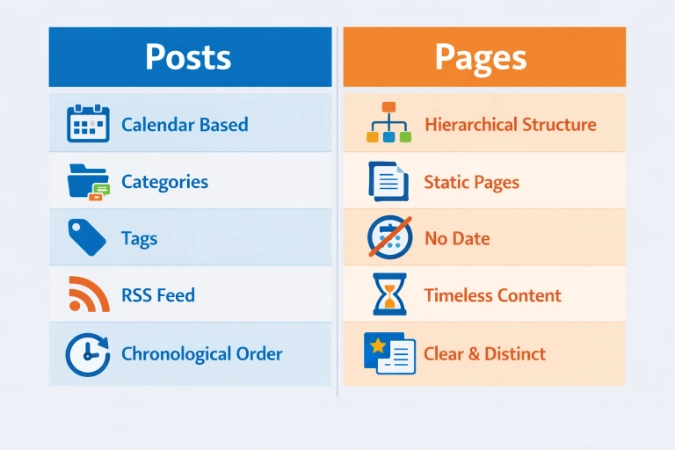
Posts appear chronologically. Publication dates show. Categories organize topics. Tags describe specifics. RSS feeds include posts. Pages remain timeless. No publication dates exist. Hierarchical structure works. Categories don’t apply. Tags aren’t available. See WordPress Posts vs Pages: Key Differences for usage scenarios.
Creating Posts
Posts → Add New opens editor. Enter title first. Write content using blocks. Add featured image prominently. Select appropriate categories. Include relevant tags. Preview before publishing. Schedule or publish immediately. Follow How to Create Your First WordPress Post step-by-step.
Creating Pages
Pages → Add New works similarly. Interface mirrors posts mostly. Categories don’t appear. Tags aren’t available. Set parent pages optionally. Choose page templates. Attributes control hierarchy. Create essential pages first: Home, About, Services, Contact. Read How to Create a New Page in WordPress for detailed instructions.
Gutenberg Editor
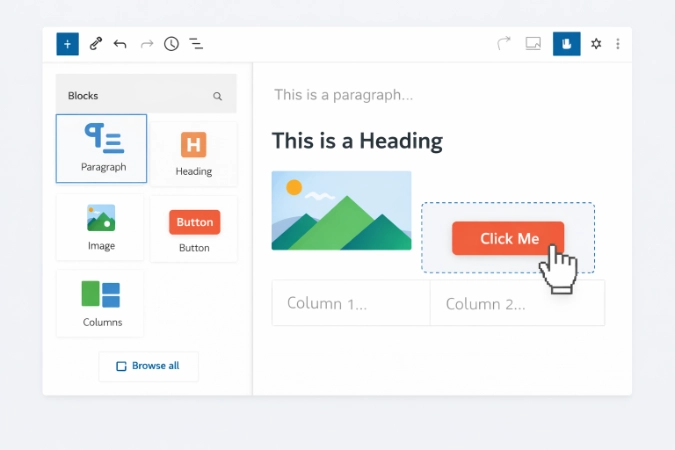
Gutenberg revolutionized content creation. Blocks represent different elements. Paragraphs start content. Headings structure information. Images add visuals. Galleries showcase multiple photos. Quotes highlight important text. Lists organize information. Buttons encourage action. Columns create layouts. Drag-drop simplifies arrangement. Master Gutenberg Editor Tutorial for Beginners for efficient editing.
Media Management
Media → Library stores assets. Upload images directly. Add videos easily. Include audio files. Attach PDF documents. Edit images simply. Crop for composition. Rotate for orientation. Scale for size. Create galleries effortlessly. Organize through details. Alt text aids accessibility. Captions describe content. Descriptions provide context. Manage effectively with Managing Your WordPress Media Library guide.
Categories and Tags
Categories create broad groups. Tags describe specific details. Categories are hierarchical. Tags remain flat. Use both strategically. Categories might include Technology, Business. Tags specify WordPress, SEO, Marketing. Effective taxonomy improves navigation. SEO benefits from organization. Implement with How to Use Categories and Tags in WordPress tutorial.
Customizing Appearance
Themes and plugins transform WordPress. Customization creates unique sites.
Installing Themes
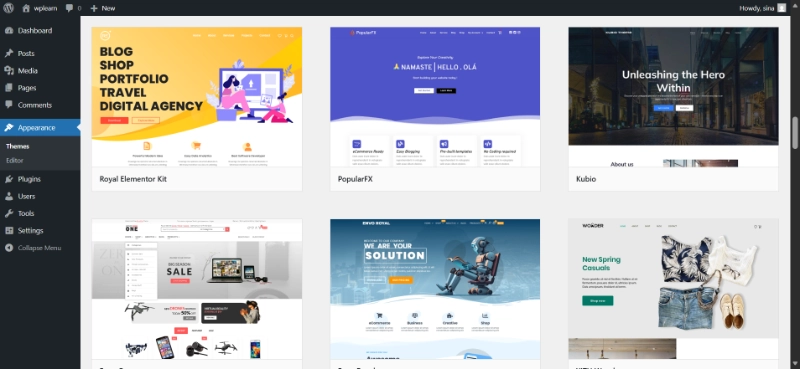
Appearance → Themes manages designs. Free themes exist abundantly. WordPress repository contains thousands. Premium themes offer more features. ThemeForest sells quality options. Install via dashboard upload. FTP works alternatively. Activate one theme only. Preview before activating permanently. Change designs with How to Install and Activate a WordPress Theme process.
Managing Plugins
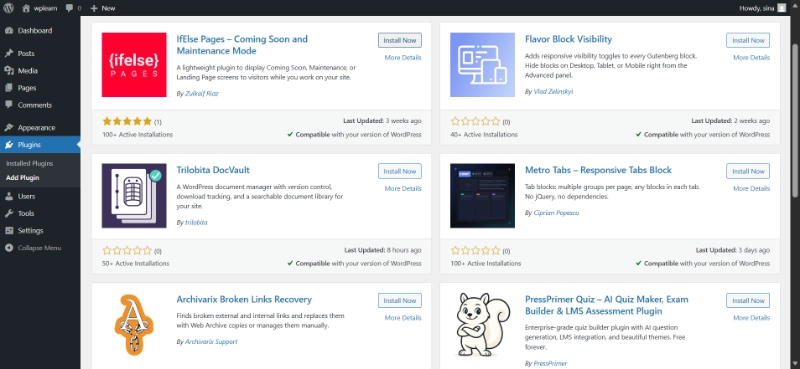
Plugins → Add New searches options. WordPress repository hosts 60,000+ free plugins. Categories include SEO, security, performance. Forms and analytics matter. E-commerce transforms capabilities. Install selectively. Activate cautiously. Configure through settings. Limit total number. Prevent bloat and conflicts. Extend functionality using How to Install and Manage WordPress Plugins safely.
Navigation Menus
Appearance → Menus creates navigation. Add pages easily. Include posts selectively. Insert categories logically. Create custom links. Drag-drop reorders items. Indentation creates sub-menus. Assign to theme locations. Primary navigation shows prominently. Footer menus appear below. Mobile navigation adapts automatically. Build structure with Creating and Managing Navigation Menus in WordPress guide.
Widgets and Sidebars
Appearance → Widgets adds blocks. Recent posts display newest content. Categories list topics. Search enables finding. Text adds custom content. Custom HTML inserts code. Drag widgets into areas. Configure individual settings. Arrange preferred order. Themes determine available areas. Enhance functionality using Introduction to WordPress Widgets and Sidebars tutorial.
User Management
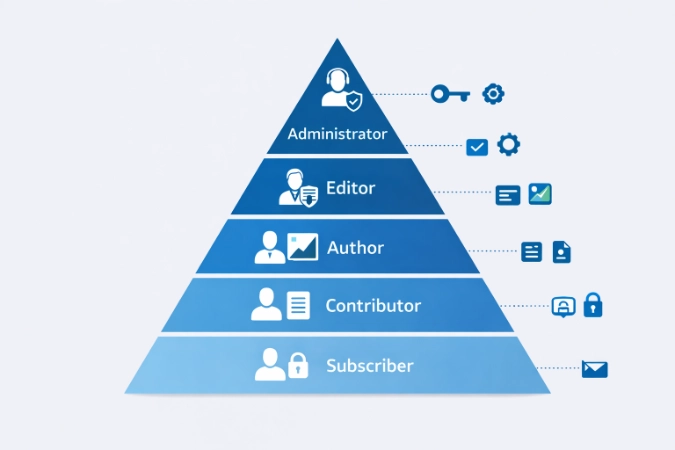
Multiple users access WordPress. Roles control permissions carefully.
User Roles
Five default roles exist. Administrator controls everything. Editor manages all content. Author publishes own posts. Contributor writes without publishing. Subscriber manages profile only. Assign roles appropriately. Responsibilities determine access. Security improves through limitation. Understand Understanding WordPress User Roles and Permissions thoroughly.
Comment Moderation
Comments → All Comments lists submissions. Approve quality contributions. Reply to engage readers. Edit when necessary. Mark spam appropriately. Trash removes permanently. Settings configure requirements. Moderation prevents abuse. Notifications enable awareness. Blacklist blocks keywords. Akismet prevents spam. Manage discussions with How to Moderate and Manage WordPress Comments effectively.
Maintenance and Security
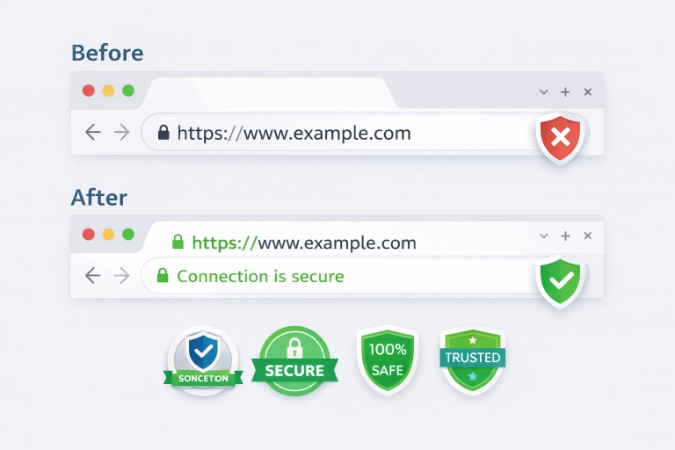
Regular maintenance protects investments. Security prevents disasters.
WordPress Updates
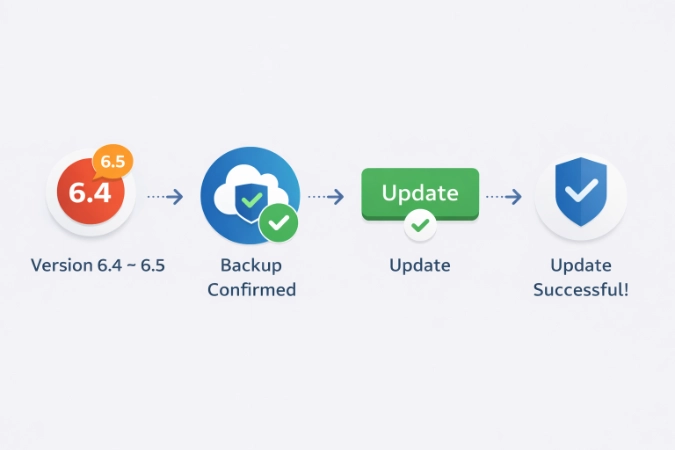
Dashboard → Updates shows availability. WordPress releases regular updates. Bugs get fixed quickly. Vulnerabilities get patched immediately. Features get added periodically. Backup before updating. Test on staging ideally. Update procedure documented at How to Safely Update WordPress Core maintains current version.
Security Basics
Strong passwords prevent breaches. Limit login attempts. Enable two-factor authentication. Install security plugins. Wordfence protects actively. Sucuri monitors continuously. Keep everything updated. Use HTTPS always. Limit user permissions. Review WordPress Security Basics for Beginners for protection.
SSL Certificates
HTTPS encrypts data transmission. Protects visitor information. Most hosts provide free SSL. Let’s Encrypt powers certificates. Install through hosting panel. Update WordPress settings. Redirect HTTP to HTTPS. Secure communications with Installing an SSL Certificate for WordPress guide.
Regular Backups
Backups enable disaster recovery. Save database regularly. Include all files. Store backups offsite. Test restoration process. Automate backup creation. UpdraftPlus works excellently. VaultPress offers premium option. Implement strategy using How to Backup Your WordPress Website tutorial.
Site Health
Tools → Site Health monitors condition. Status shows critical issues. Recommendations improve performance. Info displays configuration. Check regularly. Address warnings promptly. Maintain optimal operation. Monitor using How to Use the WordPress Site Health Tool effectively.
Troubleshooting Issues
Problems occur occasionally. Understanding solutions helps recovery.
Common Installation Errors
Database connection errors happen frequently. File permissions cause problems. Missing configuration files frustrate. White screens confuse users. Systematic troubleshooting identifies causes. Resolve issues with How to Fix Common WordPress Installation Errors systematically.
WordPress File Structure
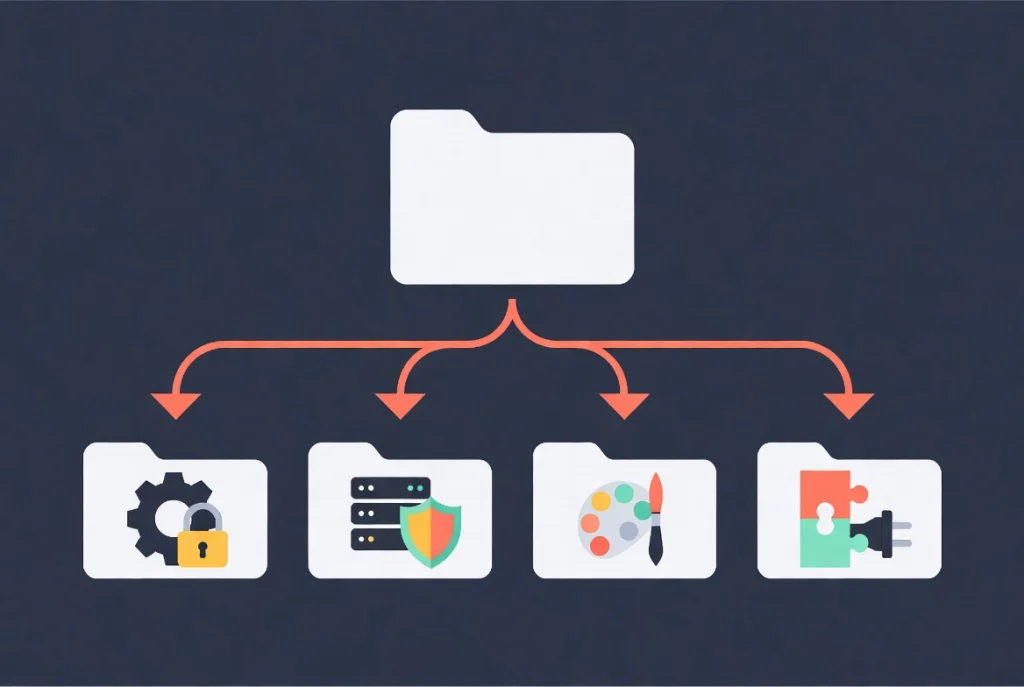
Understanding files aids troubleshooting. Organization follows logical patterns.
WordPress File Structure
| File/Folder | Purpose | Edit Recommendation |
|---|---|---|
| wp-config.php | Database and security settings | Only when necessary |
| .htaccess | Server-level rules and redirects | Commonly edited for SEO/Security |
| wp-content/themes | Stored design templates | Safe for custom development |
| wp-content/plugins | Extended functionality files | Safe for adding/removing tools |
Conclusion: Begin WordPress Journey
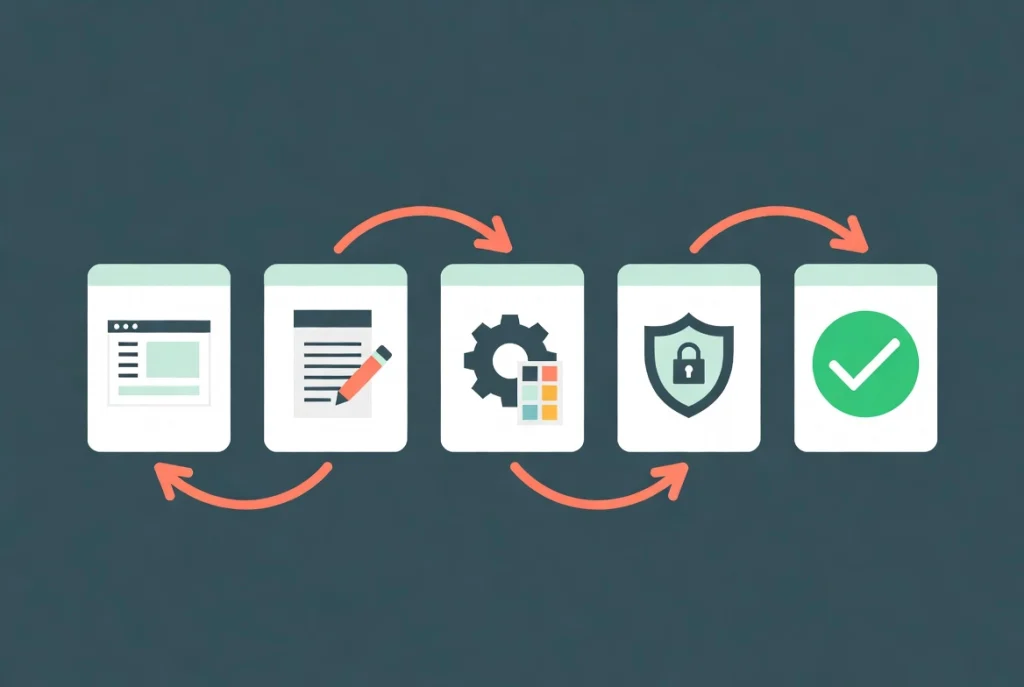
WordPress basics now covered completely. Platform understanding developed. Installation methods learned. Dashboard navigation mastered. Content creation skills acquired. Customization options explored. Security fundamentals established. This foundation enables confident creation. Practice builds proficiency. Experimentation discovers capabilities. Resources throughout guide support learning. Start building today. WordPress powers digital presence. Achieve online goals through systematic approach. World’s most popular CMS awaits your creativity.
Additional Resources
- How to Connect Claude AI to WordPress Using Novamira MCP
- 7 Must-Try AI SEO Strategies for WordPress in 2026
- 5 No-Code Tools for Building AI-Driven Websites
- Mastering WordPress SEO: Your Ultimate Guide to Higher Rankings (2026)
- Boost Your WordPress Design workflows with Novamira’s AI Tools
- How to Increase WordPress Memory Limit (2026 Guide)
- How to Use the WordPress Site Health Tool (2026)
- 6 Tips for Writing SEO Blog Posts Using AI
- Build Your WordPress Site Live with Novamira AI Builder (2026)
- 5 Ways to Connect Claude AI to Your WordPress Site in 2026
- How WordPress 7.0 Is Changing the Way AI Agents Interact with Websites
- SiteGround Report: 41% of WordPress Small Businesses Struggle to Get Usable AI Results