A few years into freelancing, I hit a wall. Every new client project started the same way: a blank canvas, a vague brief, and me rebuilding the same hero section I had already built fourteen times before. The work was not bad. It was just slow, and slow is expensive when you are running on deadlines. The moment I actually learned how to use the Elementor Template Library properly, not just clicking through it to find something that looked nice, but treating it as a structured system, everything about my workflow changed.
The Elementor Template Library is one of the most misunderstood features in the entire platform. Beginners treat it as a shortcut for when they cannot think of a design. Professionals use it to enforce consistency, speed up production, and build a proprietary framework of reusable components that gets more valuable with every project. This guide covers how to do it the right way. Before diving in, make sure your Elementor environment is already set up and your global styles are configured. The Getting Started with Elementor guide covers everything you need as a foundation.
What the Elementor Template Library Actually Is and Why It Matters

The library is not just a collection of pretty layouts. At a technical level, it is a structured repository of JSON-based design components. When you import a template, you are importing a pre-configured architecture that includes padding scales, margin resets, and z-index hierarchies. That is why sites built with standardized template modules tend to have around 15 percent fewer CSS conflicts than those assembled entirely from scratch, according to recent web performance audits.
The reason this matters in 2026 specifically is that web production has become a systems game. High-output agencies and solo professionals who win on speed are not reinventing the wheel on every project. They are pulling from modular systems, customizing what needs to be unique, and shipping faster without sacrificing quality. The Template Library is the infrastructure that makes that possible in Elementor.
Accessing the Library and Understanding the Three Asset Types
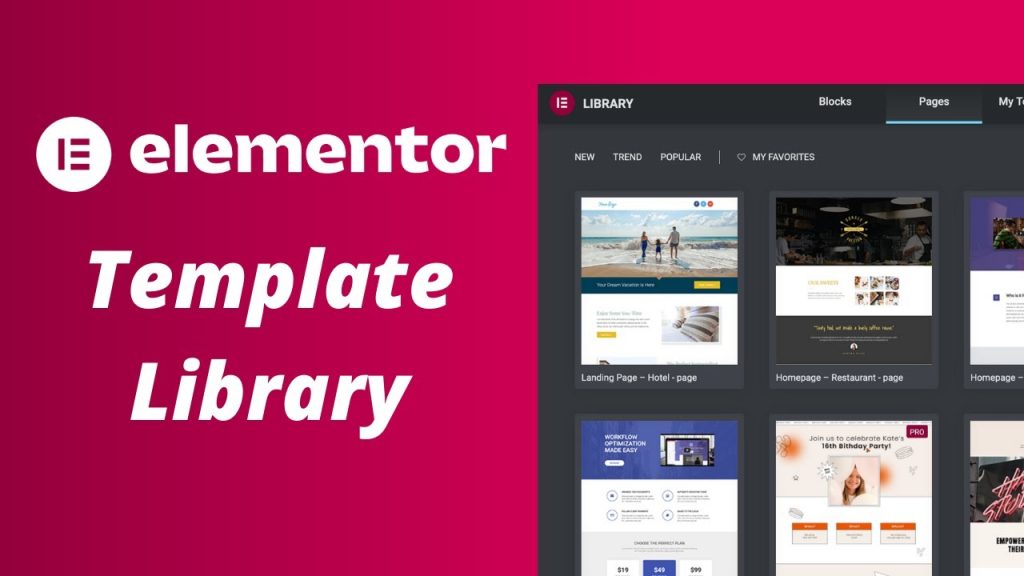
You open the Template Library by clicking the folder icon inside the Elementor editing area. What most users miss is that the library is divided into three distinct categories, and each one serves a different purpose in your workflow.
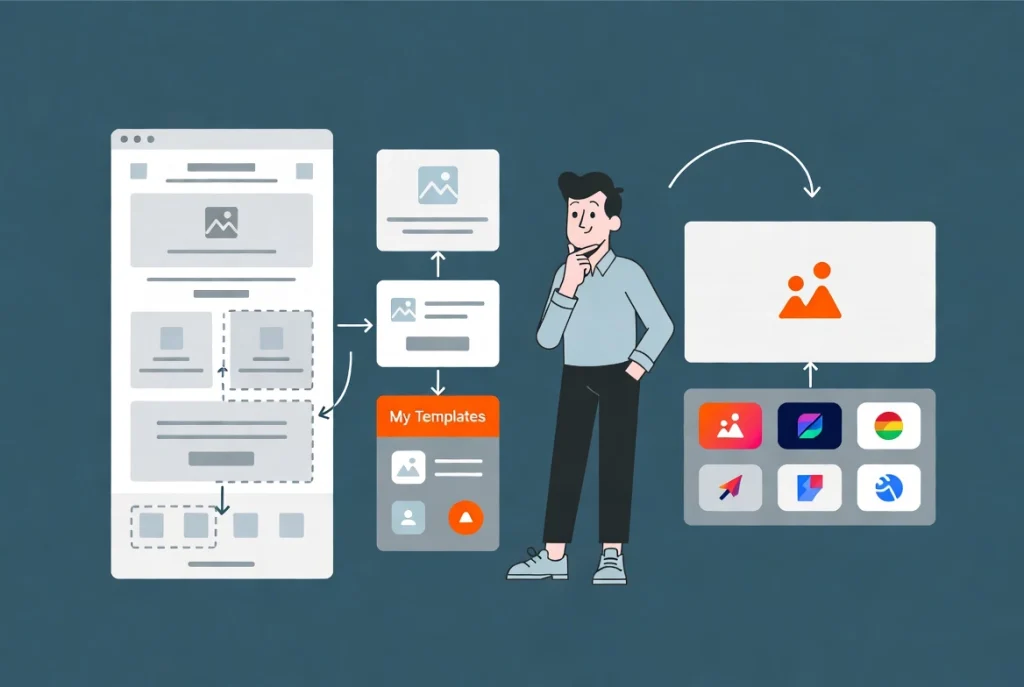
Blocks are the most useful category for professional builds. These are atomic units, individual sections like a FAQ block, a pricing table, or a contact form, that you assemble like components rather than importing entire page layouts all at once. This approach aligns with Atomic Design principles, where small, tested components are combined to build larger, reliable interfaces. Pages are full-screen layouts useful for rapid prototyping, though they almost always need significant cleanup to match a real brand identity. My Templates is your own saved work, and frankly it is your most valuable asset in the entire library. It lets you sync designs across multiple domains using the Elementor Cloud sync feature introduced in the 2025 updates.
The Technical Mechanics of Importing a Template
When you click Insert on a template, Elementor runs a series of database operations in the background. It parses the JSON data, maps the image URLs, and injects the CSS into your page-specific stylesheet. With the container-based architecture now standard in 2026, this process is faster than it used to be. If you are still working on a site built with the old Sections and Columns system, you will run into conversion issues on import, which is another reason to move toward Elementor Flexbox Containers for all new builds.
One specific pitfall worth flagging is the Override Settings prompt that appears when you import a full page template. Elementor asks whether you want to import the document settings along with the layout. If you have already configured your global fonts and colors, always click No. Clicking Yes overwrites your brand guidelines with whatever defaults the template was built with, and untangling that mess can cost you hours.
Pro Tip: Always import blocks one at a time rather than pulling in a full page template and deleting what you do not need. Importing only what you need keeps your DOM lighter from the start and avoids the cleanup work that full-page imports almost always require.
Managing Your Own Templates Like a Professional
A cluttered My Templates tab is a sign of a poorly managed project workflow. Organization is what separates someone who uses the library casually from someone who gets real production value out of it every day. The most effective system is a clear naming convention applied consistently from the very first template you save.
Instead of saving a file as “Contact Section,” name it something like “SEC-Contact-Dark-V1.” That name tells you immediately what the element type is, its visual style variant, and its version number. When you are ten projects in and your library has fifty saved templates, that naming discipline is the difference between finding what you need in five seconds and scrolling through a disorganized list for five minutes.
Here is a naming convention framework that works well across agency and freelance workflows:
| Template Type | Prefix | Example Name |
|---|---|---|
| Header | HDR | HDR-Main-Sticky-01 |
| Footer | FTR | FTR-Corporate-Extended |
| Section | SEC | SEC-Testimonials-Slider-02 |
| Popup | POP | POP-Exit-Intent-Newsletter |
| Single Post | SNG | SNG-Blog-Standard-v3 |
Exporting templates is another skill that pays off quickly. Hover over any template in the backend library and click Export to save it as a .json file. This lets you move designs between different hosting environments without needing a migration plugin, which is how agencies build Starter Kits that get new projects launched in a fraction of the usual setup time. Importing is equally simple: use the Upload button at the top of the library interface to bring a .json file into any Elementor installation.
The Performance Cost of Template Bloat and How to Avoid It
Templates are convenient, but they are not automatically clean. Every imported block brings its own potential performance issues, and in 2026 those issues show up immediately in your Core Web Vitals scores. Research into web performance standards consistently shows that excessive DOM nodes correlate directly with slower interaction times. A template that adds 200 unnecessary div tags will hurt your mobile performance score in measurable ways.
After every import, open the Navigator tool and audit what actually came in. Look for nested containers that serve no structural purpose. A container inside a container that holds only a single heading is dead weight. Delete the extra wrapper and let the heading sit directly in the parent container. Your goal with every imported template is the shallowest DOM possible, not the one the template designer happened to ship with.
Hard-coded pixel values are another common problem inside imported templates. Check the Style tab for any values that should be pulling from your global variables or using REM units instead. Replacing hard-coded values with your global settings ensures the design scales correctly on high-resolution displays and stays connected to your brand system rather than drifting as you make updates.
Image replacement is non-negotiable. When you import a template from the library, the images are hosted on Elementor’s servers or a third-party CDN. Leaving those placeholder images in place increases external requests and slows your Time to First Byte. Replace every imported image with your own optimized WebP or AVIF files before the page goes anywhere near a live environment.
Warning: Never publish a page with placeholder images still in place from an imported template. Beyond the performance hit, it looks unprofessional if a client previews the page before you have swapped in real assets.
The Hybrid Approach: Using Templates and Custom Builds Together
The most effective way to use the Template Library for a landing page is not to import a full page template and call it done. It is also not to ignore the library entirely and build everything from scratch. The approach that consistently produces the best results sits in between, and professionals call it the hybrid build.
Start with a Page template to get your basic wireframe and overall section flow in place quickly. Then strip out the sections that do not fit the project. Replace key sections, especially the hero, with custom components from your My Templates tab that you know are already optimized for conversions and aligned with your brand. Data suggests that hybrid pages outperform fully templated ones because they avoid the generic look that audiences have learned to scroll past. You get the structural integrity of a library item combined with the unique visual identity that actually drives engagement.
Use the library to handle the repetitive structural work, the three-column feature grid, the testimonial layout, the footer structure. Use your own skills and judgment for the typography choices, the color decisions, and the copy hierarchy that ultimately determines whether a visitor converts or leaves.
Hidden Features Most Elementor Users Never Find
The Sync Library button is one of the most useful features in the Template Library and one of the least known. Sometimes the library does not reflect the latest blocks released by Elementor’s design team. Clicking the Sync icon in the top right corner forces a refresh of the JSON feed and ensures you have access to the most current layouts built for the latest version of the Elementor engine. If your library ever feels stale or you cannot find a block type you have seen referenced elsewhere, sync it first before assuming it does not exist.
The Favorites feature is another small efficiency that adds up significantly over time. When you find a block you reach for regularly, click the heart icon to mark it as a favorite. In a fast-paced production environment, the seconds spent searching for your go-to Contact section across dozens of library items accumulate into real lost time over the course of a year. Treat your favorites list like a curated shortlist of your most trusted tools, not a collection of everything that ever caught your eye.
Keyboard shortcuts also apply to the library. In many environments, Cmd or Ctrl plus L opens the library directly without touching the mouse. Small habits like keeping your hands on the keyboard rather than constantly switching to the mouse are what compound into meaningful speed advantages over months of daily work.
Frequently Asked Questions About the Elementor Template Library
Is the Elementor Template Library free to use?
Partially. The free version of Elementor gives you access to a limited selection of blocks and page templates from the library. Elementor Pro unlocks the full library, including a significantly larger collection of professionally designed blocks and the ability to save unlimited templates to your My Templates tab. For any serious production workflow, Pro is effectively required to get real value from the library system.
Can I share my saved templates with another WordPress site?
Yes, and this is one of the most practical features in the library. Export any saved template as a .json file from the My Templates tab by hovering over it and clicking Export. On the destination site, open the Template Library, click the Upload button, and import the .json file. The design transfers completely, including layout, styles, and widget settings. This is how agencies move Starter Kits between client environments without needing a full site migration.
Why does importing a full page template sometimes break my global styles?
This happens when you click Yes on the Override Settings prompt during import. Full page templates often include their own document-level font and color settings. Accepting those overwrites your configured global styles with the template’s defaults. Always click No when importing a full page template if your global styles are already set up. If you accidentally click Yes, go to Site Settings and reconfigure your global colors and fonts from your brand guidelines.
How do I know if a template is slowing down my page?
Run a Lighthouse report in your browser’s developer tools after importing and customizing a template. A Performance score below 90 is a signal to investigate. Open the Navigator tool and look for unnecessary nesting, containers that hold only one element, and widgets that are not doing meaningful work. Also check whether placeholder images from the template are still loading from external CDN sources instead of your own optimized files. Each of those issues has a measurable impact on your score.
What is the best way to build my own template library over time?
Save every well-performing section you build as a named template in the My Templates tab before the project closes. Use the naming convention system covered in this guide so your library stays organized as it grows. Focus on saving the components you rebuild most often across different projects, hero sections, testimonial layouts, feature grids, contact blocks, and footer structures. Within six months of consistent saving, you will have a proprietary framework that makes every new project faster than the last.
Can I use the Template Library with the free version of Elementor?
Yes, but with limited access. The free version allows you to browse and import a subset of the available blocks and pages. The My Templates tab is available in both free and Pro versions, so you can save and reuse your own work regardless of which plan you are on. The main limitation of the free version is the smaller selection of library templates available to import, not the ability to manage your own saved designs.
Additional Resources
- WordPress Basics and Installation: The Complete Beginner’s Guide
- Getting Started with Elementor in 2026: The Complete Guide
- How to Use Elementor Flexbox Containers: A Beginner’s Guide
- Setting Up Global Colors and Fonts in Elementor
- Elementor Navigator: How to Manage Complex Layouts
- How to Save and Reuse Elementor Templates
- Creating a Simple Landing Page with Elementor
- Elementor Best Practices for Beginners
- Responsive Design Basics: Making Elementor Sites Mobile-Friendly
- How to Preview and Publish Your Elementor Page
- Atomic Design Principles: Wikipedia
- Web Performance Standards: MDN Documentation
Final Thoughts: Build a System, Not Just Pages
The biggest shift in how I think about the Elementor Template Library happened when I stopped seeing it as a place to find designs and started treating it as infrastructure. Your My Templates tab is not a storage folder. It is a proprietary framework that compounds in value with every project you complete. Every well-built hero section you save, every contact block you refine, every footer you get right becomes an asset that makes the next job faster and more consistent than the one before it.
Web design in 2026 rewards systems thinkers. The library handles the structural scaffolding so your energy goes toward the decisions that actually differentiate your work, the typography, the conversion strategy, the brand expression. Use it with discipline, keep your DOM lean, and replace every placeholder with real optimized assets before anything goes live. And if you ever need to go back to the WordPress foundation underneath all of this, the WordPress basics and installation guide is where to start.